Manual enrollment
Find the students who have paid but still need enrolling for a session, so you can process them.
Manual Enrollment shows students whose admission payment is recorded for the selected session.
Prerequisites
You need Manual Enrollment access.
Using the screen
Go to Student > Manual Enrollment. The page is headed Student Manual Enrollment and loads straight away for the first available academic year.
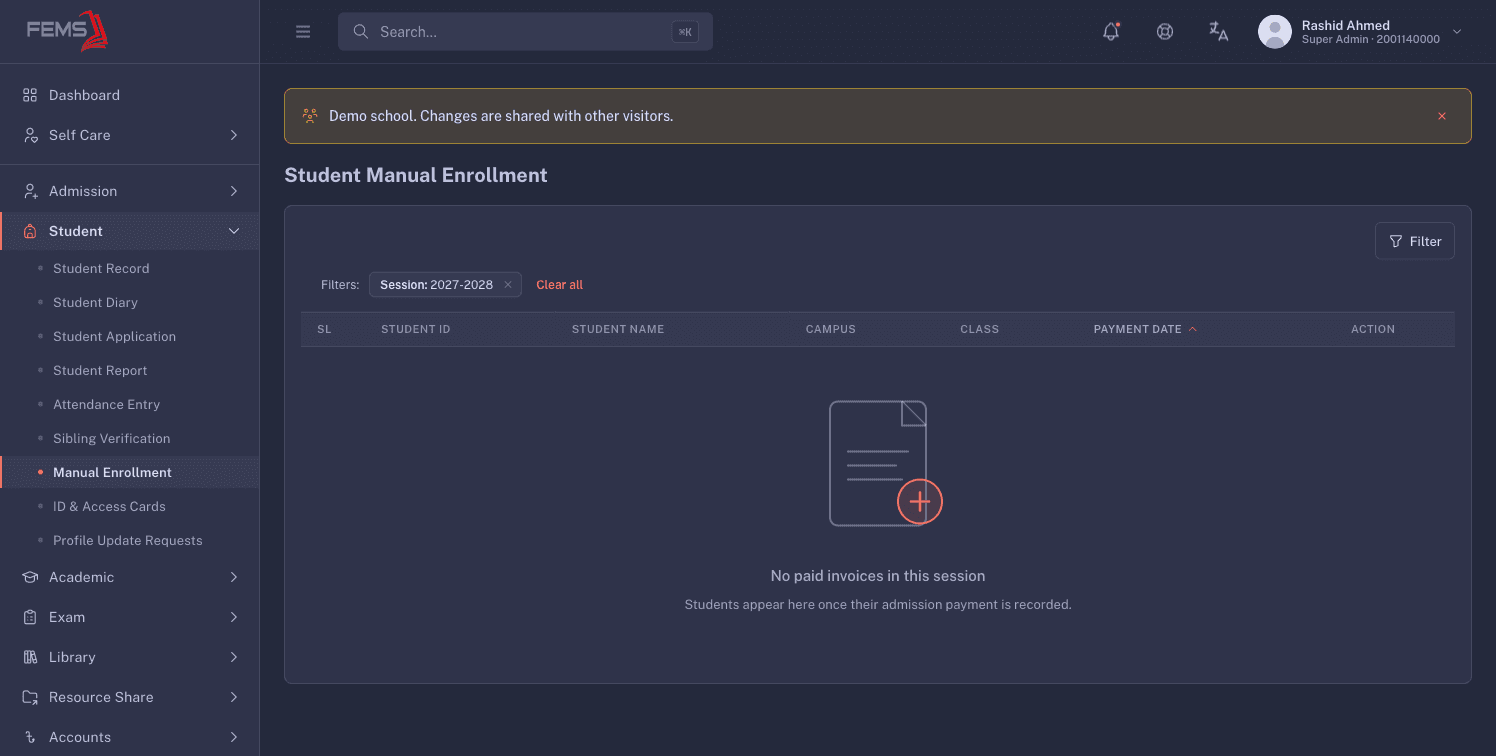
The empty state reads No paid invoices in this session and explains that students appear after their admission payment is recorded.
Open Advanced Filter to narrow the list:
- Session
- Campus
- Class
- Student ID, with Search by student ID
- Student Name, with Search by student name
Click Process to apply them. Reset clears the campus, class, student ID, and name, but keeps the Session, because the list always needs one. Changing the session reloads the list on its own.
The table shows SL, Student ID, Student Name, Campus, Class, Payment Date, and Action. When nothing matches, you see No paid invoices in this session.
Payment Date is the useful column. Work oldest first, so the families who paid earliest are enrolled first.
What you do with the list
Filter to the session and class you are working through, then use the available action on the matching row.
When something goes wrong
"Could not load the manual enrollment list. Please try again." The list did not load. Try Process again. If it keeps failing, raise a ticket.
"Could not load academic sessions. Please refresh the page." The academic year list did not load, so the page cannot filter. Refresh the browser.
A student you know has paid is not listed. Check the Session filter first, since the page picks an academic year for you on load and it may not be the one you want. If the session is right, the payment may have been recorded against a different academic year, which is an accounts question rather than a student one.
The list is empty for a class you expect to be full. The list only holds students with a recorded payment. A class where nobody has paid yet is correctly empty.
FAQ
Does this page enroll anyone? The live table includes an Action column, but the demo had no row to test. Confirm the action before using it on a real student.
Can I export the list? No export or print button was visible in the empty live state.
How is this different from year-end promotion? Promotion moves a whole class up together based on results. This screen is for students being placed one at a time after their payment lands. Promotion is covered in the Academic Rules module.