Taking attendance
Mark a class register for the day, review a month at a glance, and understand why attendance numbers sometimes look wrong.
Attendance Entry is the daily class register. You pick a class and a date, mark who is present, and save. This page covers marking a day, reading a month, and what to check when the numbers look off.
Prerequisites
You need Attendance access to open the page, and Save Attendance access to record marks. Without the save access you can still open a register and look at it, but the Save button will not be there.
You also have to be assigned to the class and section you are marking. A teacher marking someone else's class is refused.
Your class also needs a section. The register is loaded per class and section, so a class with no sections set up cannot be marked.
Marking a day
Go to Student > Attendance Entry.
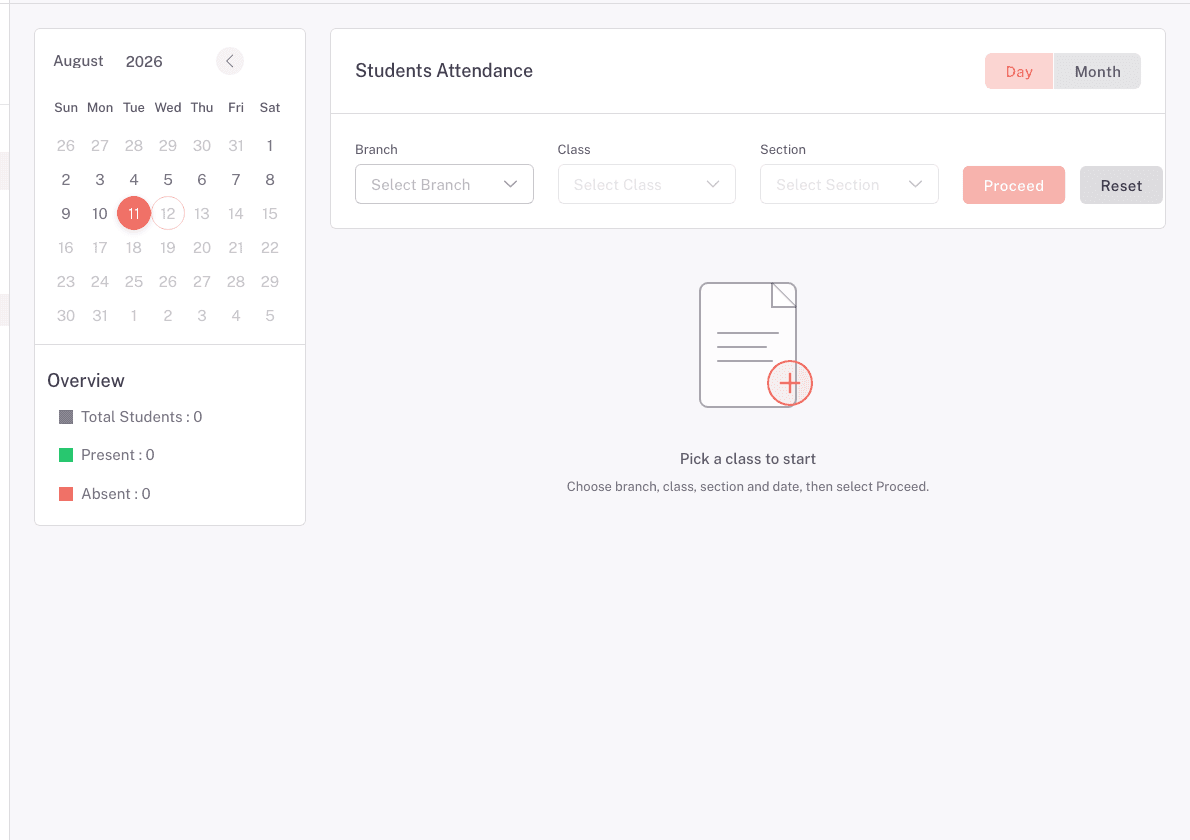
Choose, in order:
- Branch
- Class
- Section
- The attendance date, which defaults to today
Each choice clears the ones after it, so work top to bottom. Proceed stays disabled until all four are set. Click it to load the register.
Keep the Day / Month toggle on Day to mark attendance. Month is a read-only view, covered below.
Marking the students
Everyone starts as absent. On a day nobody has marked yet, every student loads unmarked, which counts as absent. You have to actively mark the students who are there. There is no "nobody was marked" state, so saving a half-finished register records real absences.
Mark students in whichever view suits you:
- List view: flip the switch in the Attendance column on each row.
- Grid view: click P or A on each student's card.
Switch between the two with the view icons.
For a normal day, the fastest route is Present All Students, which marks everyone present, then flip the few who are missing. The master switch keeps itself in sync: it only shows as fully on while every student is marked present.
The Overview panel on the side keeps a running count: Total Students, Present, and Absent, along with the campus, class, shift, and section you are marking.
Click Save. You'll see Saved successfully.
Changing a day you already saved
Load the same class, section, and date again. Your saved marks come back, you change what you need, and you save again. There is no lock on past days and no confirmation prompt.
Be aware that saving replaces that day's register for that class and section. The marks you submit become the whole record for that day, so save a complete register rather than a partial one.
Reading a month
Switch the toggle to Month to see the whole month for a class and section: students down the side, dates across the top, and a marker in each cell.
- P for present
- A for absent
- H for a holiday
Fridays and Saturdays are treated as holidays.
Print opens your browser's print dialog with the grid laid out in landscape. There is no PDF or Excel export here, so print to PDF from the browser dialog if you need a file.
When the numbers look wrong
Most attendance complaints come down to one of these.
A whole class shows absent for a day. Nobody marked that register. A day with no attendance taken is reported as absent for every student, because FEMS has no "not recorded" state. Open the date and mark it properly, or accept it and move on, but do not read it as the class genuinely being empty.
A student's attendance percentage is lower than expected. Same cause, seen from the student's side. Every unmarked day counts against them. Check the Month view for the classes they sit in and look for whole columns of A.
The register is empty. Either the section has no students placed in it for the selected academic year, or you have loaded a class and section combination that doesn't exist together. The page shows No Attendance Found in that case.
"You are not assigned to this class and section." You are marking a class you don't teach. A teacher can only save attendance for their own class and section. Ask an admin to mark it, or to correct the class assignment.
A teacher gets a message about a time restriction, but an admin can save. A school-hours window applies on the older attendance path, which runs from the class's scheduled start time until 5 pm and does not apply to admins. The Attendance Entry page described here does not enforce it. If a teacher hits this, they are marking attendance from somewhere other than this page.
"Class time table not found in class routine." That class has no scheduled period, so FEMS cannot work out when its attendance window opens. Someone needs to add the class to the timetable. This comes from the same older path as the time restriction above.
Students marked by an attendance device don't match the register. Where a school uses attendance devices, the first punch of the day creates the record and later punches do not change it. Saving the register by hand afterwards replaces that day's marks for the class. If device and manual records disagree, the last manual save wins.
What attendance does not do
Parents are not texted when a student is absent. There is no working absence alert today: no setting to switch it on, and nothing sends it. If your school needs to tell parents about an absence, send it through the SMS module.
There is no Late, Leave, or Half-day. Student attendance records present or absent, nothing in between. Late arrival is not a state you can record here. For planned absence, use a leave application on Student applications.
Attendance is not per subject or per period. One register covers a class and section for a whole day.
FAQ
Can I take attendance for a past date? Yes. Load the class, section, and the date you want, and mark it. There is no lock on past days.
Can I take attendance for a future date? No. The date picker stops at today in Day view.
A student transferred into my class mid-month. Will they show for the whole month? The register lists the students placed in that class and section for the selected academic year. Days before their placement have no marks, and the month grid shows those as absent. Read a mid-year joiner's percentage with that in mind.
Can I export attendance to Excel? Not directly. Use Print on the Month view and save as PDF from your browser's print dialog.
Who can see a student's attendance percentage? It is on the Academic tab of the student's record, and students see their own summary in the student portal.
Related pages
Admitting a student and managing their record
Admit a new student through the eight-step form, then keep their personal, academic, guardian, and health details up to date.
Face recognition attendance
Enroll a student's face, run the camera dashboard, and read the recognition log. Includes what face recognition does not do.