Student diary
Write a dated, subject-linked diary entry for a whole section or for named students, and find earlier entries.
The Student Diary records dated notes against a class and subject. An entry can go to every student in a section, or to particular students you name.
Prerequisites
You need Student Diary access to see the list. Adding, editing, and deleting entries are separate accesses again, so you may be able to read the diary without being able to write in it.
Writing an entry
Go to Student > Student Diary and click Add New Diary. The form is headed New Diary.
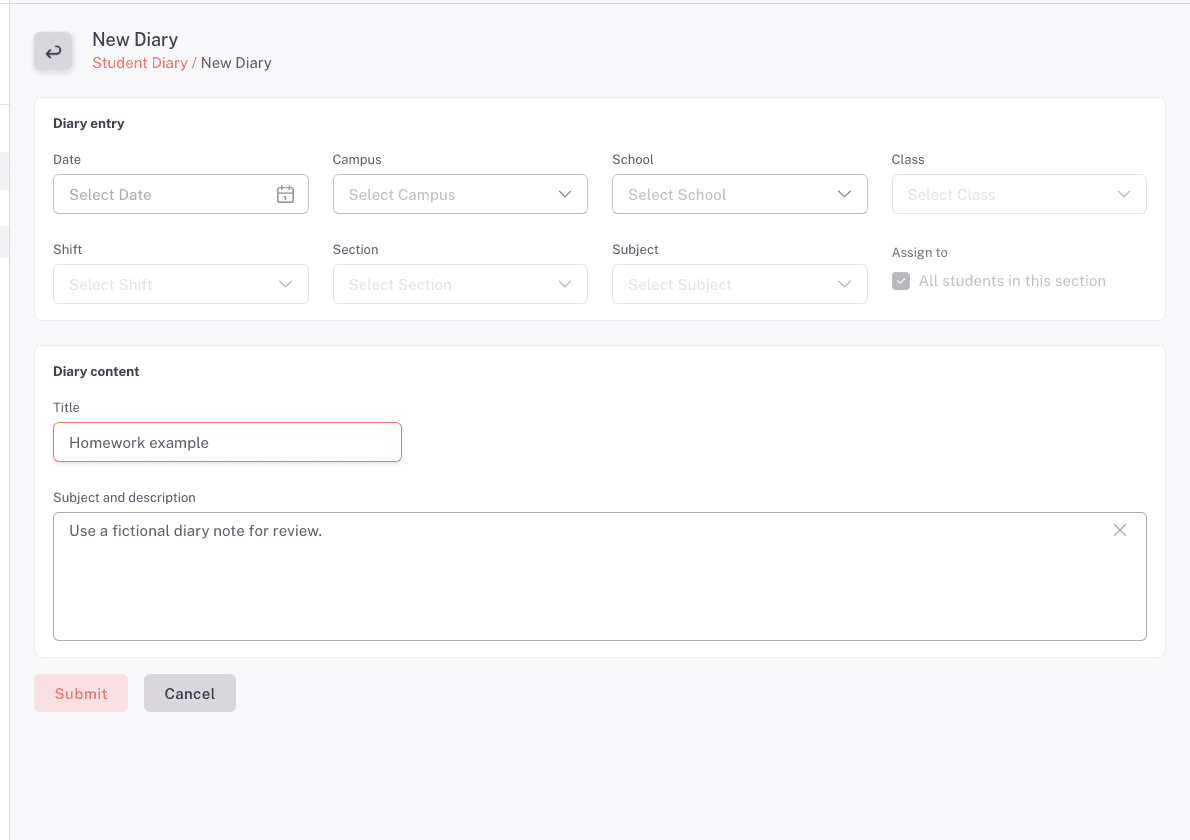
Fill in, in order:
- Date (required)
- Campus (required)
- School (required)
- Class (required)
- Shift
- Section
- Subject (required)
- Assign To: leave All students in this section ticked to give the entry to everyone in that section, or untick it and pick the students it applies to
- Title (required)
- Subject and description (required)
Click Submit. You'll see Diary created successfully.
Write the Title so it is useful in a list, because that is what people scan. "Chapter 4 exercises 1 to 6" beats "Homework".
If the form will not submit, you'll see Please fill out all required fields. Check the required fields above, since a missed dropdown higher up the form is easy to scroll past.
Finding earlier entries
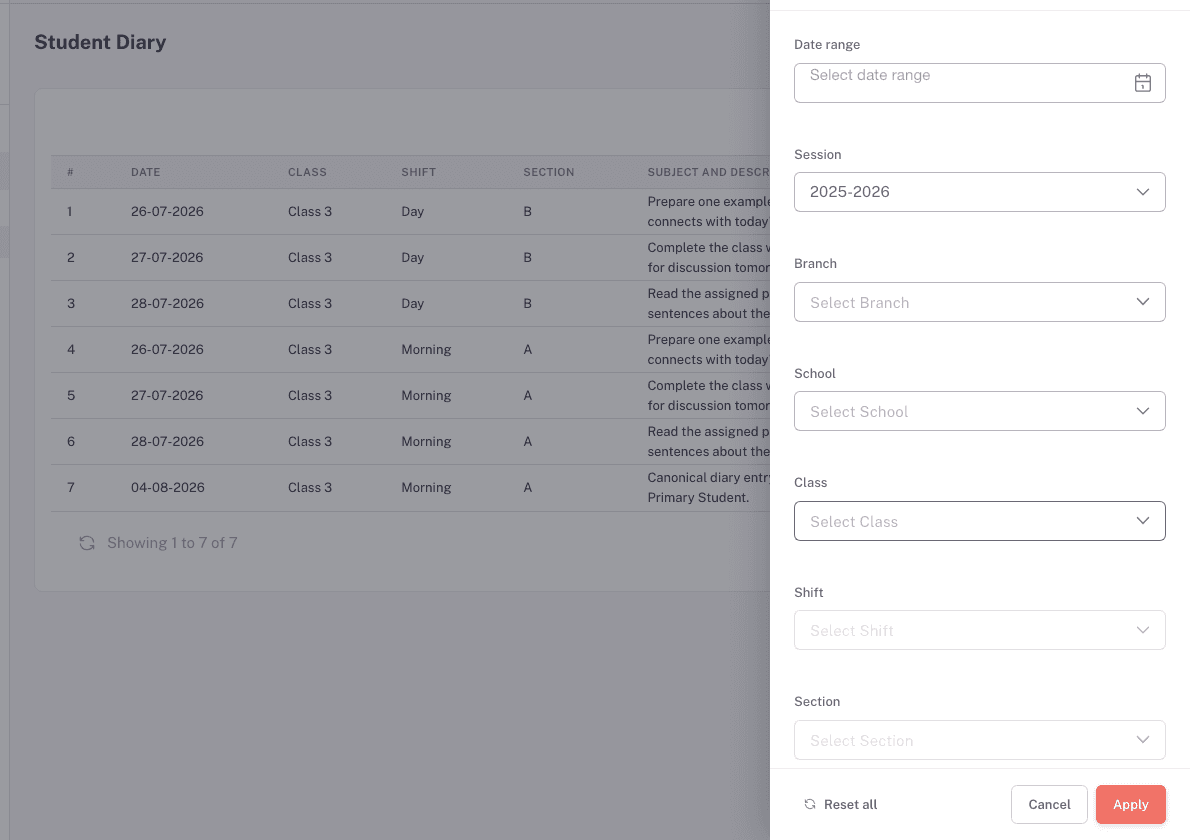
The list page is headed Student Diary List and shows Date, Class, Shift, Section, and Subject & Description.
Open Advanced Filter to narrow by one Date Range, Session, Branch, School, Class, Shift, and Section. Click Apply to run the filters, Reset all to clear them, or Cancel to close the panel without applying changes.
The filter calls the campus Branch, while the New Diary form above calls the same thing Campus. Pick the same place in both.
Each row has up to three icons. View is always there. Edit and delete appear only if you have that access.
Clicking view opens the full entry: Title, Diary Description, Subject, Date, Campus, Shift, Section, Class, and Assigned Students. The assigned students list is how you check whether an entry went to the whole section or only to named students.
Editing and deleting
Edit opens the same form headed Edit Diary, with Update in place of Submit. You'll see Diary updated successfully.
Delete asks Are you sure ? and warns that deleting is not reversible. There is no undo, so use it for entries created by mistake rather than for tidying up old ones. Old entries are the record of what was set and when.
When something goes wrong
"Please fill out all required fields." One of Date, Campus, School, Class, Subject, Title, or Description is empty.
The Shift, Section, or Subject list is empty. Those lists depend on the class above them. Pick the class first, and check the class actually has sections and subjects configured.
An entry is not in the list. Check the Advanced Filter dates. The filter carries a date range, so an entry outside it will not show. Press Reset all, then Apply to reload.
Students say they cannot see the entry. Open the entry and check Assigned Students. If All students in this section was unticked and the student was not selected, the entry never reached them.
FAQ
Can one entry cover more than one section? No. An entry is tied to one class, shift, and section. Create one entry per section.
Can I attach a file to an entry? No. The entry is a title and a description.
Does creating an entry notify anyone? Nothing is sent from this screen. Use the SMS module if a message needs to reach parents.
Can I copy last year's entry? No. There is no duplicate action, so entries are created fresh.