ID and access cards
Print student identity cards and guardian escort cards, one at a time or in bulk.
FEMS prints two kinds of card from the student record:
- An Identity Card the student carries, with their photo and class details.
- An Escort Card the guardian carries, which shows the school who is authorized to collect that student.
Prerequisites
You need access to the ID and access cards screen. You also need a working printer, because cards print through your browser rather than downloading as a file.
Both cards depend on photos already being on the records. An identity card needs the student's photo, and an escort card needs the guardian's photo along with their mobile number and NID. Missing details print as gaps on the card, so check the record before a bulk run.
Finding the cards to print
Go to Student > ID & Access Cards. Two tabs pick how you search.
Advance Filter is for printing a batch: choose Session, Campus, School, Class, Group, Section, Shift, and Card Type. Card Type offers Escort Card and Identity Card. A row can also come back as Solo Card, an older type the filter no longer offers.
Search With ID is for one student, by student ID or name.
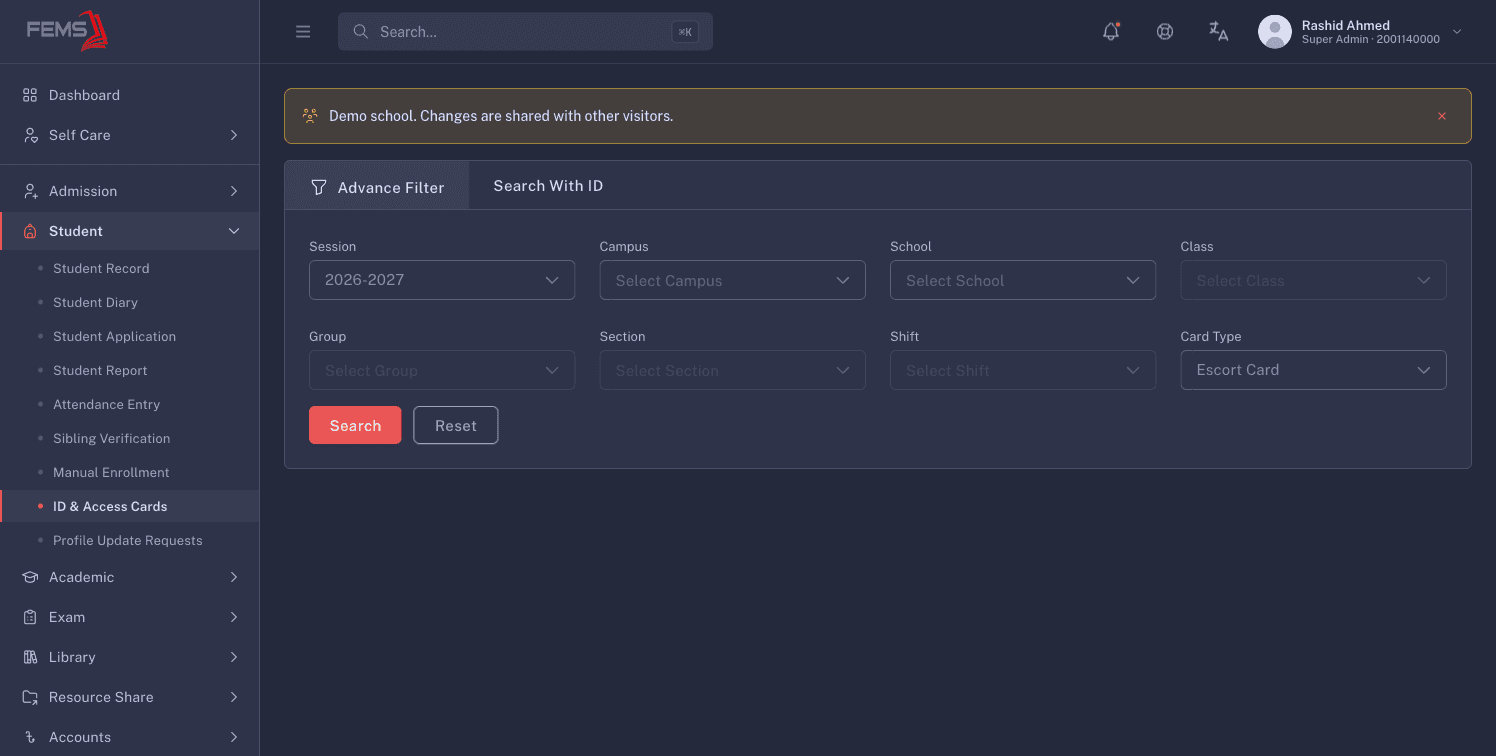
The results table shows Student ID, First Name, Last Name, Guardian's Name, Relation, and Card Type.
When nothing matches you'll see No ID & Access Cards data to display, or No results found for "{query}" after a search.
Checking a card before you print
Click the eye icon on a row. The card opens in a new browser tab exactly as it will print, so you can check the photo and details without using paper.
Close the tab when you're done. Nothing is printed by looking.
Printing
Tick the students you want, or use the select-all box, then click Print ({n}). Your browser's print dialog opens with the cards laid out.
For a single student, the Print button in the Search With ID panel does the same for that one student.
There is no confirmation step. The print dialog opens as soon as you click, so check your selection first.
Escort cards print four to an A4 sheet, front and back, so you can guillotine them. Identity cards print at card size.
Choose "Save as PDF" in the print dialog if you want a file to send to a print shop instead of printing directly.
One rule the screen enforces
Every card in one run has to be the same type. Mixing identity and escort cards in one selection is refused with Please select cards of the same type for bulk printing. Print your identity cards, then your escort cards.
You cannot print an empty selection either way: the print button stays disabled until you tick at least one row.
What is on each card
Identity Card: your school's name and the school tier, the student's photo, their name, their STUDENT ID, and their Session, Class, Roll, and Section, with a line for the principal's signature.
Escort Card: two sides. The front carries the guardian's photo, their relation to the student, their name, Phone, and NID, with the principal's signature. The back carries the student's photo, their student ID and name, and their Session, Class, Roll, and Section.
The escort card exists so whoever is on the gate can match the adult in front of them to the student they are collecting. One card is produced for each guardian authorized to collect that student, so a student with two authorized guardians gets two escort cards.
When something goes wrong
"Student ID not found. Please try again." The search did not match a student. Check the ID, and check the Advance Filter tab is not still scoped to a class the student is not in.
"No student ID found" Different problem, despite the similar wording. The card loaded but has no student ID on it, so there is nothing to print. Check the student record.
"Please select cards of the same type for bulk printing" Your selection mixes identity and escort cards. Split it into two runs.
A card printed with a blank photo. The photo is missing from the record. Add the student's photo from their record, or the guardian's from the Parents tab, then print again.
An escort card is missing the mobile number or NID. Those come from the guardian record. Fill them in on the Parents tab of the student's record.
A guardian who should be able to collect the student has no escort card. Escort cards follow the guardians on the student's record. Add the guardian first.
The card is cut off or the wrong size. Set your browser's print dialog to actual size rather than "fit to page", and check the paper size is A4.
A bulk-printed identity card shows the wrong school logo, or no school name. A known problem. Bulk identity-card printing uses a fixed logo and does not print your institution's name, unlike the single-card preview and print, which take both from your institution profile. Until it is fixed, print identity cards one at a time where the school's identity has to be right on the card. This is worth raising with your FEMS contact rather than working around silently.
FAQ
Can I download the cards as a PDF? Not directly. Choose "Save as PDF" as the destination in your browser's print dialog.
How many escort cards fit on a page? Four per A4 sheet, printed front and back.
Does the card show my school's name automatically? On a single card, yes: it takes your institution's identity from your institution profile, so keep that record accurate. See Setting up your institution profile. Bulk-printed identity cards are a known exception, below.
A student changed class. Do their cards update? The card is generated fresh each time you print, so reprint after any class or section change.