Running attendance reports
Choose an attendance period, review school, section, and student views, and find correction, export, and print controls.
Use Student Attendance Report to review attendance across a period. The page keeps school-wide reporting separate from marking one day's class register.
Prerequisites
You need access to Student > Report > Student Attendance Report. Check Your access on the page before interpreting its scope.
Update attendance requires attendance-update access, and Export requires attendance-report export access. These are separate from permission to read the report. Ask your administrator if either action is unavailable.
Choose the report scope
- Open Student > Report > Student Attendance Report.
- Check Session and the selected period.
- Choose Month, Term, or Session for the period you need.
- Narrow by Campus, School, Shift, or Class where those filters are available.
- Review Overview, Sections, or Students.
The heading is Attendance report. The example account's scope is Whole school; another account can have a narrower view.
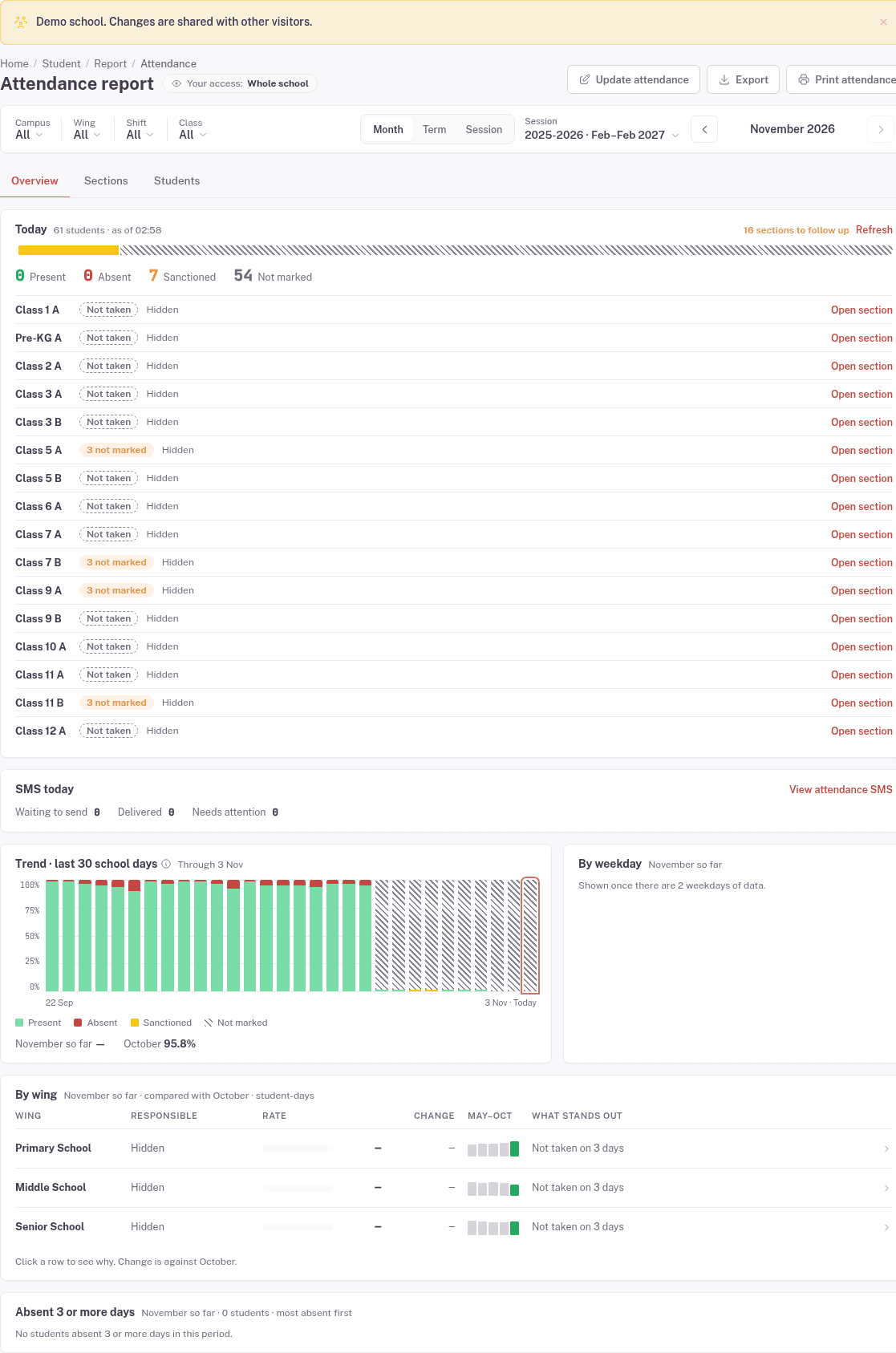
Read the overview
The overview separates today's attendance and follow-up sections, SMS today, a recent trend, and period comparisons. Not marked is separate from Absent.
Use Open section beside a follow-up item to inspect the relevant class context. Check the selected date and period before interpreting a count.
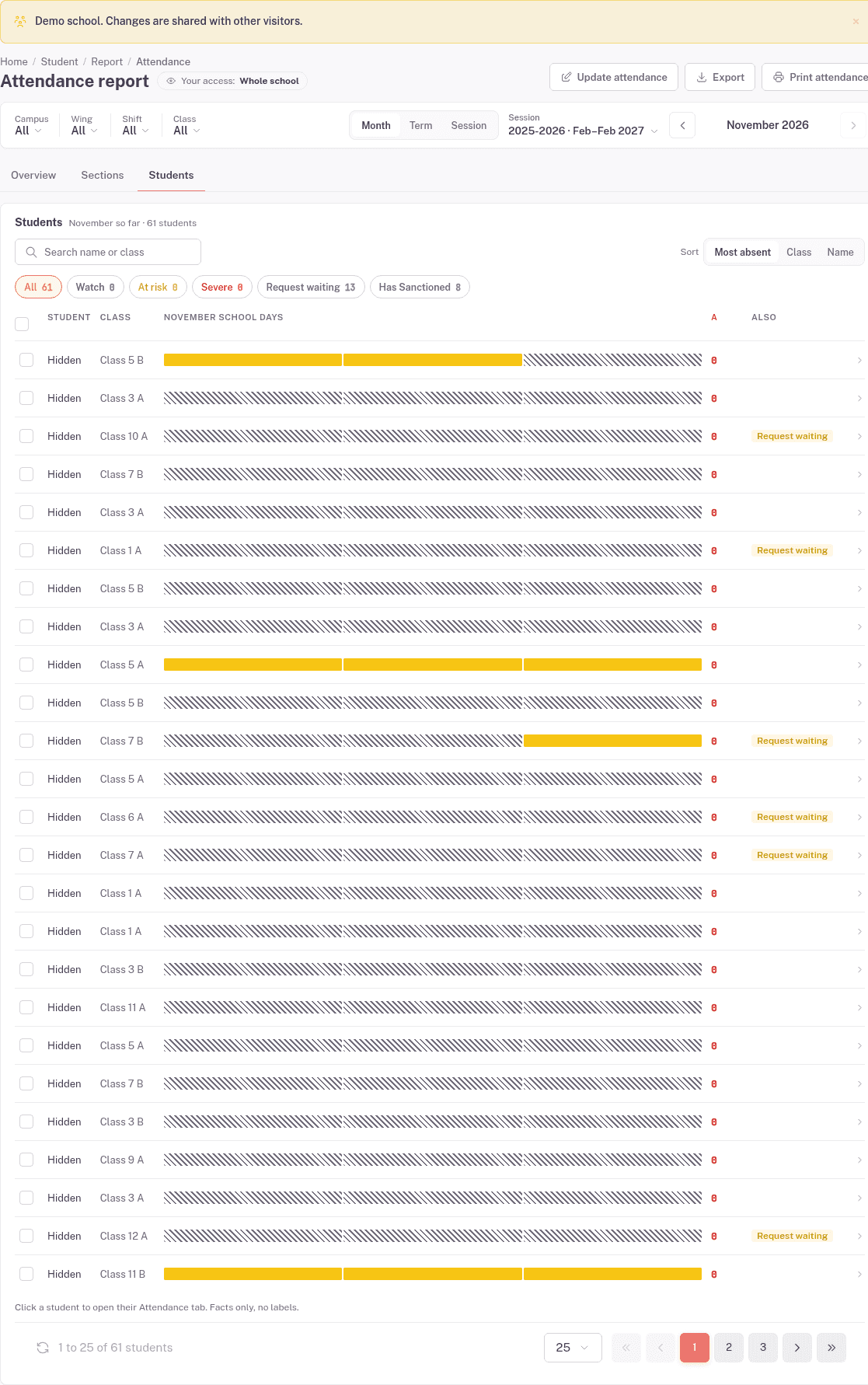
The Students tab shows each student's period strip, absence count, and other flags such as Request waiting. Search by name or class, or sort by Most absent, Class, or Name. The example masks student identities.
Corrections, export, and print
The report offers Print attendance. With the corresponding action access, it also offers Update attendance and Export. These are separate from changing the report period; the Your access label describes which attendance data you can read.
The visible correction panel asks for selected students, a Mark as status, and Dates, then offers Preview changes. Check a correction preview before submitting any change to a student's attendance.
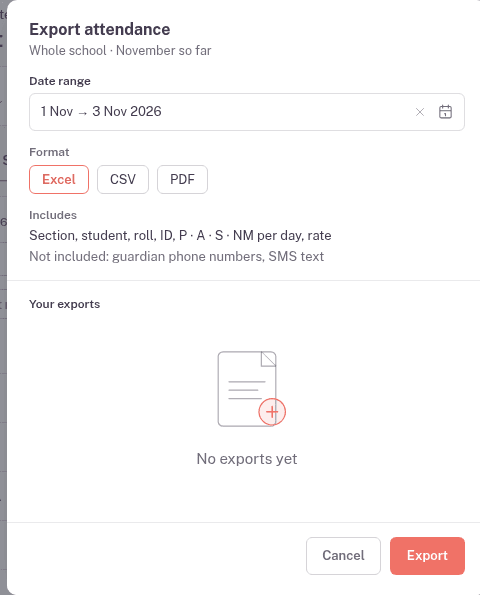
Open Export to check Date range and choose Excel, CSV, or PDF. The panel lists the included attendance fields and says guardian phone numbers and SMS text are excluded. Check the scope before creating a file. Use Cancel to return.
FAQ
Why does my view cover fewer classes than the example? Check Your access and the active filters. Ask an administrator to check your assigned scope if it is not what you expect.
Is Not marked the same as Absent? No. The current register and review keep them separate. See Taking attendance.
Where can I check SMS and device processing? Open Attendance & SMS Health for its school-date monitoring view.