Profile update requests
Review requests to change details on a student record, compare the old and new value, and approve or reject each one.
When a student or their family asks to correct something on the student record, the change does not happen straight away. It arrives here as a request, with the old value next to the new one, for someone in student affairs to check.
Prerequisites
You need access to the student affairs inbox. This is a front-office or student-affairs job.
Working the inbox
Go to Student > Profile Update Requests. The page itself is titled Profile Update Requests (Student Affairs).
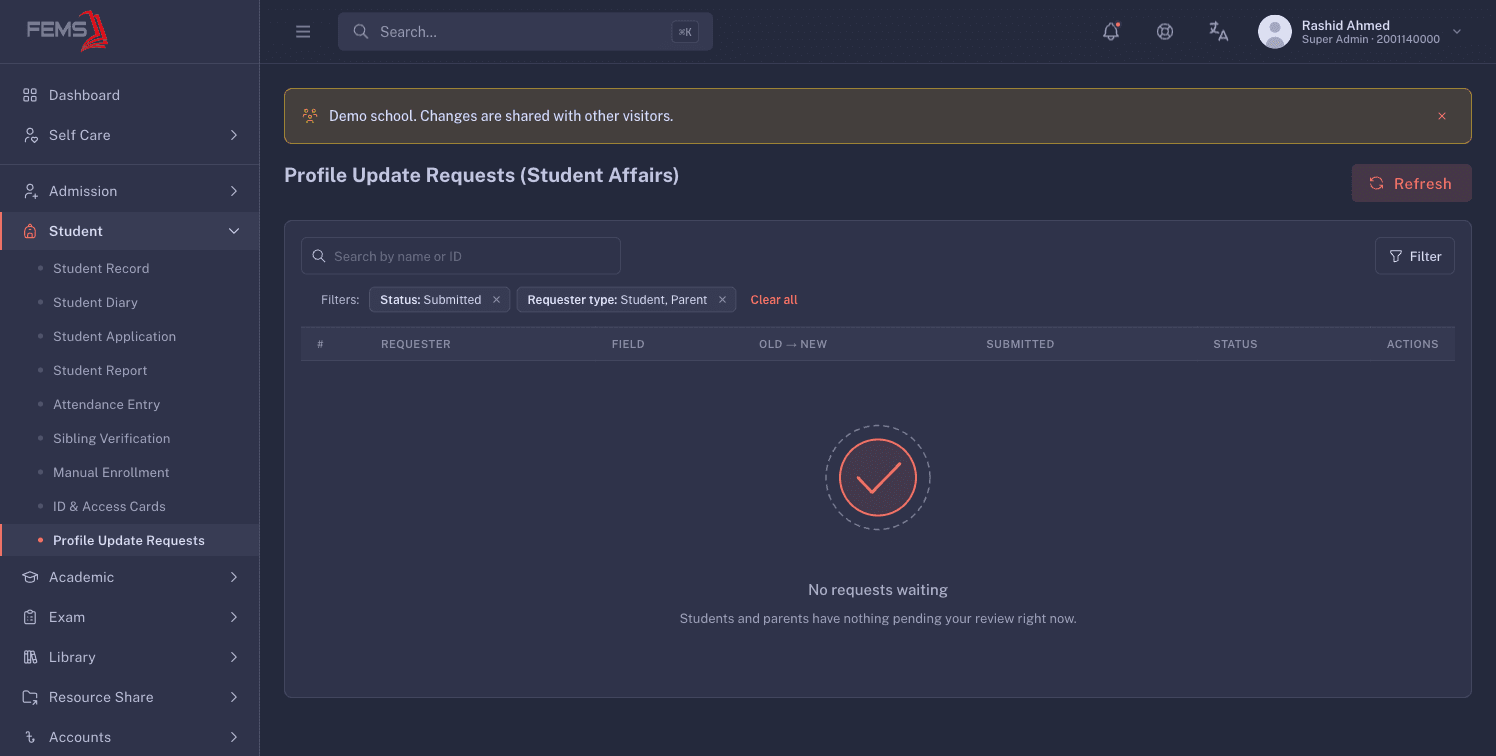
Each row shows:
| Column | What it tells you |
|---|---|
| Requester | Who asked for the change. |
| Field | Which detail on the record they want changed. |
| Old → New | The current value and the proposed one, side by side. |
| Submitted | When it was raised. |
| Status | Draft, Submitted, Approved, or Rejected. |
| Actions | Open the request to decide it. |
When there is nothing waiting, the inbox reads No requests waiting and explains that students and parents have nothing pending review.
Narrowing the list
Filter by Status and Requester type, search, and set a From and To date range.
Filter to Submitted to see just the requests waiting on you. Draft entries have not been submitted yet, so they are not your work.
Deciding a request
Open a request and compare the old value with the new one.
Deciding takes two steps. Pick Approve or Reject, then click Submit decision. Nothing is committed until you submit, so choosing the wrong option is easy to correct before that.
Approve applies the change to the student record. Reject does not, and a rejection needs a reason, so write something the requester can act on. "Send a copy of the birth certificate" is useful; "wrong" is not.
Check the request against a document rather than approving on trust, particularly for a name, a date of birth, or a mobile number. A mobile number is the number the school texts, so an unchecked change can send fee reminders and school notices to the wrong phone.
FAQ
Where do these requests come from? Students and guardians raise them from the student portal. They land here rather than changing the record directly.
Can I edit the requested value before approving? No. You approve what was asked for, or reject it and ask for the right value. If the correct value is obvious and you have the authority, reject the request with a note and make the edit yourself on the student's record.
What does Draft mean? The requester started the request and has not submitted it. Nothing is expected of you until it moves to Submitted.
Does the requester find out what I decided? The status on their request updates, and your rejection reason goes with it. That is why the reason needs to be specific.
A record changed but I never saw a request. Staff with access can edit a student record directly. This inbox only covers changes requested by students and guardians.