Setting up your institution profile and guardian relation types
Maintain your school's identity, contact details, logo, signature, and guardian relation labels.
Use Global Configuration for two school-wide settings: the institution profile and the relation labels used for guardians. This page covers routine maintenance only. It does not cover creating or onboarding an institution.
Prerequisites
You need access to Admin area > Global Configuration. Profile access and relation access are separate, so your tabs and actions may differ from another administrator's.
Prepare approved school identity and contact details before changing the profile. Ask the school administrator responsible for student records before changing relation labels.
Update the institution profile
- Go to Admin area > Global Configuration.
- Open the Institutions tab.
- Open your institution's profile. Platform Super Admins see an institution directory first and use Manage on the correct institution. Do not open or change another institution.
- Review these fields:
- Institution Name
- Subtitle
- Address
- Phone Number
- Mobile Number
- Website
- Fax Number
- Review Logo and Signature & Stamp.
- Click Save Profile only after every visible value belongs to your school.
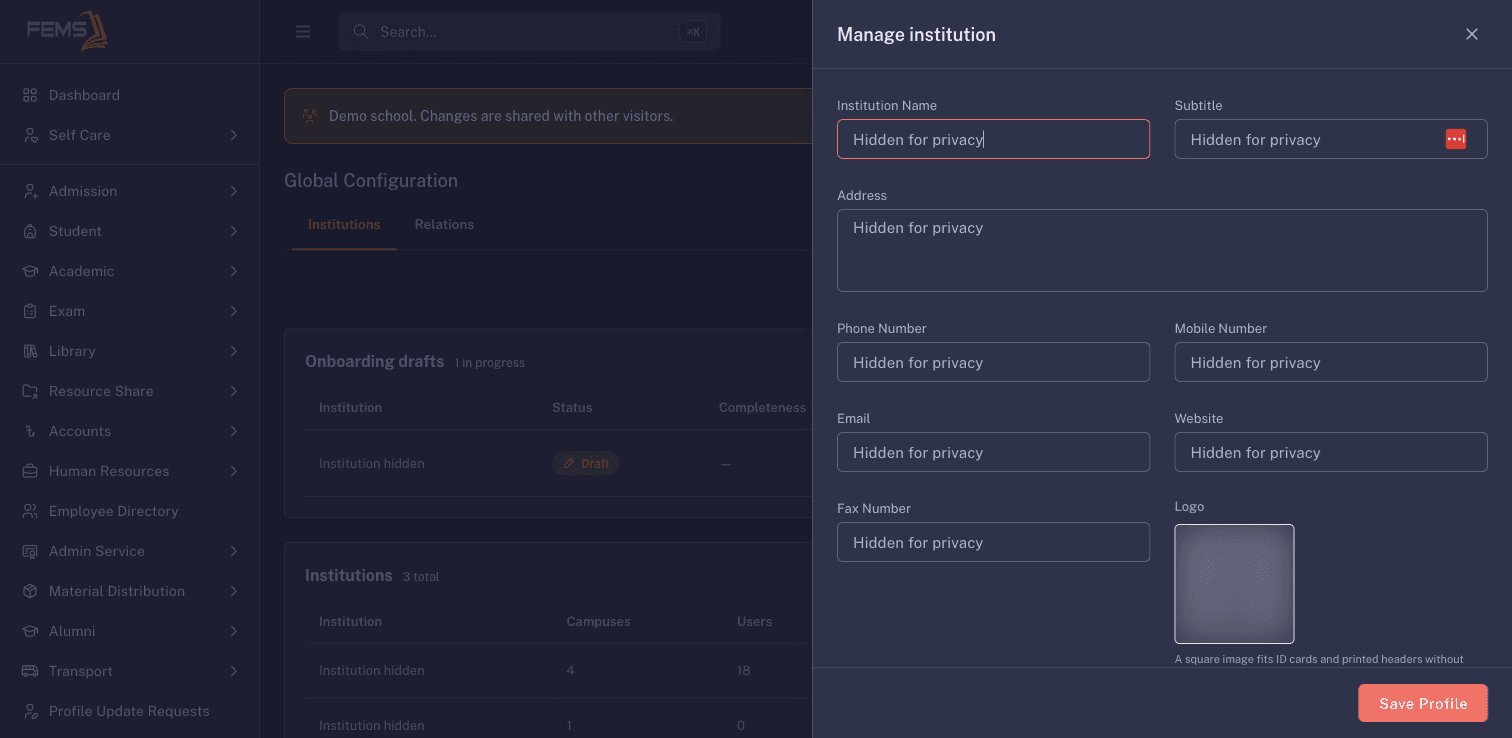
The logo helper asks for a square PNG or JPG up to 1 MB. The signature helper asks for a wide PNG or JPG up to 1 MB.
Do not upload a logo, signature, or stamp from another school. These are identity assets, not decoration.
Check the profile before saving
- Use the school's official name and approved subtitle.
- Check the full address, mobile number, email, and website for typing mistakes.
- Use contact details that the school is ready to publish.
- Preview the square logo and wide signature image without stretching.
- Stop if the profile belongs to a different institution.
Maintain guardian relation labels
- Open the Relations tab.
- Use Search relations before adding a label.
- Click Add New.
- Enter the label in Relation Name. The form shows
Grandparentas an example. - Review the spelling, then use Submit only when the label is approved.
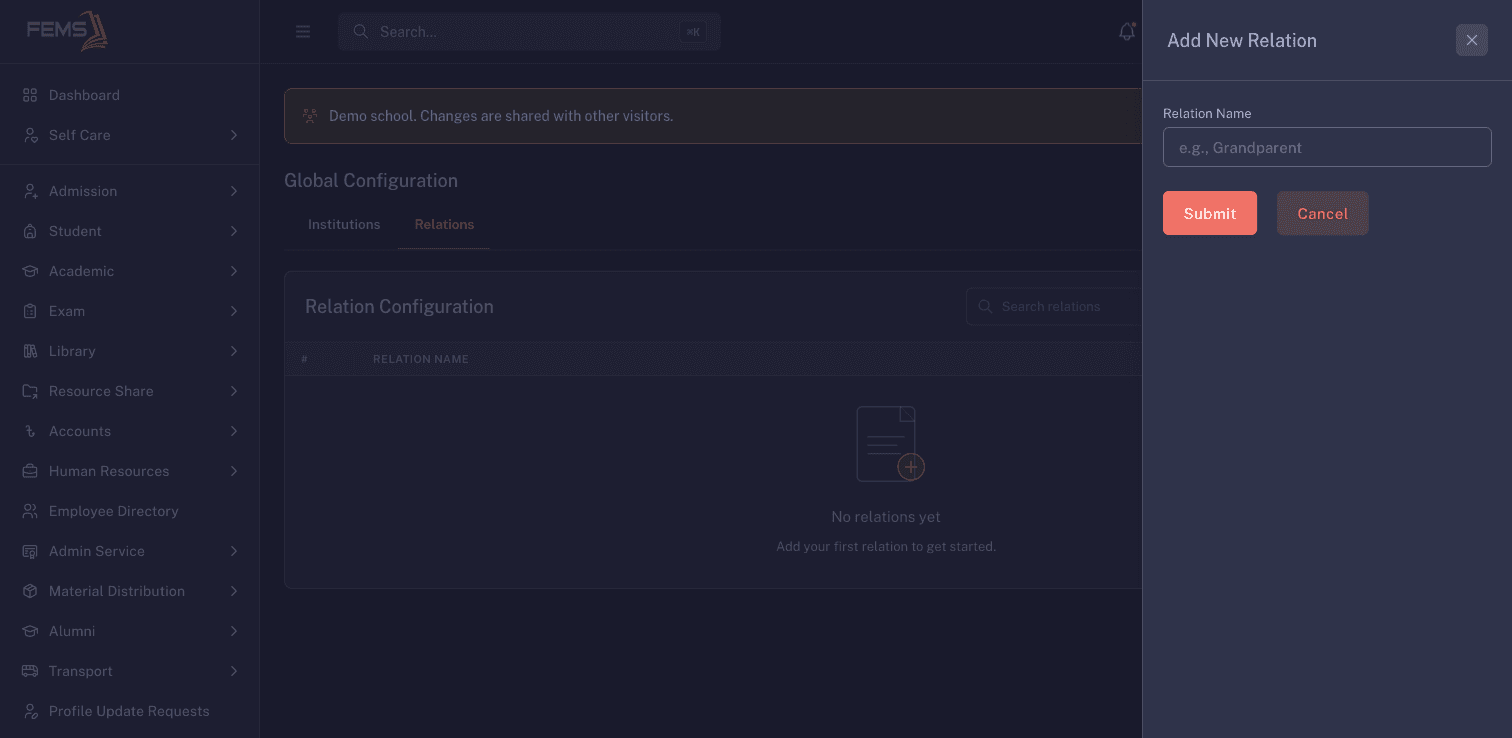
An empty Relations list shows No relations yet. Search before adding the school's first label.
Use short, familiar labels. Search first so you do not create two labels for the same relationship.
FAQ
Why do I see an institution list instead of the profile? Platform Super Admin accounts open an institution directory. Use Manage only for the institution you are authorised to maintain.
What image size should I use? Use a square logo and a wide signature or stamp image. Each file must be a PNG or JPG up to 1 MB.
Should the profile contain a person's private contact details? No. Use school-approved contact details that the institution is ready to publish.
Why is the Relations list empty? No relation labels are configured. Search first, then ask the student-record administrator which labels the school needs.
Can I delete a relation that is already used? Do not remove it until the student-record administrator confirms the effect on existing guardian records.