Collecting payments in bulk
Confirm collection of several recorded service payments together.
After service payments are recorded, front-desk or accounts staff can mark several of those payments as collected together.
Prerequisites
You need permission to view the service collection list and confirm payment collections. Your access also determines which records appear. Ask your administrator to review your permissions if the page or action is unavailable.
What you'll find on this page
Use the payment panel on Creating and managing service requests to record a student's payment first. This collection list shows those paid records. Collect Now marks the selected payments as collected; it does not record another payment or change their amounts.
Finding requests to collect
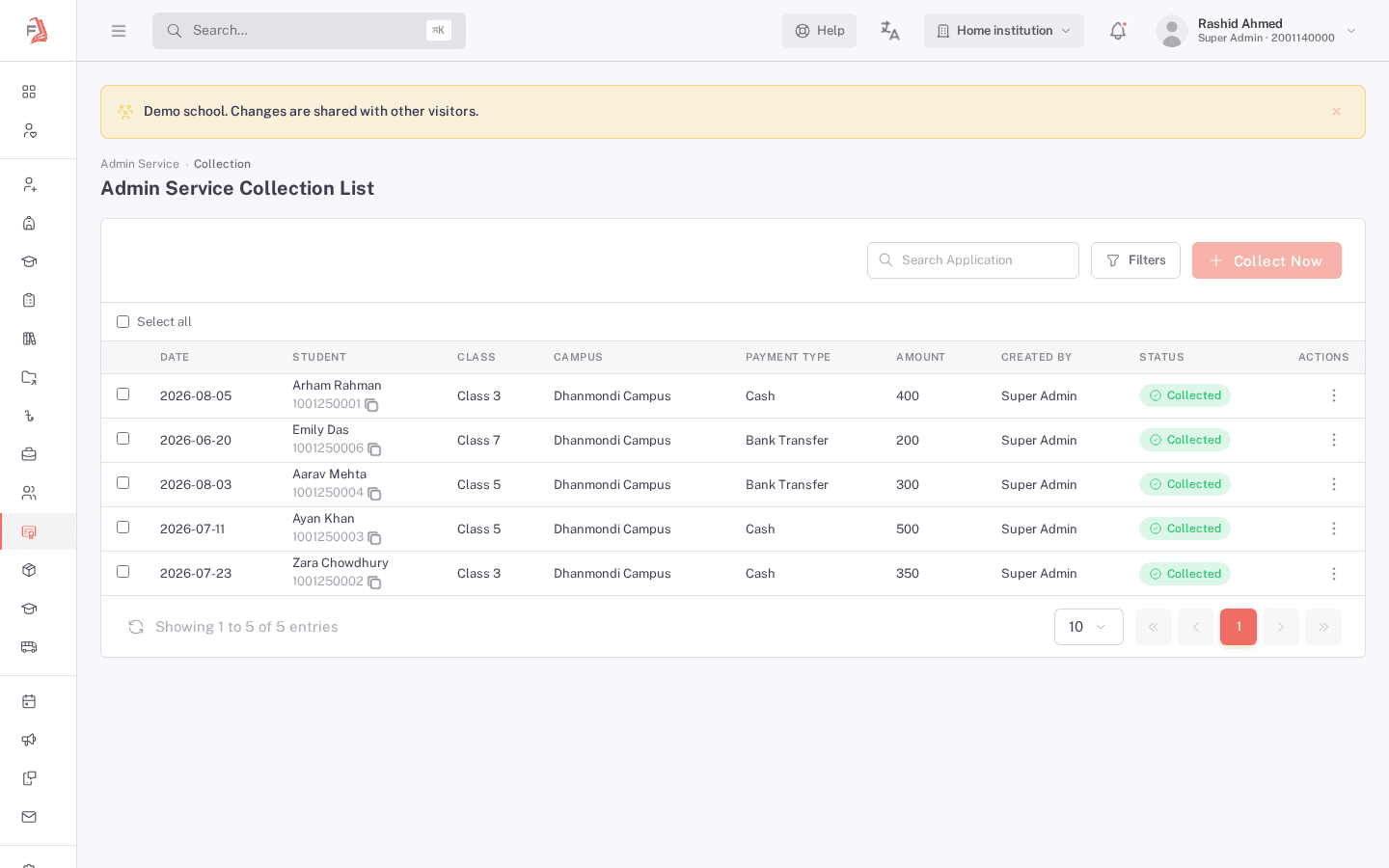
The list shows the paid service records you can access, with date, student, class, campus, payment type, amount, who created it, and status. Use Filters to narrow it down by Session, Campus, School, Class, Group, Section, Shift, or Status, or type into Search Application to find one directly.
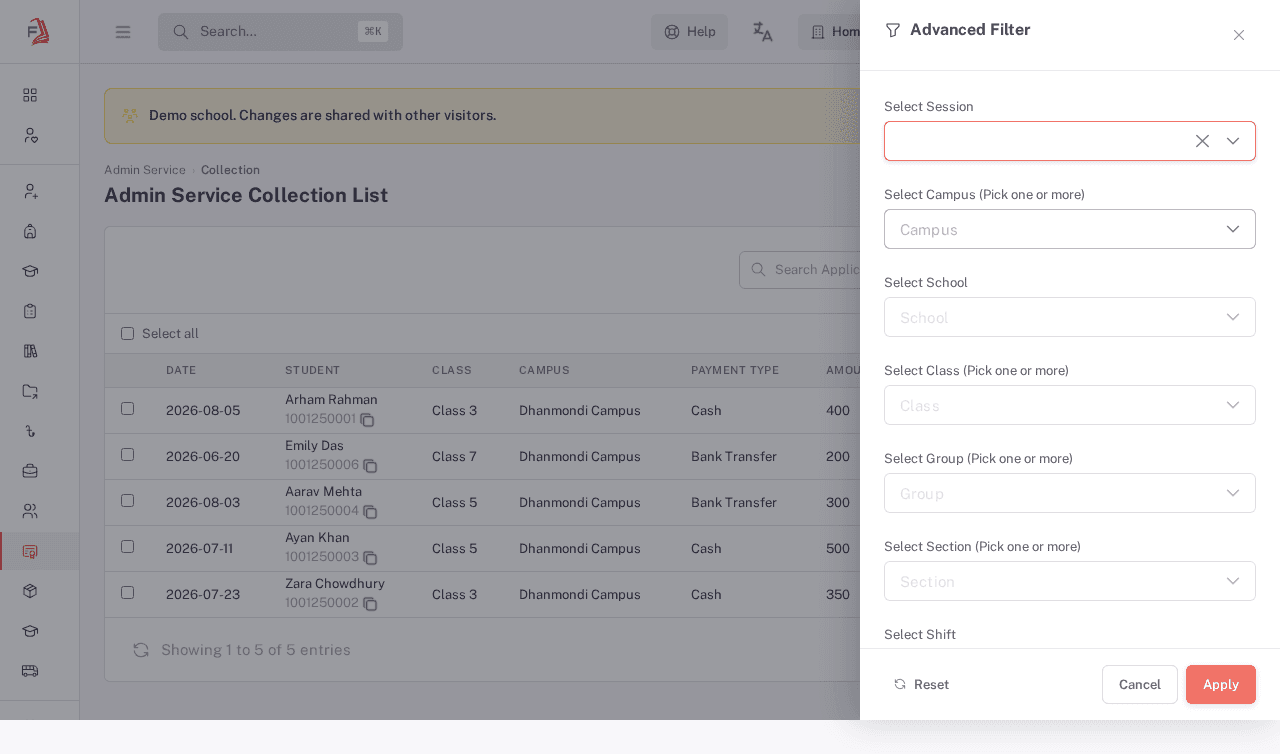
The Status field in this filter panel showed "No data available" when selected live, so it couldn't be confirmed as a working way to narrow the list to only Pending or only Collected requests.
Selecting payments and confirming collection
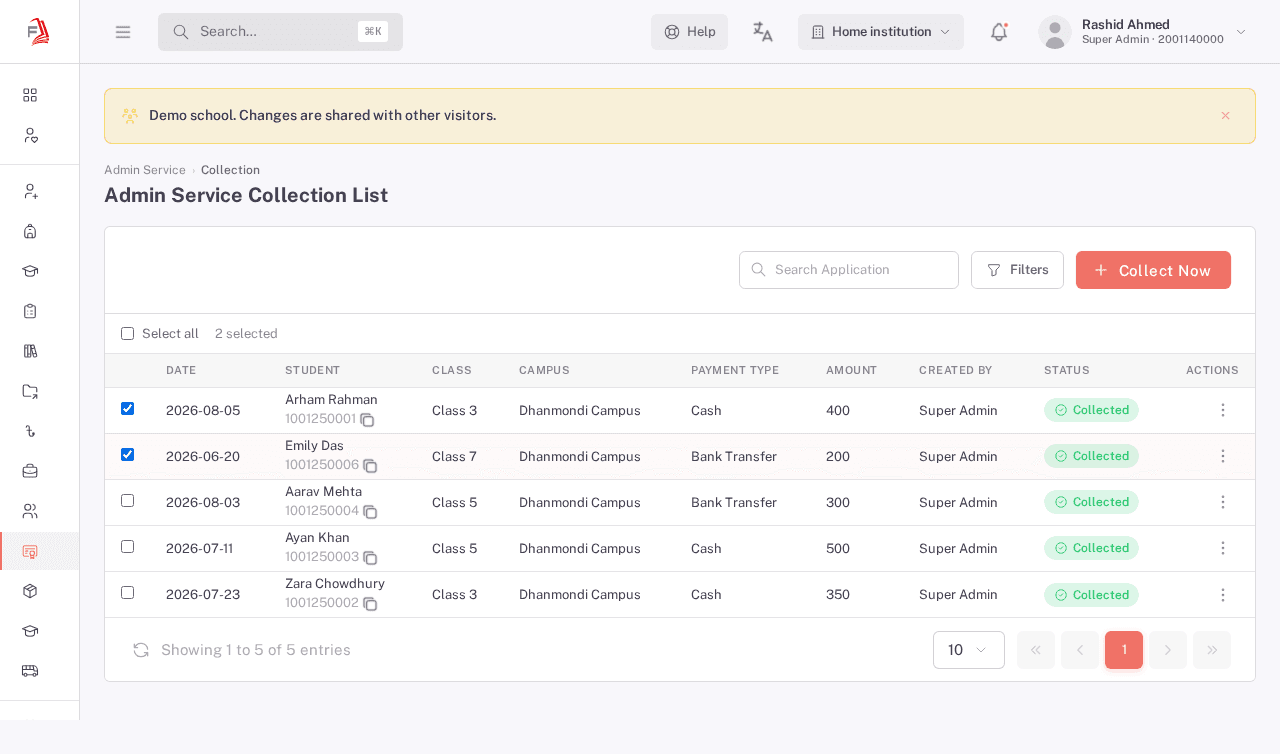
- Tick the checkbox on each paid record whose collection you want to confirm, or tick Select all to select every record on the current page.
- Click Collect Now.
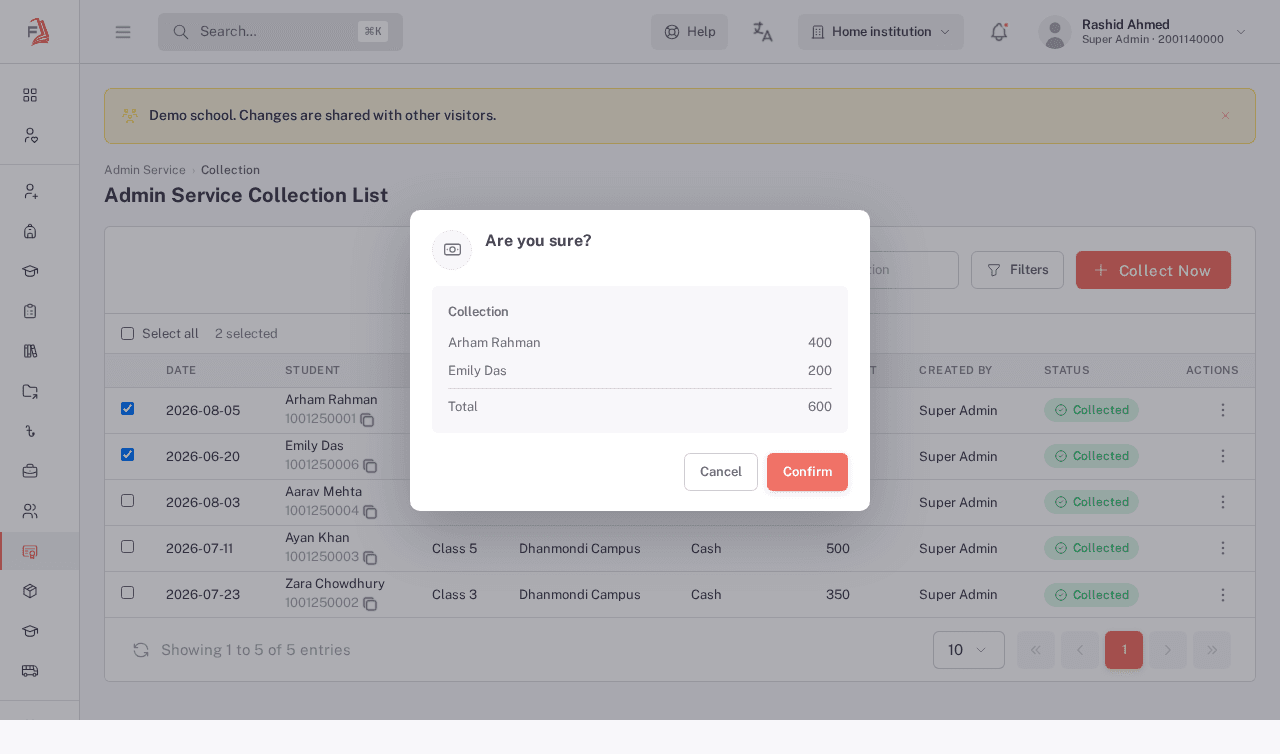
- Review the confirmation dialog, which lists each selected student with their amount and a running total.
- Click Confirm to mark the selected payments as collected, or Cancel to leave them unchanged.
Confirming a valid record that is already marked Collected leaves it collected; it does not create another payment. If any selected record is missing, unpaid, or outside your access, none of the selected records are changed. Refresh the list and review your selection before trying again.
Viewing or reprinting a collected request
Open a request's row actions menu and choose View to jump to its full Service Request detail page, the same page documented on Creating and managing service requests. From there you can see the Money Receipt panel and use its Print button.
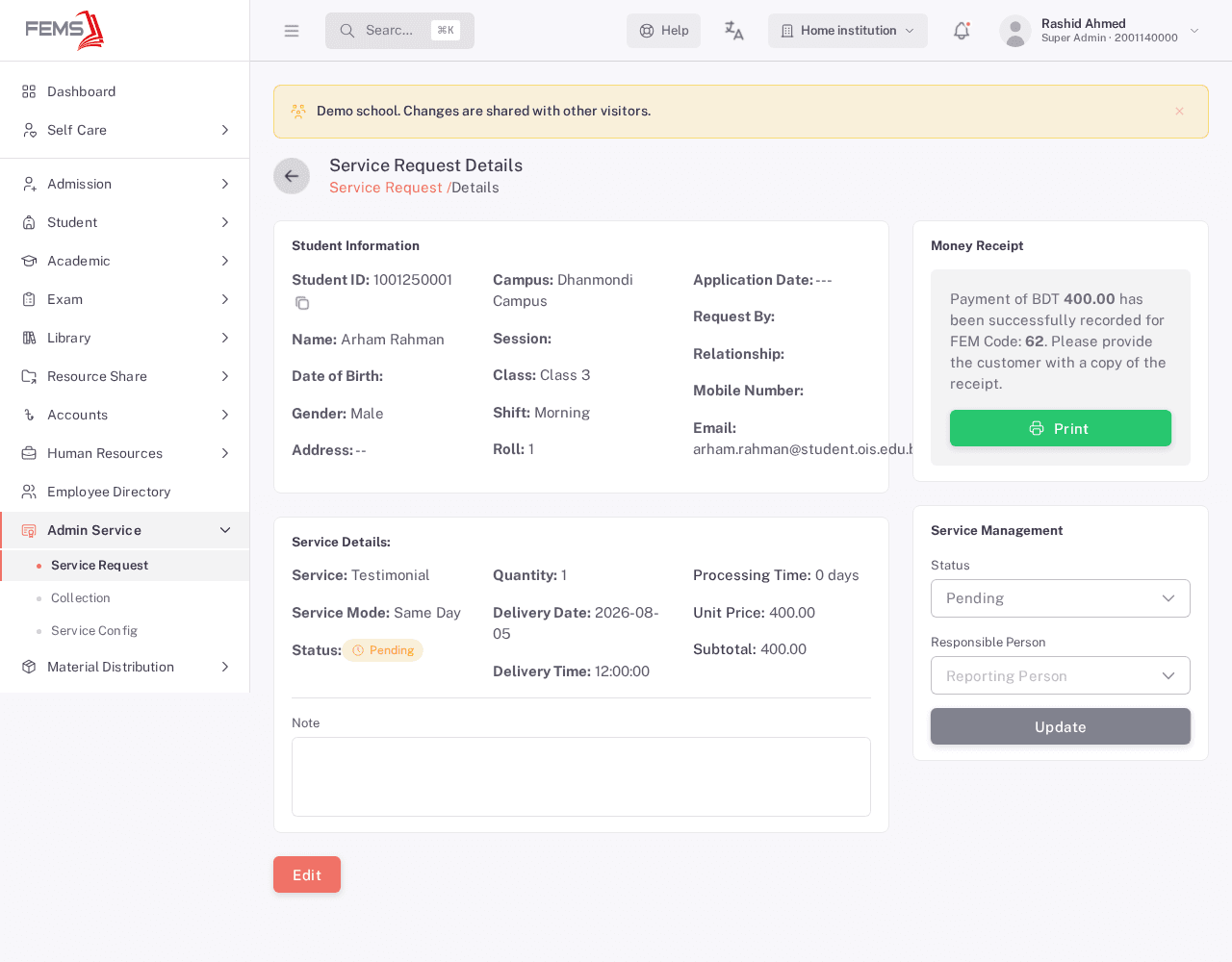
The row actions menu also has a Print Receipt option, meant to print directly from the list without opening the detail page first. Its output wasn't confirmable in this session (see the note below), so if it doesn't seem to do anything, use View and print from the detail page instead.
FAQ
How is this different from collecting payment on a single request? The single-request panel on Creating and managing service requests records the original payment. This page confirms collection of payments already recorded, for several records in one action.
Can I filter to just the requests I still need to collect? Filters cover Session, Campus, School, Class, Group, Section, and Shift. The Status filter didn't return any options in this session, so it's not confirmed as a reliable way to narrow the list to Pending or Collected only.
What if I select a request that's already been collected? Confirming it again leaves the same payment marked Collected. It does not create a duplicate payment. Every selected record must still be paid and within your access, or the whole confirmation is rejected.
Can I select requests across more than one page of results? Only rows on the currently loaded page can be checked, since Select all selects rows on the current page. Use Filters or Search Application first to bring the requests you want onto one page.
How do I get a copy of the receipt after collecting? Open View from a row's actions menu to reach the detail page's Money Receipt panel and its Print button. There's also a Print Receipt shortcut in the row's actions menu meant to print directly, though its output wasn't confirmable in this review, so View is the more reliable route for now.
Who can reach this page? You need permission to view service collections. Confirming collections requires its own permission. Ask your administrator to review your access; a front-desk or accounts job title alone does not grant it.