Checking attendance
Check daily attendance, monthly percentages, leave status, and a printable attendance report.
Students and guardians can check attendance by academic session and month. Guardians see the record for the child they selected.
The screenshots below use fictional local guardian and student records. The filters, summary, calendar, list, and leave-detail flows were verified in the running Student Panel.
Prerequisites
- Sign in with a student or guardian account.
- Guardians must select the correct child.
Check a monthly attendance record
- Open Learning > Attendance.
- Select the academic session.
- Select the month.
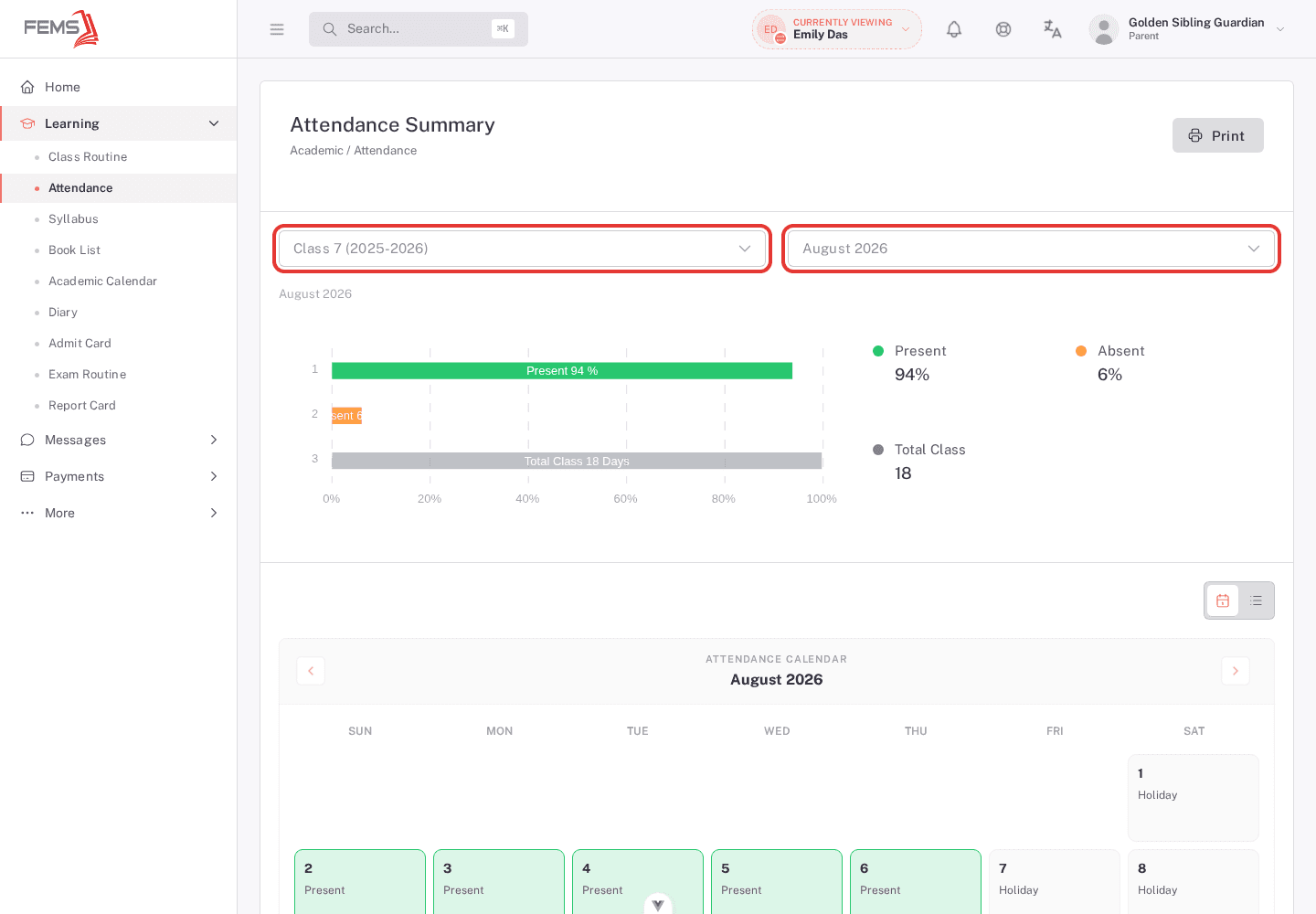
- Read Present, Absent, and Total Class above the attendance record.
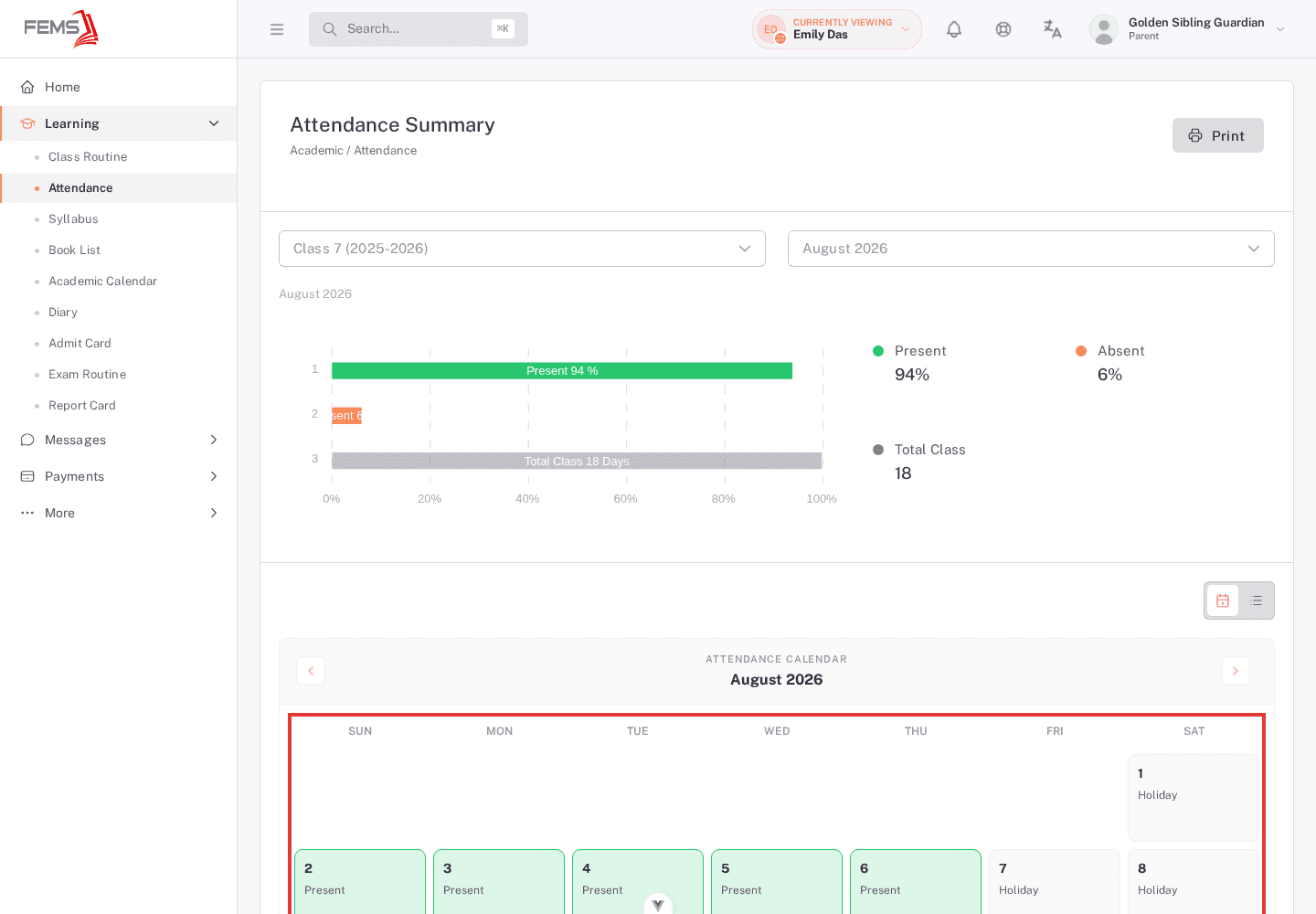
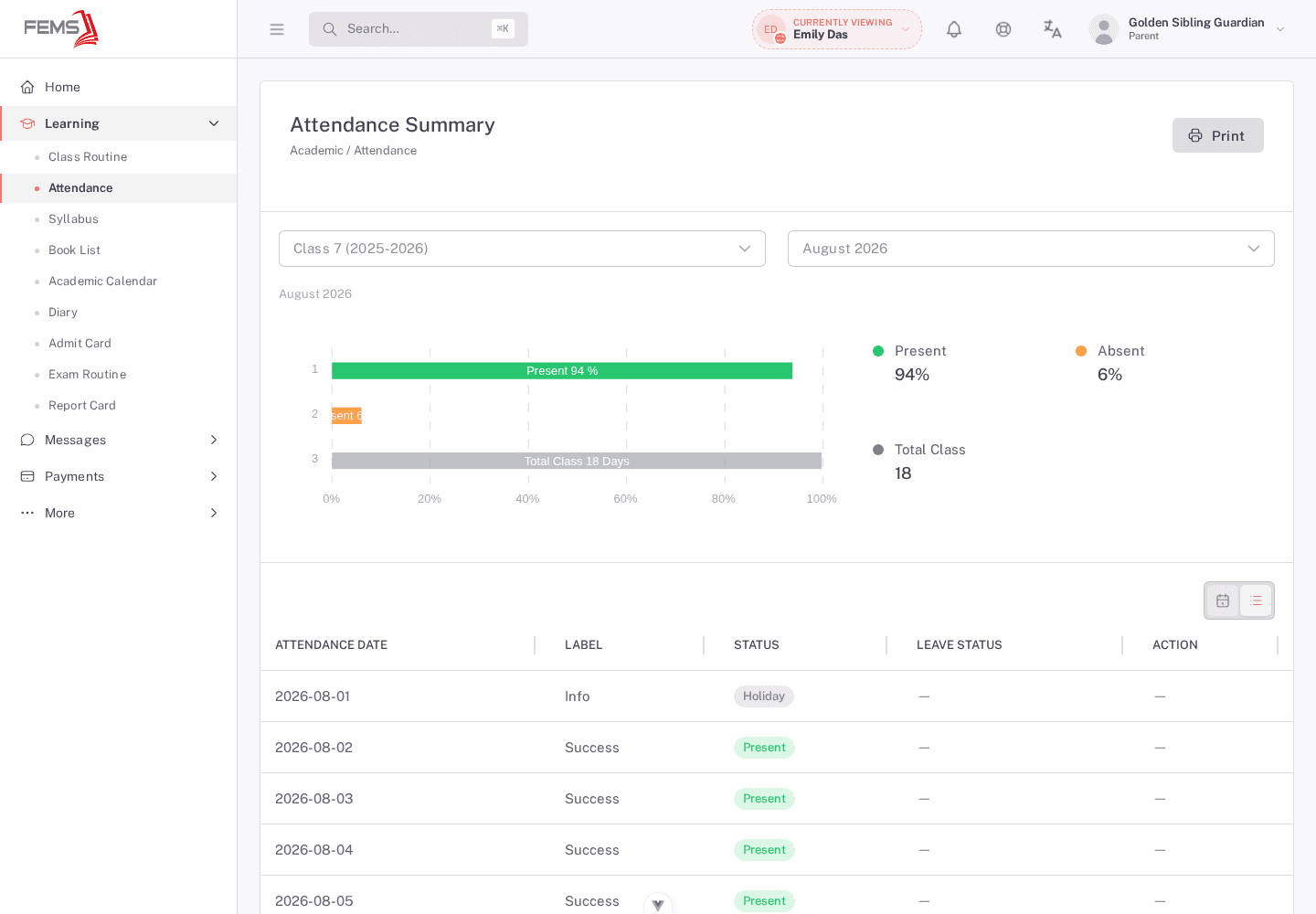
- Use the calendar button for the monthly grid, or the list button for dated rows.
- Select the previous or next month when those controls are available.
Read leave information
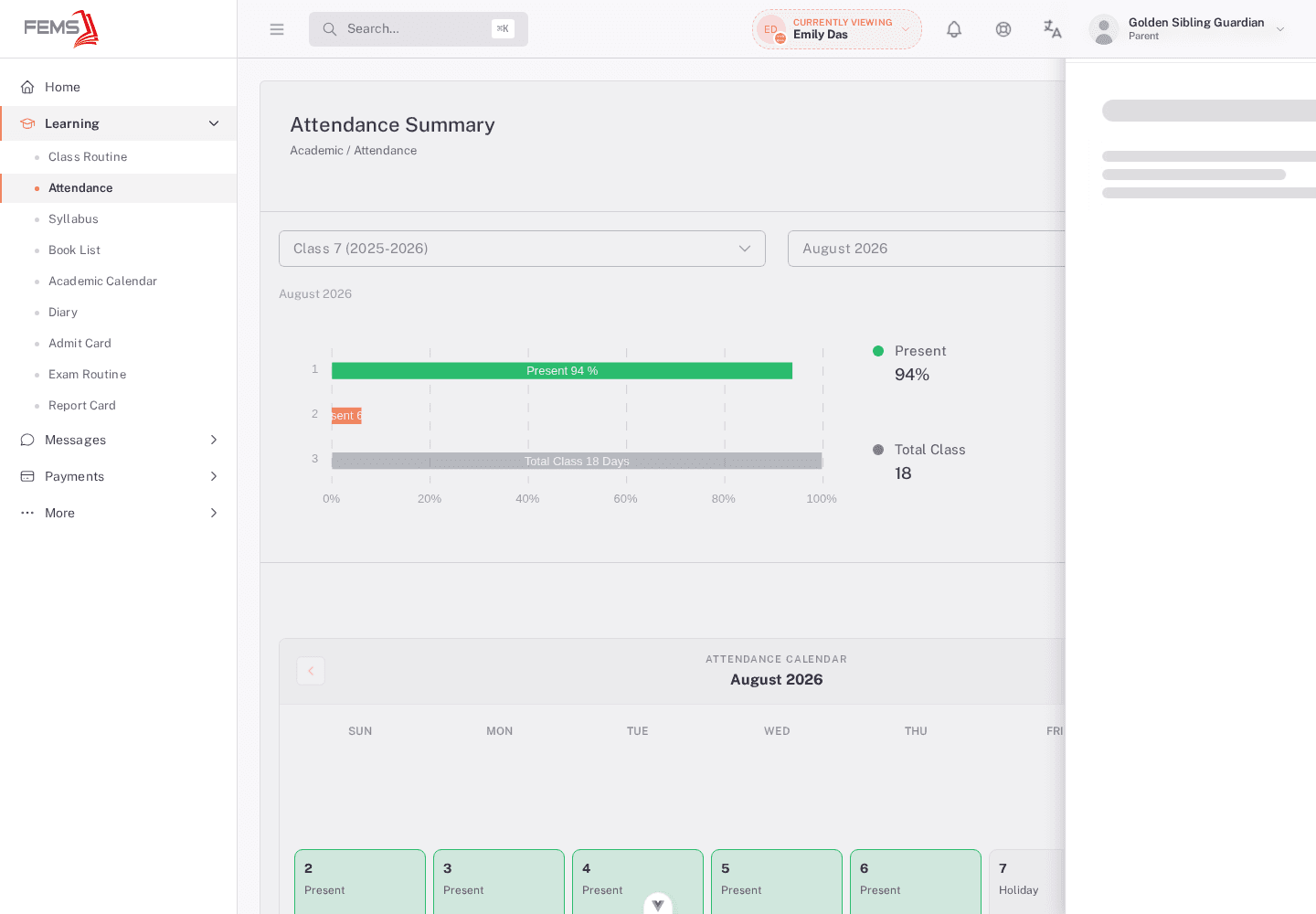
A date with a leave application shows its leave status. Select the status to open the application details. The page can show the date range, number of days, reason, status, submitted date, remarks, and attachments when those values exist.
Print attendance
- Select Print.
- Allow pop-ups if the print window does not open.
- Check the student, month, percentages, and rows before printing.
Frequently asked questions
Why is the attendance page empty?
Check the academic session and selected child. The school may not have attendance records for that month.
What should I do if a date is wrong?
Contact the class teacher or school office. Apply for leave only when the absence needs a leave request.