Applying for student leave
Submit a single-day or multi-day leave request and check its status from Attendance.
Students and guardians can submit a leave request from a date in the attendance record. Guardians can apply for a linked child.
The screenshots below use fictional local guardian and student records. A disposable single-day request was submitted to verify the rendered form and pending status. No personal attachment was used.
Prerequisites
- Open Learning > Attendance.
- Select the correct academic session and month.
- Guardians must select the correct child.
Submit a leave request
- Find the date in the calendar or list.
- Select Apply.
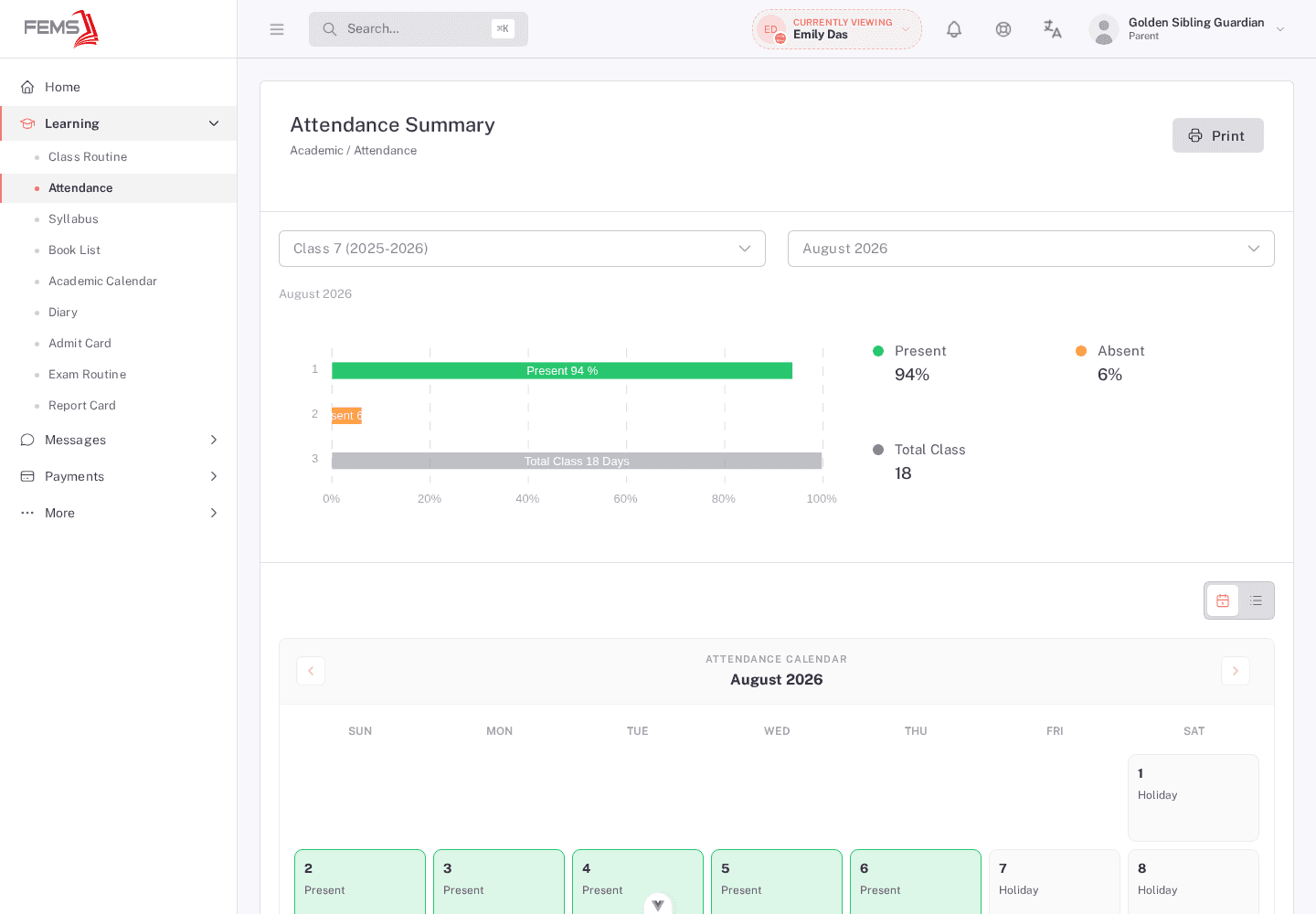
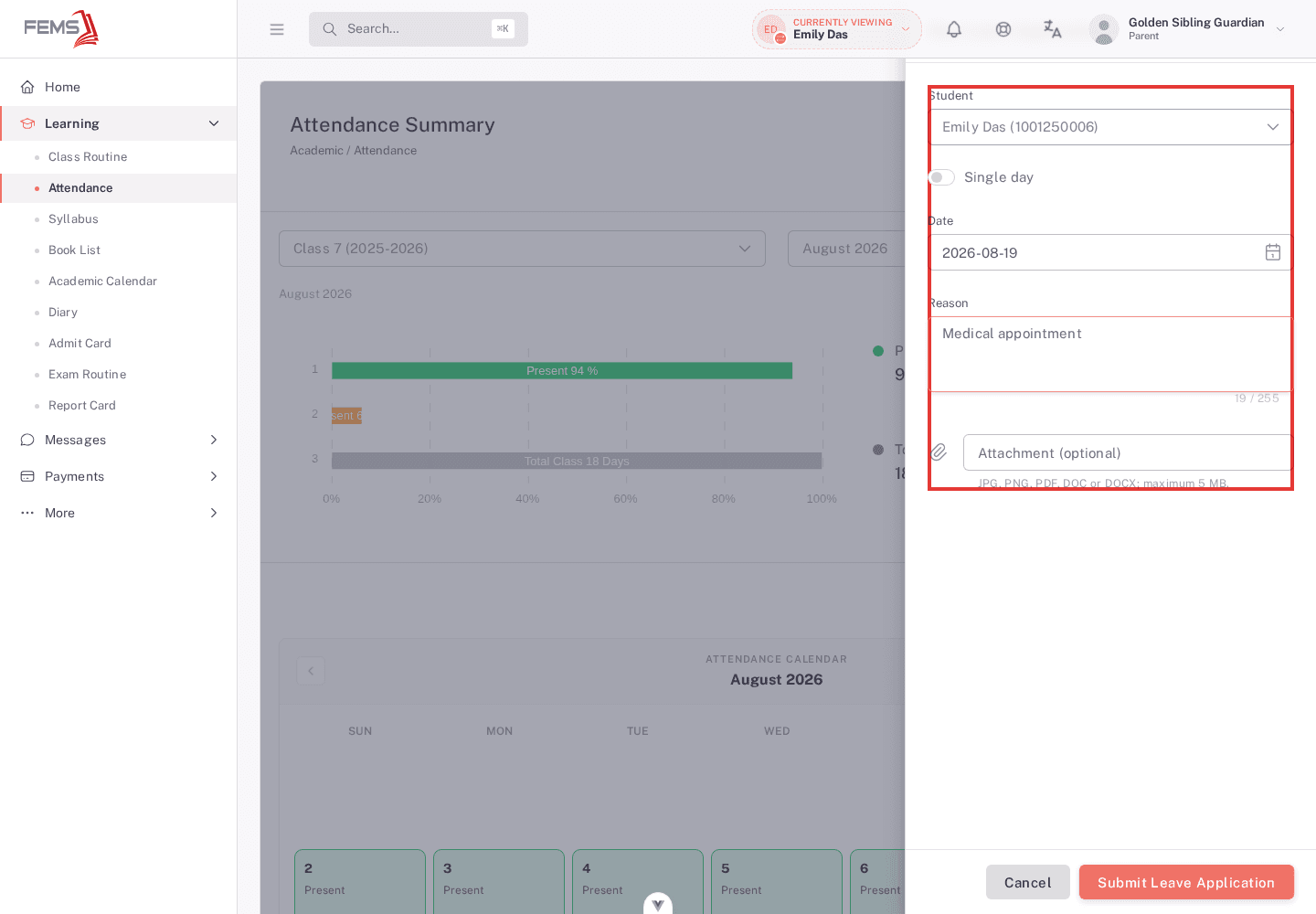
- Check the student shown in Apply for Leave. Guardians with several linked children can select a student.
- Keep Single Day for one date, or switch to Multiple Days.
- Select the date. For multiple days, select From Date and To Date.
- Add the reason. The reason can contain up to 255 characters.
- Add one JPG, JPEG, PNG, PDF, DOC, or DOCX attachment when supporting evidence is needed.
- Review the student, dates, reason, and attachment, then select Submit Application.
Check the application
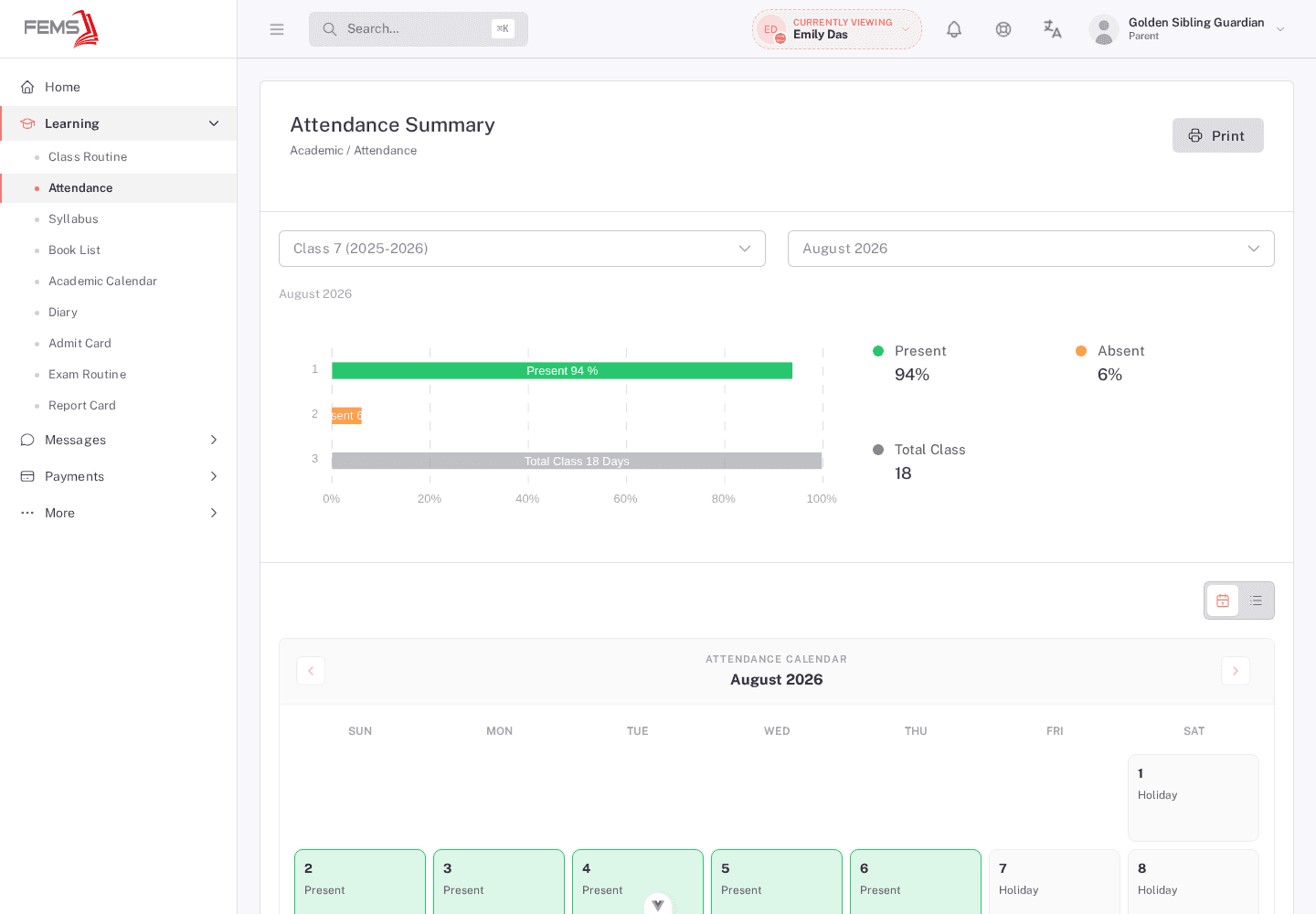
- Return to Learning > Attendance.
- Turn on Leave Applications.
- Find the date range and application status.
- Select the eye button to read the details, remarks, and attachment.
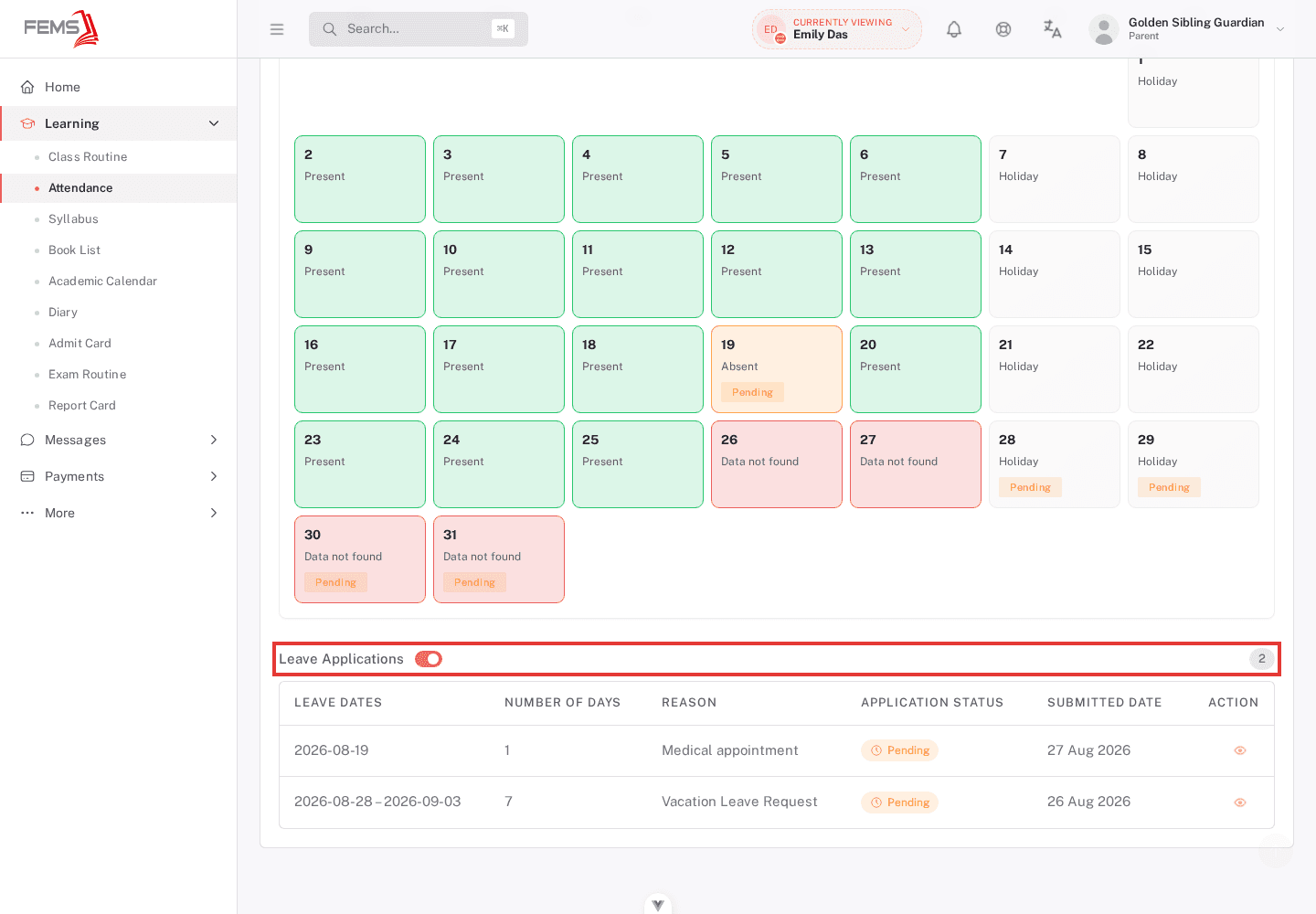
The current portal provides submission and viewing. It does not show an edit, cancel, or withdraw action in this workflow.
Frequently asked questions
Can I submit a second request for the same dates?
The server checks for overlapping active applications. Review the existing request before trying again.
Who approves the request?
Your institution sends the request through its student application review process. Ask the school office when a request stays pending.