Students & Guardians
Requesting school services
Request an institution service, check its fee, and follow the request status.
Institutions can offer paid or unpaid services through the portal. The available services, modes, prices, and processing times come from your institution.
The screenshots below use a disposable request created for a fictional local guardian fixture. No real student or institution record was changed.
Submit a service request
- Guardians: select the correct child.
- Open More > Admin Services.
- Review existing requests and their payment state.
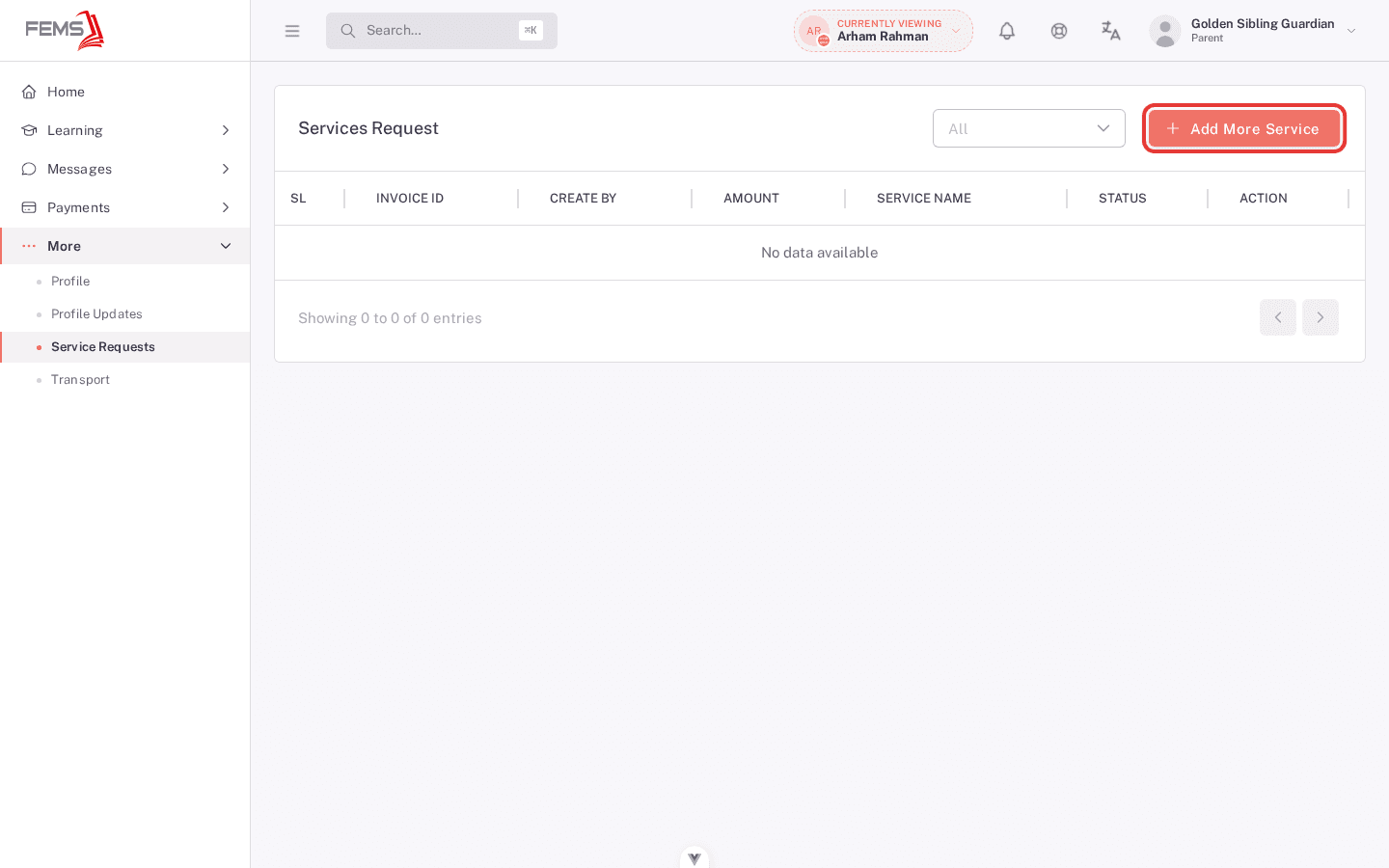
- Select Add More Service.
- Select the service.
- Select the Service Mode. Times fills in automatically from that mode. Select a Quantity and add an optional Comment.
- Review the displayed price. Use Add Another Service to request another service. Each service card creates a separate request when you submit.
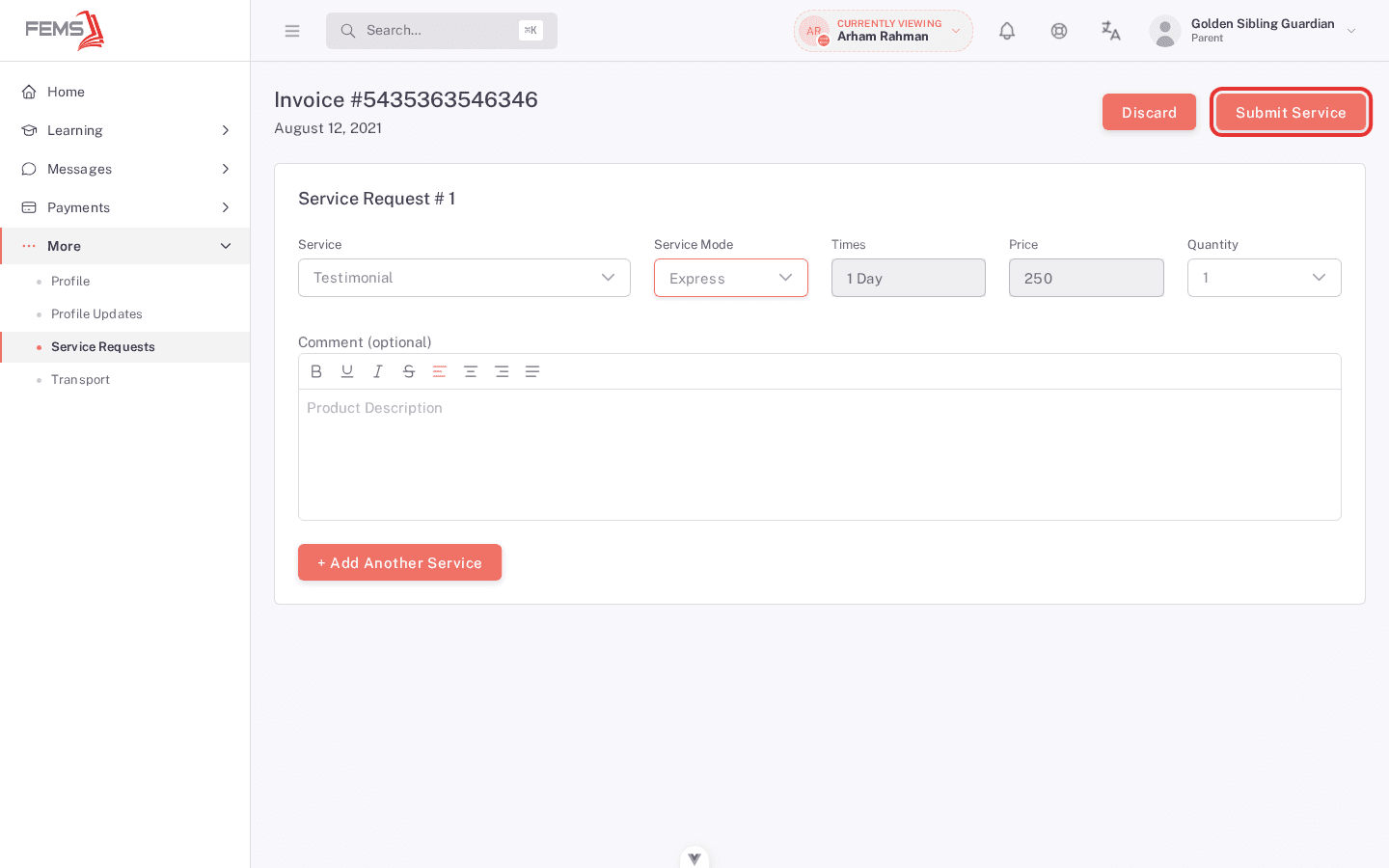
- Confirm that Times and Price are populated, then select Submit Service. If either is blank, stop and contact the school office.
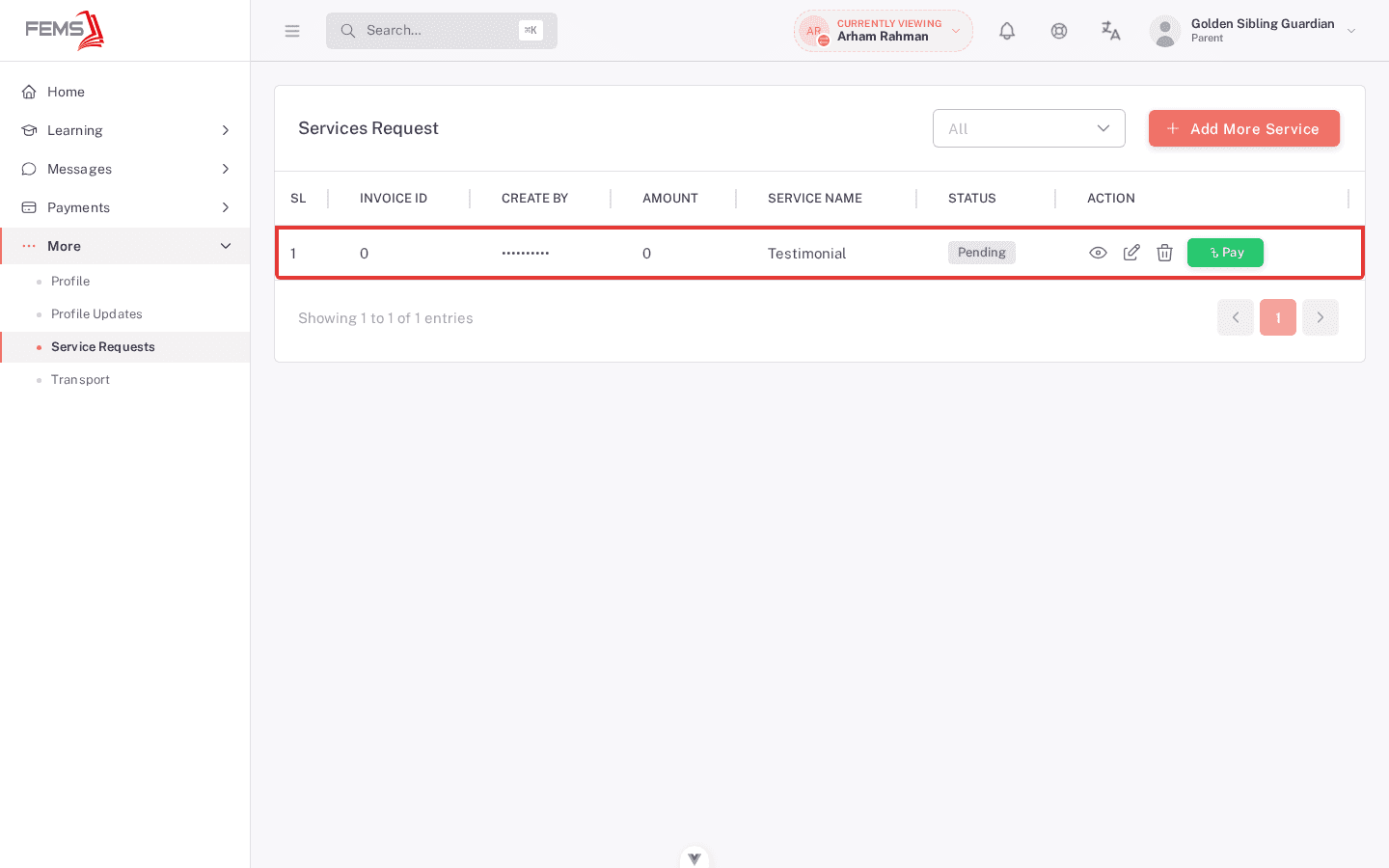
Follow the request
- Return to More > Admin Services.
- Open the request.
- Check the selected service, mode, amount, and current state.
- Edit or cancel only while the portal offers the action. The request must be Pending with one Pending service item, unpaid, and without an invoice. Requests with several items or a later status stay read-only. Contact the school office if you need to change one.
- If payment is required, use the payment route confirmed by your school office. The payment control on the current request list has not been verified as functional.
Frequently asked questions
Why do I not see a certificate or ID-card service?
Your institution controls the service list. Ask the school office whether that service is available.
Can I cancel a paid request?
Do not delete or repeat it. Contact the responsible school office and share the request number.