Viewing fees and making a payment
Check balances, fee breakdowns, receipts, concessions, and payment status for the selected student.
The Payments area shows the financial record for the current student. Guardians must select the correct child before reviewing or paying an invoice.
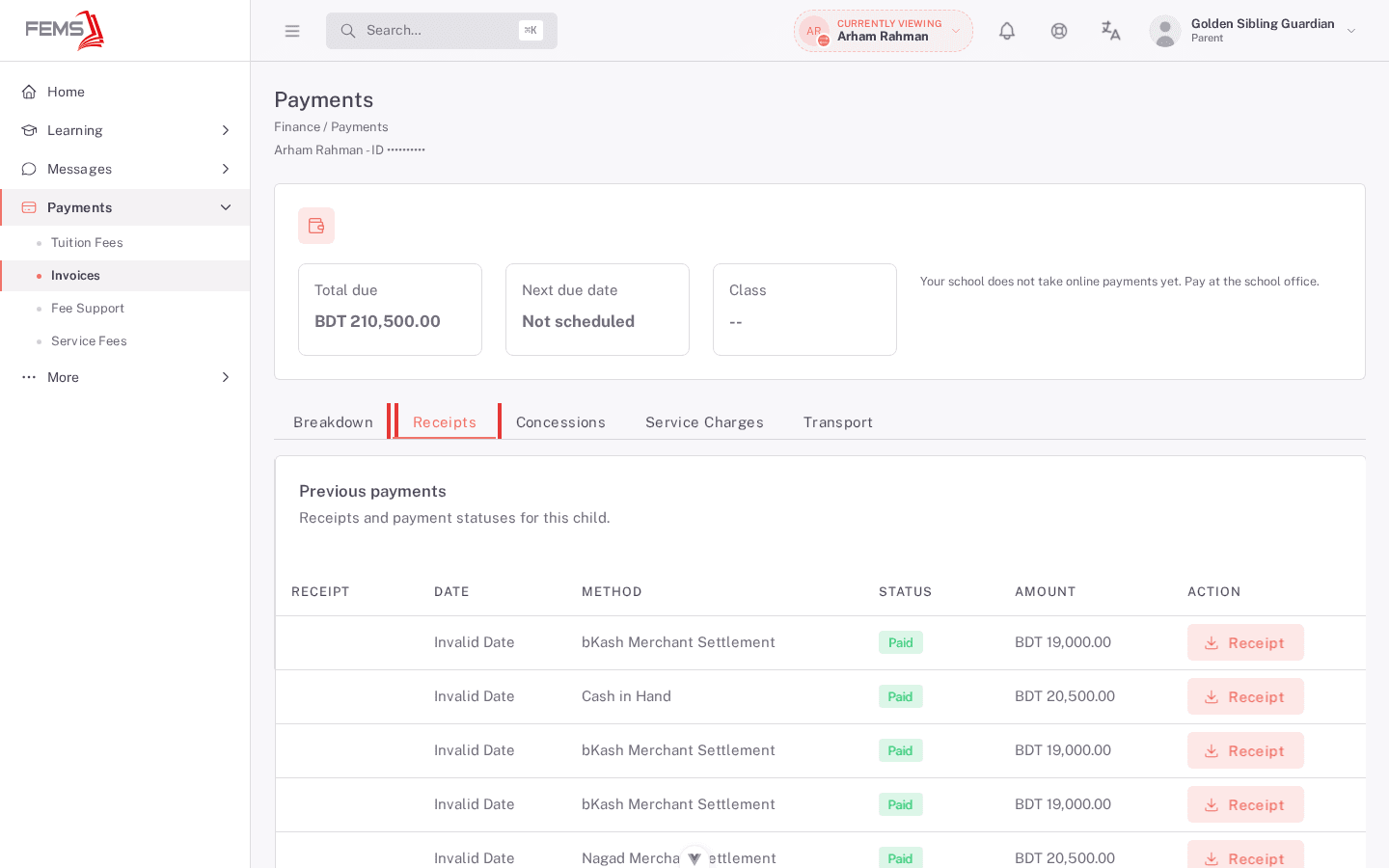
The Check fees screenshots below use a fictional local guardian fixture where online payment is not enabled, so they show the safe fee-review path and the instruction to pay at the school office. The Make a payment screenshots come from a live institution with online payment enabled; student and guardian identity is masked, but the amount and provider screens are real. No payment shown here was completed.
Check fees
- Guardians: select the correct child.
- Open Payments.
- Check Total due, Next due date, and Class at the top of the page.
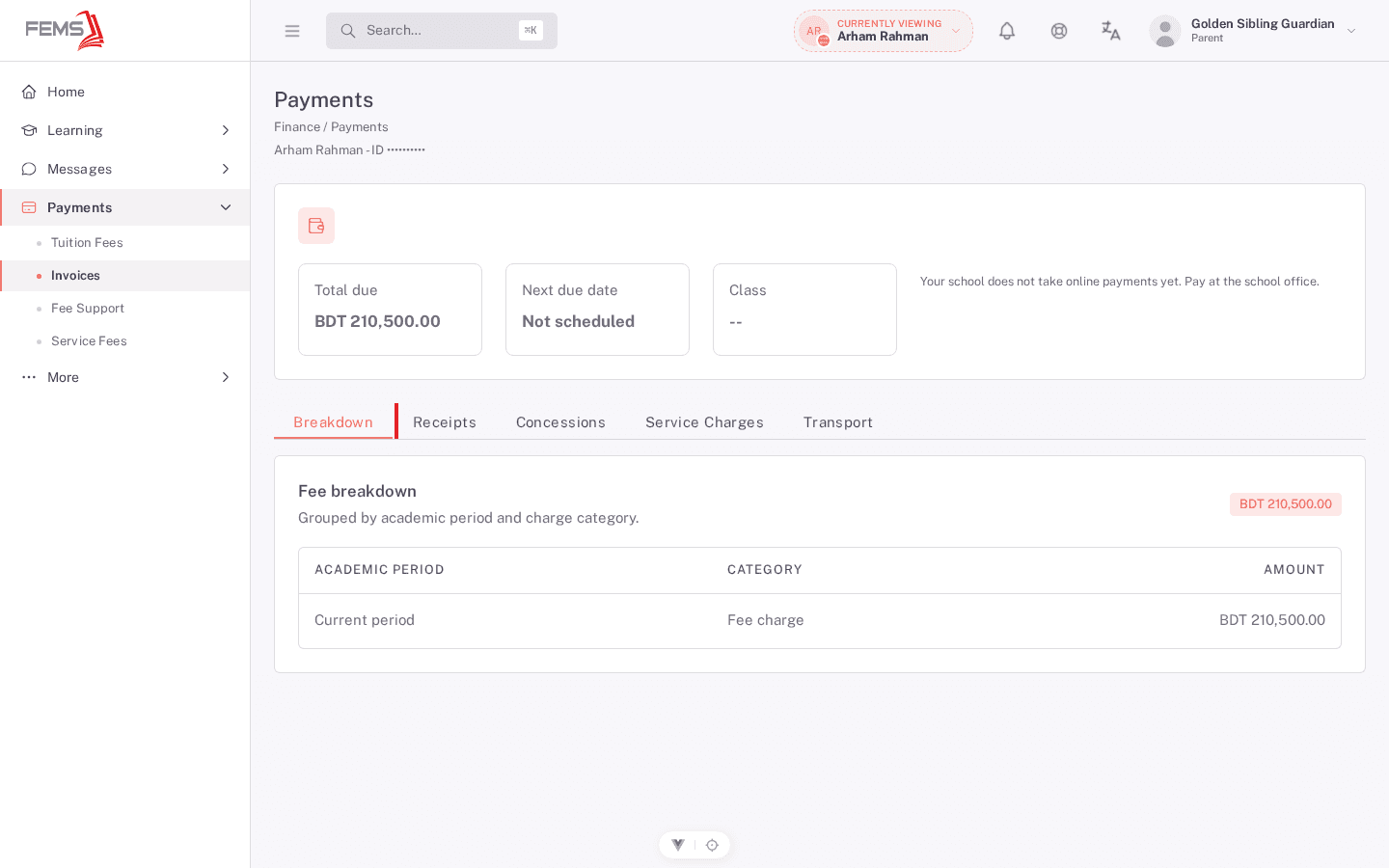
- Use Breakdown to review the charges and outstanding amounts.
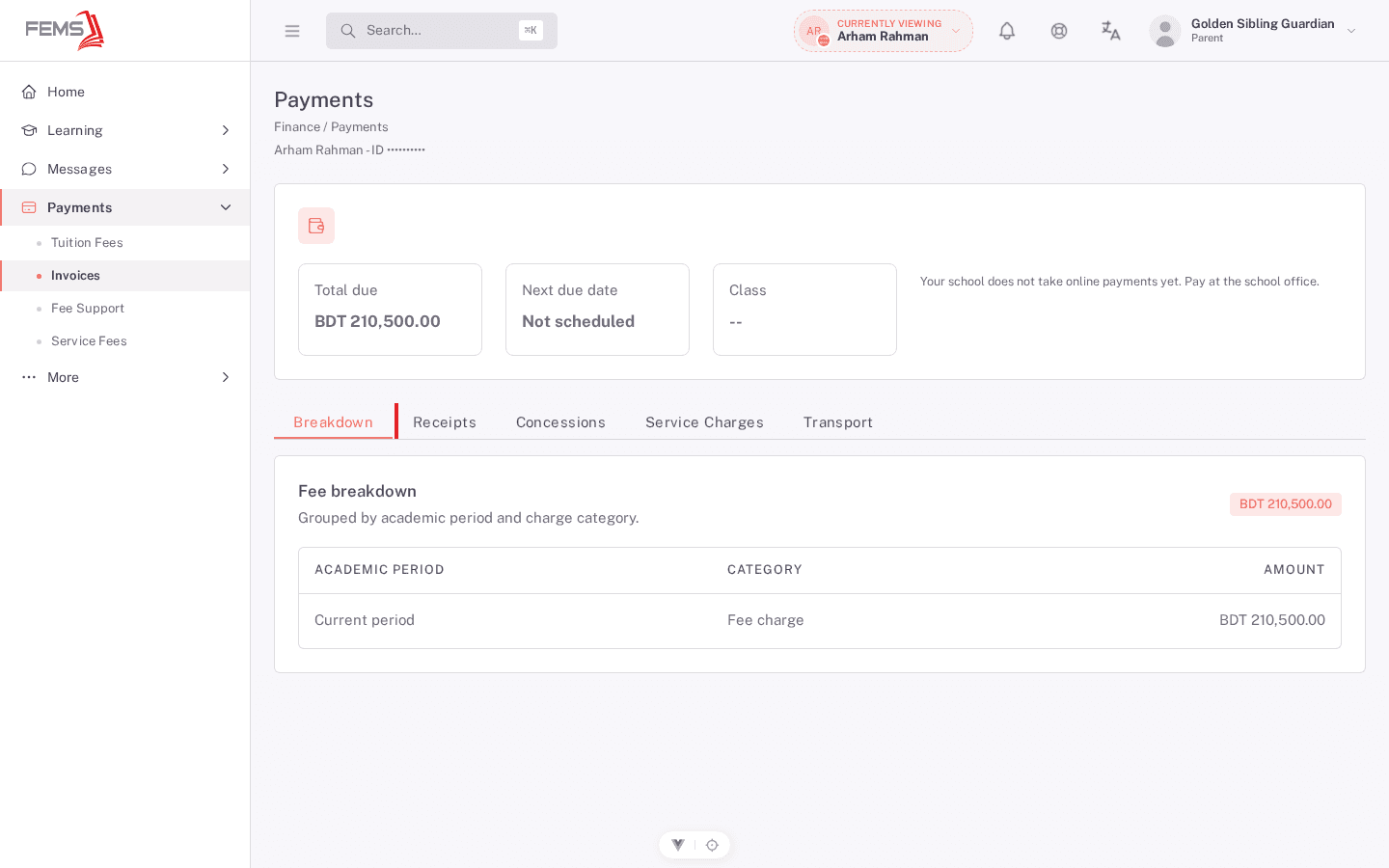
- Use Receipts, Concessions, Service charges, and Transport to review the other parts of the student's account.
Make a payment
- Enter the amount you intend to pay.
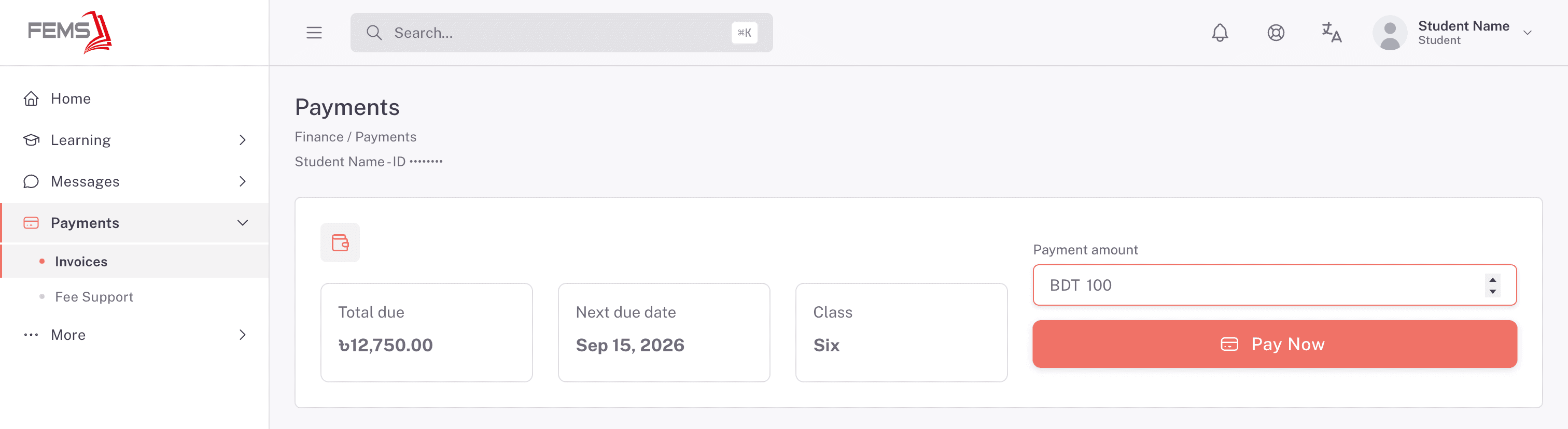
- Select Pay Now when it is available.
- FEMS opens the payment provider (Moneybag) in a new browser tab. Check the amount and payment method there before continuing.
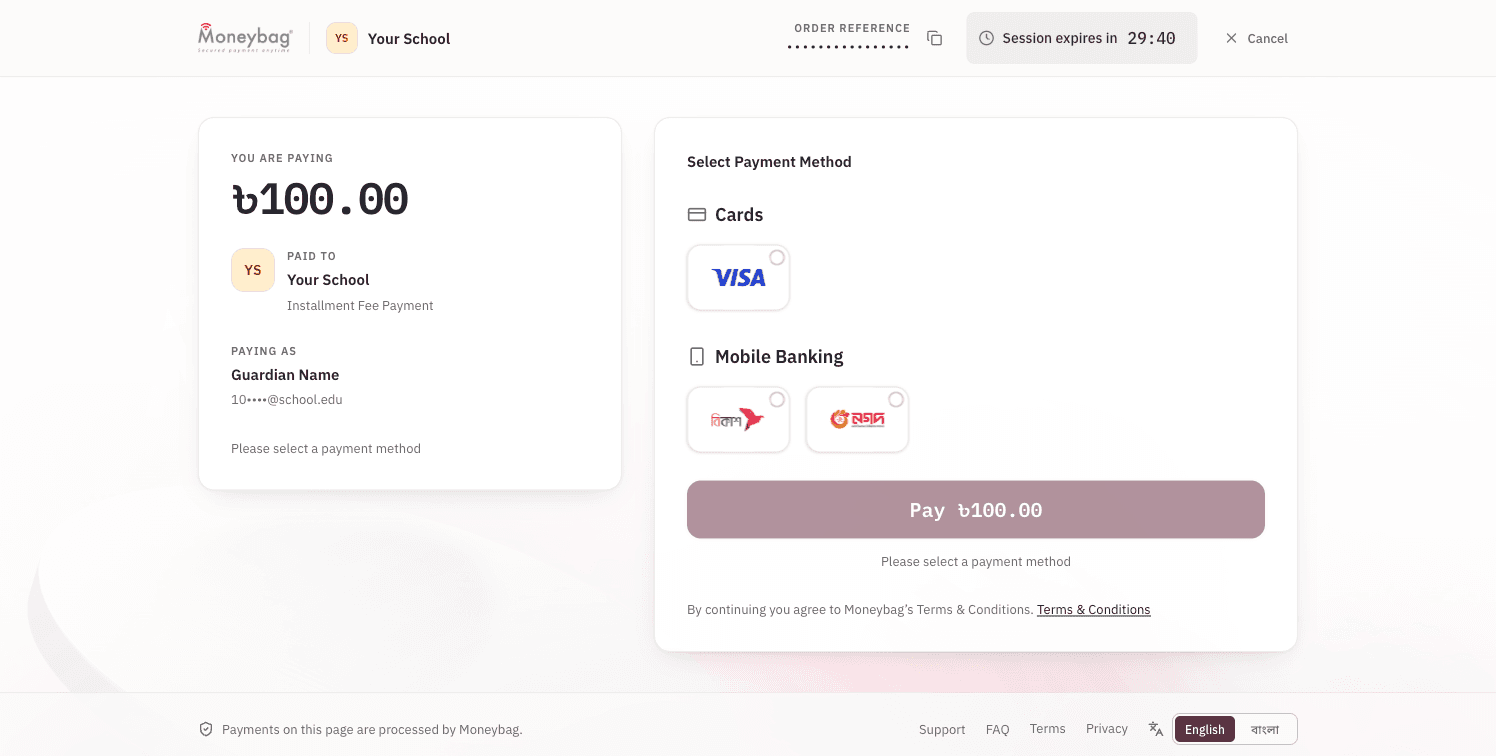
- Complete the payment once.
- Return to FEMS and open Receipts to check the result before retrying. If a previous attempt failed, the button may read Retry Payment.
Pay without signing in
Anyone can look up a student's fee status at fems.education/payment without a student or guardian account. This is a quick way to check dues before contacting the school office.
- Enter the Student ID and select Check Fee & Pay Now.
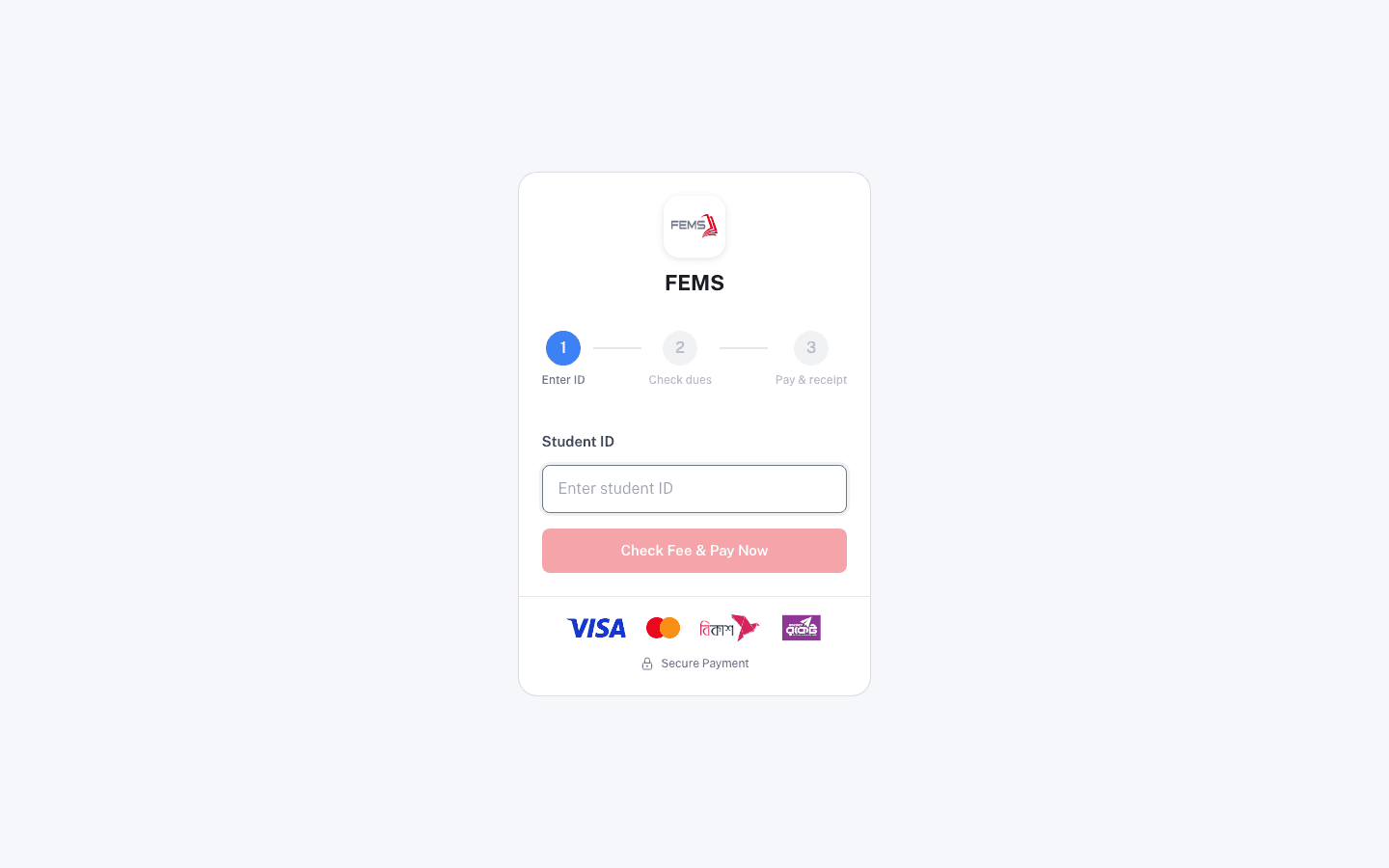
- FEMS shows the student's name, class, and Amount Due Today. Select View Breakdown for a summary, or sign in through the student or parent portal for the full fee breakdown.
- If the institution accepts online payments, continue to Pay & receipt to pay by card or mobile wallet (Visa, Mastercard, bKash, Rocket). If it does not, the page shows a message that online payment is unavailable and directs you to pay at the school office.
If no child is selected
Stop before paying. Select the child from the guardian switcher. Student accounts that still show this message need the school office to repair their linked student context.
Frequently asked questions
Should I retry a payment after an error?
Check the invoice and transaction status first. Retrying without checking can create confusion about whether the first attempt succeeded.
Where is my receipt?
Open Receipts and use its download action. The current portal downloads a text receipt file. Ask the accounts office if the payment succeeded but no receipt appears.
Why is Pay Now unavailable?
Your institution may not accept online payments. Follow the message on the page and pay through the school accounts office instead.
Why did my payment fail with an "amount exceeds maximum ticket size" error?
The payment provider caps how much you can pay in a single online transaction. If your total due is above that cap, pay a smaller amount online and cover the rest at the school accounts office, or ask the office about paying the full amount there.
Can I check fees without logging in?
Yes. Use the guest payment page at fems.education/payment with the student's ID. It shows the amount due but not the full breakdown. Sign in through the student or parent portal for that.