Students & Guardians
Managing multiple children
Select a child in the guardian portal and keep every page in the correct student context.
Guardian accounts can hold more than one linked child. Select the child you want before checking attendance, results, fees, or requests.
Prerequisites
- Sign in with a guardian account.
- Ask the school to link each child to the same guardian record.
Select a child
- Open the child selector in the top bar.
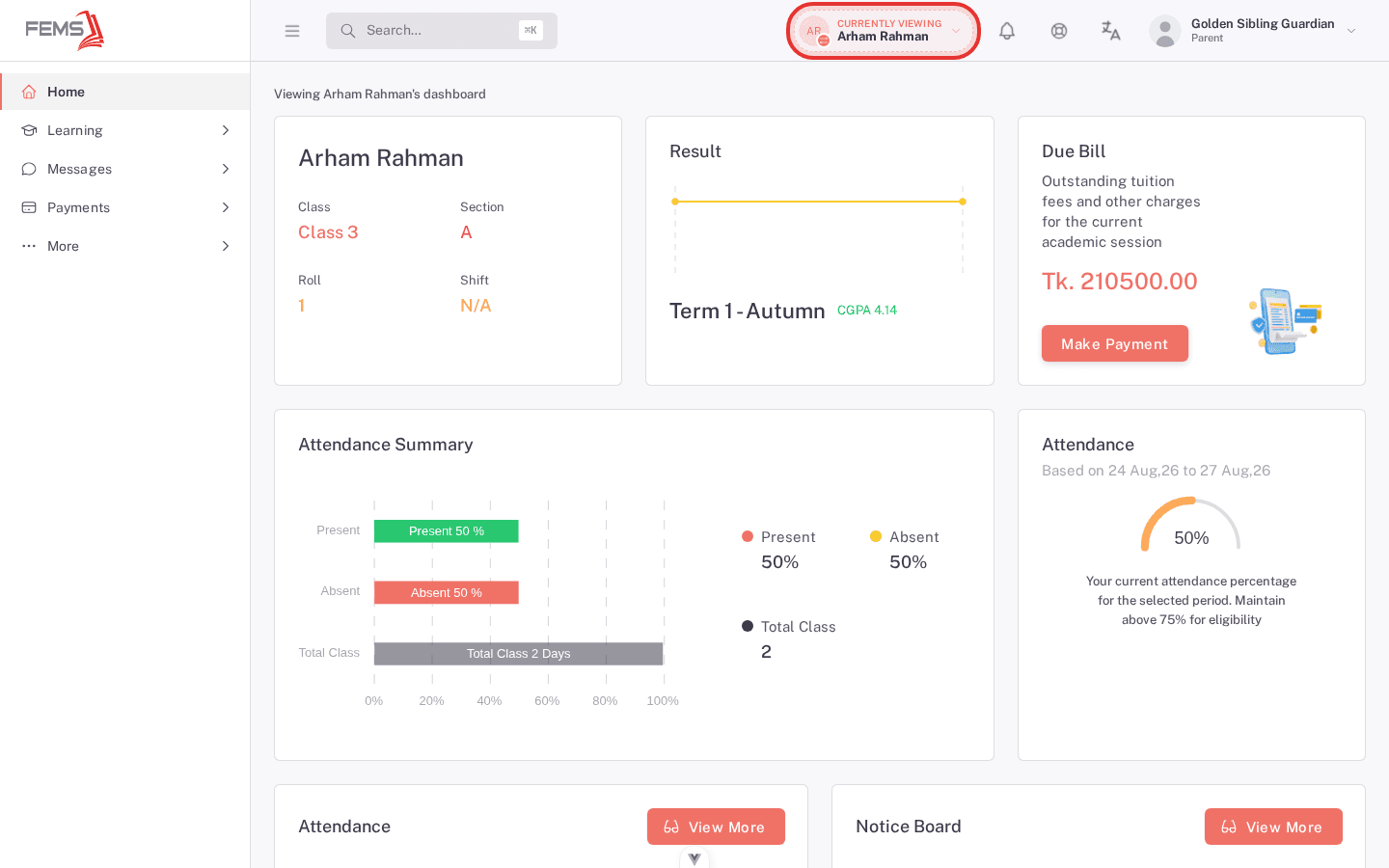
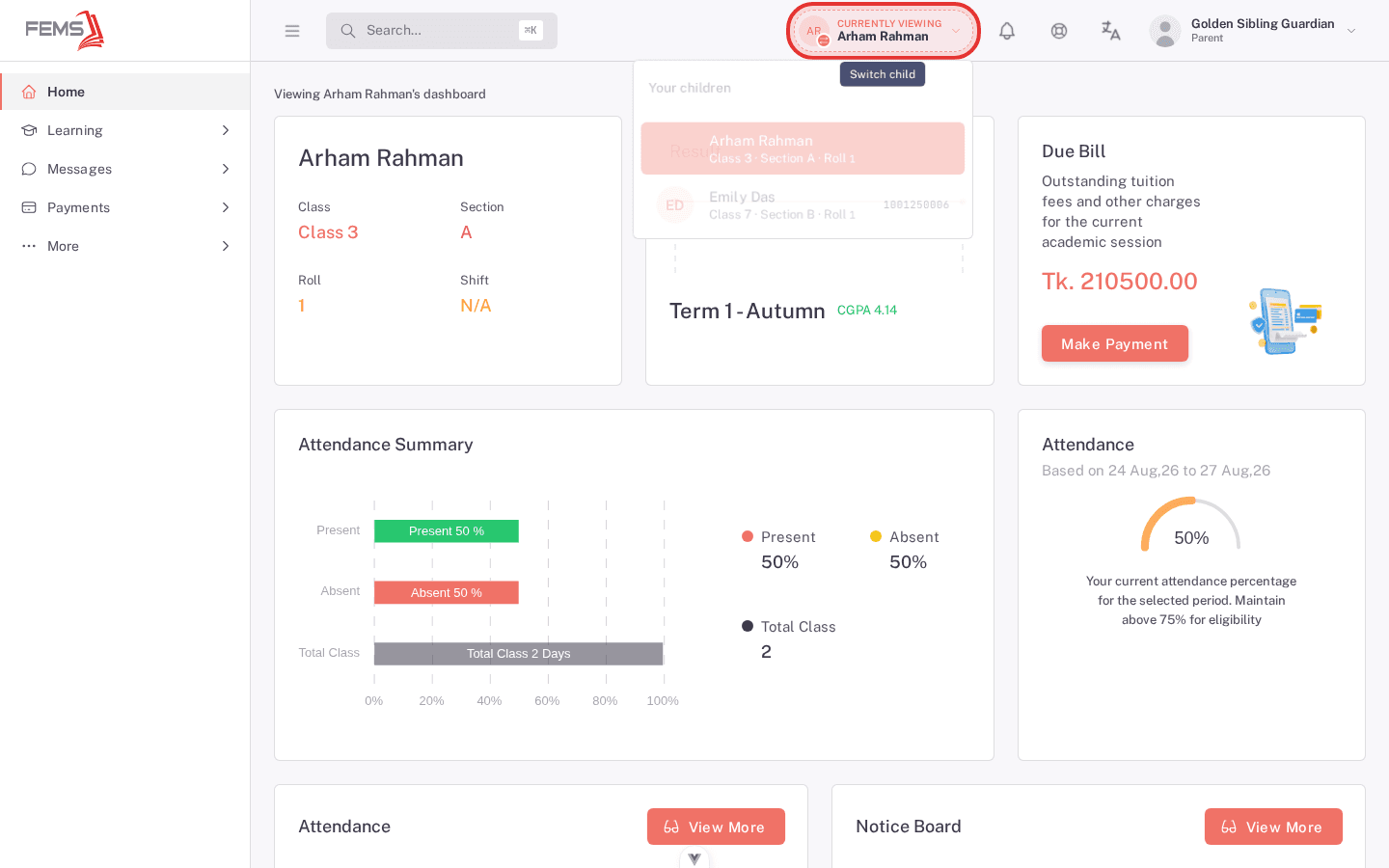
- Find the child by name, student ID, class, section, or roll. The search field appears only when five or more children are linked.
-
Select the child.
-
Check that the page now shows the correct child's name and class.
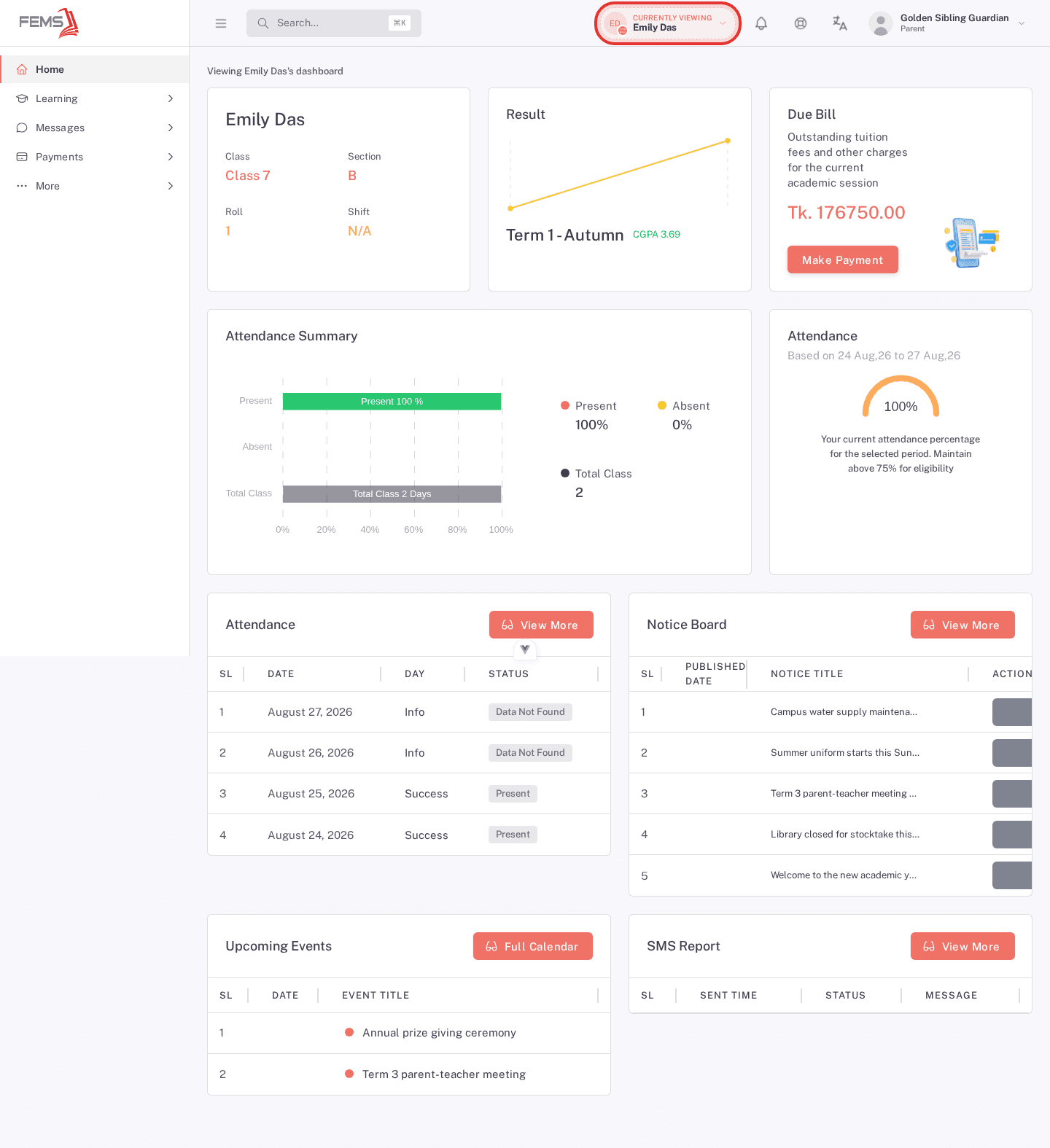
- Open Home, Learning, Payments, or More. The selected child stays active as you move between pages.
Check linked children from your profile
- Open More > Profile.
- Find Your Children.
- Check each child's name, class, and section.
- Select a child card to make that child active.
If a child is missing
Do not use another child's account. Ask the school office to check the guardian link and the child's active enrollment.
Frequently asked questions
Why does a page still show the previous child?
Refresh the page and select the child again. If it continues, share the page name with the school office.
Can I add a child myself?
No. The school links guardian and student records.