Students & Guardians
Viewing exams and report cards
Check the exam routine, open an admit card, and read a published report card.
Students and guardians can use the Learning menu to find exam dates, admit cards, and published results.
Check the exam routine
- Open Learning > Exam Routine.
- Choose Select Class.
- Select the exam.
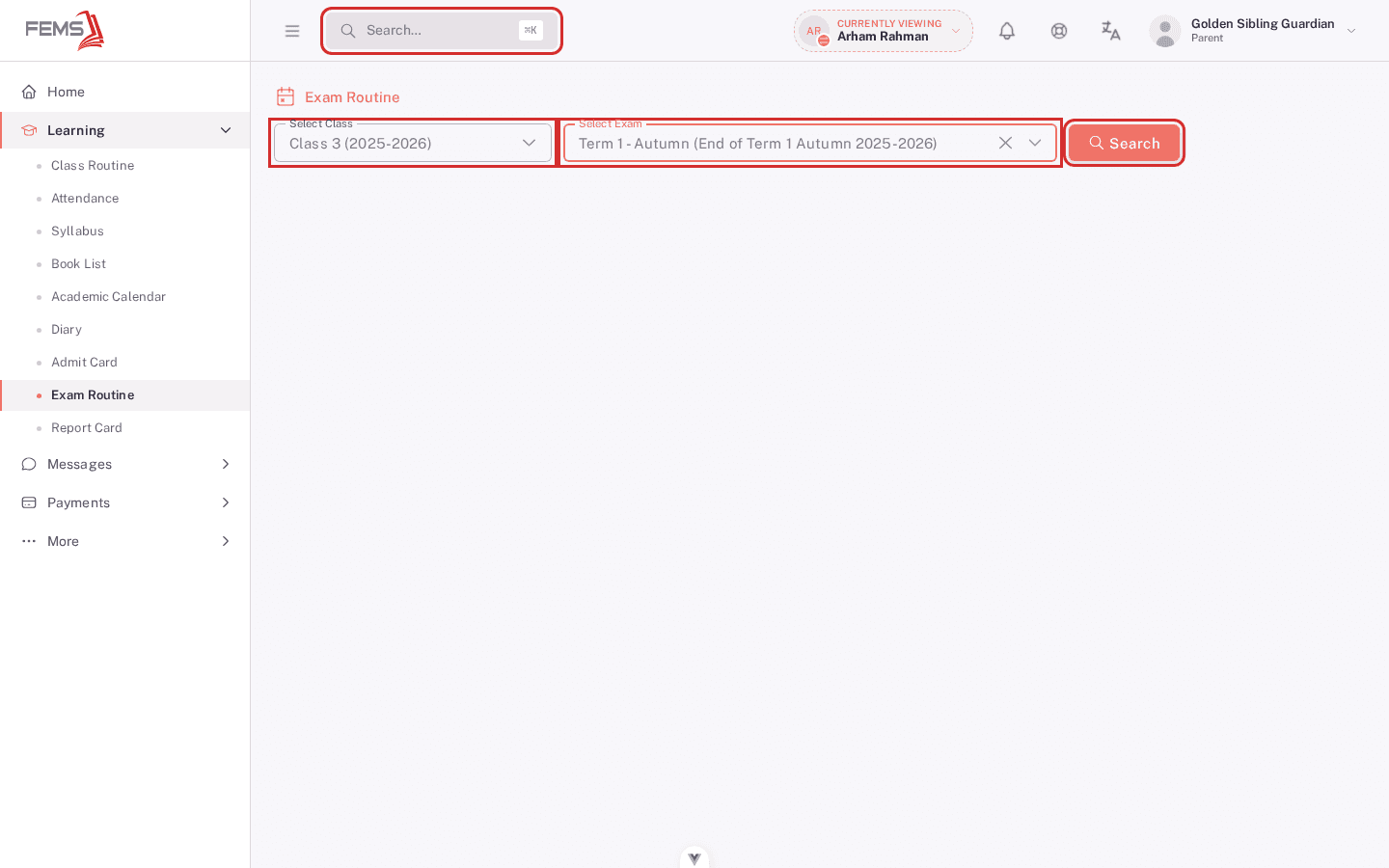
- Select Search, then review each subject's date, start time, and other instructions shown by your school.
Open an admit card
- Open Learning > Admit Card.
- Select the class and exam.
- Select Search.
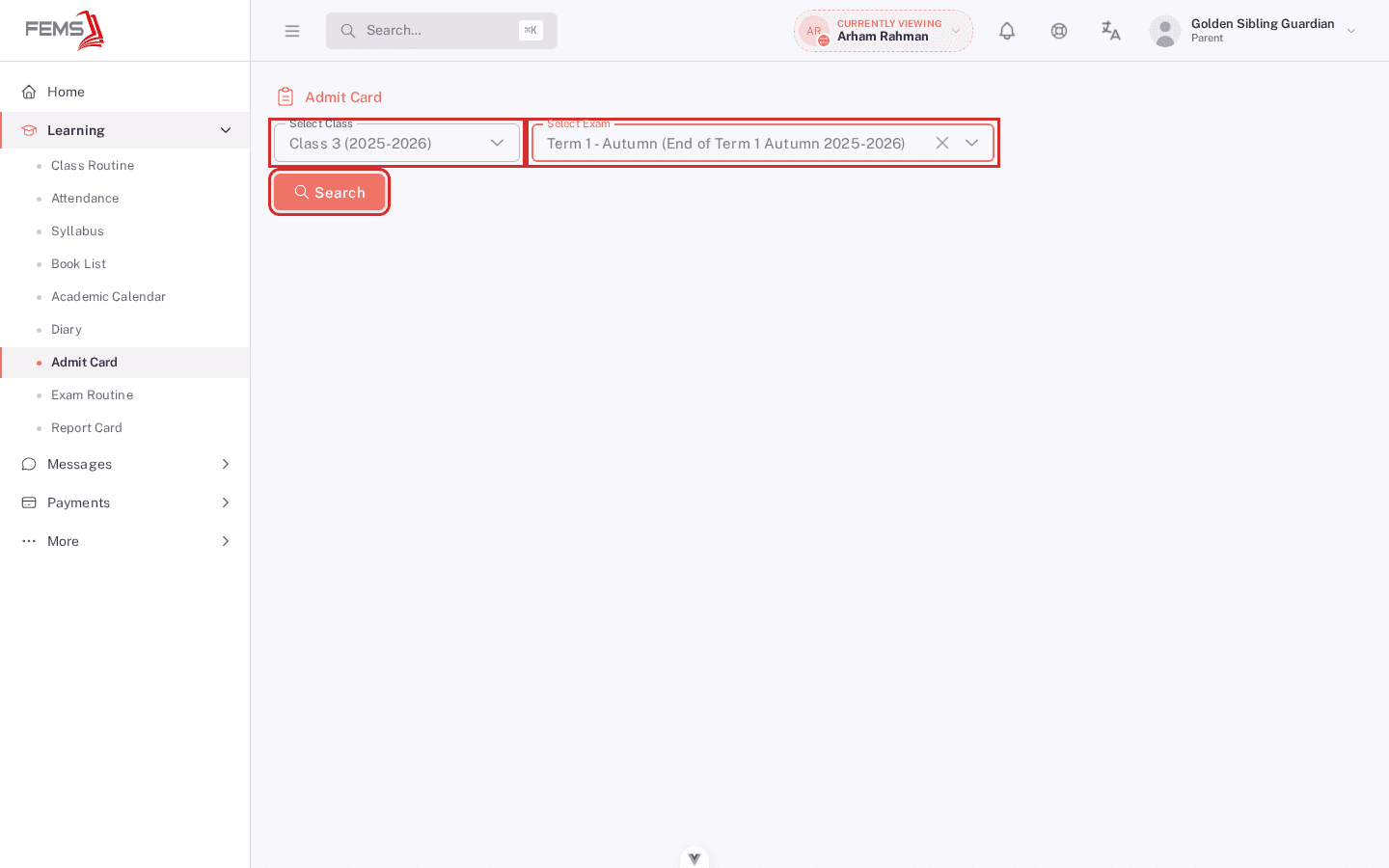
- Check the student information and exam details before using Print or Download PDF.
Open a report card
- Open Learning > Report Card.
- Choose Select Class.
- Select the exam.
- Select Search.
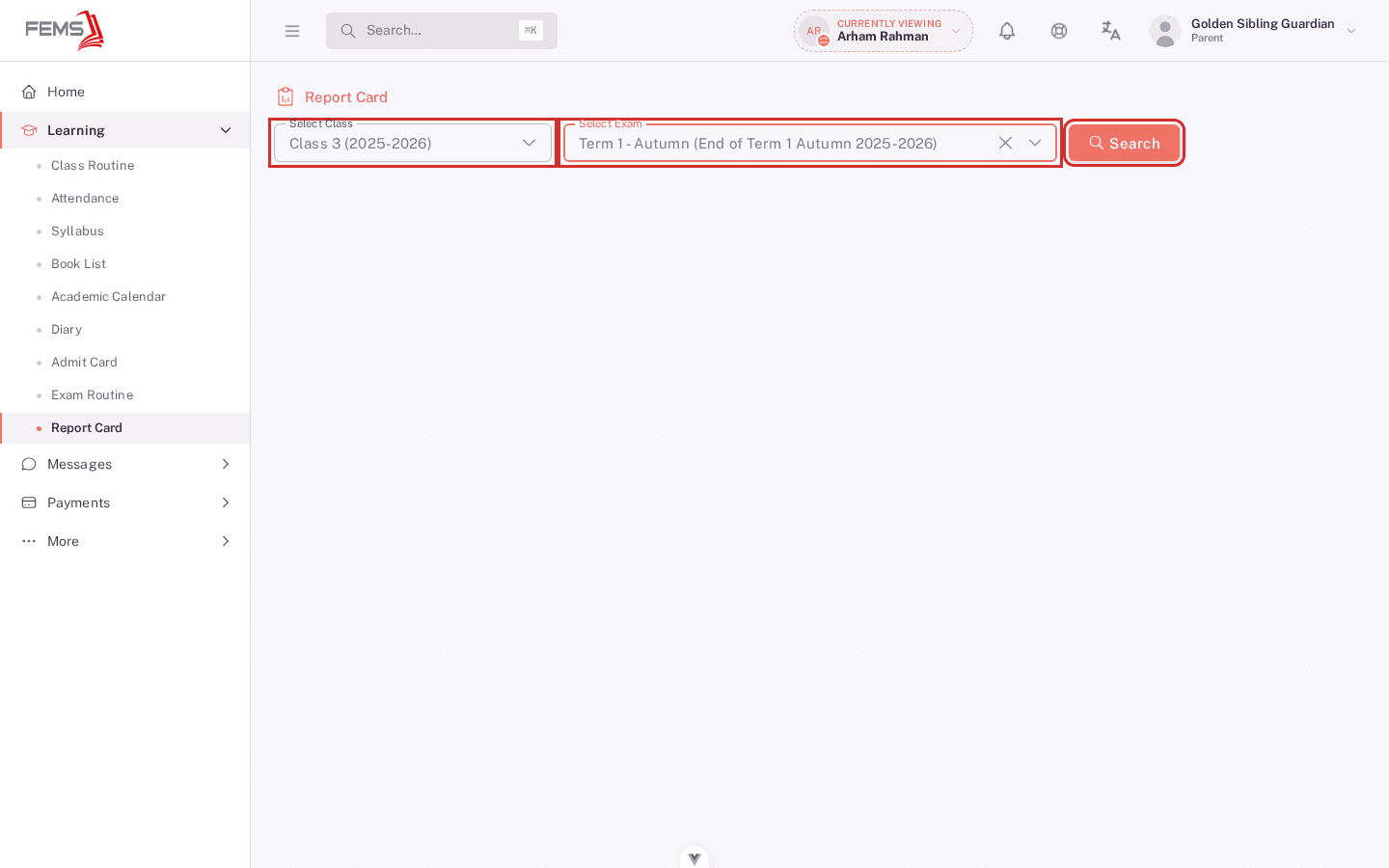
- Read each subject's marks, grade, and GPA or CGPA shown on the report.
Frequently asked questions
Why is an exam or result missing?
Your school may not have opened the exam document or published the result yet. Ask the class teacher or exam office.
Can I change a mark from the portal?
No. Share the subject, exam, and incorrect value with the school.