Using the student self-service portal
Check your results, fees, attendance, notices, and school events from one dashboard.
The student portal puts your own school information in one place. Start on the dashboard to see what needs your attention.
Before you start
- Sign in with the student account provided by your school.
- Make sure your school has enrolled you in the correct class, section, and academic session.
- Ask the school office to correct any student details that look wrong.
Check your dashboard
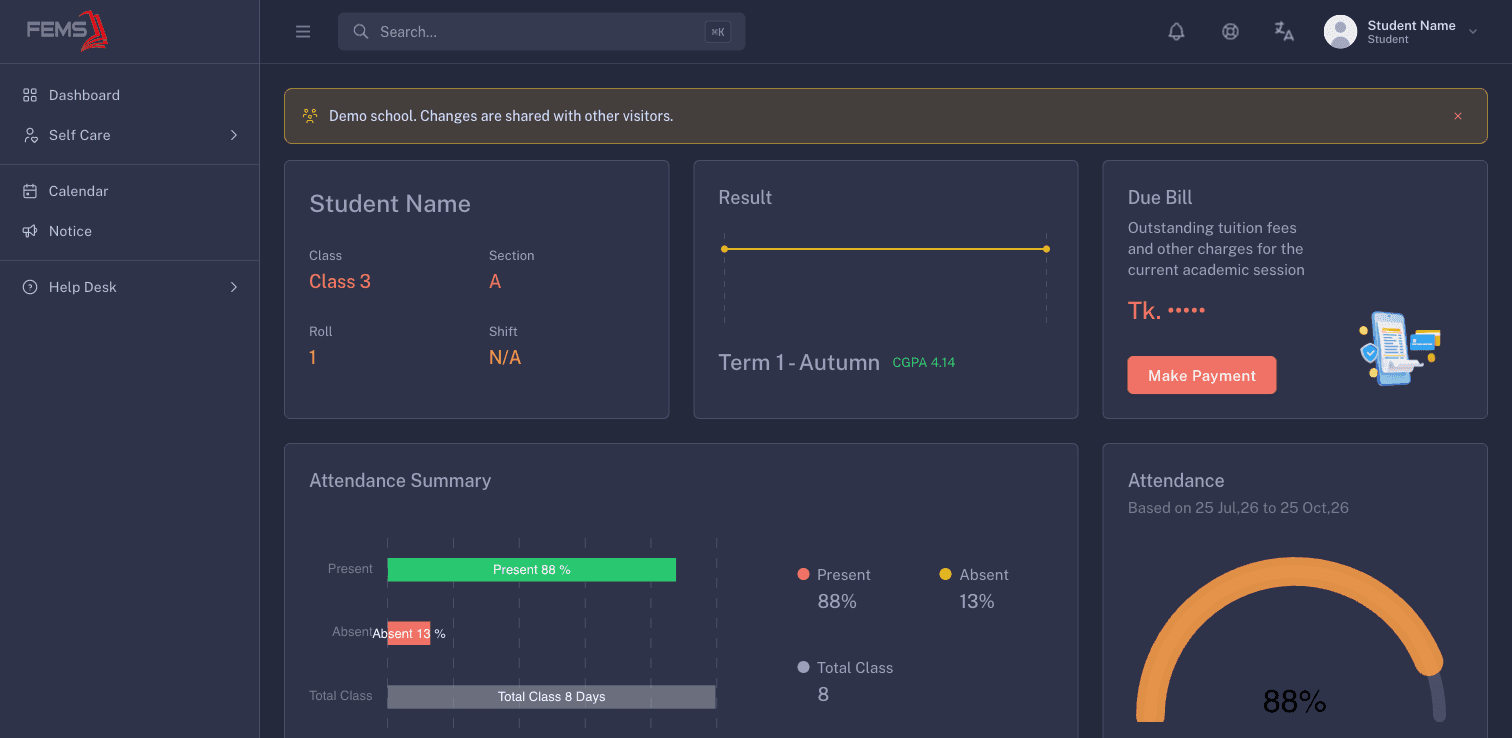
- Sign in to FEMS. Your student account opens the Student Panel Dashboard.
- Check the profile card for your Class, Section, Roll, and Shift.
- Check Result for the latest published term and cumulative grade point average (CGPA).
- Check Due Bill for outstanding tuition fees and other charges.
- Review Attendance Summary for your present, absent, and total class figures.
Find attendance, notices, and events
The lower part of the dashboard brings your recent school activity together:
- Attendance shows recent dates and their attendance status. Select View More for the full attendance area.
- Notice Board lists recent school notices. Select Read beside a notice, or select View More for the full list.
- Upcoming Events shows school events. Select Full Calendar to see the calendar.
- SMS Report lists messages sent to your student account when records are available.
Check a published result
The Result card shows the latest term available to you. If the card is empty, your school may not have published the result yet. Ask your class teacher or school office to confirm the publication date.
Check fees and payments
Select Make Payment on the Due Bill card to open Payments. The Payments page is where the portal directs you for student invoices and online payment.
If you see No child is selected, do not make another payment elsewhere. Ask the school office to check which student record is linked to your account.
Frequently asked questions
Why is my result missing?
Ask your class teacher or school office whether a result is ready for your class and term.
Why does the dashboard show the wrong class or section?
The dashboard reads your enrolled student record. Ask the school office to correct the enrollment before relying on routines, fees, or results.
Why can't I see a payment invoice?
Your account may not have an active student record selected, or the school may not have prepared the invoice yet. Share the message shown on the Payments page with the school office.
Can I edit my marks or attendance here?
No. The portal shows records entered and published by your school. Contact your class teacher or school office if a record looks wrong.