Setting up campuses, classes, sections, and subjects
Build the structure every other FEMS module depends on: campuses, schools, classes, sections, subjects, and the academic year.
Academic Config is where your school's shape lives. Campuses, schools, classes, sections, subjects, and the academic year all start here, and every other module reads them. Fees are billed per class and session. Exams reference classes and subjects. Attendance registers are per section. Set this up first, and set it up in order.
Prerequisites
You need Academic Config access. This is usually a Super Admin job, done once when the school joins FEMS and revisited at the start of each academic year.
Where to find it
In the sidebar, open Academic then Academic Config. The page is one screen with a tab strip across the top; the first nine tabs and a horizontal scroll control are visible in the current layout.
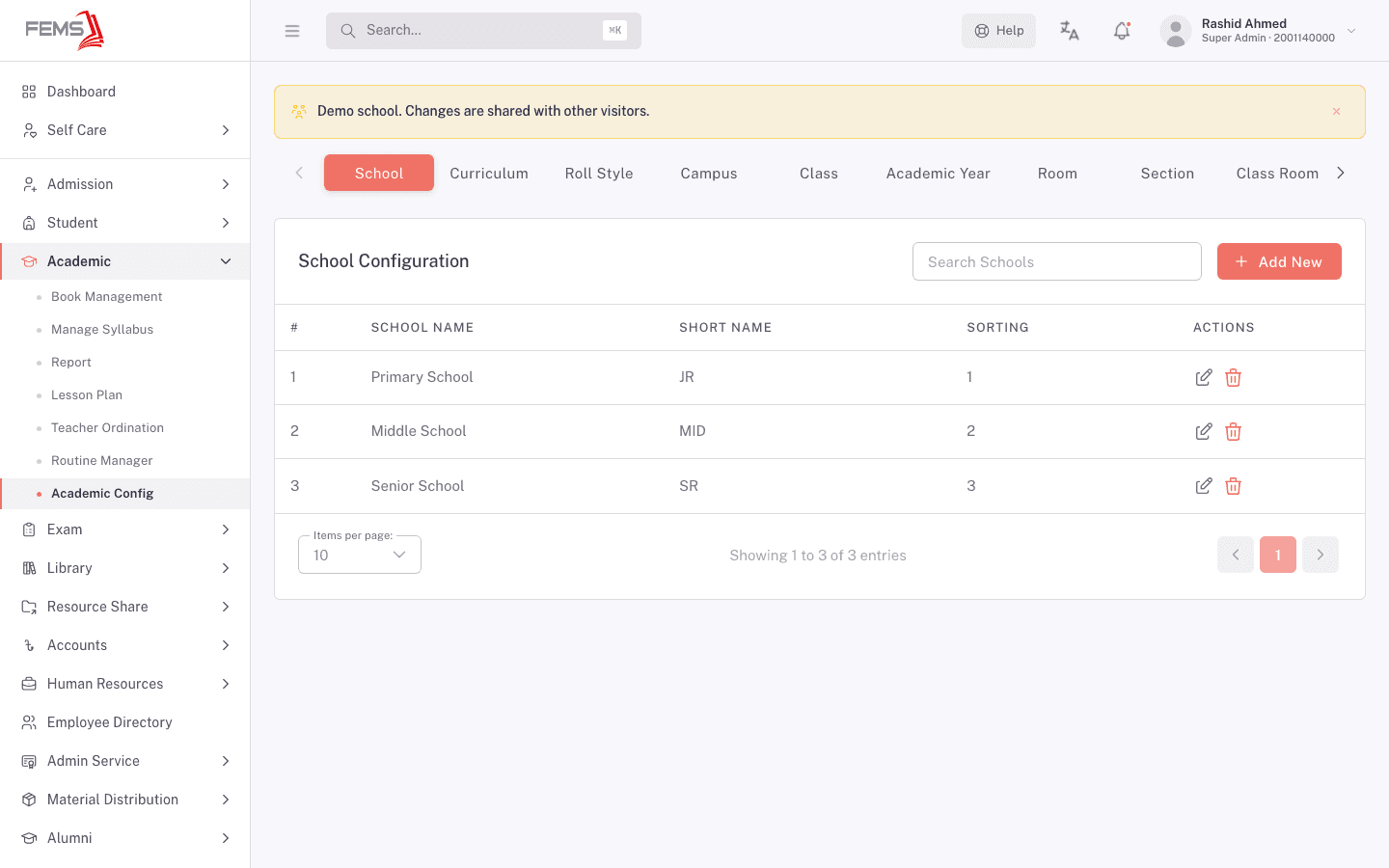
Each tab is its own small list with a Search box and an Add New button. The tab strip scrolls: use the arrows at either end to reach tabs that don't fit. You can also jump straight to a tab by adding it to the address, for example /academic/config?tab=class, which is handy for bookmarking the one you edit most.
Set up in this order
The tabs are not in the order you should fill them. Later tabs depend on earlier ones, so work down this list instead.
| Step | Tab | What you're creating |
|---|---|---|
| 1 | Campus | Each physical site your school runs. |
| 2 | School | Academic units inside a campus, such as Primary School or Senior School. |
| 3 | Curriculum | The teaching framework a class follows, such as Cambridge or National. |
| 4 | Roll Style | How roll numbers get handed out inside a class. |
| 5 | Class | Each grade or level. A class points at a school, a curriculum, and a roll style. |
| 6 | Academic Year | The yearly cycle, its start and end dates, and which classes run in it. |
| 7 | Section | Subdivisions of a class, such as A and B. |
| 8 | Group | Streams such as Science and Commerce, for classes that use them. |
| 9 | Subject | Your subject catalogue. |
| 10 | Room and Class Room | Physical rooms, then which class sits in which room. |
| 11 | Syllabus Type and Discipline Type | Small lookup lists used elsewhere in Academic. |
Campus, School, Curriculum, Roll Style, and Subject are plain lists: a name, a short name, a sorting number, and an active toggle. The three below need more explanation.
Campus
Campus carries more than a name. Alongside Campus Name, Short Name, and Address, it holds contact details (phone, mobile, fax, email, website) and three configuration fields: Parent Campus, VAT Information, and Campus Type, which is either Main Campus or Branch Campus. There's also an Include in Account Processing toggle that decides whether this campus is billed through the accounts module.
Class
Classes carry the most settings, because a class decides how the rest of FEMS behaves for the students in it.
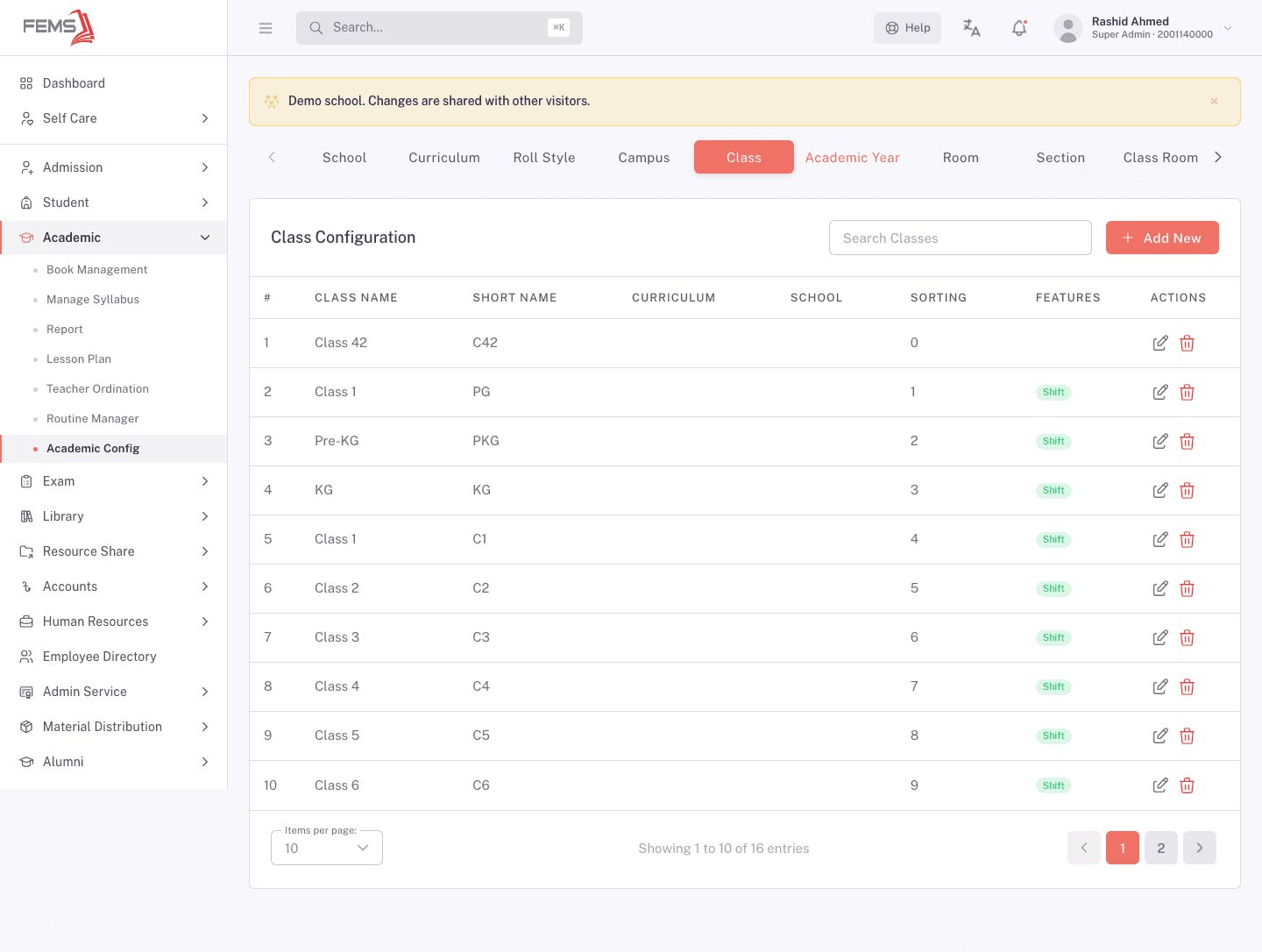
The Features column on the list shows at a glance which switches are on for each class. Open Add New to see them all.
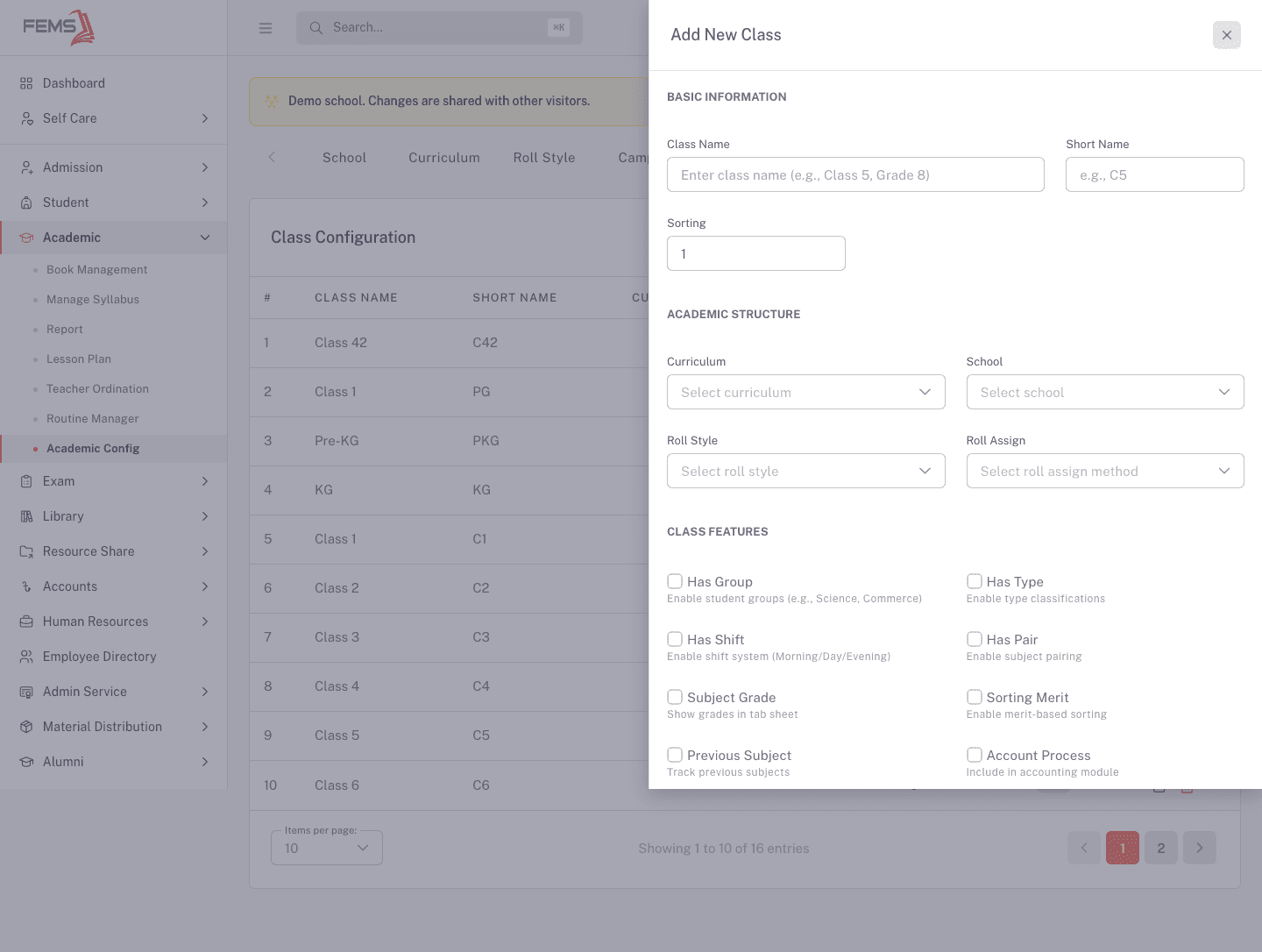
Under Academic Structure you pick the Curriculum, School, Roll Style, and Roll Assign method. Under Class Features, each switch changes what staff see later:
| Switch | Turn it on when |
|---|---|
| Has Group | Students pick a stream, such as Science or Commerce. |
| Has Type | The class uses type classifications. |
| Has Shift | The class runs in more than one shift, such as Morning and Day. |
| Has Pair | Optional subjects are offered in pairs, so a student choosing one gets the other. |
| Subject Grade | Grades should appear in the tab sheet. |
| Sorting Merit | Students should be ordered by merit. |
| Previous Subject | You need to track what a student studied before. |
| Account Process | The class is billed through the accounts module. |
| Lab Charge Compulsory | Every student in the class pays the lab charge. |
| Subject Choice Compulsory | Every student must select their subjects. |
Additional Settings holds Attendance Type and Max Subject Limit.
Two of these are worth thinking about before you save. Has Shift and Has Group both add a filter step that staff will meet on every class-scoped screen from then on, so only switch them on for classes that genuinely need them. Has Pair is what makes optional-subject pairing available for the class, and pairing only ever applies to subjects marked optional.
Academic Year
An academic year holds a Name, a Start Date and End Date, a Type, a Classes list, a Sorting number, and two flags: Is Current and Is Default.
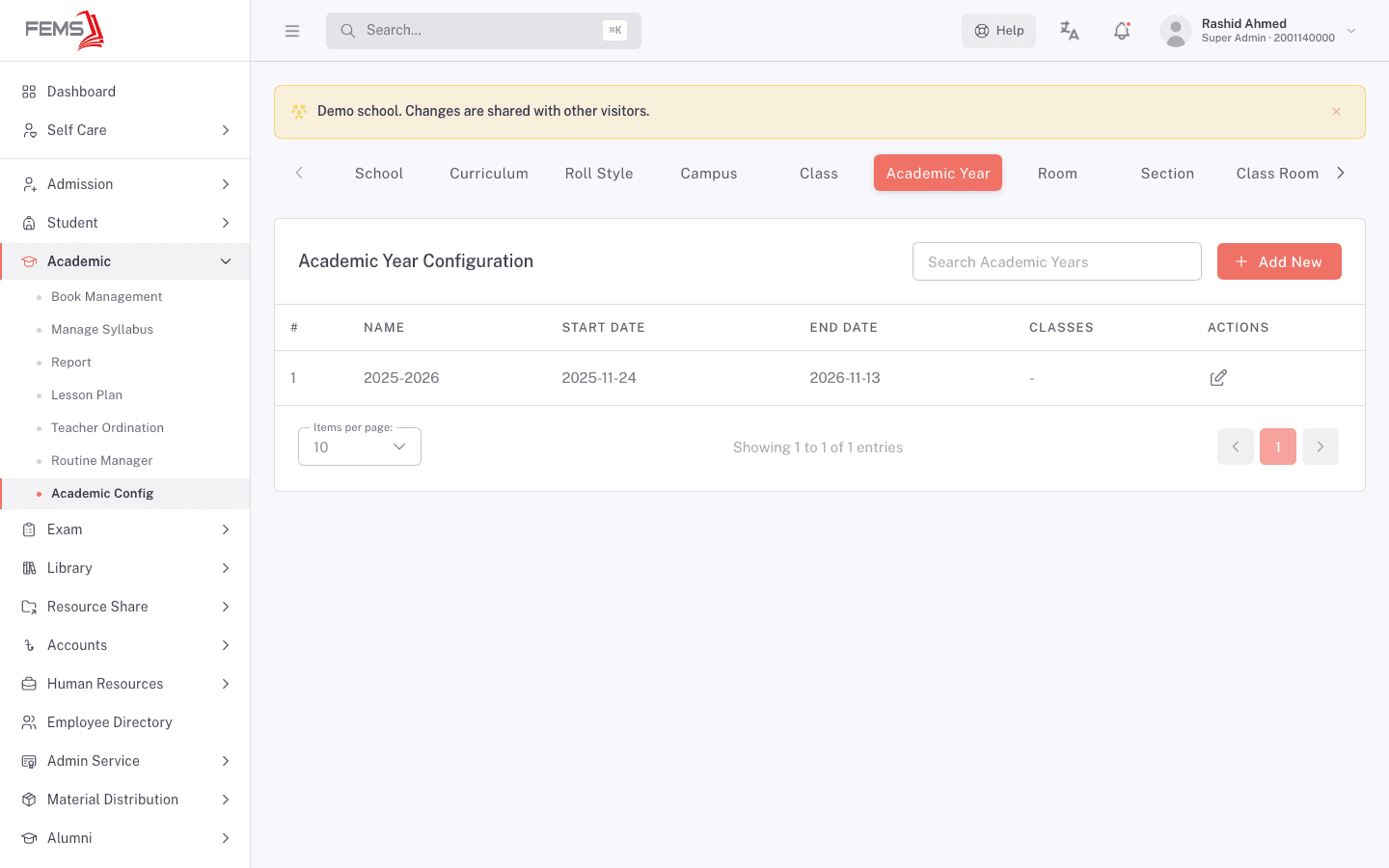
The Classes field is the important one. It decides which classes run in that year, and everything downstream that offers you a class dropdown reads it. If a class dropdown comes up empty for a new year, the usual cause is that the year has no classes attached yet.
Academic year rows can be edited but not deleted, which is deliberate: fees, results, and reports from past years point back at them.
Subjects
The Subject tab is your catalogue: Subject Name, Short Name, Sorting Order, and a Non-NRB Subject yes/no. It lists the subjects your school can teach.
Attaching a subject to a particular class, and setting whether it's optional, combined, or paired, is not done from this page.
FAQ
Do I have to fill in all thirteen tabs? No. Campus, School, Curriculum, Roll Style, Class, Academic Year, Section, and Subject are the ones every school needs. Curriculum and Roll Style are required setup records for configuring a Class, as each class points at a curriculum and a roll style. Group, Room, Class Room, Syllabus Type, and Discipline Type are only worth filling in if you use those features.
What's the difference between a campus and a school? A campus is a physical site. A school is an academic unit inside it, such as Primary School or Senior School. One campus can hold several schools.
Why can't I delete an academic year? Past years are referenced by fee records, exam results, and reports. Removing one would break them, so the row stays and only editing is offered.
A class dropdown somewhere else in FEMS is empty. Why? Check the Academic Year tab first. If the year has no classes attached, class dropdowns that read from it have nothing to show.
What does the Sorting number do? It sets the order items appear in lists and dropdowns. For classes it also matters at year end, because promotion moves students to the next class in sorting order.