Assigning teachers to classes and subjects
Ordain a teacher to the classes and subjects they teach, and name class teachers and coordinators for the session.
Teacher Ordination records who teaches what. You pick a teacher, then tick the classes and subjects they handle this session, and separately name them a class teacher or a coordinator. The timetable, marks entry, and lesson plans all read these assignments, so a teacher who isn't ordained won't appear where staff expect them.
Prerequisites
You need Teacher Ordination access, usually held by an Academic Coordinator or Super Admin. Before you start, classes, sections, and subjects need to exist in Academic Config, and the teachers need employee records.
Find a teacher
In the sidebar, open Academic then Teacher Ordination. The screen is split: teachers on the left, their assignments on the right.
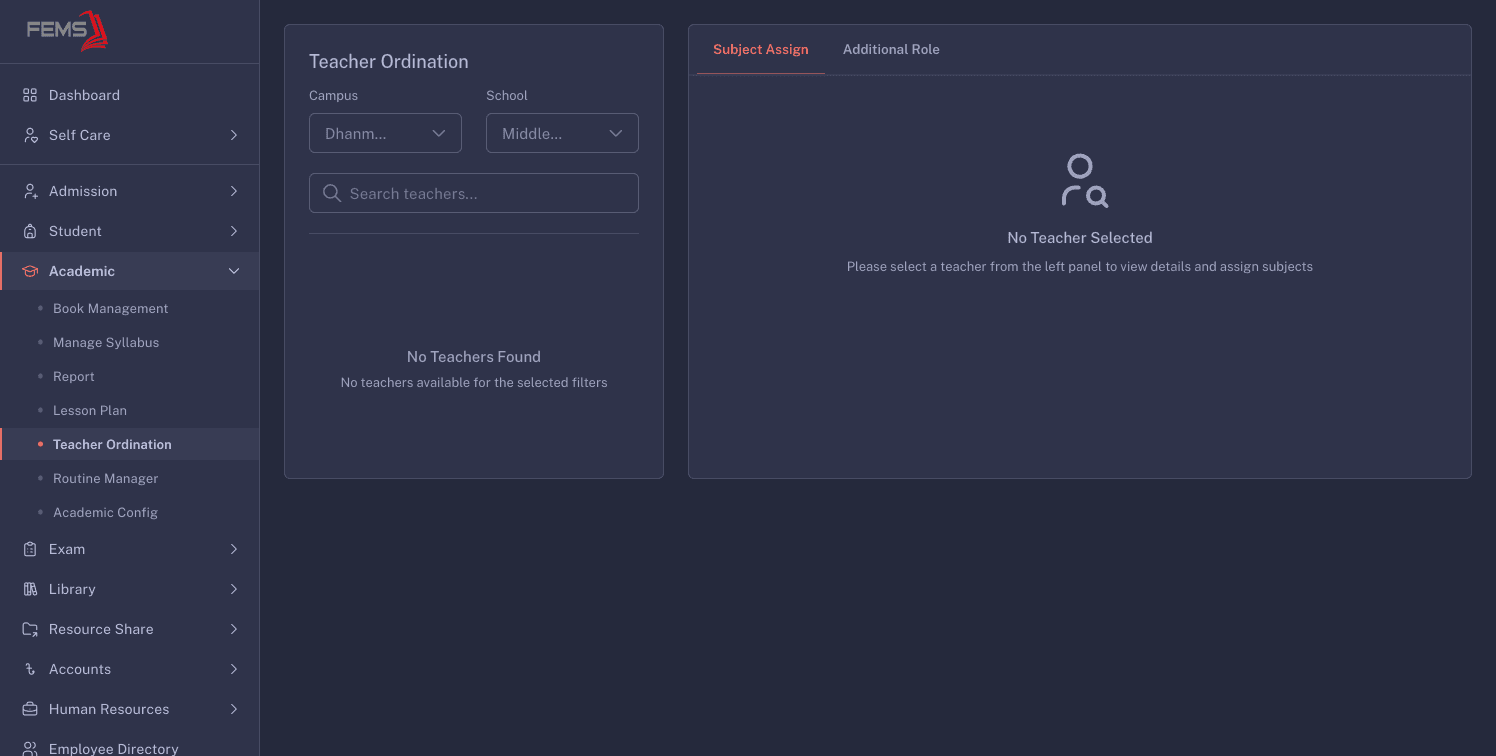
Pick a Campus and a School to load the teacher list, then use Search teachers… to narrow it. Until you pick someone, the right panel reads No Teacher Selected.
Click a teacher card. Their name, ID, designation, department, and campus appear at the top of the right panel, along with a session picker. Everything you assign below applies to the session shown there.
Assign subjects
The Subject Assign tab lists the classes available for that campus and school.
Each class has a switch and a chevron. Turn the class switch on to assign every subject in that class, or open the chevron to choose subjects one by one. The class switch stays on while any subject is selected and turns off when none are selected. Work down the list, then click Update to save. Nothing is saved until you do.
If you expand a class and see no subjects, that class has no subjects attached to it yet. Sort that out before ordaining anyone to it.
Name class teachers and coordinators
Subject teaching and academic responsibility are two different things, and they live in two different tabs. Switch to Additional Role for the second.
Assign Teacher Role offers three:
| Role | What it means |
|---|---|
| School Coordinator | Responsible for a whole school within the campus. |
| Class Coordinator | Responsible for a class. |
| Class Teacher | The named teacher for one specific section of a class. |
Picking a role reveals the fields it needs. Choosing Class Teacher brings up Applicable Class and Section, because a class teacher belongs to one section rather than the whole class.
Choose the role, fill in the fields it asks for, then click Update. The assignment appears in the Assigned Roles table below.
The table shows Role, Class, Section, and a delete action. Use the bin icon to remove an assignment that's no longer right.
These roles change how the teacher is labelled around FEMS and who is treated as responsible for a class. They do not grant permissions. What a teacher can open and edit is set separately, in Role & Permission.
At the start of a new year
Ordination is recorded per session, so a new academic year starts with none of it carried across. Rather than redo every teacher by hand, use Teacher Migrate to copy last session's assignments forward, then correct the ones that changed. See Running year-end student promotion.
FAQ
A teacher doesn't appear in the left panel. Where are they? The list is filtered by campus and school. Check both filters first. If they're still missing, their employee record may sit under a different campus.
Can one teacher hold more than one role? Yes. The Assigned Roles table takes several rows, so a teacher can be class teacher for one section and coordinator for another class.
Does making someone a coordinator give them extra access? No. These roles describe academic responsibility. Access is controlled by roles and permissions, which are set up separately.
I ticked classes but nothing saved. Click Update at the bottom of the Subject Assign tab. Switching tabs or teachers before that discards your changes.
Do I have to redo this every year? Only the parts that changed, if you run Teacher Migrate first to bring last session's assignments across.
Related pages
Setting up campuses, classes, sections, and subjects
Build the structure every other FEMS module depends on: campuses, schools, classes, sections, subjects, and the academic year.
Building the class timetable
Build a section's weekly routine by dragging subjects into time slots, then check it from the teacher's side and print it.