Running year-end student promotion
Move students up a class at year end, and carry the syllabus and teacher assignments into the new session.
At the end of the academic year, four screens under Data Migration move the school into the next session: one settles who passed, one promotes the students, and two carry your syllabus and teacher assignments forward so you're not retyping a year's work.
FEMS calls all four of these "migration". None of them are the database kind.
These screens write to live student records. Run them once, in order, and only when the year is genuinely finished. Check your filters before clicking Process.
Prerequisites
You need Data Migration access, usually a Super Admin or Academic Coordinator. Before you start, the new academic year needs to exist in Academic Config with its classes attached, and the year's final exam needs to be marked and complete.
Run them in this order
| Step | Screen | What it does |
|---|---|---|
| 1 | Result Update | Reads the final exam and records who passed. |
| 2 | Student Migrate | Moves the students who passed into the next class. |
| 3 | Syllabus Migrate | Copies syllabus and lesson plans into the new session. |
| 4 | Teacher Migrate | Copies teacher assignments into the new session. |
Steps 1 and 2 have to happen in that order. Steps 3 and 4 are independent of the first two and of each other.
Step 1: Result Update
In the sidebar, open Data Migration then Result Update.
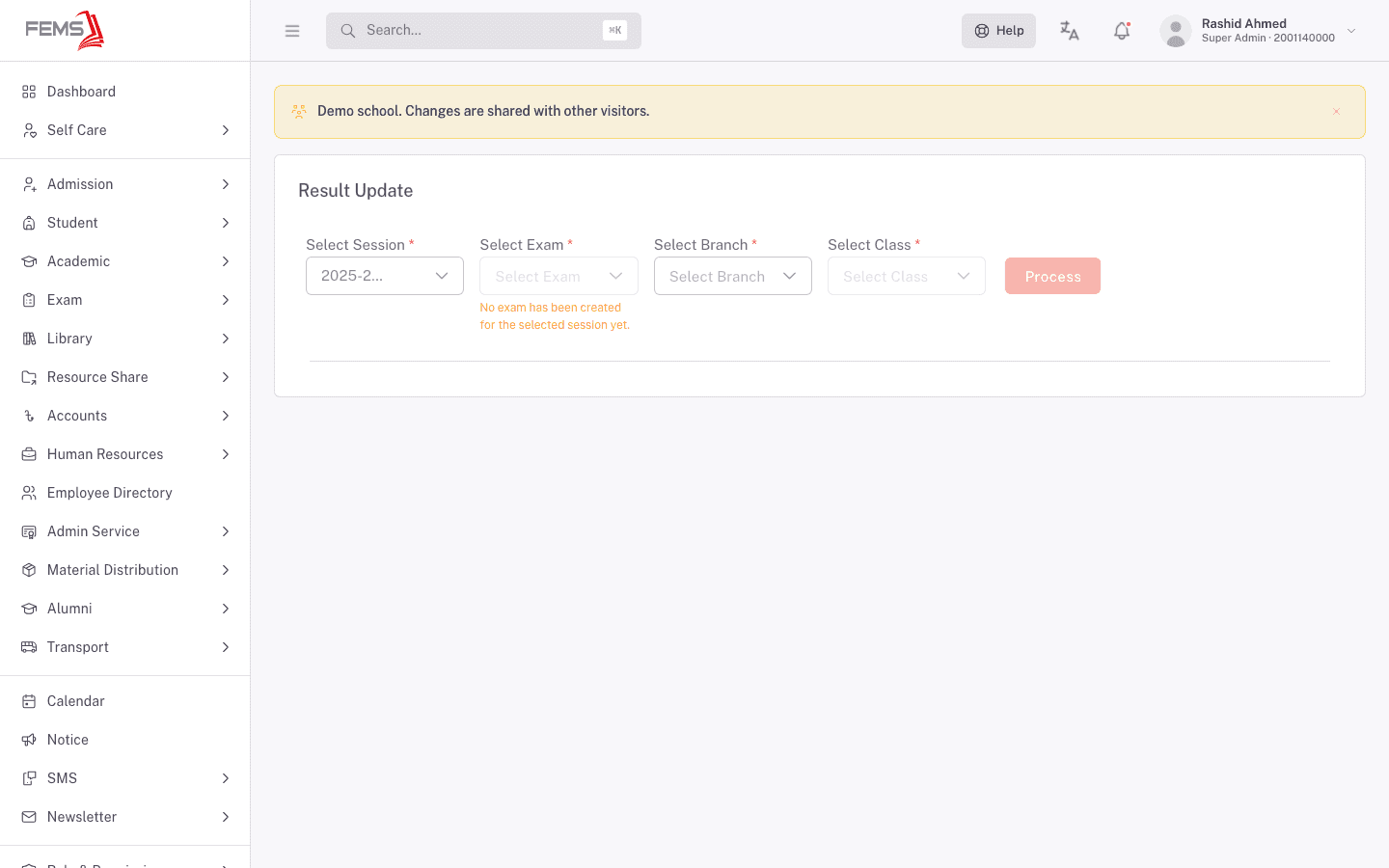
Pick Select Session, Select Exam, Select Branch, and Select Class, all required, then click Process.
This reads the exam results and writes each student's pass-or-fail outcome and average marks onto their academic record. Nothing is promoted yet. This step just settles who is eligible.
Two things follow from how it works. A student who doesn't appear in the exam report is skipped, so students who missed the exam entirely need sorting out before you promote. And pass or fail comes from the exam grade, not from anything you type here.
If the Select Exam dropdown reads No exam has been created for the selected session yet, there's no exam to read results from. Set the exam up and mark it first.
Step 2: Student Migrate
Open Data Migration then Student Migrate.
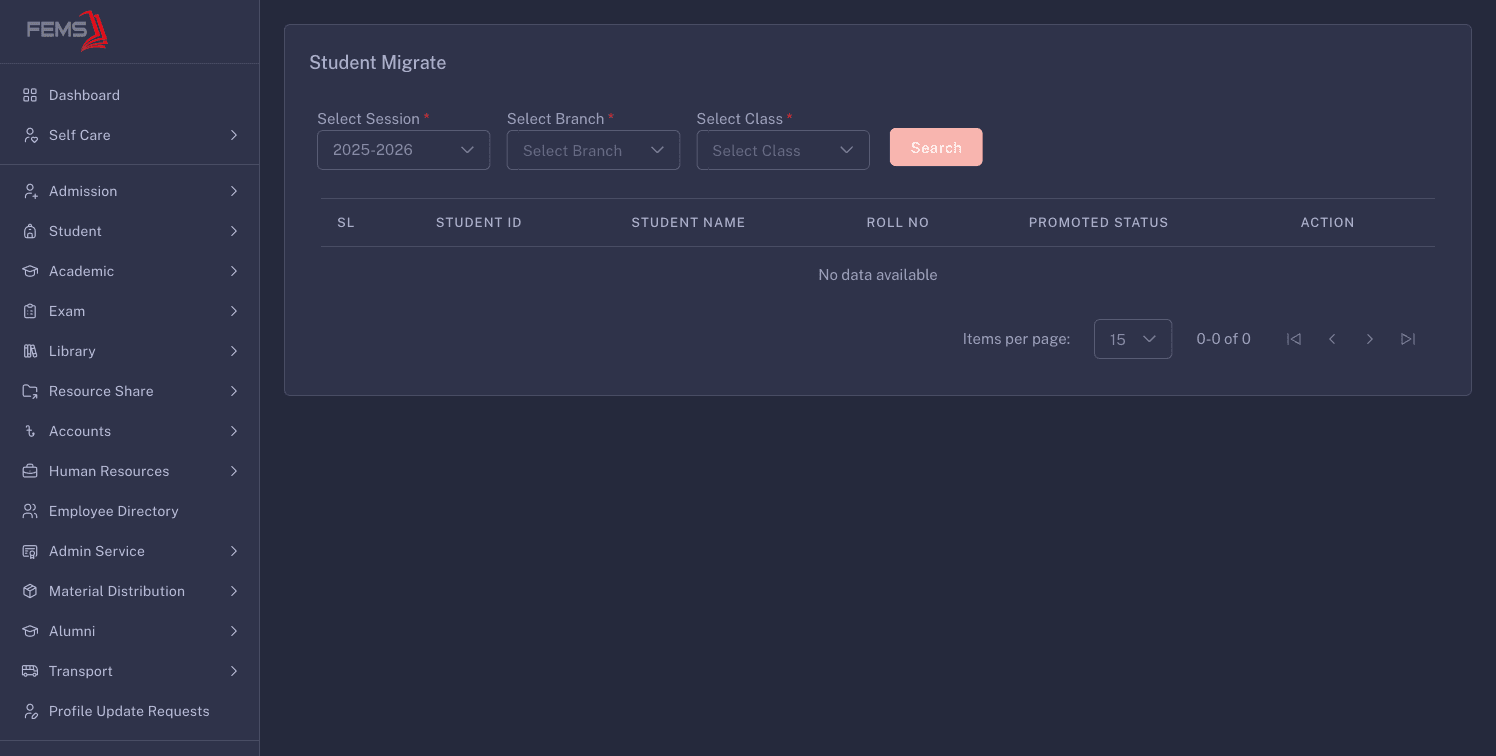
Pick Select Session, Select Branch, and Select Class, then click Search. The class roster loads with Student ID, Student Name, Roll No, Promoted Status, and an action per student.
Promoted Status tells you where each student stands. The bulk action count is your check: if it says 0 when you expect a full class, go back to step 1.
When the count looks right, click Migrate All Passed to promote them together, or use the per-student action to handle someone individually.
Students move to the next class in sorting order. There's no automatic graduation: if a class has no next class above it, FEMS stops and tells you the next class wasn't found, rather than guessing.
Step 3: Syllabus Migrate
Open Data Migration then Syllabus Migrate.
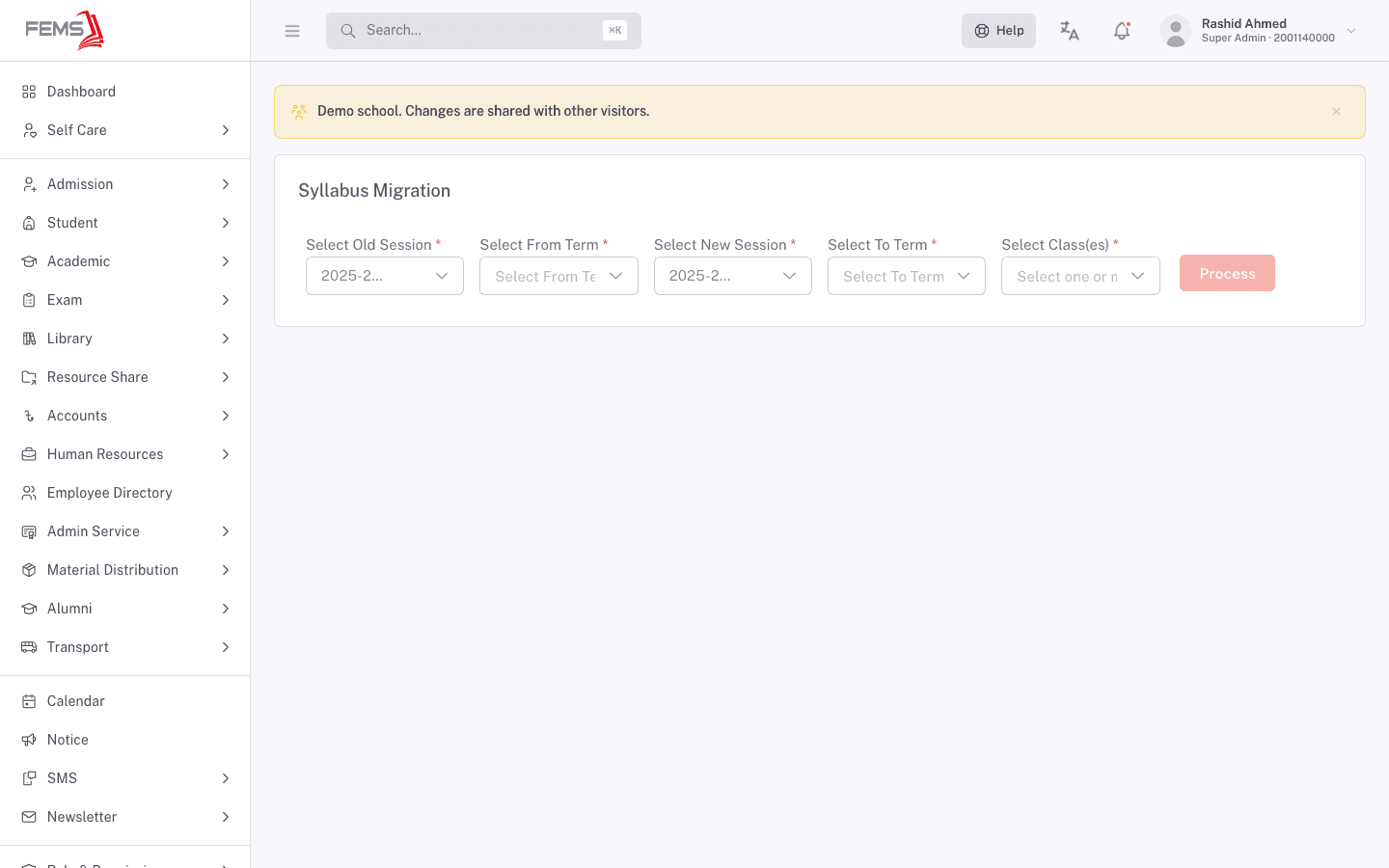
This one is term to term, not just session to session. Pick Select Old Session and Select From Term for the source, Select New Session and Select To Term for the destination, then Select Class(es), which takes more than one. Click Process.
The syllabus entries and their lesson plans are copied across, with sub-topics travelling under their parent entry rather than separately.
Step 4: Teacher Migrate
Open Data Migration then Teacher Migrate.
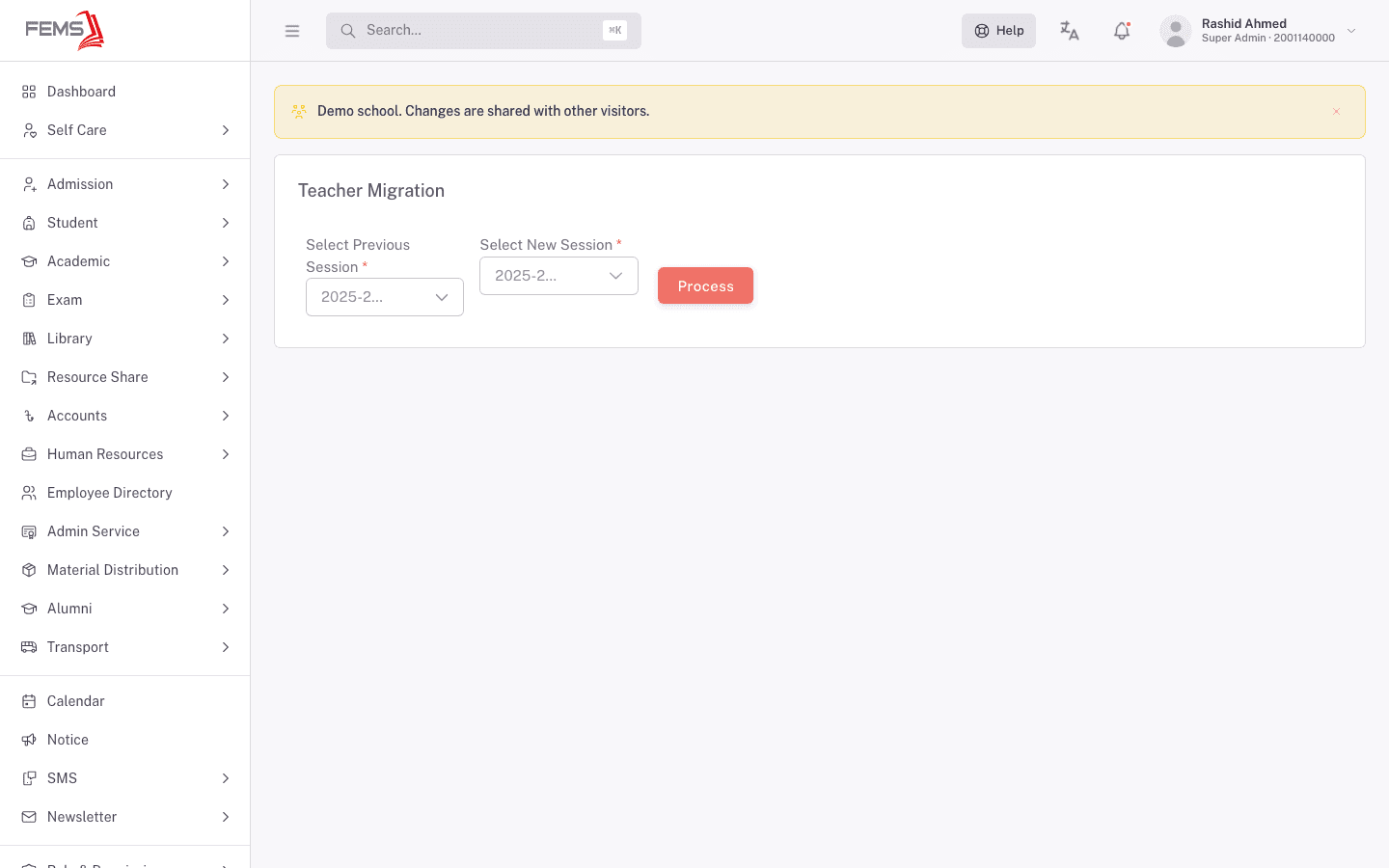
The simplest of the four. Pick Select Previous Session and Select New Session, then click Process. Last session's teacher-to-subject assignments are copied into the new one.
Afterwards, open Teacher Ordination and correct the assignments that changed: staff who left, subjects that moved, new class teachers.
FAQ
Why does the button say "Migrate All Passed 0 Students"? No student in that class is marked as passed yet. Run Result Update for the class first.
A student is on the roster but wasn't included. Result Update only records an outcome for students who appear in the exam report. Someone who missed the exam won't have one and won't be promoted.
What happens to students in the top class? Nothing automatic. There's no class above them to move into, so FEMS reports that the next class wasn't found. Handle those students separately.
Can I promote one student instead of the whole class? Yes. Each row has its own action alongside the bulk button.
I ran Syllabus Migrate twice by mistake. What now? Stop further migrations immediately and contact support or your institution administrator until duplicate handling is verified in a non-production environment.
Do I still have to redo teacher assignments after Teacher Migrate? Only the ones that changed. The copy gives you last session's assignments as a starting point.
Do these carry fee concessions across too? Concessions roll forward through their own process, not these four screens.