Building the class timetable
Build a section's weekly routine by dragging subjects into time slots, then check it from the teacher's side and print it.
Routine Manager is the weekly timetable. You pick a section, drag subjects into the day-and-period grid, and FEMS shows the same information back two ways: by class, for the students in a room, and by teacher, for the person walking between rooms.
Prerequisites
You need Routine Manager access. Before you start, the classes, sections, and shifts need to exist in Academic Config, and teachers need to be ordained to their subjects in Teacher Ordination. Without ordination, there's no teacher to attach to a period.
Open a section's routine
In the sidebar, open Academic then Routine Manager. The page has two tabs: Class Routine and Teacher Routine.
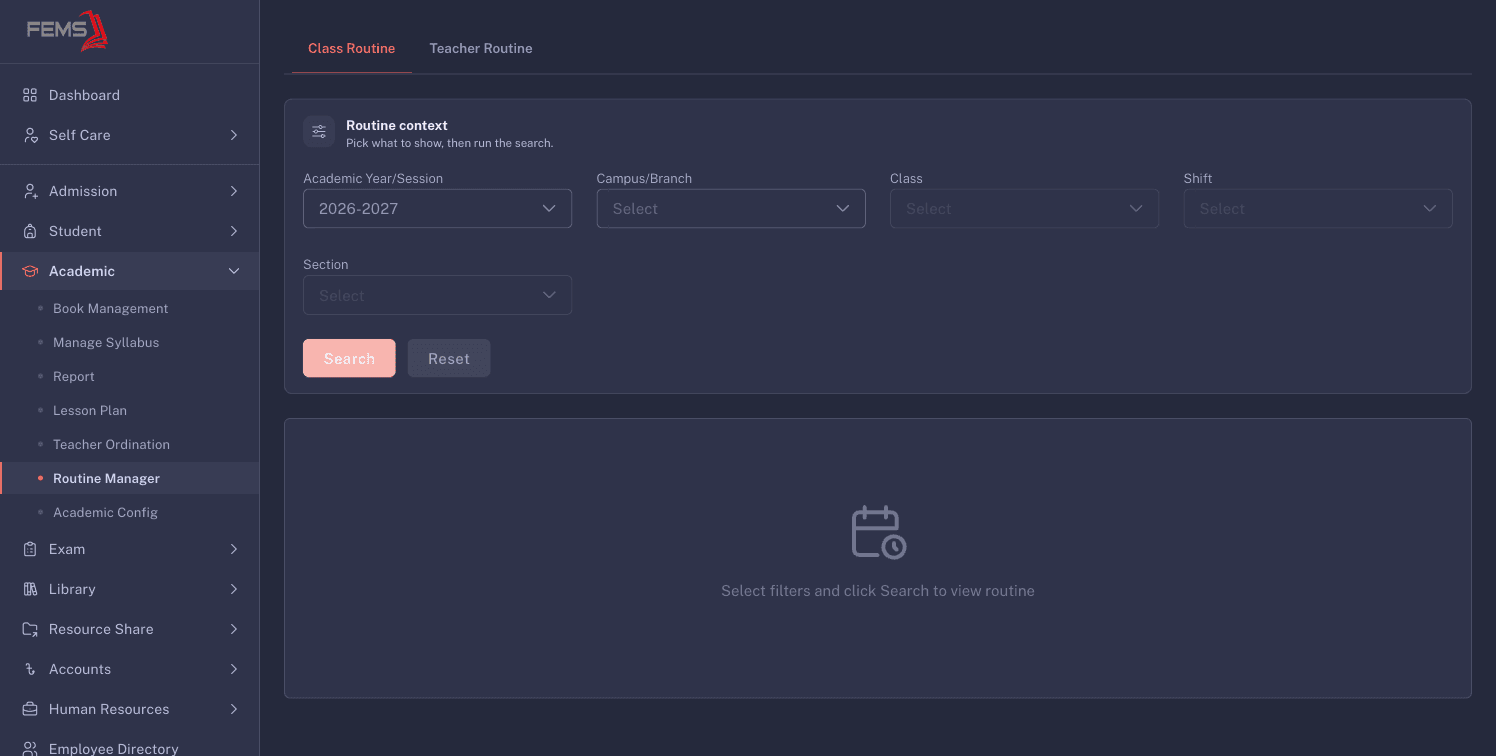
On Class Routine, fill in Advance Filter: Academic Year/Session, Campus/Branch, Class, Shift, and Section. Then click Search. Until you do, the page reads Select filters and click Search to view routine.
Reset clears the filters and returns you to that empty state.
Fill in the grid
Two panels appear. On the left, Subjects lists everything attached to that class, each with a drag handle. On the right, the weekly grid runs Sunday to Thursday across the top, with the school's time slots down the side. One row is marked BREAK across every day.
Build the week by dragging a subject from the left panel into the day and time slot where it's taught. Each filled cell shows the subject and the teacher taking it.
When the week is right, use Print at the top of the grid for a copy to put on the wall or hand to a class teacher.
Check it from the teacher's side
A routine can look fine per class and still be wrong: the same teacher booked in two rooms at once. The Teacher Routine tab is where you check the teacher's week.
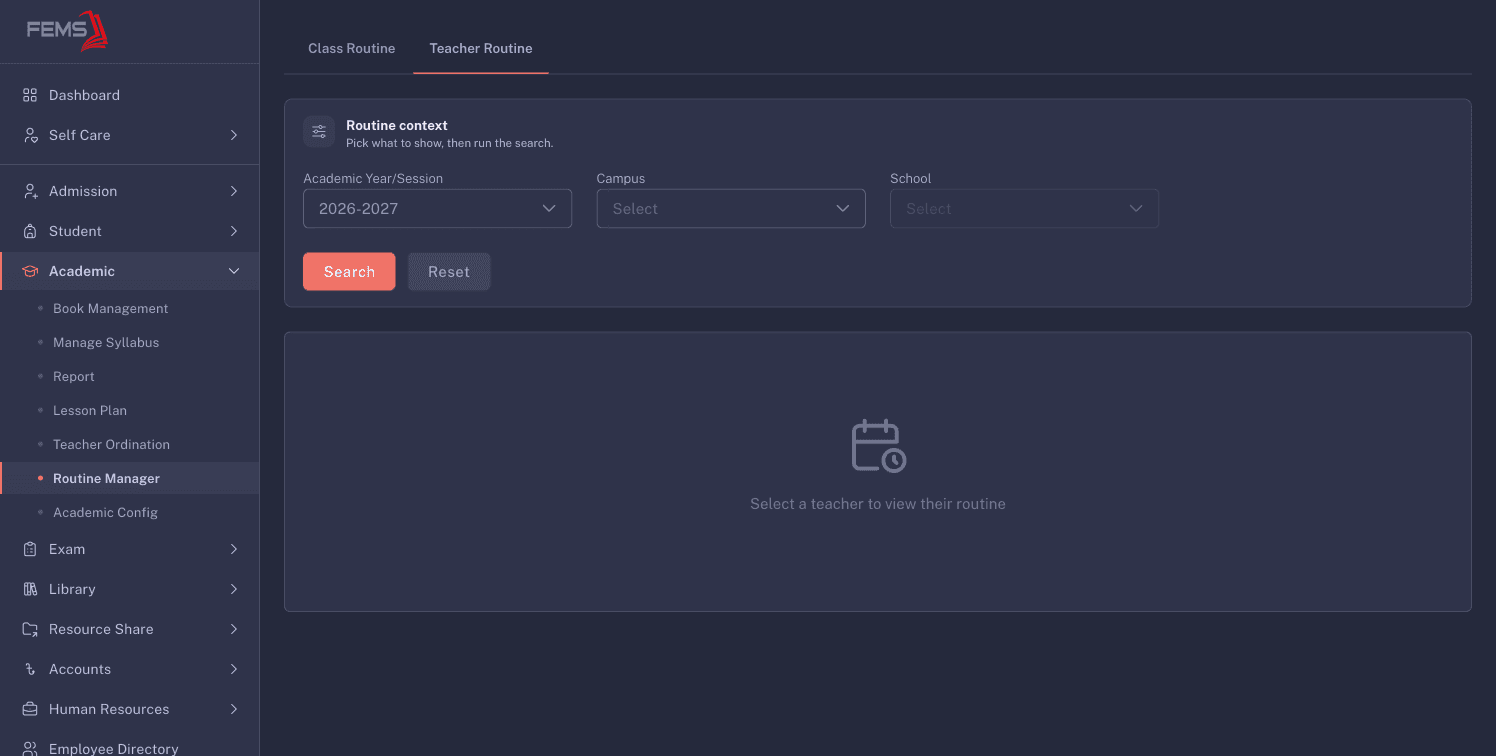
Pick Academic Year/Session, Campus, and School, then click Search to load the teacher list. Choose a teacher and their week appears: same day-and-period grid, but each cell shows the subject with the class and section they're teaching it to.
Read down a column to compare each period. Print creates a copy of the selected teacher's week.
FAQ
A subject I need isn't in the Subjects panel. The panel lists subjects attached to that class. If one is missing, it hasn't been attached to the class yet.
What is the BREAK row? The school's break period, shown across every day of the week so you can see where it falls when placing subjects around it.
Why does the grid stop at Thursday? The working week follows the school's configured days. Sunday to Thursday is the normal Bangladesh school week.
Do I build a separate routine for each section? Yes. The filter goes down to section, and each section gets its own weekly grid.
How do I find out whether a teacher is double-booked? Open Teacher Routine and read their week. Two entries in one period means the same person is expected in two rooms.
Does printing include the teacher names? The class routine prints what's on screen, subjects with their teachers. The teacher routine prints one teacher's own week.