Writing and reviewing lesson plans
Draft a lesson plan on the 5E model, submit it for review, and track it through approval.
A lesson plan sets out how one lesson will run, broken into the five phases of the 5E model. Teachers write them, a reviewer reads them, and the status tells everyone where each plan stands.
Prerequisites
You need Lesson Plan access. Teachers write plans for the classes and subjects they're ordained to, so Teacher Ordination has to be done first. The lesson you're planning also needs a syllabus entry, because the plan attaches to a lesson number and name from the syllabus.
Find existing plans
In the sidebar, open Academic then Lesson Plan.
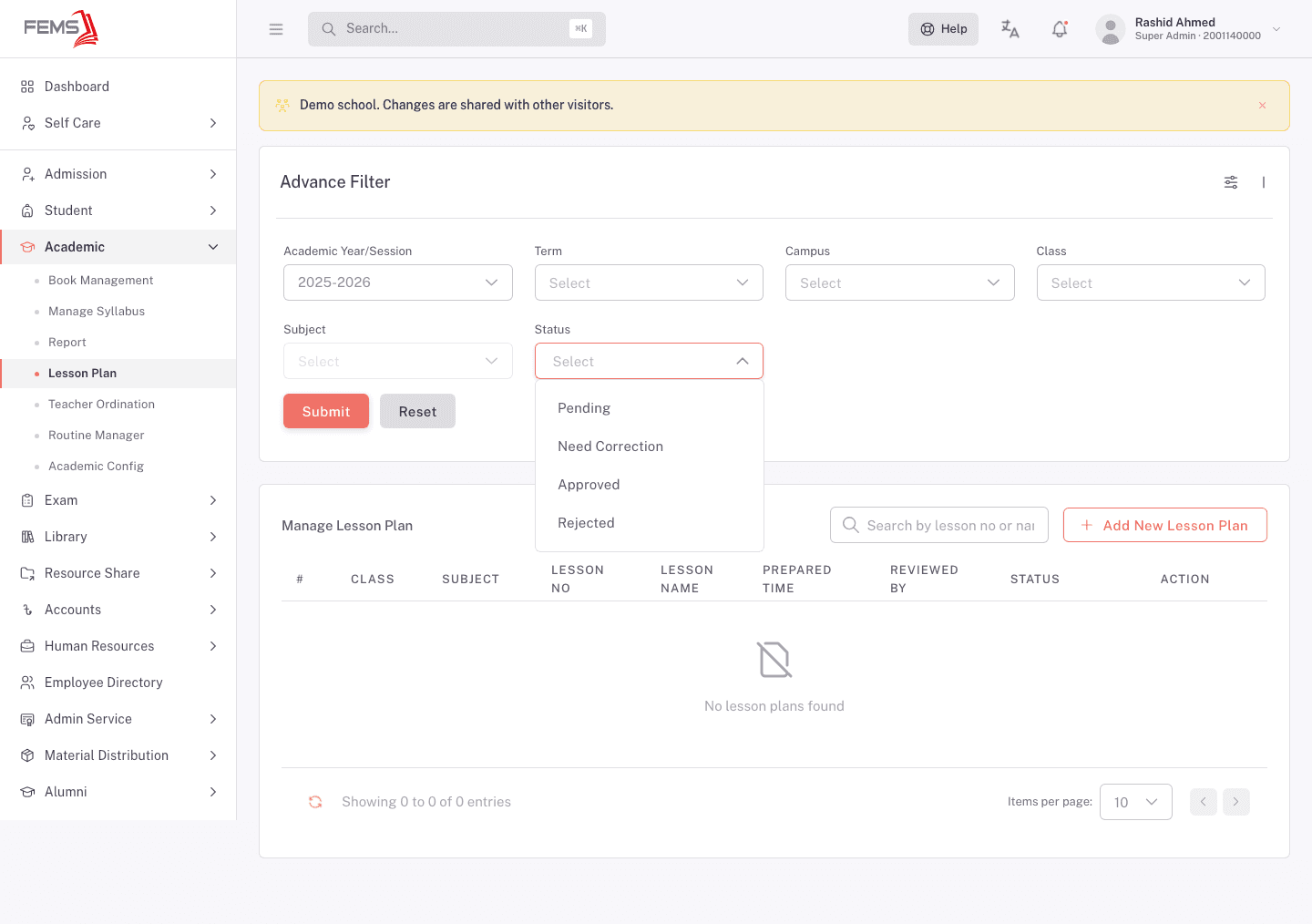
The list shows Class, Subject, Lesson No, Lesson Name, Prepared Time, Reviewed By, and Status. When there's nothing to show it reads No lesson plans found.
Open Advance Filter to narrow by Academic Year/Session, Term, Campus, Class, Subject, and Status, then click Submit. Lesson plans can carry six statuses, although the current filter offers only Pending, Need Correction, Approved, and Rejected:
| Status | What it means |
|---|---|
| Pending | Submitted and waiting on a reviewer. |
| Need Correction | Sent back to the teacher with changes to make. |
| Approved | Signed off by a reviewer. |
| Complete | A recognized completed state. It is read-only in the current review screen. |
| Not Approved | A recognized declined state. It is read-only in the current review screen. |
| Rejected | Turned down. |
There's also a search box that matches on lesson number or name.
Write a plan
Click Add New Lesson Plan.
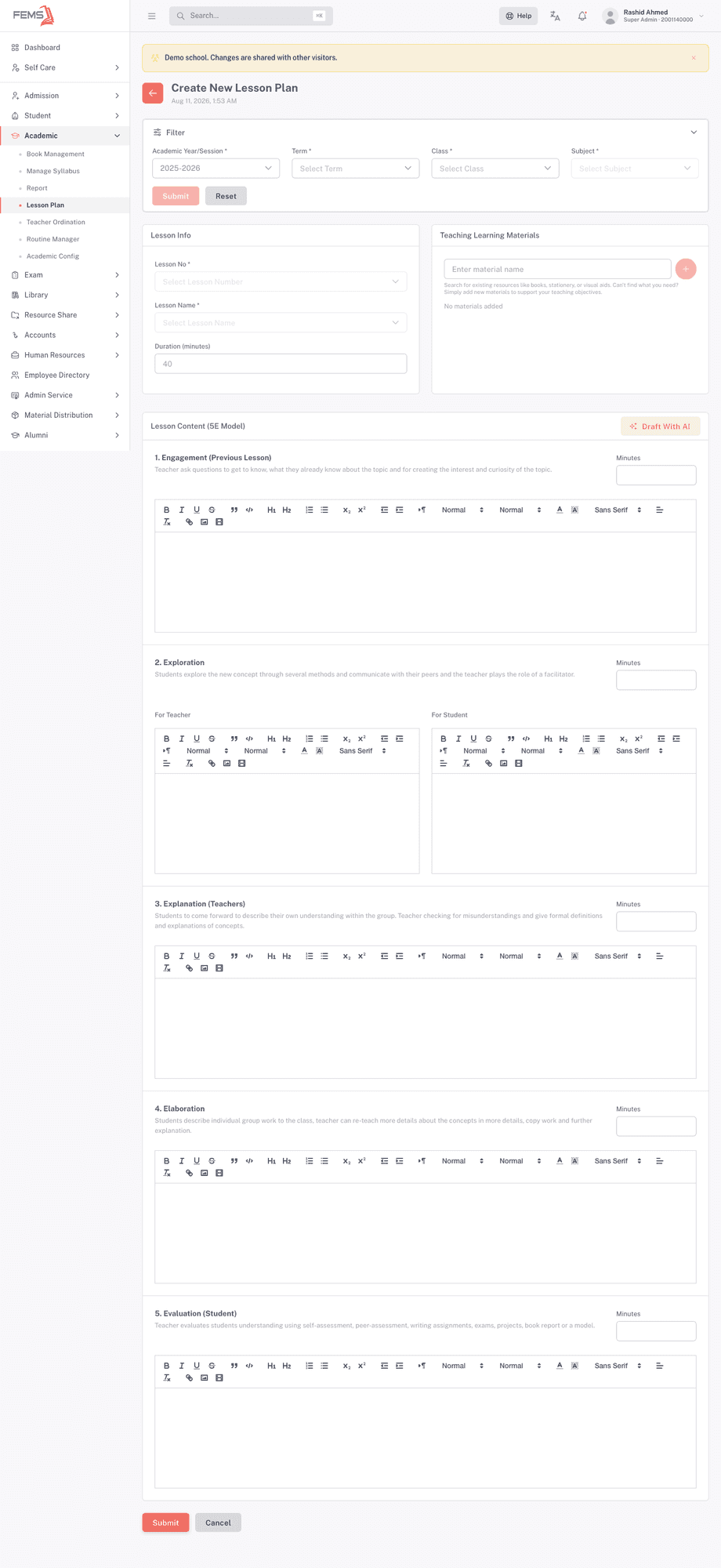
Pick the lesson. The Filter block at the top asks for Academic Year/Session, Term, Class, and Subject, all required. Click Submit there to load the lessons available.
Fill in Lesson Info. Lesson No and Lesson Name are required and come from the syllabus. Duration (minutes) defaults to 40; change it if this lesson runs longer or shorter.
Add your materials. Under Teaching Learning Materials, search for existing resources such as books, stationery, or visual aids and add them to the plan.
Write the five phases. Under Lesson Content (5E Model), each phase has a rich-text editor and a Minutes box:
- Engagement (Previous Lesson): questions that surface what students already know and build curiosity.
- Exploration: students explore the new concept and talk it through while you facilitate. This phase has two editors, For Teacher and For Student.
- Explanation (Teachers): students describe their own understanding, and you check for misunderstandings and give the formal definitions.
- Elaboration: students present group work, and you re-teach details or set further work.
- Evaluation (Student): how you'll check understanding: self-assessment, peer assessment, writing, exams, projects, or a model.
The five Minutes values have to add up to Duration (minutes) exactly, or the plan won't save.
Draft With AI sits at the top of the 5E block and drafts the phases for you. It's an optional aid; you still review and edit what it produces.
Click Submit to save the plan, or Cancel to discard it.
Review a plan
A submitted plan starts at Pending. A reviewer opens it, reads it, and either approves it, sends it back as Need Correction with a comment, or rejects it. The teacher can edit a plan while it's Pending or Need Correction, and the Reviewed By column on the list shows who handled it. FEMS recognizes Complete and Not Approved, but the current review screen provides no transition to or from those states.
FAQ
Why won't my plan save? The most common cause is the phase minutes. Engagement, Exploration, Explanation, Elaboration, and Evaluation have to add up to the duration exactly.
What is the 5E model? A five-phase lesson structure: engage, explore, explain, elaborate, evaluate. FEMS asks for each phase separately so a plan is complete and comparable across teachers.
Why does Exploration have two boxes? Because that phase splits by who's doing what. For Teacher is your facilitation, For Student is what students do.
Can I write a plan for a class I don't teach? The class and subject dropdowns follow your ordination, so you'll see the classes and subjects you're assigned to.
Can I edit a plan after submitting it? While it's Pending or Need Correction, yes. Approved, Complete, Not Approved, and Rejected plans are read-only.
Do I have to use Draft With AI? No. It's there to give you a starting draft. You can write every phase yourself.