Writing the syllabus
Record what each class covers in each subject and term, with book references and sub-topics.
Manage Syllabus is where you record what gets taught. One entry covers one lesson for one class, subject, and term, and can hold both the Cambridge scheme of work and your school's own version side by side. Teachers write lesson plans against these entries, and parents see them through the syllabus report.
Prerequisites
You need Manage Syllabus access, usually held by an Academic Coordinator. Classes, subjects, and terms need to exist first, and the books you want to reference need to be in Book Management.
Find existing syllabus entries
In the sidebar, open Academic then Manage Syllabus.
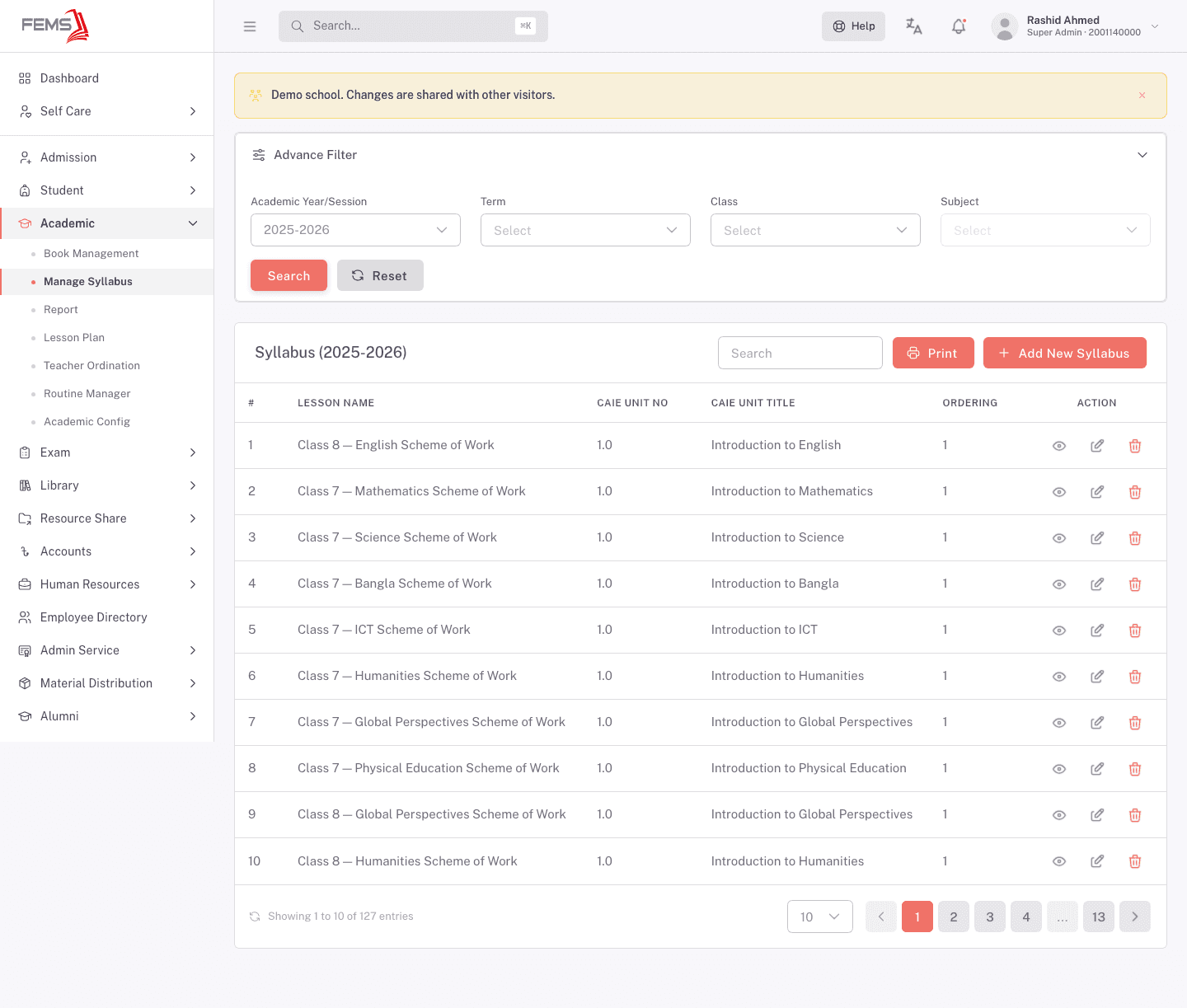
Advance Filter narrows the list by Academic Year/Session, Term, Class, and Subject. Click Search to apply, or Reset to clear. There's also a free-text Search box on the list itself.
The list shows Lesson Name, CAIE Unit No, CAIE Unit Title, and Ordering. Each row has three actions: view, edit, and delete. Print produces a printable copy of what's listed, and Add New Syllabus starts a new entry.
Add a syllabus entry
Click Add New Syllabus.
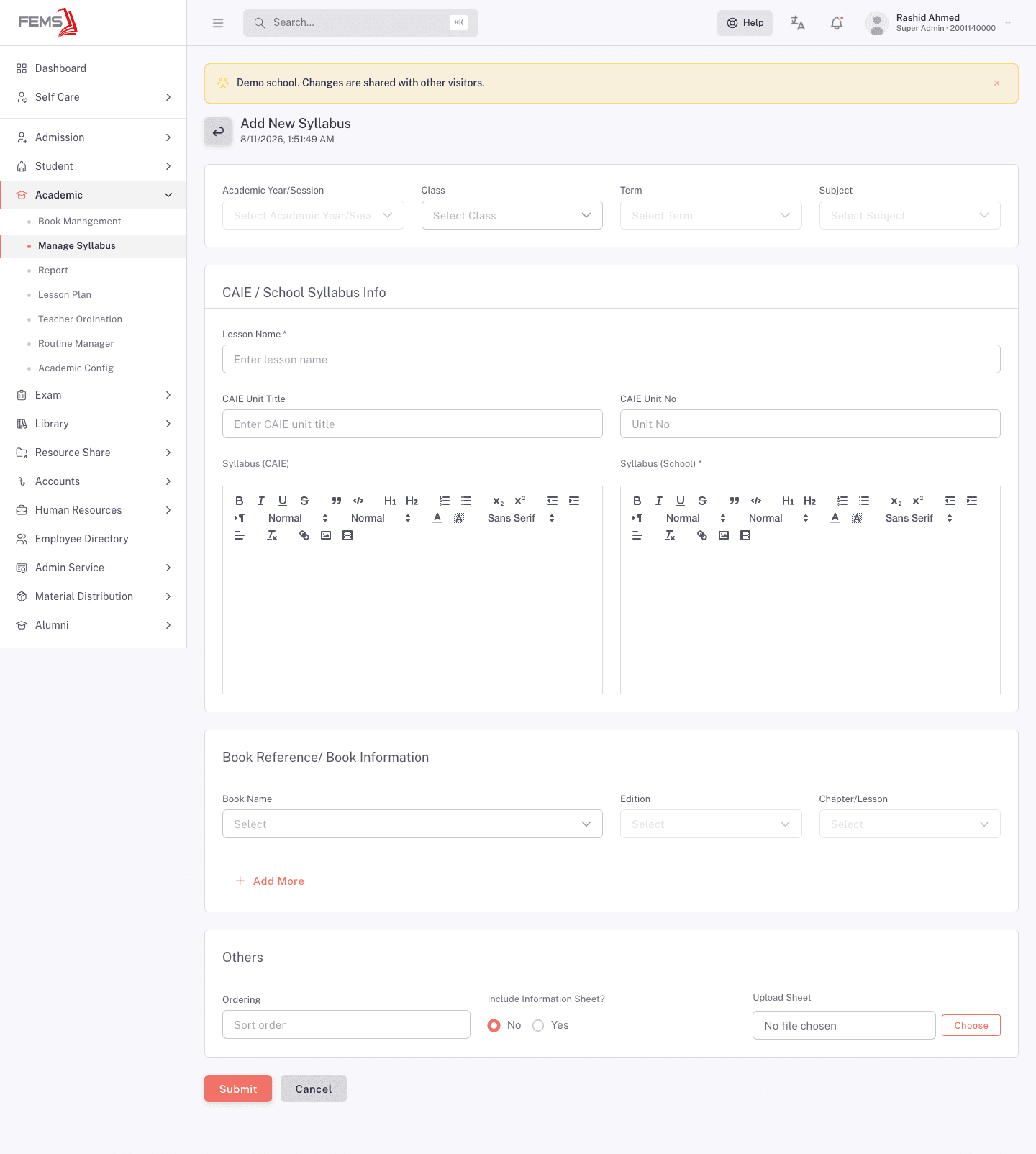
Fill it in from the top.
- Pick where it belongs. Choose Academic Year/Session, Class, Term, and Subject. These decide which class sees this entry and when.
- Describe the lesson. Lesson Name is required. CAIE Unit Title and CAIE Unit No are for schools following the Cambridge framework; leave them blank if yours doesn't.
- Write the content. There are two rich-text editors. Syllabus (CAIE) holds the Cambridge scheme of work. Syllabus (School) holds your school's version and is required. Schools not using Cambridge fill in the school one only.
- Reference the books. Under Book Reference/ Book Information, pick a Book Name, then its Edition, then the Chapter/Lesson. Use Add More for a second book. These read from the book catalogue, so a book has to be entered there before it appears here.
- Set the rest. Ordering controls where the entry sits in the list. Include Information Sheet? is No by default; switch it to Yes and use Upload Sheet to attach a file.
Click Submit to save, or Cancel to discard.
View an entry
Click the eye icon on any row.
A banner at the top confirms what you're looking at: class, subject, session, and term. Below that, CAIE/School Syllabus Info shows the unit details and both content blocks, Lesson & Sub-Topics lists any sub-topics under this lesson, and Book Reference lists the linked books. Others carries the ordering, the information-sheet flag, and who created the entry and when.
Edit, Print, and Close sit at the bottom.
At the start of a new year
Syllabus entries belong to a session and term, so a new year starts empty. Use Syllabus Migrate to copy a term's syllabus forward rather than retyping it. See Running year-end student promotion.
FAQ
Do I have to fill in the CAIE fields? No. They're for schools following the Cambridge framework. Syllabus (School) is the required content field.
A book I want to reference isn't in the dropdown. Add the book, its edition, and its chapters in Book Management first. The dropdowns here read from that catalogue.
What are sub-topics? Smaller topics grouped under one lesson. They appear on the view page under the lesson name and in the syllabus report.
Can I copy last year's syllabus instead of typing it again? Yes, with Syllabus Migrate, which copies a term's entries from one session to another.
Who else sees what I write here? The syllabus report is built from these entries, and there's a public version of it for parents and students.