Prepare fees for Science and Arts groups
Check academic groups and prepare different fee heads or amounts for Science and Arts students in Class 9 or Class 10.
Use this guide when Science and Arts students in the same class need different fee heads or amounts. For example, Science students might pay a lab fee while Arts students pay a different activity fee.
Current limit: the Student fees form checked for this guide has no Group selector. You can check the academic setup and prepare the fee rules, but you cannot finish group-specific fee setup through that form. Follow the checks below, then give FEMS support the details in step 4.
Prerequisites
Work with your academic administrator and accountant. You need access to Academic Config to inspect groups and classes, and Student fees to inspect fee rules. Ask your administrator if either area is missing. The steps give page paths to open on your school's FEMS portal, so you can use them with either sidebar layout.
Have your school's approved fee heads, amounts, academic session, classes, campuses, and billing dates ready. The screenshots use existing demo records. They do not show a completed group-specific billing setup.
1. Check that the academic groups exist
- Open Academic Config at
/academic/configon your FEMS portal. - Under Classes & sections, choose Group.
- In Group Configuration, look for the groups your school uses, such as Science and Arts. Check their Status.
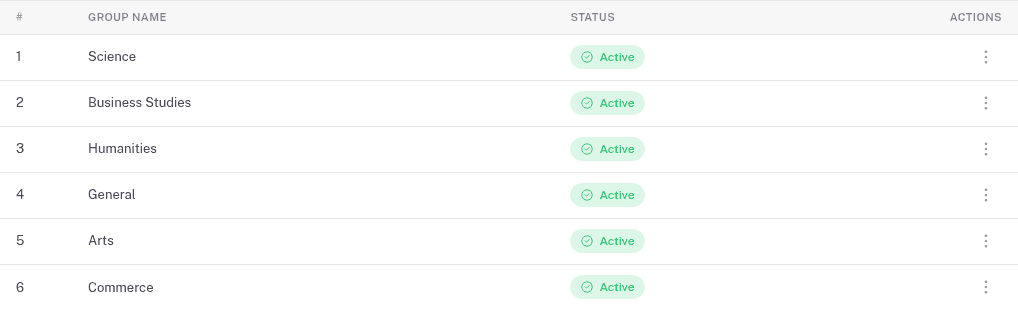
Use your school's exact group names. If it uses Humanities instead of Arts, keep that name in the fee plan. Ask your academic administrator to review a missing or inactive group before continuing. Do not add another group when the correct one already exists.
2. Check the class and student groups
- In Academic Config, choose Classes & sections > Class.
- Search for Class 9 or Class 10 in Search Classes.
- Open the matching row's action menu and choose Edit.
- Under CLASS FEATURES, inspect Has Group. This is the setting for student streams.
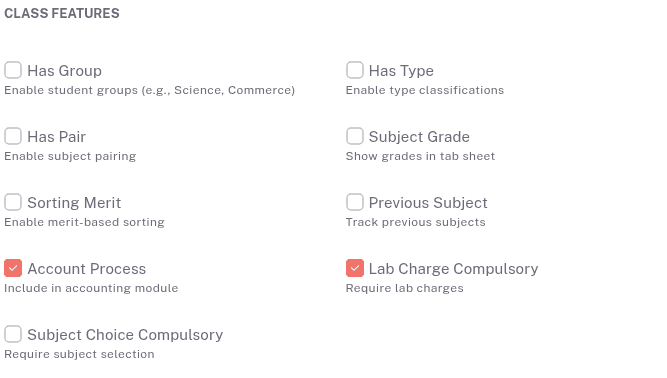
The demo example shows Has Group off. It is a check of an existing record, not a completed setup to copy. If your class uses streams and the switch is off, ask your academic administrator to review the class setup. Choose Cancel when you are only checking it.
Have the academic administrator confirm each affected student's saved class, session, and group. A group in the school list does not, by itself, show which students belong to it. Use student records to review their academic information.
3. Check the fee form before adding a group-only fee
- Open Student fees at
/accounts/configurations/student-fee-configon your FEMS portal. - Choose the intended Session, then Class.
- Choose Add Student Fee to inspect the form.
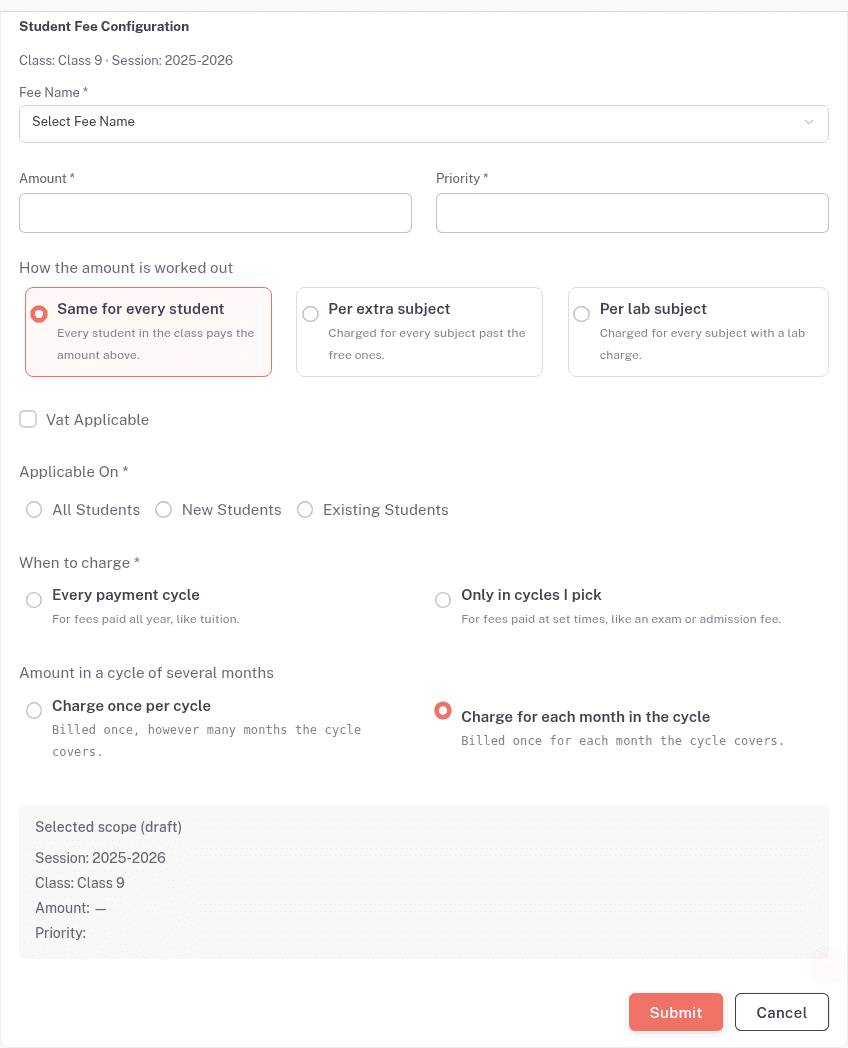
Applicable On offers All Students, New Students, and Existing Students. These choices do not select Science or Arts.
Per lab subject works out a fee from subjects marked for a lab charge. It does not select an academic group. Use it only when your approved fee policy is based on lab subjects.
If there is no Group field, stop before submitting a fee intended only for Science or Arts. Choose Cancel. Changing Applicable On or choosing a different fee name does not establish a group restriction.
4. Prepare the exact fee rules for FEMS support
Write down which students should pay each fee. For the Science and Arts scenario, separate these requirements:
- Common fees: name each fee head that both groups pay.
- Science-only fees: name each head, such as a lab fee, that only Science students should pay.
- Arts-only fees: name each head that only Arts students should pay.
- Different amounts for the same head: state the Science amount and Arts amount separately, such as two approved tuition rates.
For every rule, include the amount, class, academic session, campus, and payment cycles. Say whether the amount is charged once per cycle or for each month in the cycle. Include whether it applies to all, new, or existing students within the intended group.
You can use this request:
We need different fees for Science and Arts students in the same class. Our class is [class], session [session], and campus [campus]. Both groups pay [common heads and amounts]. Science students also pay [heads and amounts]. Arts students also pay [heads and amounts]. Tuition is [Science amount] for Science and [Arts amount] for Arts. These rules apply in [payment cycles], charged [once per cycle / for each month]. The Student fees form has no Group selector. Confirm how to configure these rules before we generate fees.
Use Getting help to contact FEMS support. Include whether any fees have already been generated for the affected cycle, so the accountant can review those existing dues separately.
FAQ
Does adding Science and Arts under Academic Config create their fees? No. Academic groups and fee rules are separate setup areas. Check both before billing.
Can I use All Students for a Science-only lab fee? That choice does not identify Science students. Stop if you cannot select the intended group, and include the lab-fee requirement in your support request.
How will I know the setup is complete? Ask the accountant to check the resulting fee heads and amounts for a Science student and an Arts student in the same class, session, and billing cycle. Both should have the common fees, and each should have only their intended group fees. Check the actual dues before taking payment.