Getting help when you're stuck
Use page help, search the Knowledge Base, or start a support conversation.
FEMS gives you three ways to get unstuck: check the current page's Help panel, search the public Knowledge Base, or start a support conversation.
Prerequisites
Any signed-in user can open the Help panel. The Knowledge Base is public. You need access to Help Desk > Support Tickets to start or follow a support conversation.
The Help panel
Click Help in the top bar to open the panel for the page you are viewing. The panel shows:
- For this page, with a prompt to search the FAQ or open the Knowledge Base.
- Search FAQ, for questions available on that page.
- Open Knowledge Base, for the full FEMS documentation site.
Some pages show No FAQ entries yet. Use Open Knowledge Base when that happens.
Search the Knowledge Base
Open Help Desk > Knowledge Base from the sidebar, or click Open Knowledge Base in the Help panel. The link takes you to the public documentation at docs.fems.education.
Browse Getting Started, Modules, How-To Guides, FAQ, Troubleshooting, and Release Notes from the left sidebar. Click Search and enter a task, screen label, or error message when you need a specific answer.
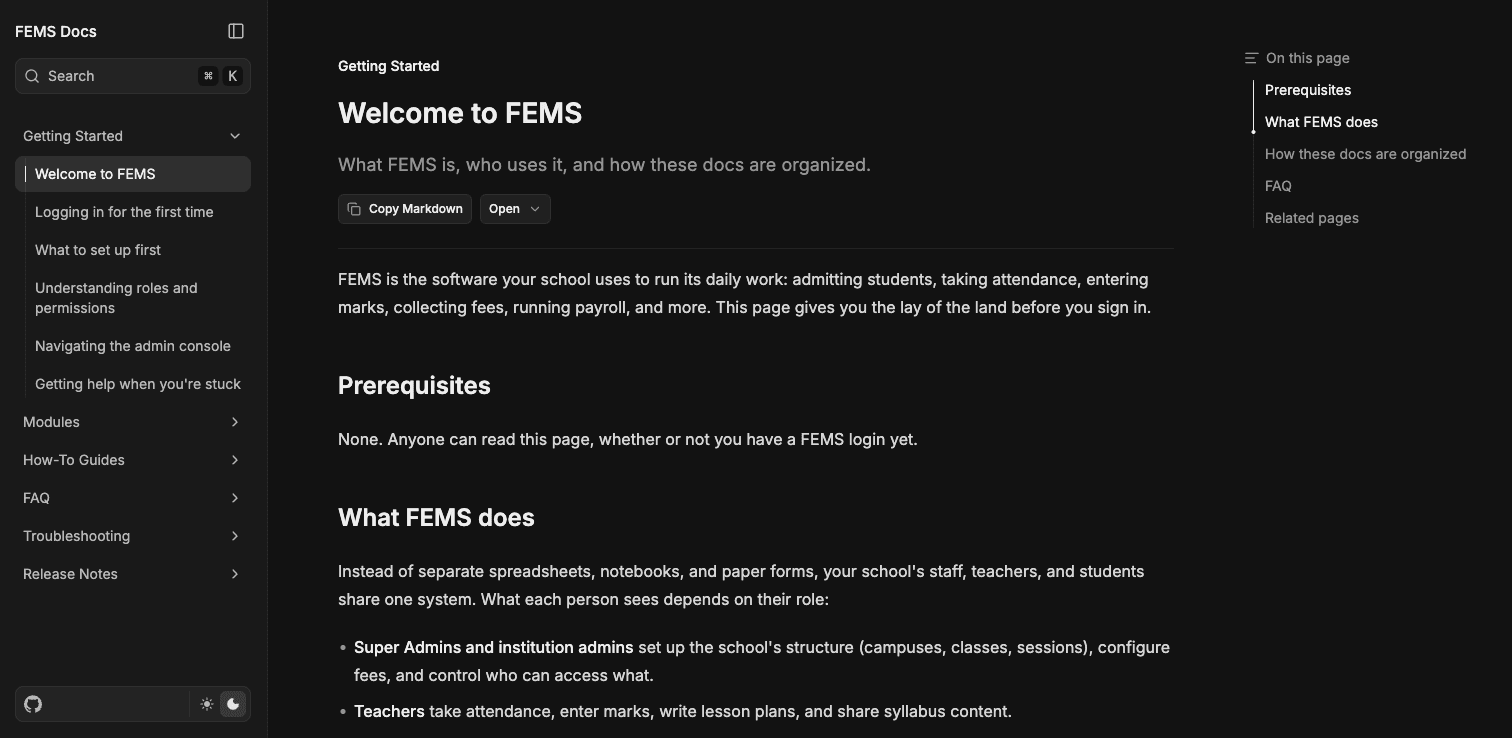
For detailed search steps, see Browsing the FEMS Knowledge Base.
Start a support conversation
Start a conversation when the Knowledge Base does not answer your question.
- Go to Help Desk > Support Tickets in the sidebar.
- Review the Support Conversations list. Each row shows its status and priority.
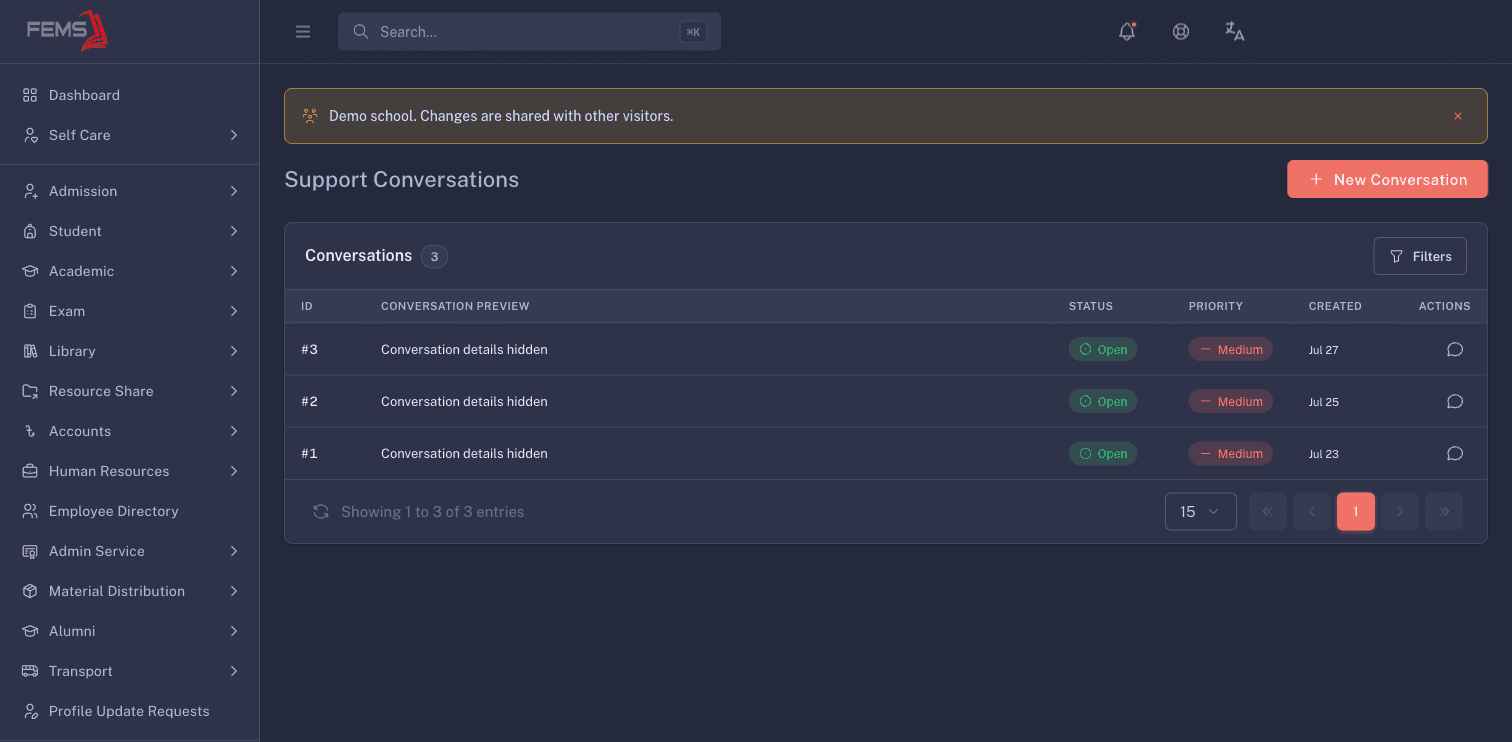
- Click New Conversation.
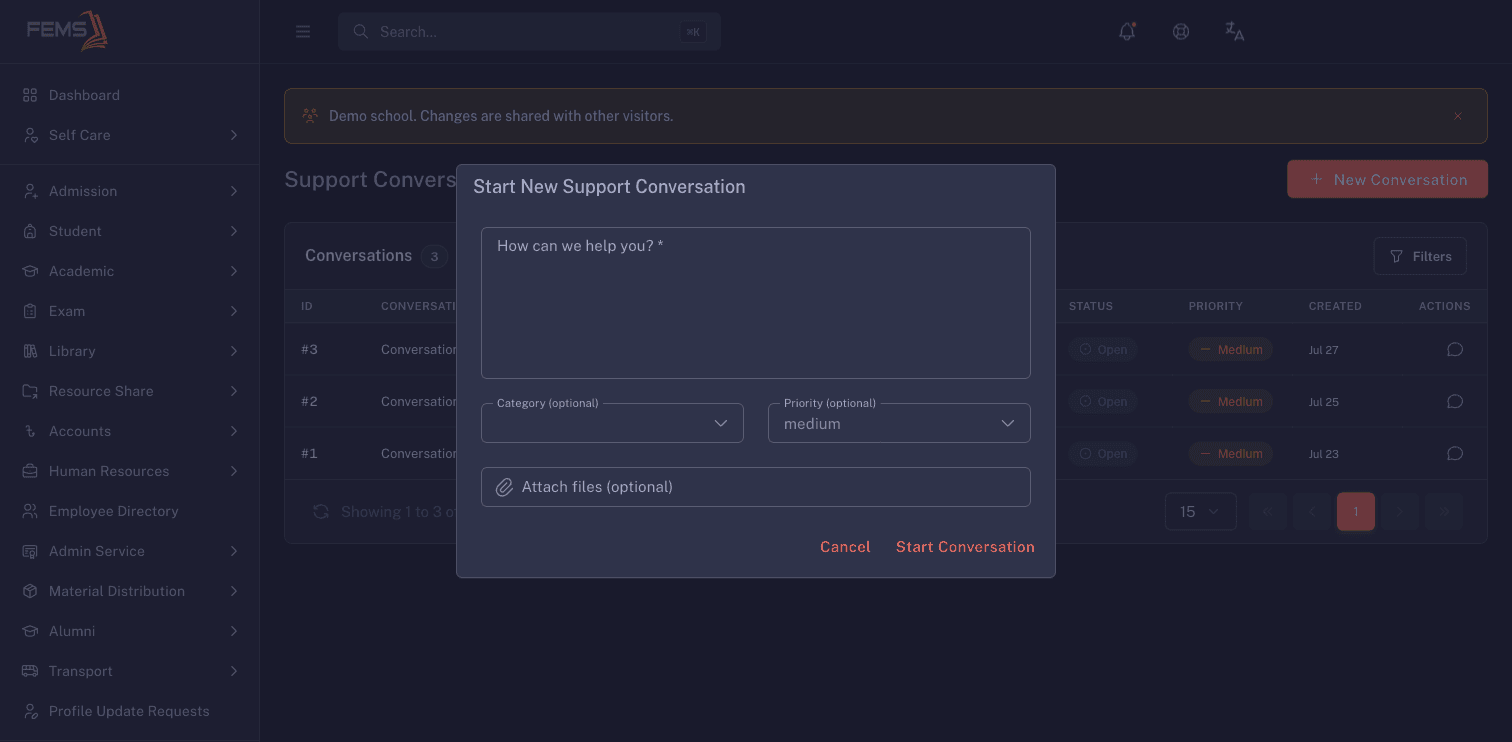
- Describe the problem in How can we help you?. Include the screen, what you tried, and what happened.
- Optionally pick a Category and a Priority.
- Optionally use Attach files to add evidence. Mask private student, parent, employee, and payment details first.
- Click Start Conversation.
For filtering, replies, and attachments, see Managing support conversations.
FAQ
Why does the Help panel say "No FAQ entries yet"? That page does not have FAQ entries available. Open the Knowledge Base and search for the task instead.
Can I attach a screenshot to a ticket? Yes, use Attach files on the new conversation form.
What should I put in a support conversation? Name the screen, describe what you expected, and describe what happened. Include an error message if one appeared.
Do I need to sign in to read the Knowledge Base? No. The documentation site is public.