Understanding roles and permissions
A plain-language tour of roles, direct grants, and data-access scope.
FEMS controls what you can see and do through roles, permissions, and data scope. Check access for the action you need and the records you work with.
Prerequisites
You need access to the Role & Permission screens for the task you manage. Ask your system administrator to check that access if a page or action is unavailable.
The building blocks
Roles. A role is a named bundle of permissions, like "Accountant" or "Teacher". Your school can use the built-in roles or create custom ones. Add a staff member to a role, and they get everything that role can do.
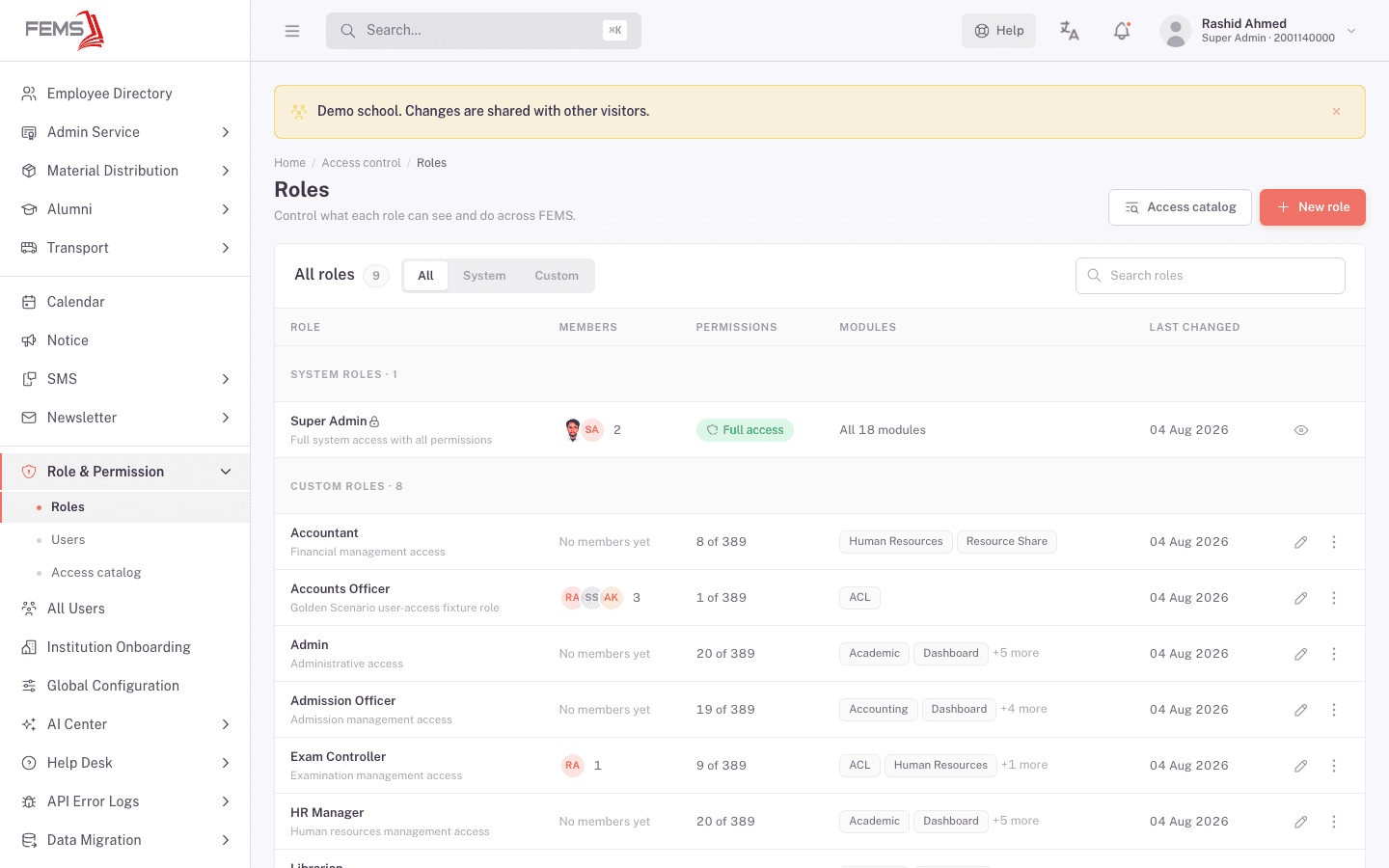
Super Admin. One role sits above the rest. A Super Admin can see and do everything in the institution's catalog, no individual permission check needed. FEMS also protects this role directly: you can't delete or edit the built-in Super Admin role, and you can't remove its last remaining member (that would lock everyone out).
Direct grants (per-user overrides). Beyond roles, an individual person can get extra permissions added on top of their role, or have specific permissions blocked, independent of what their role normally allows. Each override can be temporary (set to expire on a date) and a blocked permission needs a reason recorded against it.
Data-access scope. Separate from what a person can do, data scope controls what rows of data they can see: which campuses and which classes. Two accountants can have identical permissions but see only their own campus's fee records, because of this scope setting, not because of a different role.
Putting it together. What a person can actually do is the combination of their role's permissions, plus any extra grants, minus any blocks, filtered further by their data scope. It's computed the same way for everyone, there's no separate "backdoor" role logic.
Check access for the action you need
Opening a page does not give you every action on it. Reading, saving, exporting, and printing can require separate access. Your role's name also does not guarantee access to every page in a module.
If a page or action is unavailable:
- Check that you are using the intended account and campus or class.
- Ask your administrator to check the permission for that action and your data scope.
- If access still looks wrong, give FEMS support the page, action and selected context so they can check the exact workflow.
Server checks can differ between actions. Menu and button visibility alone do not prove which actions the server blocks. For money, grades or personal records, ask your Super Admin or FEMS support to confirm the server checks for the exact action. Do not use a hidden menu item as your only safeguard.
FAQ
If I hide a menu item from a role, is that person actually blocked from that data? Hiding a menu item does not confirm which related actions the server blocks. Ask your administrator or FEMS support to check the permission and data scope for the exact action, especially when it involves money, grades or personal records.
Can one person be in more than one role? Yes. A person's effective permissions are the union of every role they're in, plus their own direct grants, minus any blocks.
What's the difference between a role and data scope? A role controls what a person can do (like "collect payments"). Data scope controls which records they can do it to (like "only this campus's students"). They work together, not instead of each other.
Why can't I delete the Super Admin role or remove its last member? FEMS blocks both on purpose, so an institution can never end up with nobody able to manage it.
Do date-limited grants expire automatically? Yes. A direct grant or role assignment with an end date stops applying on its own once that date passes, no manual cleanup needed.