Managing support conversations
Start, filter, and follow support conversations from the FEMS Help Desk.
Use Support Tickets when the Knowledge Base does not answer your question. FEMS keeps each request and its replies together as a support conversation.
Prerequisites
You need access to Help Desk > Support Tickets.
Review your conversations
- Go to Help Desk > Support Tickets.
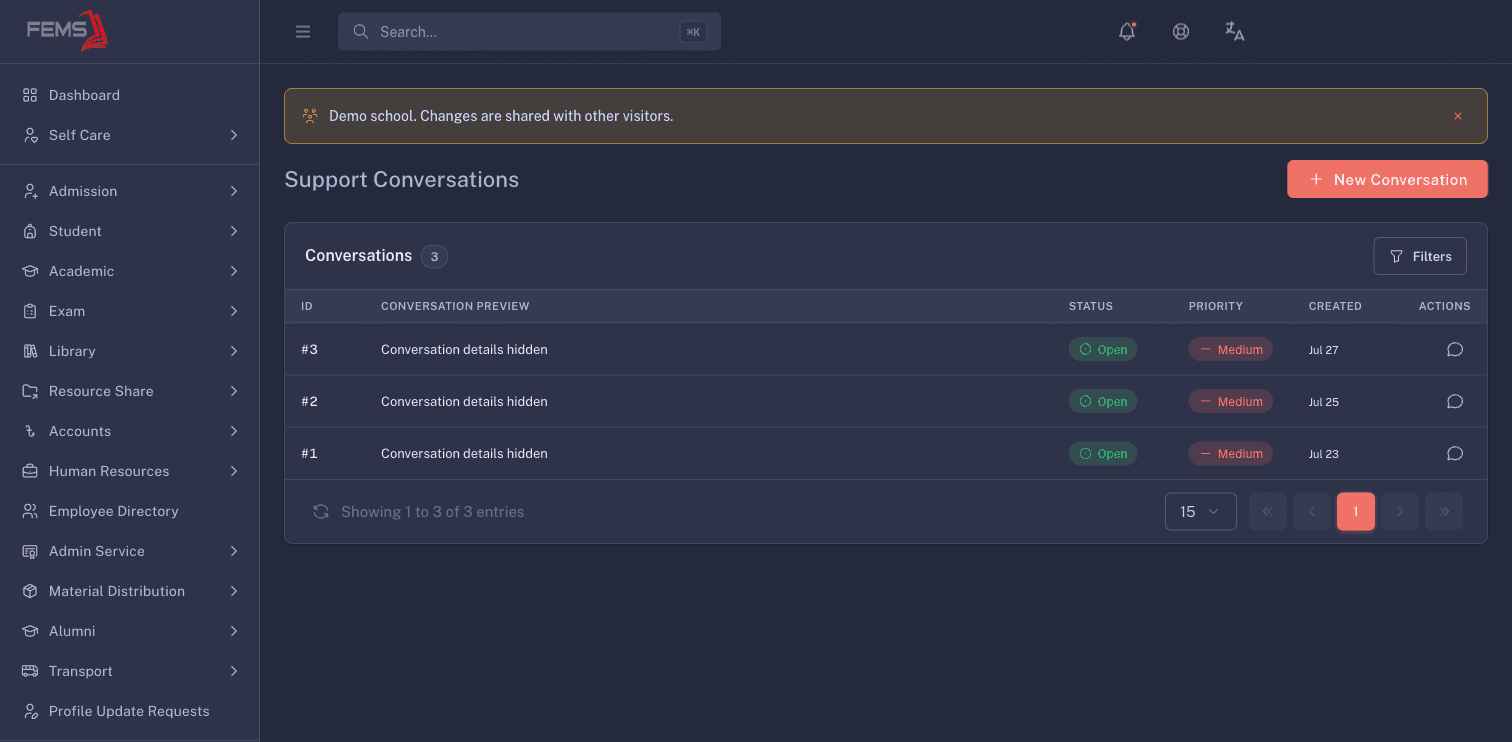
- Review the Support Conversations list. Each row shows its ID, conversation preview, status, priority, and creation date.
- Click Filters to narrow the list by status or priority.
- Status choices are Open, In Progress, Resolved, and Closed.
- Priority choices are Low, Medium, High, and Critical.
- Click Apply. Use Reset all to clear the choices before applying.
- Click a row or its conversation action to open the thread.
Start a support conversation
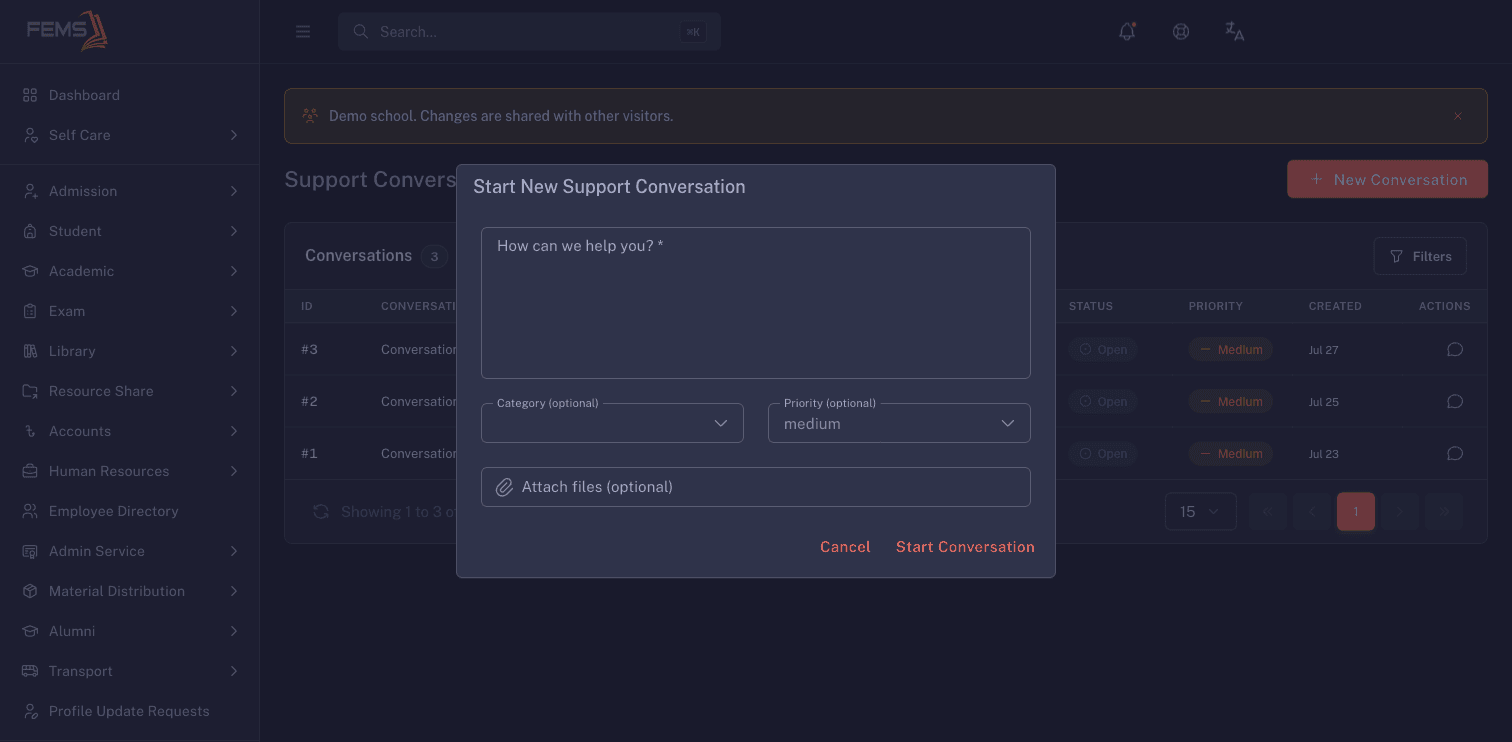
- Click New Conversation.
- Describe the problem in How can we help you?. Include the screen, what you tried, and what happened.
- Optionally choose a Category.
- Choose the Priority that matches the impact. The form starts at Medium.
- Optionally use Attach files to add evidence such as a screenshot.
- Review the description and attachments. Do not include passwords, payment credentials, or private student data.
- Click Start Conversation.
Read and reply
- Open a conversation from the list.
- Check its Status and Priority near the title.
- Read the conversation thread and the dates under Conversation Details.
- Enter your reply under Type your message. You can also use Attach files.
- Review the reply, then click Send Message.
- If you started the conversation or manage support tickets, click the pencil next to the title to edit the subject or description. Click Save.
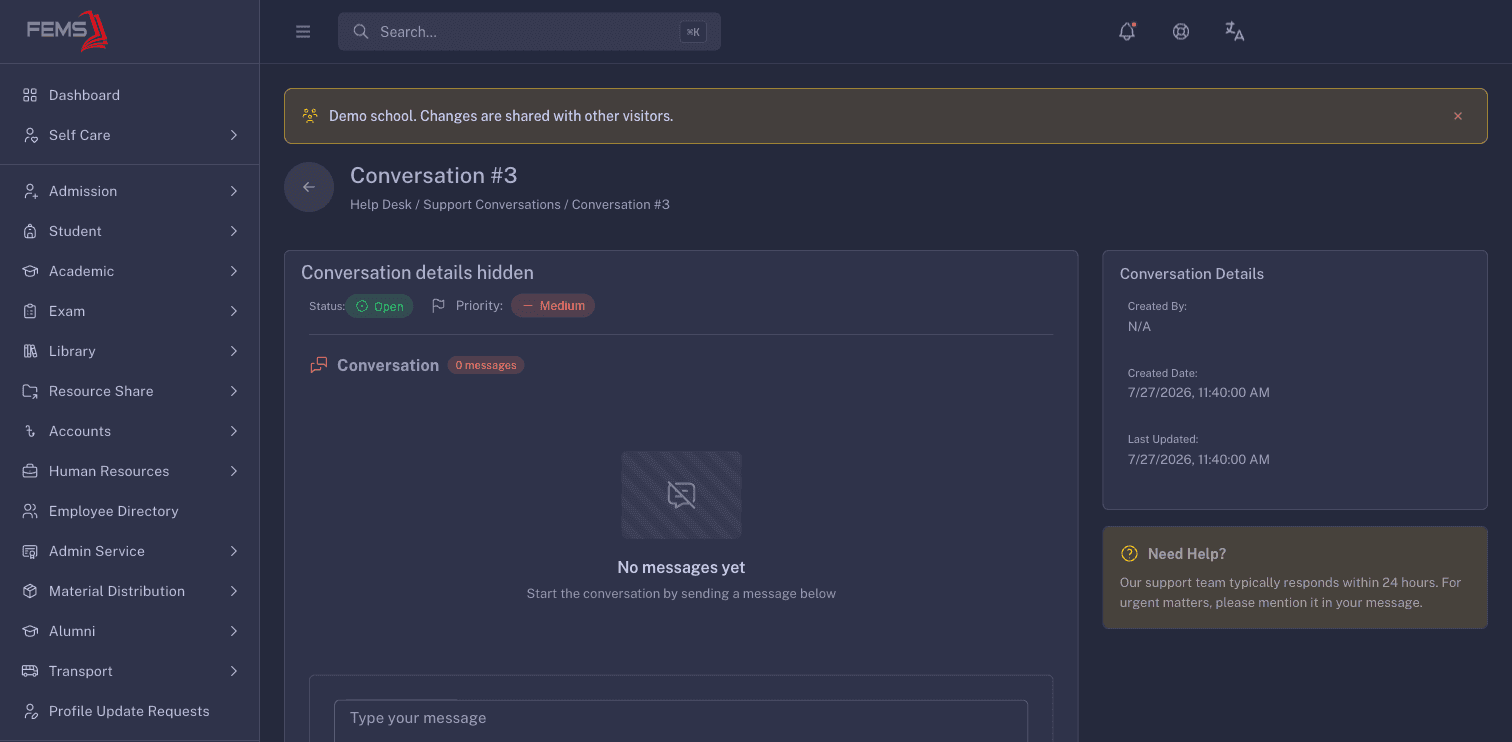
The current conversation page displays status and priority but does not show controls to change either one.
FAQ
Why can I not change a conversation's status? The current conversation page only displays status and priority. It does not provide an editor for either field.
Can I filter critical conversations? Yes. Open Filters, set Priority to Critical, then click Apply.
What should I attach? Attach evidence that helps support reproduce the problem. Mask private student, parent, employee, and payment details first.
Where do replies appear? Replies appear in the conversation thread on its detail page.