Set up class shifts
Choose which classes use Morning and Day shifts in each academic session, then check the choices on an admission form.
Choose shifts for the classes that need them in each academic session. The same class can use Morning and Day in one session and have no shift in another.
Prerequisites
Use an account that can update institution settings in Global Configuration and add academic years and classroom assignments in Academic Config. You also need permission to open a new Admission application to check the form. To copy an earlier setup, you need Session Migration access with Configure New Session permission. Ask your FEMS administrator for help if these areas are missing.
Have the session name, dates, and class list ready. The screenshots use sample sessions in the demo. Choose your school's own sessions and classes.
Set this up before you start taking admissions for the session. If you are changing a session that is already in use, ask your FEMS administrator to review it first.
1. Check the institution setting
Open Global Configuration > Institutions. If you see a list of schools, choose Manage beside your school.
Scroll to Integrations, then find Academic settings. Check that Use academic shifts is on. If you change the switch, choose the Save button in that section. Leave it as it is when it is already on.
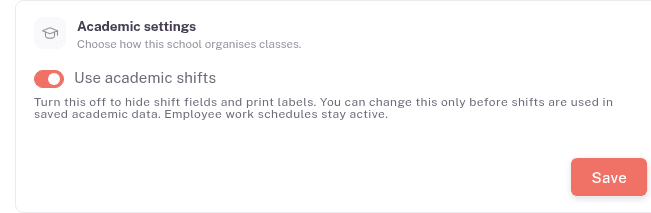
This is the institution-wide setting. Choose the classes for each session in the next step.
2. Choose the classes for the session
Open Academic > Academic Config. In the grouped menu, choose Classes & Sections > Academic Year.
For a new session, choose Add New. Check the Name, Start Date, and End Date before choosing its classes.
- In Classes, choose every class that runs in this session.
- In Classes using shifts, choose only the classes that use shifts in this session. This list contains the classes you chose above.
- Review Type, Sorting, Status, and Default with the rest of your academic-year setup.
In the example below, the session teaches Class 2 and Class 3. Only Class 2 uses shifts. Leave Class 3 out of Classes using shifts.
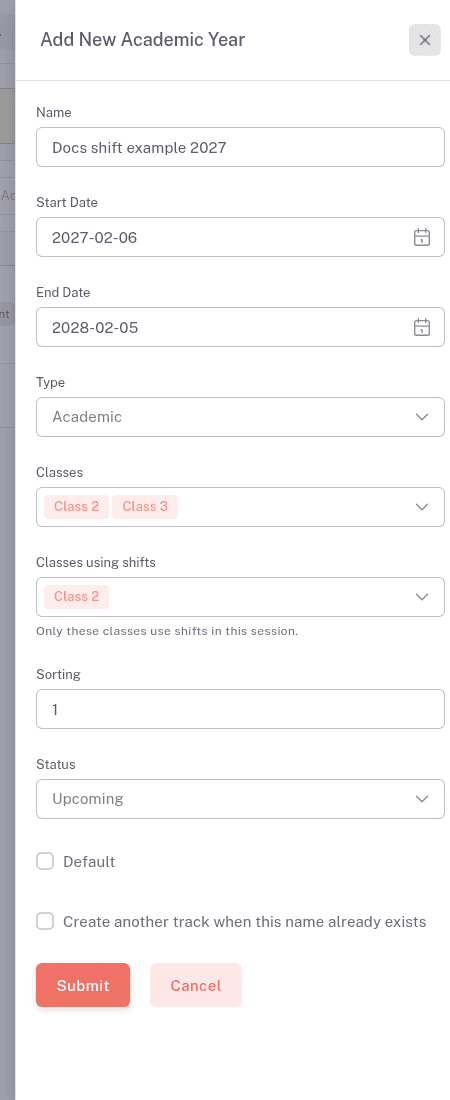
Choose Submit. You'll see the saved session in the Academic Year Configuration list.
3. Check classroom assignments
In Academic Config, open Classes & Sections > Class Room. Review the room assignments for the classes that use shifts.
For a new assignment, choose Add New. Fill Branch/Campus, Class, Shift, Section, Room, and Capacity, then choose Submit. Choose the shift that matches the room assignment.
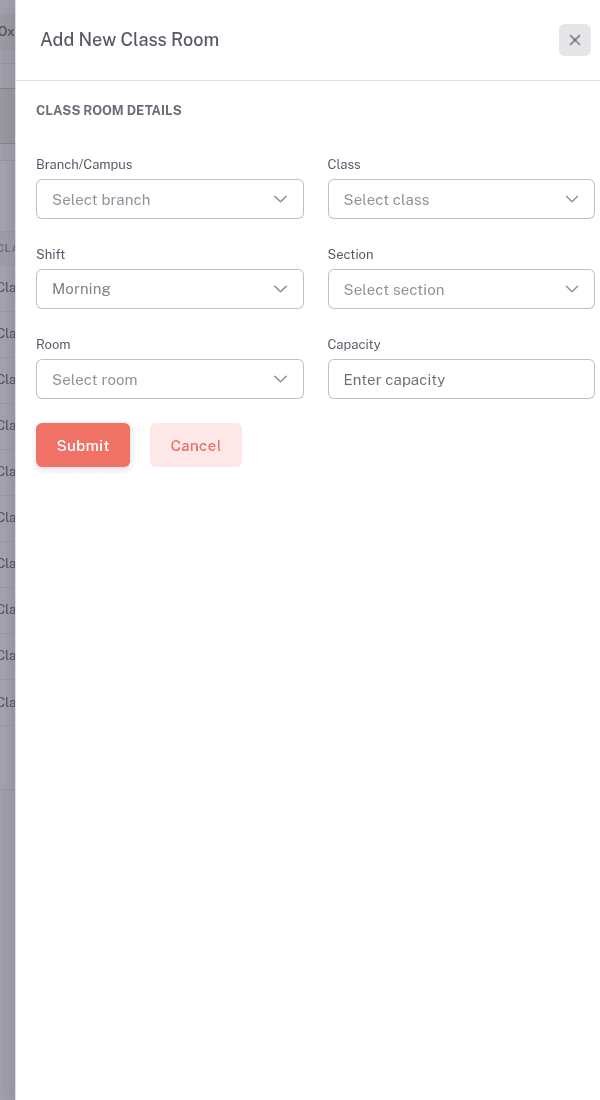
The screenshot shows an unsaved example. Choose Cancel if you are only checking the form. Review your school's room assignments before admitting students into the new setup.
4. Check the admission choices
Open Admission > Applicant Management and choose New Application. Select Admission under Application Type.
Choose the intended Session, then the Campus and Class. For a class that uses shifts in that session, you'll see a required Shift field with Morning and Day choices.
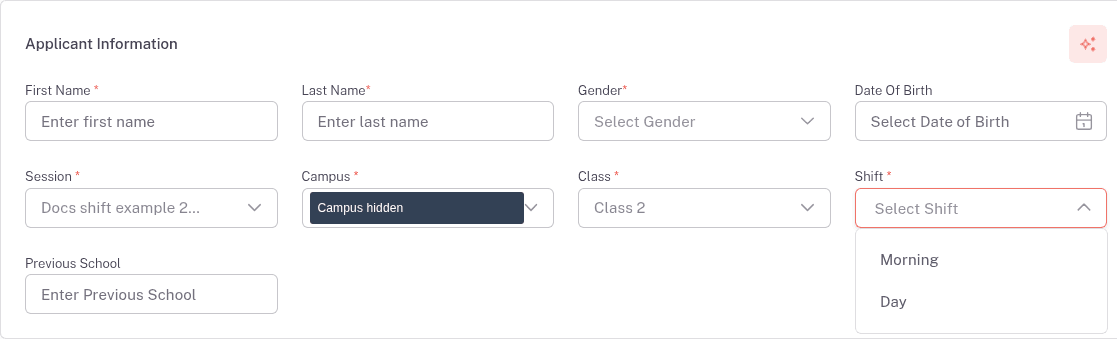
The same class can have no shifts in another session. In that case, the form has no Shift field.
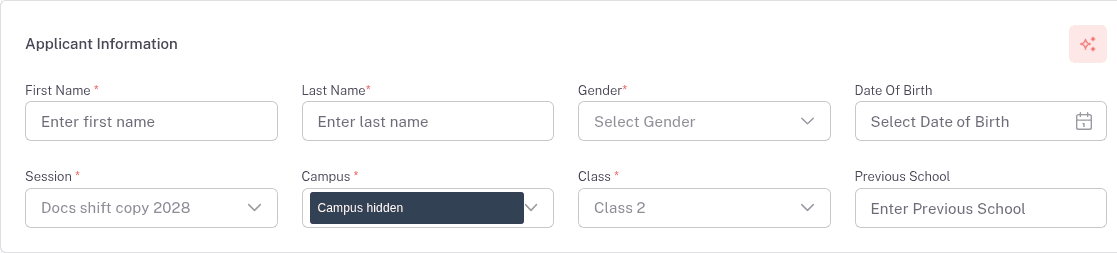
The campus values are hidden in these screenshots for privacy.
Check the session and class before continuing with an application. Follow Enquiries and applications for the remaining admission steps.
5. Reuse an earlier session's shift settings
Prepare the destination session and attach its classes first. Then open Academic > Session Migration.
If Import Setup is missing, ask your FEMS administrator for Configure New Session access.
- Find the destination session and choose Configuration.
- Choose Import Setup.
- Select One earlier session and choose the source under Copy from.
- Under What to copy, select Shift settings. Clear the other boxes if you only need the shift selection.
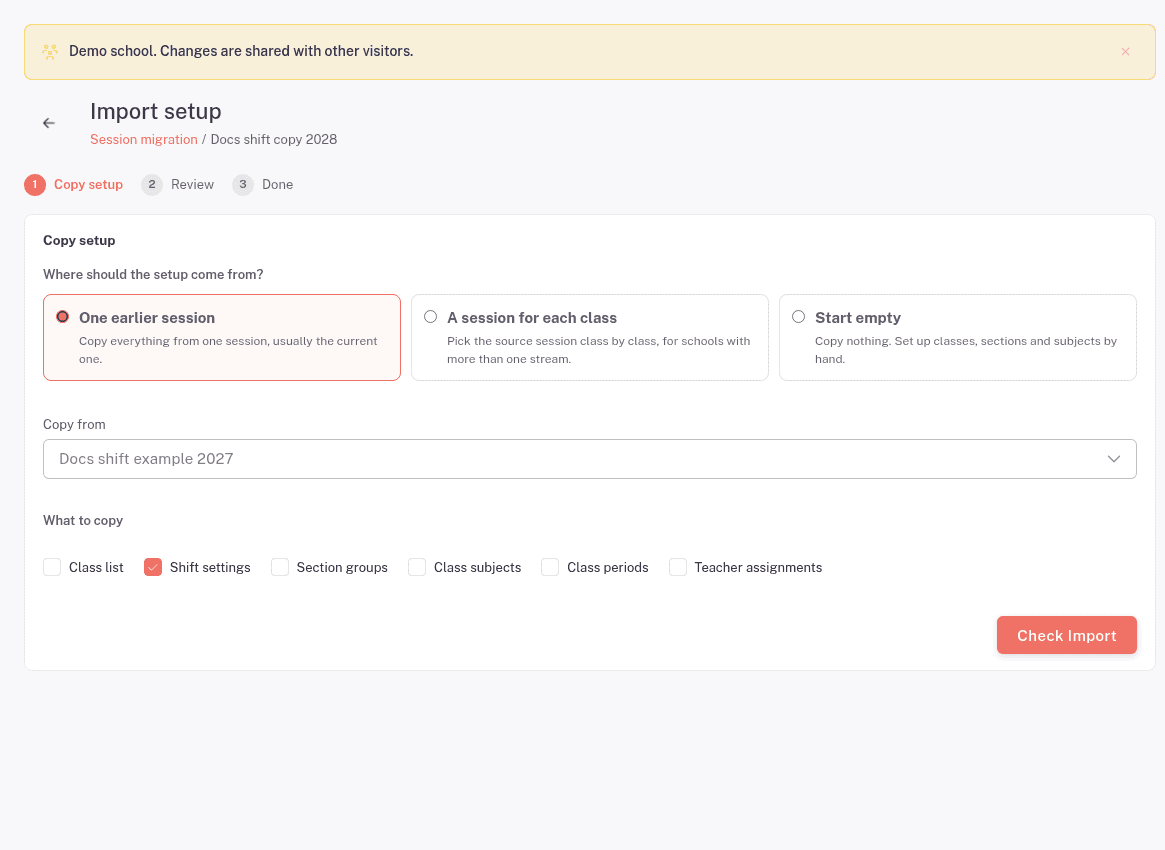
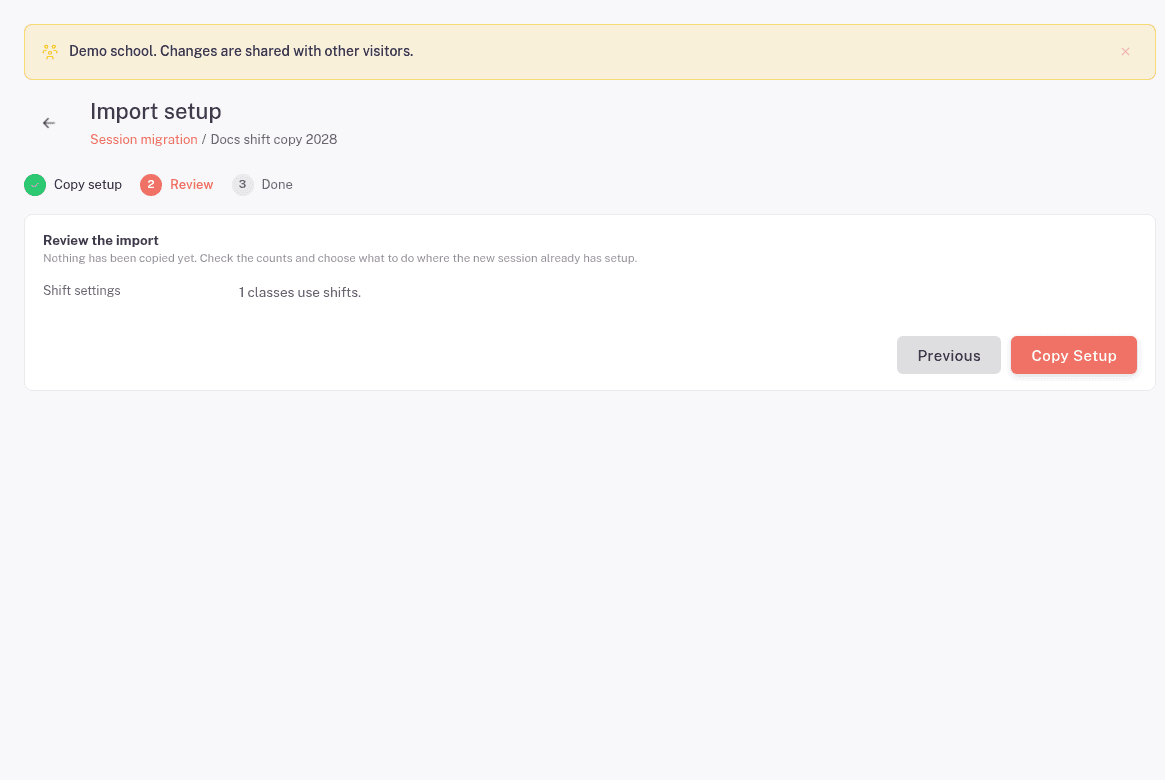
- Choose Check Import. You'll see Review the import, including the number of classes that use shifts. Nothing has been copied at this point.
- Check the destination session, source, and selected parts. Choose Copy Setup when they are correct.
You'll see Setup copied. Return to Academic Config > Academic Year and review Classes using shifts for the destination session.
FAQ
Why is the Shift field missing from an admission form? Check Use academic shifts first. Then check that the selected class appears in Classes using shifts for the session on the form.
Does every class need a shift? No. Include all classes in Classes, but choose only the ones that need shifts in Classes using shifts.
Can the same class use shifts in one session and none in another? Yes. Choose the shift classes separately for each session. The admission form follows the selected session and class.
Where do I choose Morning or Day for an applicant? Choose it in the admission form's Shift field after selecting the session, campus, and class.
Do I have to select the same shift classes again next year? Use Import Setup to copy Shift settings from an earlier session. Review the destination session's class selection after copying.