How to issue and return a library book
Walk one full loan from the desk: issue a copy to a student, take it back, and handle a late return or a renewal.
This is one full loan from start to finish, for a librarian on their first day at the desk. Everything happens on one screen, Library > Circulation.
Prerequisites
You need librarian access to Library > Circulation, and issuing and returning are two separate accesses. The book must already be catalogued with a barcoded copy whose status is Available, and the borrower must be a current student or employee.
Step 1: Issue the book
- Open Library > Circulation and choose Issue Book.
- Type the student's id, name, or email into User id, then pick them from the suggestions. Suggestions start after more than four characters.
- Scan or type the copy's barcode into Add Book and press Add. Repeat for each copy the student is taking.
- Read every row in the table. Each one must show a real title. A blank row that shows only the barcode means FEMS does not know that barcode, or the copy is not Available. Drop it with the bin icon in Actions, then look the barcode up in Library > Catalogue.
- Read the Due Date column. FEMS works the date out for you, 4 working days ahead, and every copy in the basket gets the same one.
- Press Proceed and check the list of titles and barcodes in the confirm box.
- Press Confirm.
You'll see Book Issue Successful, with a choice of Print Receipt or Close. Both take you to the student's record.
Look for the new loan on that record before you hand the books over. That is your proof the transaction is on file, and it is also how you catch a blank row: FEMS leaves that copy out of the loan, lets the rest go through, and still shows Book Issue Successful. Confirm cannot be undone from this screen, so if you issued the wrong copy, take it straight back through Return Book as a Fresh Return.
Step 2: When the book comes back
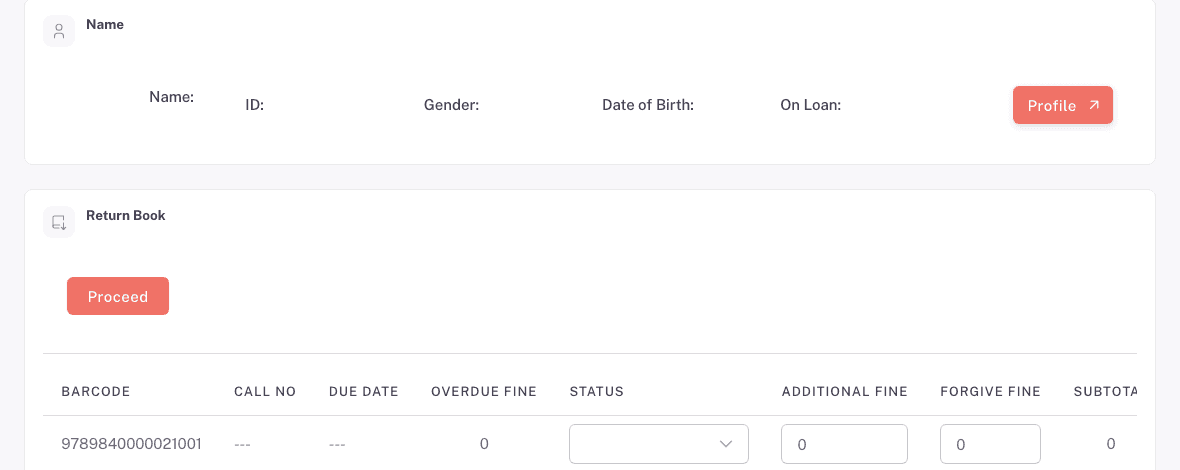
- Choose Return Book.
- Scan the barcode into Scan Barcode For Return Book and press Submit.
- Set Status on the row. Fresh Return puts the copy back on the shelf. Damage and Lost take it out of circulation.
- Type an Additional Fine if your school is charging for damage or a lost copy. FEMS never charges for those on its own.
- Press Proceed and read the Fine Summary: Overdue, Additional Fine, Forgive Fine, and Total.
- Press Confirm when the total is right.
You'll see Book Return Successful, and again a choice of Print Receipt or Close.
Confirm records the return and the fine together, against that student, in one step. A completed return cannot be undone from these screens, so fix a wrong total before you confirm rather than after.
If the book is late
Nothing is owed until the due date passes. After that the fine is 20 BDT for every 3 working days late, rounded up to the next whole block, so one working day late and three working days late both cost 20 BDT. Only working days count: Friday and Saturday are skipped, so a copy due on Thursday and handed back on Friday is not late at all and owes nothing. Once a copy is more than 15 calendar days late, the fine becomes that copy's own price.
Say the amount out loud at the desk, because FEMS records the fine and stops there. There is no screen for collecting it, so your school takes the money and records it in its own register.
Forgive Fine on this screen does not waive an overdue fine. It only reduces an Additional Fine you have typed yourself, and a larger figure is reset back down to that amount, which on a plain overdue return means 0. If your head teacher waives part of an overdue fine, take the return from the student's record instead, where the row menu's Return box allows it. See Patrons and overdue books.
If the patron wants to keep it longer
Renew the loan instead of taking the book back.
- Choose Renew Book.
- Scan the barcode into Scan Barcode For Renew Book and press Submit.
- Check Renewals Left. A copy can be renewed 5 times.
- Press Proceed, then Confirm.
You'll see Book Renewal Successful. The new due date is the old one plus 4 plain calendar days, so unlike a fresh issue it can land on a Friday or a Saturday. Tell the student the exact day.
Read Renewals Left before you confirm. At 0 the renewal does not go through, but this screen still shows Book Renewal Successful and the due date stays where it was. Check the new due date on the student's record afterwards. Renewing from that record is safer, because there the Renew action is greyed out once renewals run out.
Troubleshooting
A row in the basket is blank
The row shows the barcode you scanned and nothing else. Either that barcode is not in the catalogue, or the copy is not Available, and FEMS says neither. Leave the row where it is, press Confirm, and that copy stays out of the loan while the rest go through. Remove the row with the bin icon instead, then check the barcode in Library > Catalogue.
Nothing printed
Your browser blocked the pop-up. You'll see "Could not open the print window. Please allow pop-ups for this site and try again." Allow pop-ups, then press Print Receipt again. The issue or return is already saved, so a blocked receipt never means a lost transaction.
You are not sure it saved
Open the student's record and look for the loan or the return date. That record is the reliable check, and both buttons on the success box take you there.
More symptoms and fixes are on Fixing common library problems.
FAQ
Can I issue a book to a parent or an old student? No. Only current students and employees are patrons, so nobody else comes up in the User id suggestions.
Do I have to print the receipt? No. The issue or the return is saved the moment you press Confirm. Print Receipt is a courtesy for the student, and Close keeps the same record.
Can I renew a copy the student has not brought in? Yes, as long as you have the barcode. Renew Book works from the barcode alone, and you can type it into Scan Barcode For Renew Book instead of scanning it.