Issuing, returning, and renewing books
Issue a book to a patron and process returns, renewals, and overdue fines.
Library > Circulation is the issue desk. One screen does three jobs: it hands copies to a patron, takes them back with any fine, and renews a loan that needs longer.
Prerequisites
You need librarian access to Library > Circulation, and issuing, returning, and renewing are three separate accesses, so you may hold one, two, or all three. The book must already be catalogued with a barcoded copy, and only a copy whose status is Available can be issued.
Issuing books
Pick the job first. The three choices at the top of the screen are Issue Book, Return Book, and Renew Book. A choice appears only if you hold that access, so a librarian who only takes returns sees one choice. Switching between the three clears everything on screen: the patron, the barcodes you scanned, and the fines you typed. Finish one transaction before you switch.
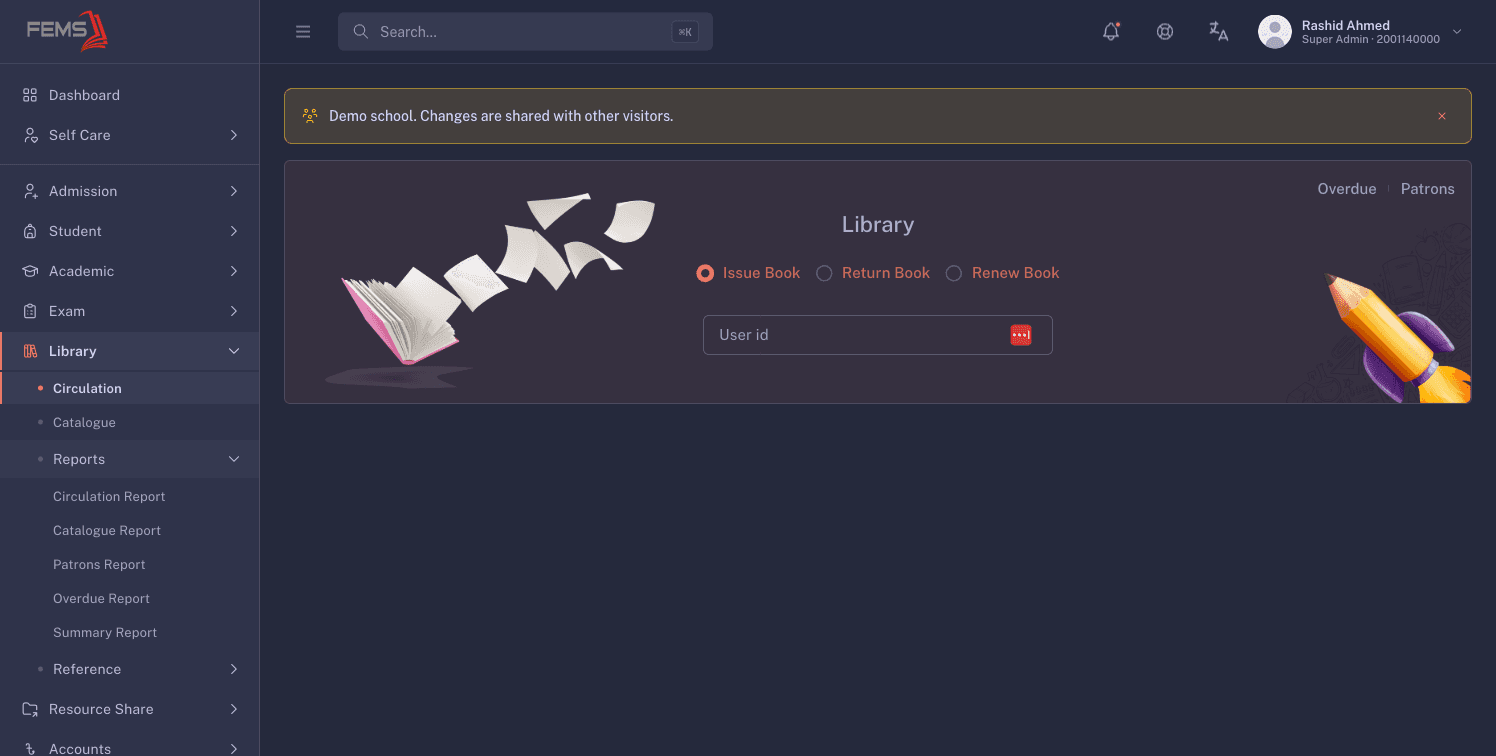
- Choose Issue Book.
- Type the patron's id, name, or email into User id. Suggestions appear once you have typed more than four characters, and each one shows the name, User Id, and User Type.
- Pick the patron from the list.
- Scan or type a barcode into Add Book and press Add. Repeat for every copy the patron is taking.
- Read the table before you commit: Title, Barcode, Edition, Genre, Call No, Item Type, Due Date, and Actions. The bin icon in Actions drops that copy from the basket.
- Press Proceed, check the confirm box, which lists every title and barcode you are about to issue, then press Confirm.
You'll see Book Issue Successful, with a choice of Print Receipt or Close.
The patron card names who you are lending to: Name, ID, Gender, Date of Birth, and Type, plus Class, Roll, Section, Shift, and Campus for a student. Profile opens that patron's record in a new tab if you want their loan history before you lend.
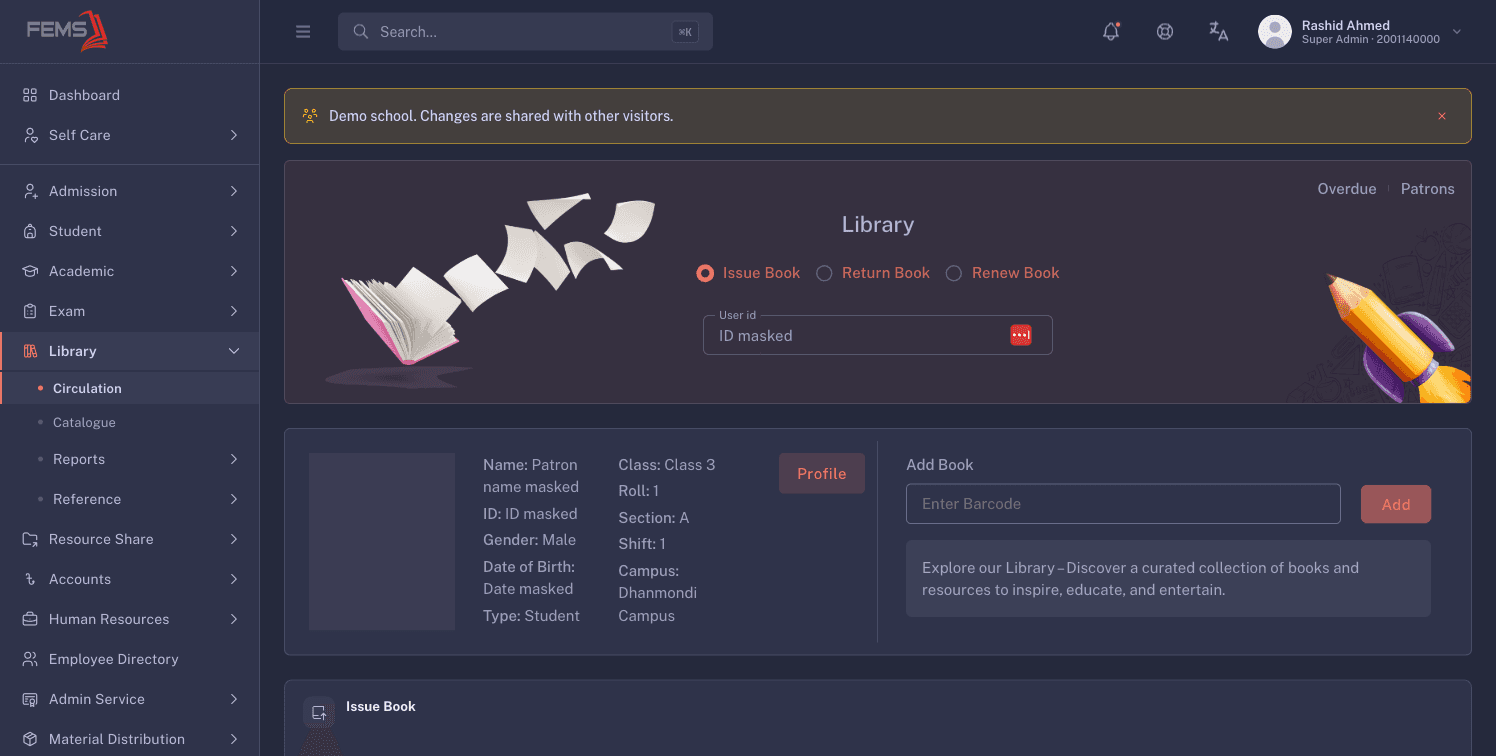
Four things about the basket are worth knowing at the desk:
- FEMS works out the Due Date for you and gives every copy in the basket the same one. It is 4 working days out, Friday and Saturday are skipped, and a fresh issue never falls due on a Friday or a Saturday.
- Picking a different patron empties the basket. Add the copies again after you have the right patron on screen.
- A barcode FEMS does not know, or one that belongs to a copy that is not Available, still adds a row. The row comes up blank: it shows the barcode you scanned but no title, no author, and no call number. Nothing warns you. Confirming with a blank row leaves that copy out of the loan while the rest go through, and you still see Book Issue Successful. So read the rows before you press Proceed, and check that every row shows a real title. If a row is blank, remove it with the bin icon and check that barcode in Library > Catalogue.
- There is no limit on how many copies one patron may take at once, so any cap your school wants is one you apply at the desk.
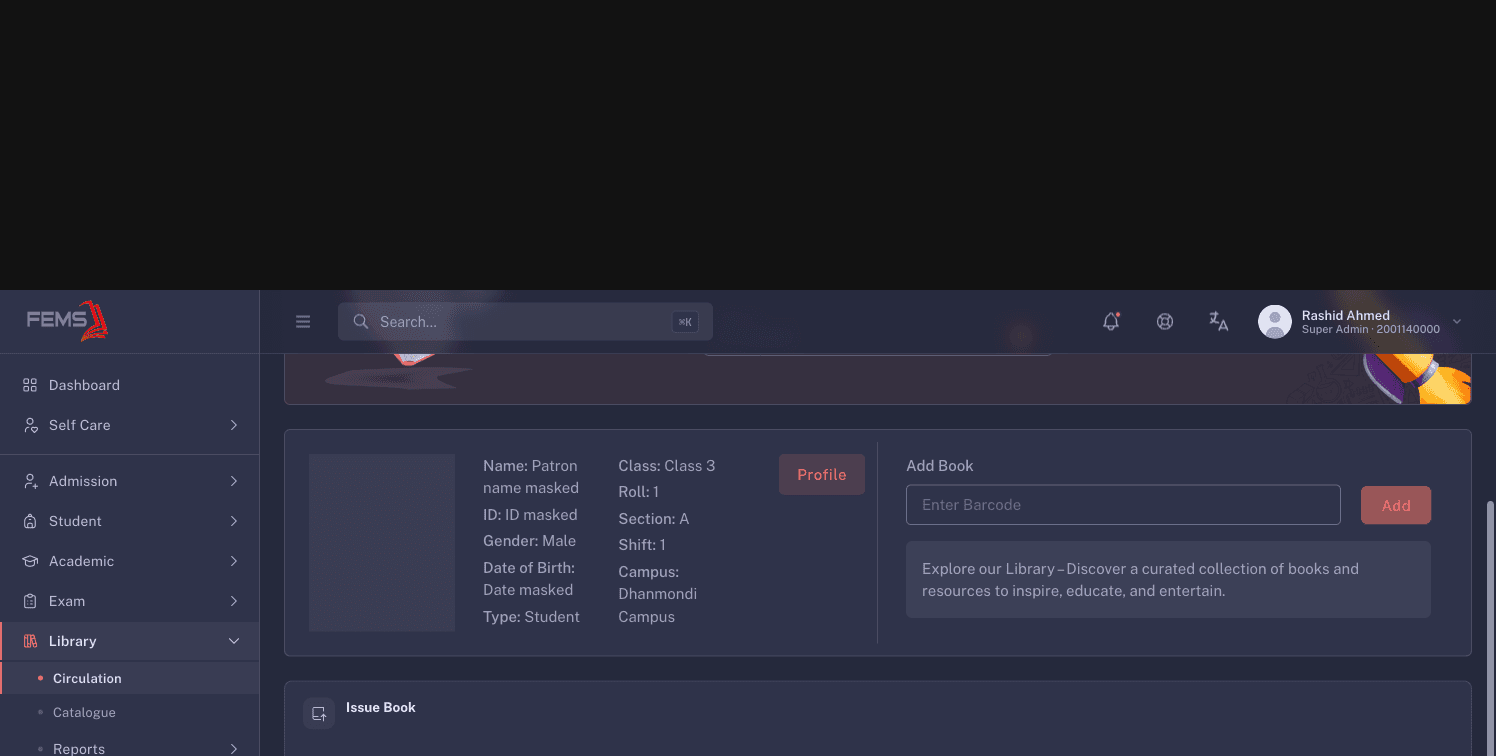
Confirm commits the loan. Each valid copy moves to on loan, so nobody else can take it, the due date is stamped, and the loan appears on the patron's record. Blank rows from unknown or unavailable barcodes are left out. You cannot undo an issue from this screen. If you issued the wrong copy, process it back through Return Book straight away and set Status to Fresh Return, which puts it back on the shelf with no fine.
Both Print Receipt and Close land you on the patron's record. Look for the new loan there before you hand the books over. That check, not the success box, is what tells you the transaction is on file.
The shared demo was not used to open or confirm an issue transaction. Read the basket carefully before Proceed, then verify the patron and every copy again in the confirmation box.
Returning books
- Choose Return Book.
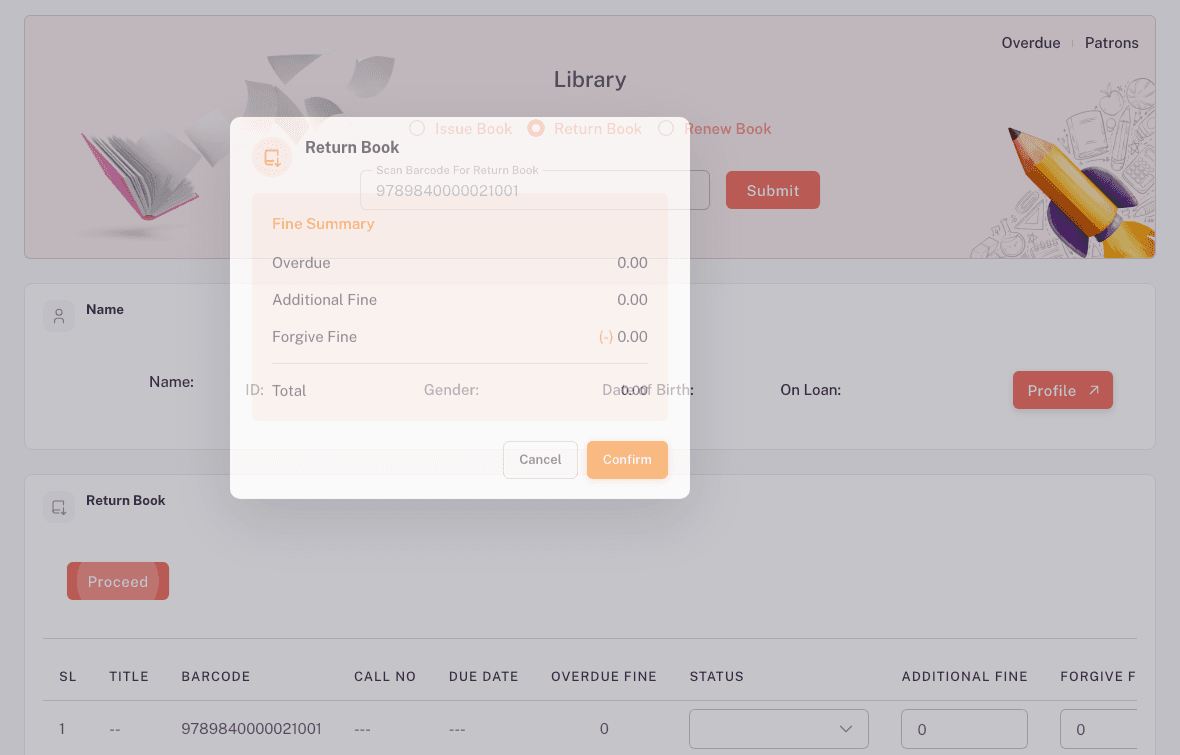
- Scan the barcode into Scan Barcode For Return Book and press Submit, or press Enter.
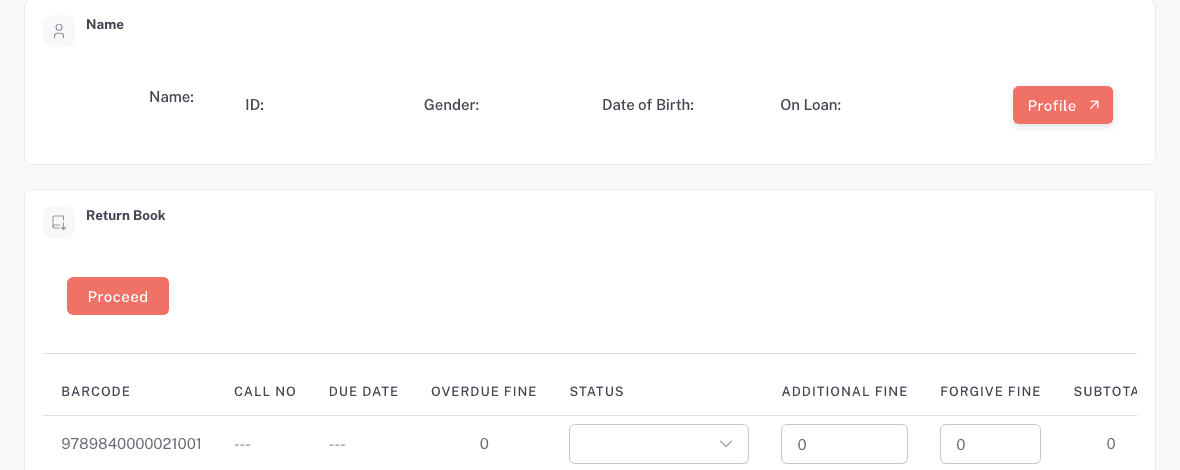
- Read the row: SL, Title, Barcode, Call No, Due Date, Overdue Fine, Status, Additional Fine, Forgive Fine, Subtotal, and Actions.
- Set Status for the copy in your hand.
- Type an Additional Fine if the school is charging for damage. Use Forgive Fine only to reduce that additional fine, because it cannot touch an overdue fine.
- Scan the patron's other copies the same way, then press Proceed.
- Read the Fine Summary: Overdue, Additional Fine, Forgive Fine, and Total. Press Confirm when the total is right.
You'll see Book Return Successful, with a choice of Print Receipt or Close. Both take you to the patron's record, where the copy now carries a return date.
What the three statuses do
| Status | What happens to the copy |
|---|---|
| Fresh Return | The copy goes back on the shelf as available and can be issued again. |
| Damage | The copy comes out of circulation. Nobody can borrow it until you deal with it in the catalogue. |
| Lost | The copy comes out of circulation and stays out. |
Damage and Lost charge nothing on their own. The Damage Fee and Lost Fee held on the title are a note about what your school charges, not a rule FEMS applies, so type the amount you are charging into Additional Fine yourself.
Rules the return screen applies
- Every copy in one return must belong to the same patron. Scanning someone else's copy shows "Patron not matched" and the copy is left out. Finish this patron, then start a new return.
- The overdue fine counts working days only. Friday and Saturday do not count, so a copy due on Thursday and handed back on Friday is zero working days late and owes nothing. Past that, the fine is 20 BDT for every 3 working days late, and a part block counts as a whole one. Once a copy is more than 15 calendar days late, the fine becomes that copy's own price instead.
- Forgive Fine on this screen can only reduce an Additional Fine you have typed yourself. Type more than the additional fine and FEMS resets it back down to that amount. Additional Fine starts at 0, so on a plain overdue return with no damage charge, whatever you type into Forgive Fine drops to 0 and the full overdue fine is recorded. Nothing on screen says so.
- To waive an overdue fine, take the return from the patron's record instead. The row menu's Return box there allows it. See Patrons and overdue books.
- Neither fine box takes a negative number.
- Subtotal on a row is the additional fine plus the overdue fine, minus what you forgave.
Before you press Confirm
Returns are money, so read the Fine Summary first. Confirm records the return and the fine together in one step. The copy leaves the patron's loans, the fine is written against the patron, and both show on the patron's record from that moment.
A completed return cannot be undone from these screens. If the total is wrong, fix it before you confirm, not after.
FEMS records a fine and stops there. There is no screen for collecting it, and the Accounts module does not bill it, so your school takes the money and records it in its own register. Tell the parent or student the amount now, and note it the way your school notes any other cash at the desk.
Renewing books
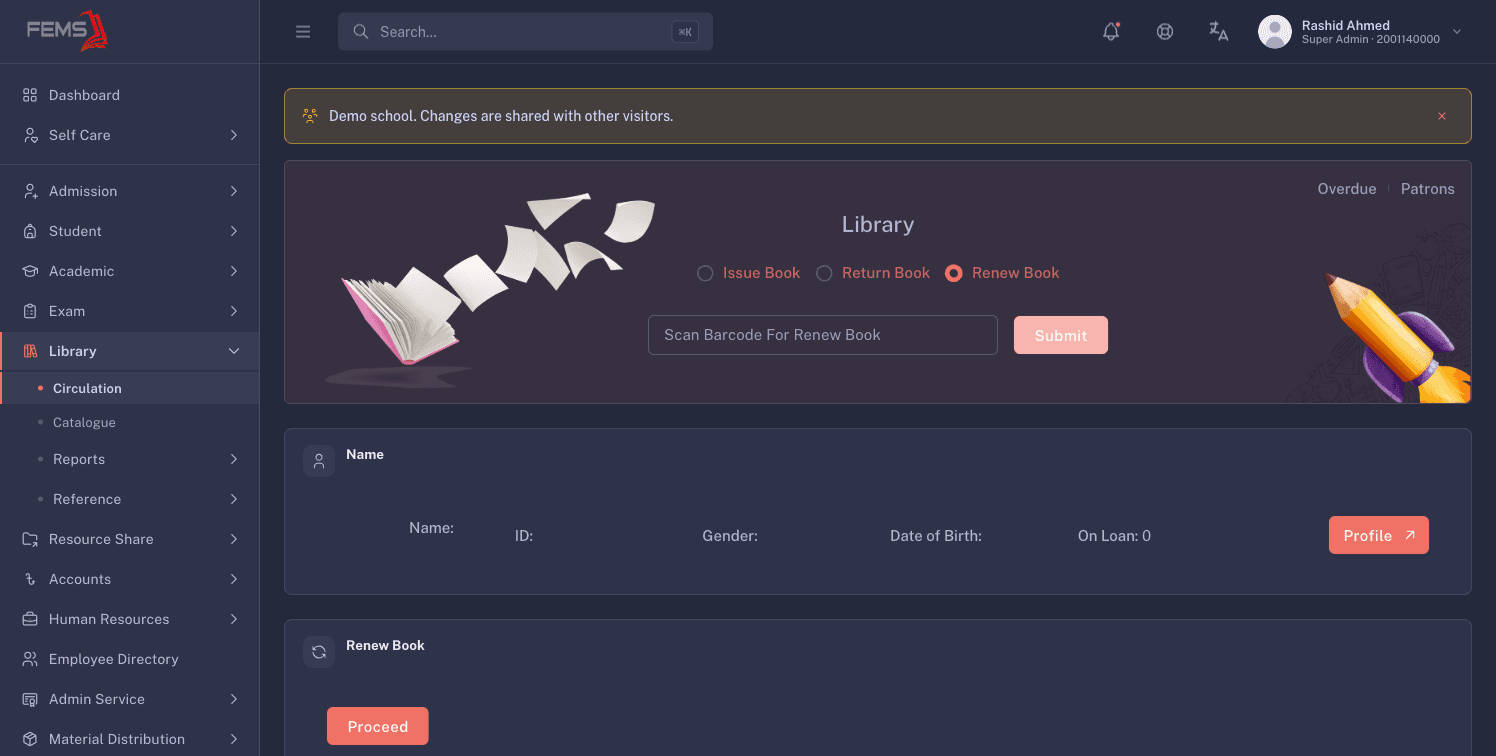
- Choose Renew Book.
- Scan the barcode into Scan Barcode For Renew Book and press Submit.
- Check Renewals Left on the row. A copy can be renewed 5 times.
- Press Proceed, then Confirm.
You'll see Book Renewal Successful, with a choice of Print Receipt or Close.
Read Renewals Left before you confirm. If it is 0, the renewal does not go through, and this screen does not tell you: you still see Book Renewal Successful, and the due date does not move. Check the new due date on the patron's record afterwards. Renewing from the patron's record is safer, because there the Renew action is greyed out once renewals run out.
A renewal adds 4 plain calendar days to the current due date. Weekends are not skipped this time, so a renewed due date can land on a Friday or a Saturday. Read the new date off the patron's record and tell the student the day they are due back.
The renew confirm box carries an Overdue line. It always reads 0.00, whatever the copy owes, because it is wired to the return basket, which stays empty in renew mode. It is not the copy's real fine. The overdue fine is worked out when the copy comes back.
Printing a receipt
Print Receipt opens the receipt in a new window and sends it to the printer. It carries the Patron Name and Patron Id, and for each copy the Title, Author, Due Date, Item Type, Barcode, Call No, and Renewals Left. Return and renewal receipts also carry the Fine Summary.
If no window opens, your browser blocked the pop-up. You'll see "Could not open the print window. Please allow pop-ups for this site and try again." Allow pop-ups for FEMS in your browser, then press Print Receipt again. The transaction is already saved at that point, so a blocked receipt never means a lost issue or a lost return.
Receipts contain a patron's name and ID. Keep printed copies at the circulation desk or hand them directly to the patron; do not leave them where other students can read them.
Quick links
Two links sit at the top right of the screen. Overdue opens the list of copies that are out past their due date. Patrons opens the Patrons Report, where you can search a borrower and open their record.
Troubleshooting
A row in the basket is blank
FEMS took the barcode you scanned and knows nothing else about it. Either that barcode is not in the catalogue at all, or it belongs to a copy that is not Available. No message appears, and confirming drops that copy from the transaction while the rest go through. Remove the row with the bin icon, then search the barcode in Library > Catalogue. Catalogue the copy if it was never added, or read the Status on its row to see who has it. The message "Error finding book copy" is a different case: it appears only when the scan request itself fails.
Forgive Fine did not reduce the overdue amount
On this screen Forgive Fine can only reduce an Additional Fine you have typed yourself, and anything larger is reset back down to that amount. Additional Fine starts at 0, so on a plain overdue return the figure you typed becomes 0 and the full fine is recorded. To waive an overdue fine, take the return from the patron's record instead, where the row menu's Return box allows it. See Patrons and overdue books.
You are not sure the transaction saved
Open the patron's record and look for the loan, the return date, or the new due date. The patron's record is the reliable answer, and both Print Receipt and Close take you straight there. If the loan is not on the record, run the transaction again and check a second time.
More symptoms and fixes are on Fixing common library problems.
FAQ
Why did a copy not appear on the loan? Its row in the basket was blank, so either its status is not Available or its barcode is not in the catalogue. FEMS leaves that copy out and still reports success. Check the copy's row in Library > Catalogue to see which.
Can I return books for two different patrons at once? No. One return covers one patron. A copy belonging to somebody else shows "Patron not matched" and stays out of the list.
What happens if I mark a return as Lost? The copy comes out of circulation and cannot be issued again. FEMS charges nothing for it on its own, so type the amount your school is charging into Additional Fine before you confirm.
Can I undo a return? No. These screens have no way to reverse a completed return. Read the Fine Summary and the Status on every row before you press Confirm.
How many books can one patron borrow at once? As many as you issue. FEMS applies no borrowing limit, so any cap is one your school keeps at the desk.