Patrons and overdue books
Look up a borrower's loan history, return or renew a copy from their own record, and work through the books that are late.
A patron is anyone who can borrow from your library. This page shows how to look up a patron's loans, how to return or renew a copy from the patron's own record, and how to work the overdue list.
Prerequisites
You need library access to open these screens. Anyone who can open a patron's record can return or renew from it, with no separate access for either action, so you can act on a loan here even when the Circulation screen does not offer you those modes. Read How the library module works first, because the loan period, the renewal cap, and the fine ladder all come from there. These screens show names, emails, and phone numbers, so keep them off any display a visitor can read.
Who counts as a patron
Patrons are students and employees. FEMS builds the patron list from the student and staff records your school already keeps, so there is nothing to create and no one to sign up.
There is no library membership, no card number, and no expiry date. There is also no way to block a patron from borrowing. If a student must not take another book out, the librarian holds that line at the desk.
Guardians and alumni are not patrons. They cannot borrow, and they do not appear in these lists.
Finding a patron
There are four ways into a patron's record.
| Where you are | What to use |
|---|---|
| Library > Circulation | The Patrons link. It opens the Patrons Report, not the patrons list. |
| Issuing a book | The Profile button on the patron card. It opens the record in a new tab. |
| A Patrons Report row | See Profile in the row menu. |
| An Overdue Report row | View Patron in the row menu. |
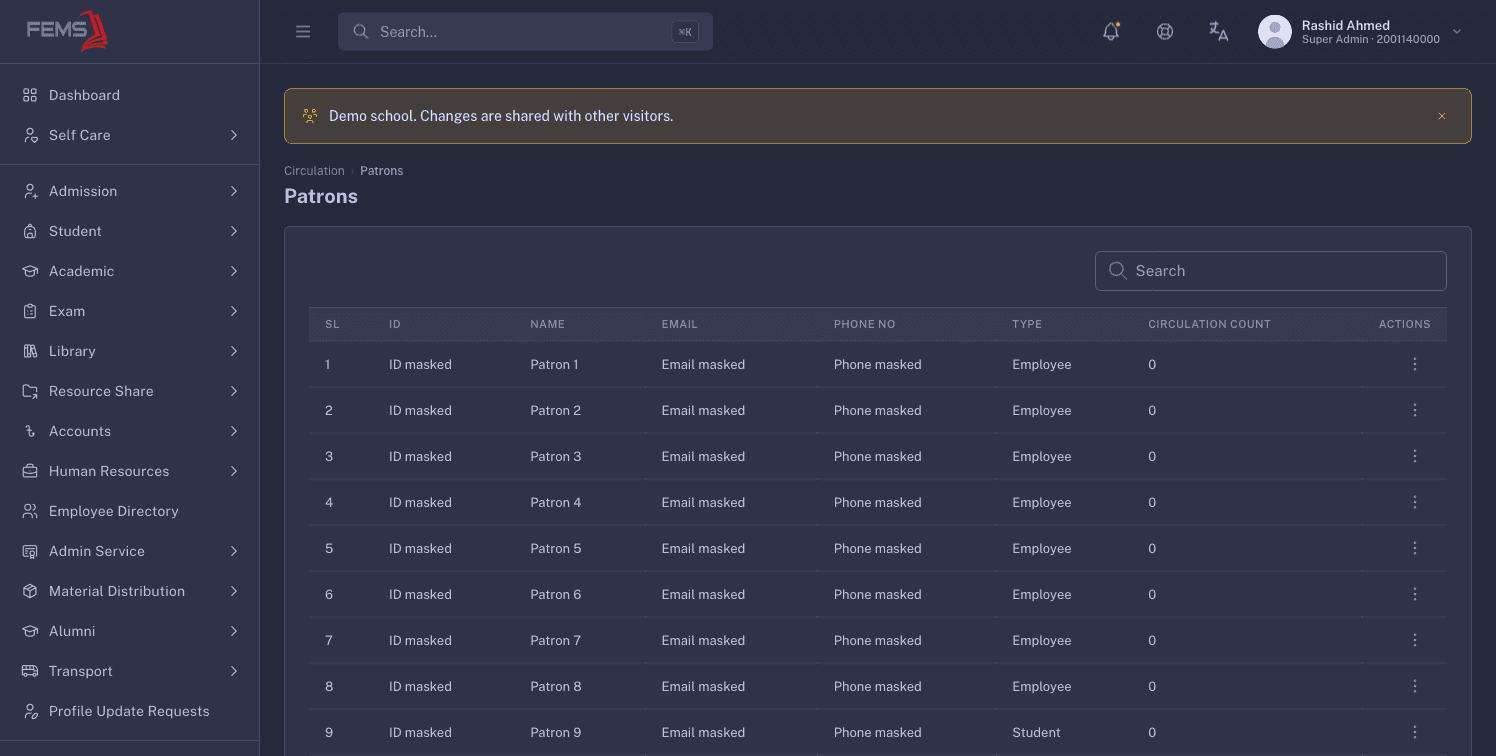
There is also a plain patrons list at /library/patrons. Nothing in the sidebar links to it, so you reach it by typing the address. It shows SL, ID, Name, Email, Phone No, Type, and Circulation Count, with a Search box above the table and View in each row menu. Circulation Count is how many loan records that patron has, all time, not how many books they hold now.
Reading a patron's record
Every route above lands on Patron Details.
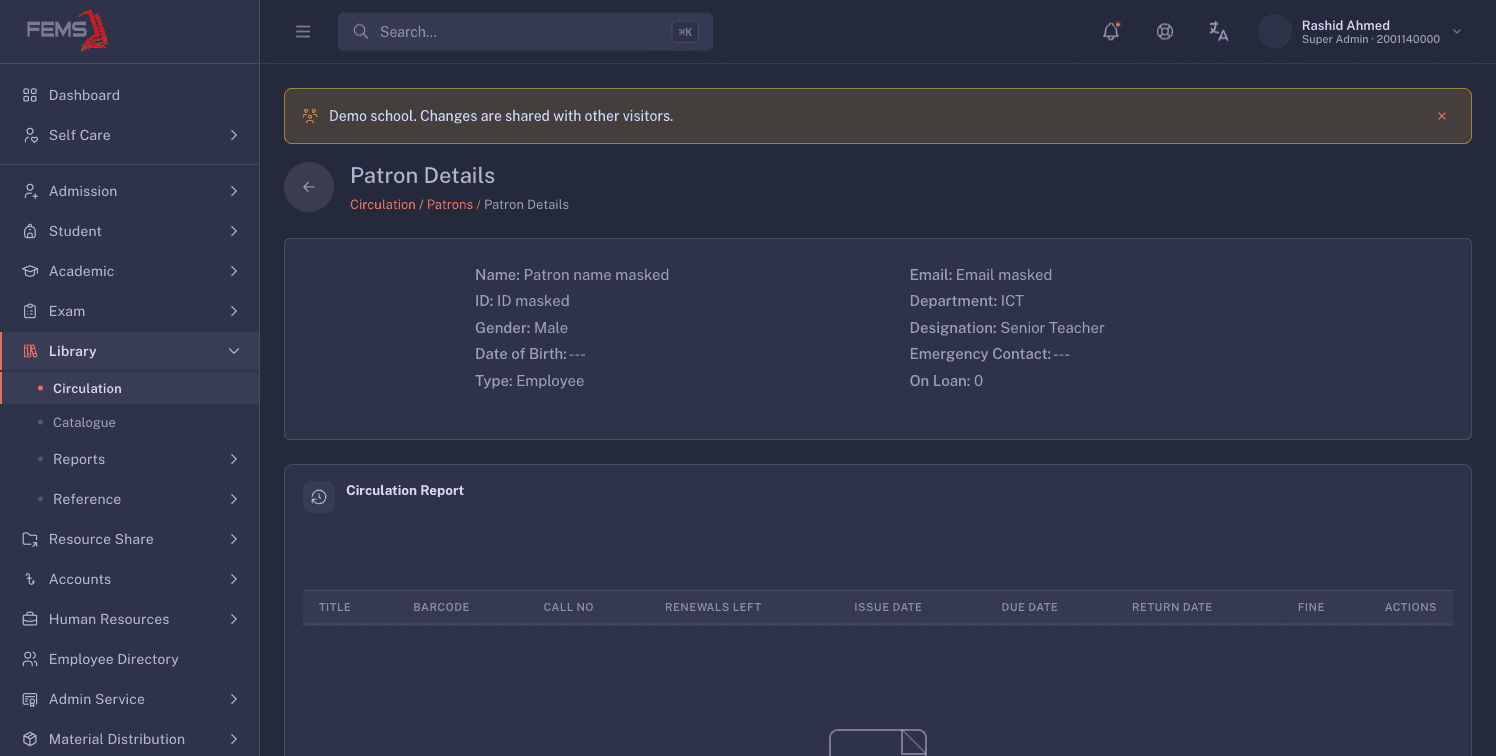
The top block holds the patron's photo and their details: Name, ID, Gender, Date of Birth, and Type, then whichever of Class, Roll, Section, Shift, Campus, Email, Department, Designation, and Emergency Contact the record carries. On Loan is the count of copies this patron holds right now.
Below it sits a Circulation Report table with one row per copy the patron has ever borrowed:
| Column | What it tells you |
|---|---|
| Title | The book, with its author underneath. |
| Barcode | The copy that was loaned. |
| Call No | Where the copy sits on the shelf. |
| Renewals Left | How many renewals this loan still has. |
| Issue Date | The day the copy went out. |
| Due Date | The day it is owed back. |
| Return Date | Empty while the copy is still out. |
| Fine | What the loan cost when it was returned. |
Rows with no return date are highlighted, so one glance tells you what the patron still holds.
Returning or renewing from the patron's record
The row menu holds two actions, Return and Renew. Both are greyed out once the row has a return date, because that copy is already back. Renew is greyed out as well when Renewals Left is zero.
Returning a copy
- Open the row menu and choose Return.
- Set Status to Fresh Return, Damage, or Lost. A fresh return puts the copy back on the shelf. Damage and lost take it out of circulation.
- Type an Additional Fine if your school charges for the damage.
- Type a Forgive Fine to waive part of what is owed.
- Read the Fine Summary. It lists Overdue, Additional Fine, Forgive Fine, and Total.
- Press Process.
Read the Fine Summary before you press Process, because that click does three things at once. It marks the copy returned, it sets the copy's new status, and it records the fine against this student or employee. Process is the point of no return: nothing on these screens undoes a processed return, so a mistake has to go to your FEMS admin. FEMS also records the fine and stops there. There is no screen for taking the money and no way to mark a fine paid, so your school collects it and records it in its own register.
Forgive Fine behaves differently here than at the issue desk. On this screen it may not be more than the overdue fine plus the additional fine. Type a larger number and FEMS puts the box back to zero and warns you. The Circulation screen instead trims Forgive Fine down to the additional fine.
Once the return goes through, a box offers Print Receipt or Close. Both return you to the patron's record with the row updated.
Renewing a copy
Choose Renew in the row menu, check the count in Renewals Left, and press Process. The copy stays with the patron and the due date moves out by four days.
The box that appears after a renewal is titled Book Issue Successful. That title is wrong wording on a renewal screen, not a sign that FEMS issued something new. The renewal is what ran. Take the Print Receipt or Close and carry on.
Working the overdue list
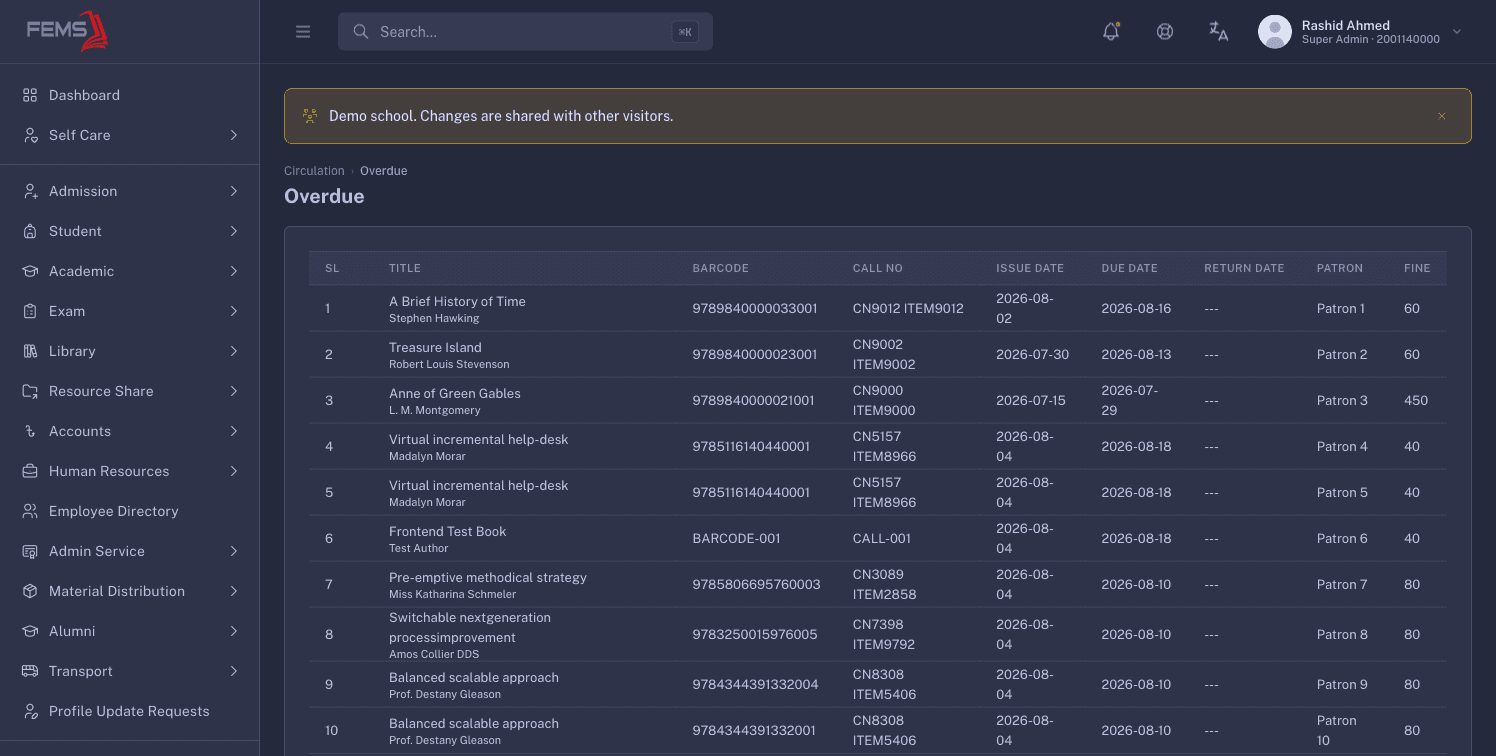
The Overdue link on Library > Circulation opens the overdue list at /library/overdue. It is the fast answer to "what is late right now", with columns SL, Title, Barcode, Call No, Issue Date, Due Date, Return Date, Patron, and Fine.
A copy counts as overdue only after its due date has passed. Copies due today are not on this list yet.
The list has no search, no filters, and no row actions. It is a straight read. When you need something narrower, such as one class or one date range, use the Overdue Report instead. That report filters by issue date, return date, patron type, campus, school, class, and section, gives you View Patron on each row, and exports to CSV. See Running library reports.
Troubleshooting
Renew is greyed out
Either the copy is already back, or the loan has used all five renewals. Check the row: a date in Return Date means it is returned, and Renewals Left at zero means the cap is reached. A patron who wants to keep a book past the cap has to return it and borrow it again.
You cannot find the person you are looking for
Only students and employees are patrons. A guardian, a parent, or a former student has no library record and cannot borrow. If a current student is missing, their student record is the place to check first.
The overdue list is too long to work with
That screen has nothing to narrow it with. Switch to the Overdue Report, filter it down to the class or date range you care about, and work from there.
More library problems, and the fixes for them, are on Fixing common library problems.
FAQ
How do I see everything a student has out right now? Open their Patron Details. On Loan in the top block is the count, and the highlighted rows in the table are the copies themselves.
Do I need to create a library card for a new student? No. Every student and employee record is already a patron. There is no membership to set up and nothing to renew.
Can a parent borrow a book on their child's account? No. Guardians are not patrons. The loan can only go out against the student or the employee.
Why is Renew greyed out on a book that is still out? The loan has used all five renewals. Take the book back in and issue it again if the patron still needs it.
Can I undo a return I processed here? No. A processed return is final on these screens. Ask your FEMS admin if a record has to be corrected.
A parent paid the fine. Where do I mark it paid? Nowhere in FEMS. The library records the amount owed and stops there, so take the payment and record it the way your school records any other cash.