Running library reports
Pick the right library report, filter it, read its summary cards, and export the rows to CSV.
Library > Reports holds five reports. They share one way of working, so once you can filter and export one of them you can do all five.
Prerequisites
If you can see Library in the sidebar, you can open all five reports and export every one of them. There is no separate report access to ask for. Read How the library module works if the words copy, patron, and on loan are new to you, because every report counts one of them.
Which report answers which question
| Your question | The report |
|---|---|
| What is on the shelf, and in what condition? | Catalogue Report |
| What moved in and out this month? | Circulation Report |
| Who borrows, and what are they holding? | Patrons Report |
| What is late? | Overdue Report |
| What are the totals per campus, school, and class? | Summary Report |
How the filters work
Every report opens with a Filter button and a Download CSV button in its header.
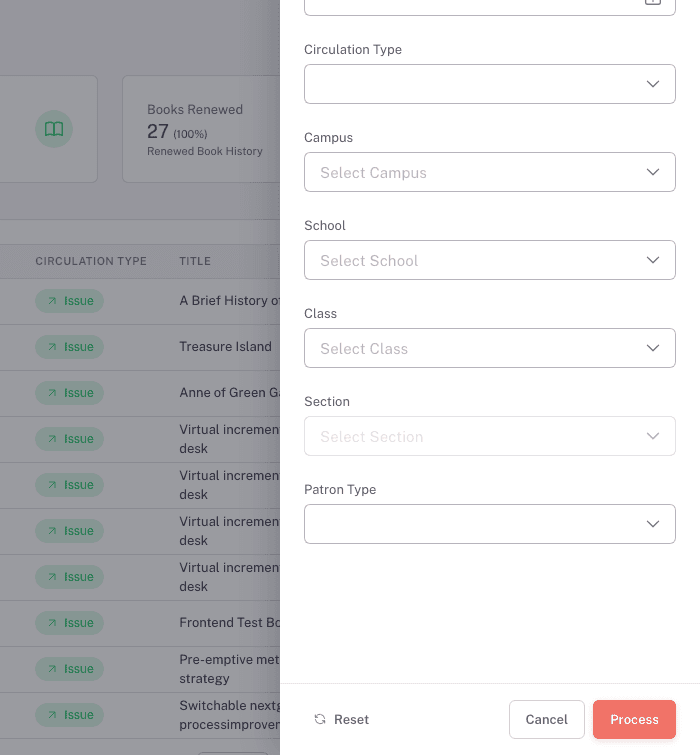
- Press Filter. A drawer opens from the right.
- Set the fields you want.
- Press Process.
At least one filter is required. Press Process on an empty drawer and the report tells you "Please select at least one filter item" and stays where it is.
Whatever you applied shows as chips above the table. Remove one chip to drop that one filter, or press Reset to clear them all. The drawer holds your changes until you press Process, so closing it without applying leaves the table as it was.
Where a report filters by Campus, School, Class, and Section, pick them in that order. Each one loads the choices for the next, so School stays disabled until you choose a Campus, and Class stays disabled until you choose a School.
Two reports remember where you were. The Circulation Report and the Summary Report come back with the academic filters you last used, including ones you set in another part of FEMS. Read the chips before you read the numbers. The other three start empty.
Reading each report
Catalogue Report
What you own and what condition it is in. One row per copy: Barcode, Title, Call Number, Edition, Created By, Status, and Library Name. The Status chip on a row reads Available, On Loan, Damaged, or Lost.
Its filters are Date range, Campus, Status, Barcode, and Title.
Skip the Status filter on this report. It offers Fresh Return, Damage, and Lost, which are the statuses a librarian picks when taking a book back. They are not the four statuses the table shows, so filtering by status here does not narrow the list the way the wording suggests. Filter by date, campus, barcode, or title instead, then read the Status column on the rows you get.
Four summary cards sit above the table: Total Books, Newly added books in Last 30 Days, Total Damaged Books, and Total Books on Loan.
Treat the last two as rough. Total Damaged Books and Total Books on Loan are counted from copy status codes that the rest of the system uses inconsistently, so both figures can be wrong. Read the table below the cards for the real picture.
Circulation Report
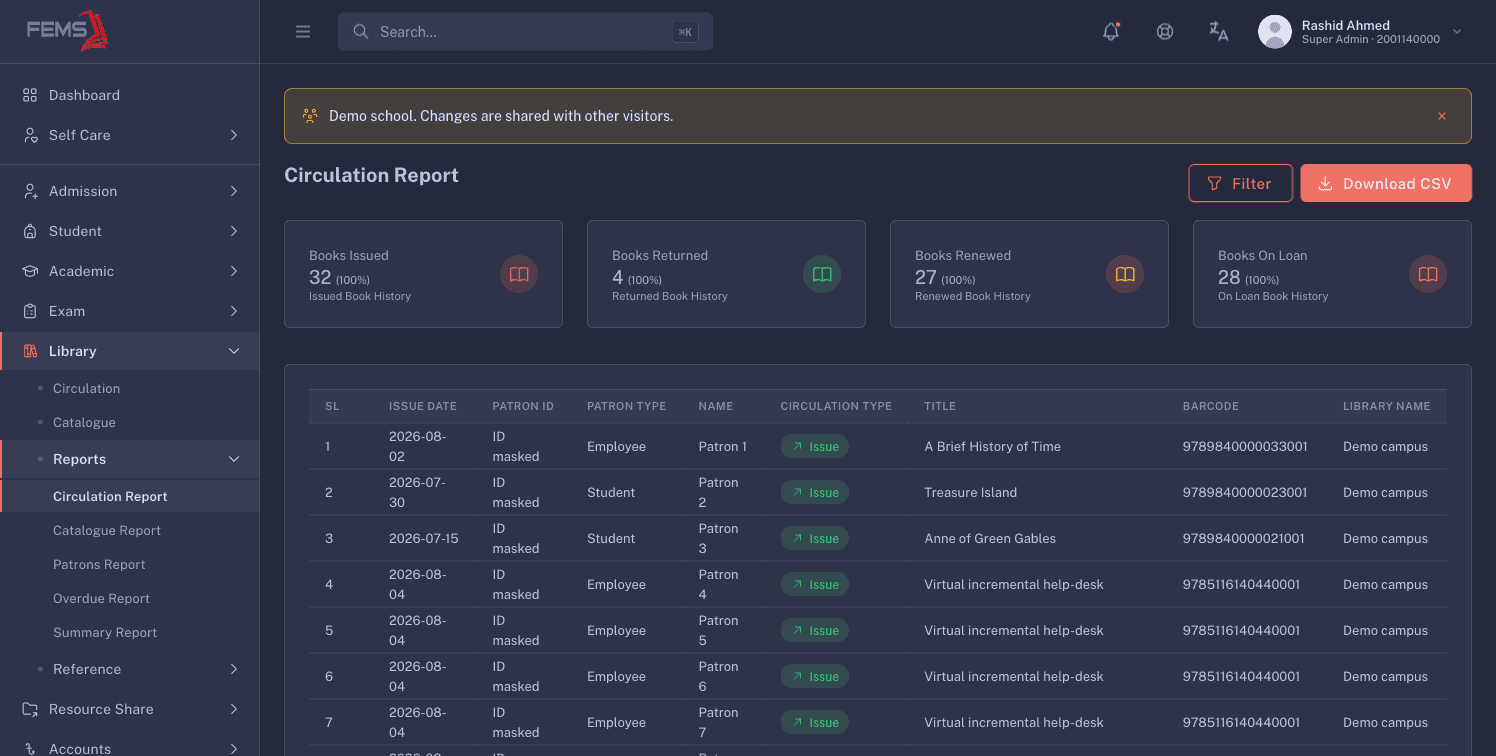
What moved in a period. One row per transaction: SL, Issue Date, Patron ID, Patron Type, Name, Circulation Type, Title, Barcode, and Library Name.
Four summary cards sit above the table: Books Issued, Books Returned, Books Renewed, and Books On Loan. Each one shows a percentage next to the number. That percentage compares your filtered period against the period of the same length before it, so a two-week filter compares against the two weeks before it.
Its filters are Date range, Circulation Type, the campus cascade, and Patron Type. Circulation Type narrows the rows to Issue, Fresh Return, Damage, or Lost. Patron Type offers Student, Teacher, and Employee.
Patrons Report
Who borrows. One row per patron: SL, ID, Name, Phone No, Type, Campus, School, Class, Section, and On Loan. See Profile in the row menu opens that patron's record, described on Patrons and overdue books.
Its filters are Date range, Patron Type, the campus cascade, Patron ID, and Search Key. Search Key matches a name, an email, or a phone number.
Two labelling problems on this screen are worth knowing before they confuse you:
- The page heading reads Filter Reports rather than the report's name. You are on the right page.
- The captions under the four summary cards mention vehicles and routes. Those captions were left behind from another module. The numbers above them are library numbers and are the part to read.
Overdue Report
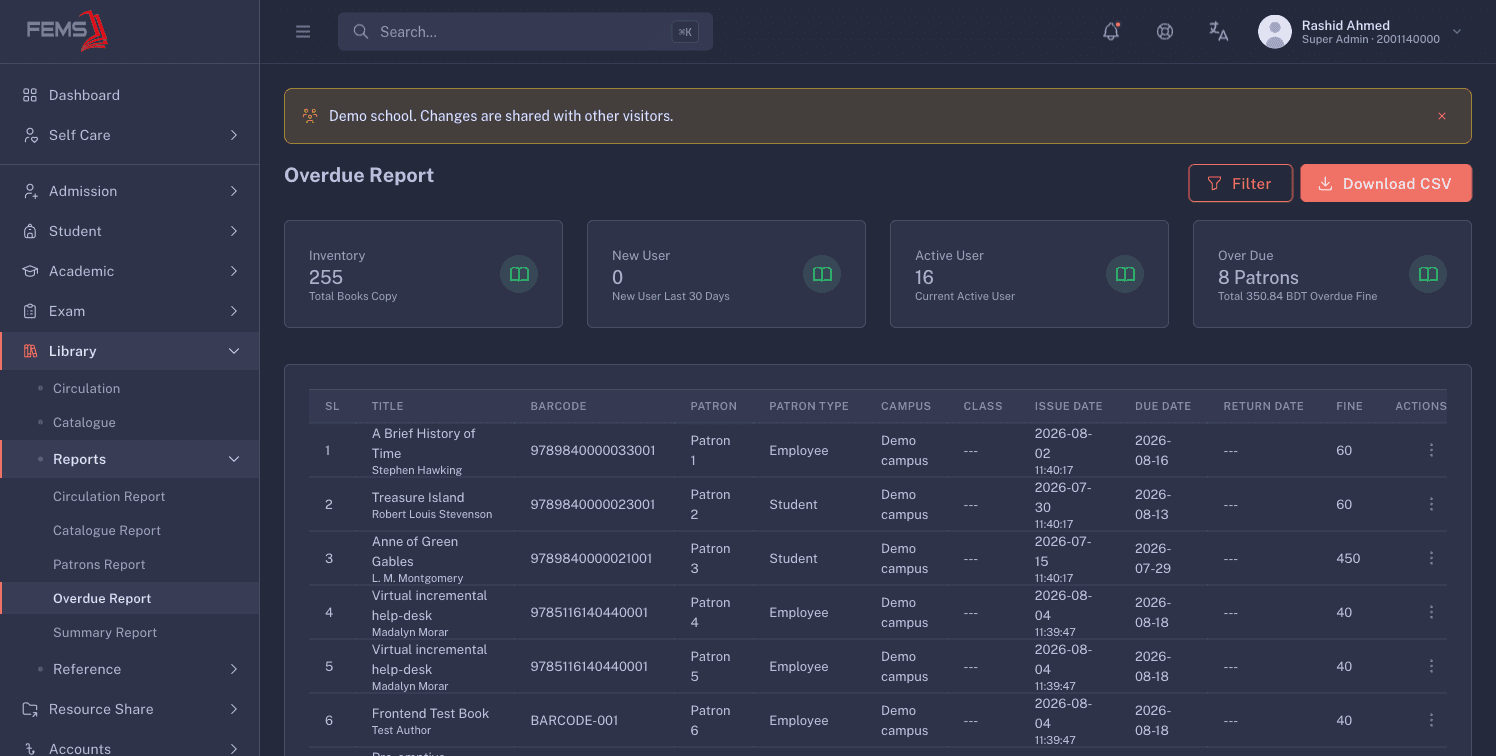
What is late, and who has it. One row per overdue copy: SL, Title, Barcode, Patron, Patron Type, Campus, Class, Issue Date, Due Date, Return Date, and Fine. View Patron in the row menu opens the borrower's record, which is where you can take the book back.
It carries Issue Date Range and Return Date Range, plus Patron Type and the campus cascade. Its drawer also has a Status filter, which offers the same three return statuses as the Catalogue Report does. Treat it with the same caution.
Four summary cards sit above the table: Inventory, New User, Active User, and Over Due.
Summary Report
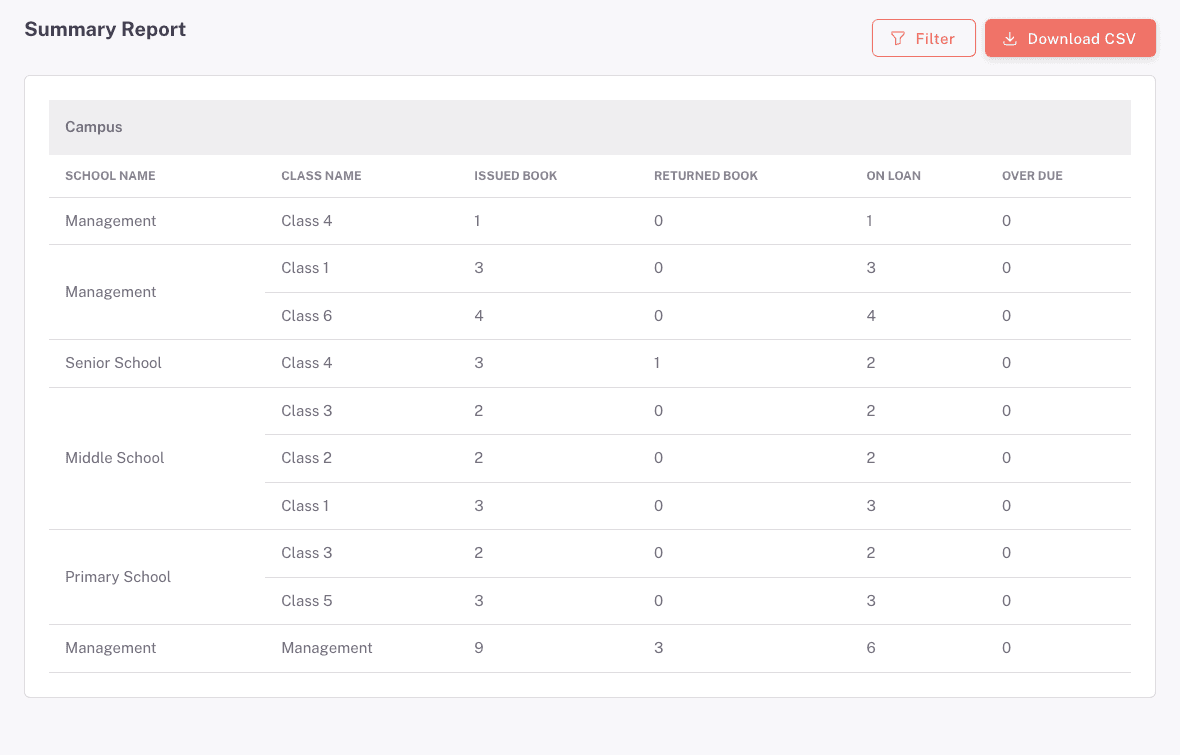
The head teacher's view. No rows about individual books, just totals, grouped by campus, then school, then class.
Each campus gets its own block. Inside it the table shows School Name, Class Name, Issued Book, Returned Book, On Loan, and Over Due. Totals that belong to no class, such as staff borrowing, are grouped under Management.
Its filters are Date range, Patron Type, Campus, and the school field, which is labelled Select School on this screen.
This report has no summary cards and no pagination. Everything your filters produce is on the one page, so a wide filter makes a long page.
Exporting to CSV
Download CSV exports the rows your current filters produce, not the whole library. Clear the filters first if you want everything. The file lands in your browser's downloads with a name built from the report and the day, such as circulation_report_2026-08-10.csv.
The Patrons Report export is the sensitive one: it carries phone numbers and email addresses. The other four carry a patron name and id at most. Save any of these files where your school keeps student records, share them with named people rather than a group inbox, and delete your own copy once the question that prompted the export is answered.
Troubleshooting
Process does nothing and a message asks for a filter
At least one field in the drawer has to be set. The report says "Please select at least one filter item" and waits. Pick a date range, a campus, or any other single field and press Process again.
School, Class, or Section is greyed out
Each field loads from the one above it. Choose a Campus and School wakes up. Choose a School and Class wakes up. Work down the list in order.
The CSV has fewer rows than you expected
A filter is still applied. Look at the chips above the table: the export matches those chips exactly. Press Reset on the chip row. It clears the filters and reloads the full list, and you can export straight after.
More library problems, and the fixes for them, are on Fixing common library problems.
FAQ
Which report tells me what is overdue right now? The Overdue Report. For a quick unfiltered look, the Overdue link on Library > Circulation does the same job with no filters.
Does Download CSV export everything or just what I filtered? Just what you filtered. The chips above the table are the exact contents of the file.
Why is the Class filter greyed out? No School is chosen yet. Campus unlocks School, and School unlocks Class.
Why does this report already have a campus filled in? The Circulation Report and Summary Report come back with the academic filters you last used, and that memory is shared with the rest of FEMS, so a campus you picked in another module turns up here too. Reset clears them.
Which report shows how many books one student is holding? The Patrons Report. Its On Loan column is the count per patron, and See Profile opens the loans behind that number.