Setting up classifications, item types, series, and genres
Build the four reference lists the catalogue form depends on, and keep them tidy afterwards.
Four small lists under Library > Reference fill the dropdowns on the catalogue form. Build them before you catalogue your first book.
Prerequisites
You need library access to open the four screens under Library > Reference, plus add access to create an entry and edit access to change one. Each list has its own access, so a librarian may be able to add a genre without being able to add an item type.
Why these four lists come first
Item Type is required to save a title, so the catalogue form is unusable until that list has at least one entry. The other three are optional on the form, but a title you save without them is harder to find later, because Series, Genre, and Item Type are three of the four filters on the catalogue list.
| List | What it holds |
|---|---|
| Classification | The scheme your shelf numbers come from, such as Dewey Decimal. |
| Item Types | What kind of item this is, such as a reference book or a lending copy. |
| Series | The named set a title belongs to, such as a numbered readers series. |
| Genres | The subject grouping readers browse by, such as fiction or biography. |
What each screen looks like
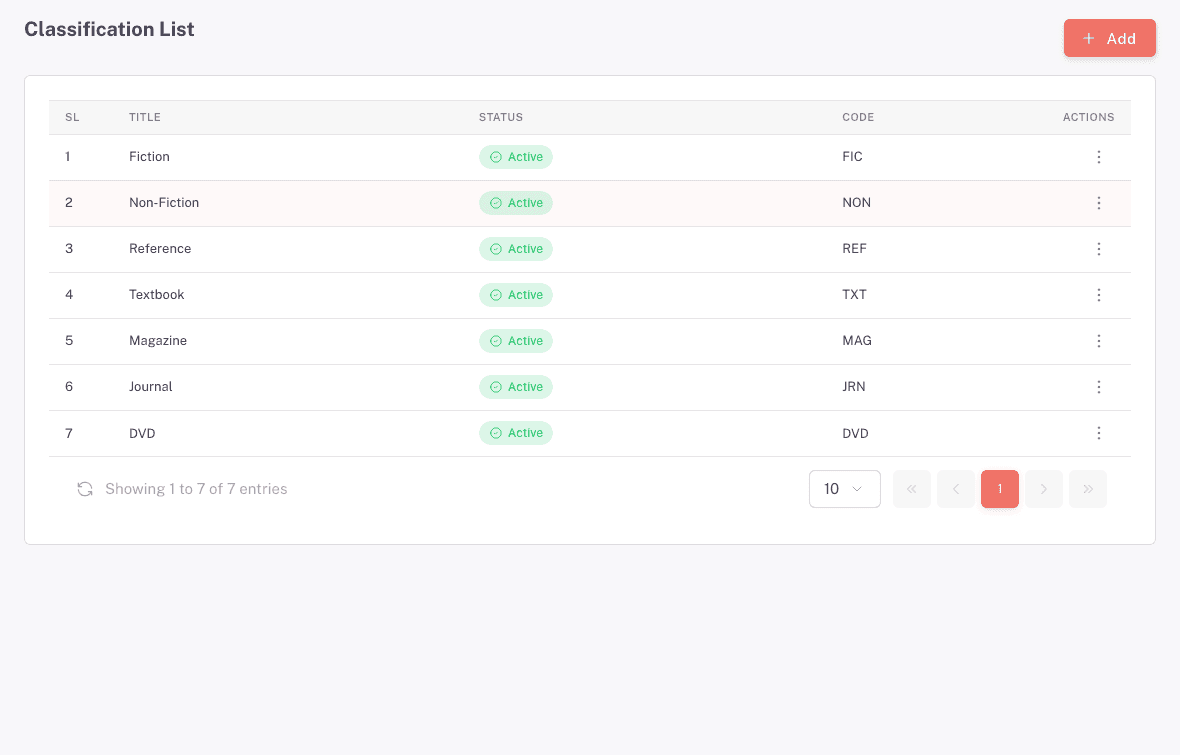
The four screens work the same way. Each shows one row per entry with a Status chip and a row menu holding Edit, and the primary action at the top is Add.
Column order differs by screen. Classification List heads its columns SL, Title, Status, Code. Item Types List, Series List, and Genres List head theirs ID, Code, Status, Title. On those three, the first column is the row's position in the list, not the entry's record number, so it changes as the list grows.
Adding an entry
- Open the list you want, for example Library > Reference > Genres.
- Press Add. A drawer opens, named after the list.
- Type a Code if your library uses one. You can leave it empty.
- Type a Title. This is the text that shows in the catalogue form dropdown.
- Type a Description if the title alone will not tell a colleague what the entry is for.
- Press Add at the foot of the drawer.
You'll see the new entry in the list with a Status of Active. Cancel closes the drawer and keeps nothing.
Only Title is required. Saving with it empty shows "Title is required" and the drawer stays open.
Editing an entry
- Open the row menu on the entry and choose Edit. The same drawer opens with the entry's Code, Title, and Description filled in.
- Change what you need.
- Press Update.
Renaming an entry changes it everywhere it is used, including on titles you catalogued months ago. Nothing is unlinked, so a book keeps the same genre under its new name.
The Status column
Every entry carries a Status column, and today it always reads Active. The add and edit drawer holds only Code, Title, and Description, so no screen in the four reference lists can change an entry's status.
What you cannot do
There is no delete. No screen, row menu, or drawer offers one, so an entry you add stays on the list. You also cannot retire an entry, because nothing switches its status off.
What you can do instead is Edit it. If you added it by mistake or spelled it wrong, rename the Title and reuse the entry for something you do want, rather than hunting for a way to remove it.
Because an entry cannot be removed, read the list before you add to it. A second Fiction next to the one already there is permanent, and both will show up wherever entries are listed.
Troubleshooting
There is no Add button on the screen
Adding to that list needs add access for it, and each list is granted on its own. Ask your FEMS administrator which lists you hold.
"Title is required"
The Title field in the drawer is empty. Type the text you want in the catalogue dropdown, then press Add or Update again.
There is no way to remove an entry
Reference entries cannot be deleted, and there is no way to switch one off. Open Edit, rename the Title, and reuse the entry.
A new entry is missing from the catalogue form
The catalogue form loads its dropdowns when the page opens. Open Add New Catalogue again so it picks up the entry you just added.
The first column repeats numbers you do not recognise
On the Item Types, Series, and Genres screens the first column is headed ID but shows the row's position in the list. It is not the entry's record number and it shifts as entries are added.
FAQ
Which of these do I have to set up before cataloguing? Item Types, because Item Type is required to save a title. Set up Classification, Series, and Genres too if you want to filter the catalogue by them later.
How do I delete a genre I added by mistake? You cannot. There is no delete anywhere in the four reference lists, and no way to mark an entry unused. Rename it with Edit and reuse it.
What does Code do? It is your own short reference for the entry, such as a Dewey range or an internal abbreviation. It is optional, and only Title shows in the catalogue form.
Why can I not see the Add button? You do not hold add access for that list. Each of the four lists is granted separately, so holding one does not give you the others.
If I rename an entry, what happens to the books using it? They keep it. The link between a title and its series, genre, item type, or classification is not broken by a rename, so every book that used it now shows the new name.