Setting up chart of accounts and fee prices
Set up account heads, fee mappings, class prices, and payment cycles in the order FEMS uses them.
Fee setup has five connected parts. Finish them in order so each fee has an income head, a receivable head, a price, and a billing date.
Prerequisites
You need access to Accounts > Configurations. A super admin normally manages account heads and mappings with the school accountant. Have the approved fee names, amounts, classes, sessions, and billing dates ready before you start.
These settings affect student dues. Review each value with the accountant before saving it.
1. Check the chart of accounts
Go to Accounts > Configurations > Chart Of Accounts. Search the list before adding a head. The table separates Account Type, Main Head, Sub Head, Child Head, and Sub Child Head.
Click Add Chart Of Account to open the form. Start with Account Type, then select the account's place in the hierarchy.
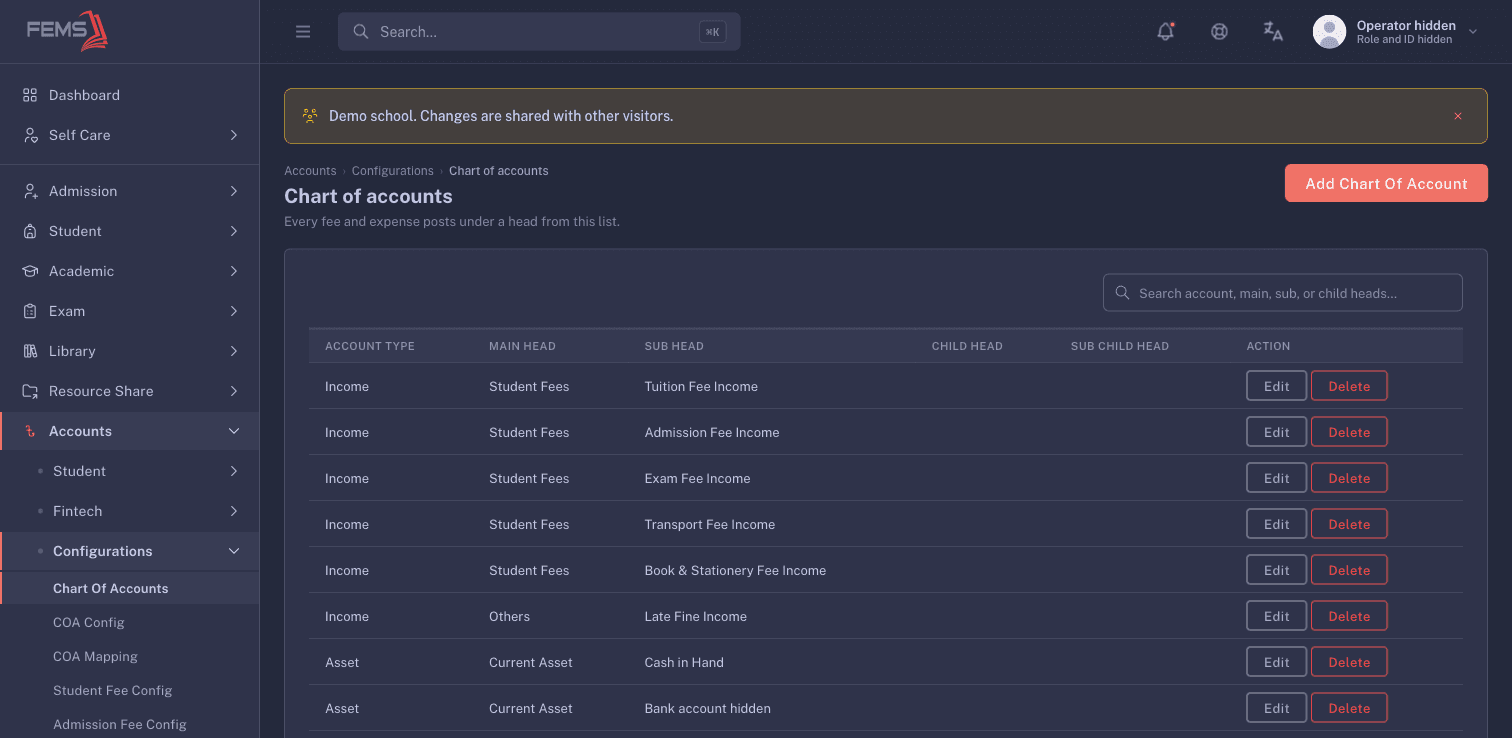
Do not create a second head just because a suitable head is hard to find. Search the full list and ask the accountant which existing head to use.
2. Assign the required head types
Go to Accounts > Configurations > COA Config. This page links each Head type to an Account Type. Existing rows show whether the mapping is a fixed chart of account.
Click COA Configuration Head to open Add Configuration Head. Select the head type and account. Use Is fixed COA only when the school's approved setup calls for it.
Review existing mappings before adding another one. Receivable and payable fee heads appear as separate rows.
3. Map fee income to receivables and concessions
Go to Accounts > Configurations > COA Mapping. Each row connects:
- Income (Student Fee) for the billed fee.
- Asset (Receivable) while the student owes the fee.
- Expense (Concessions) when the school gives a concession.
Click Add Student Account COA Mapping. The form also includes Default Expense.
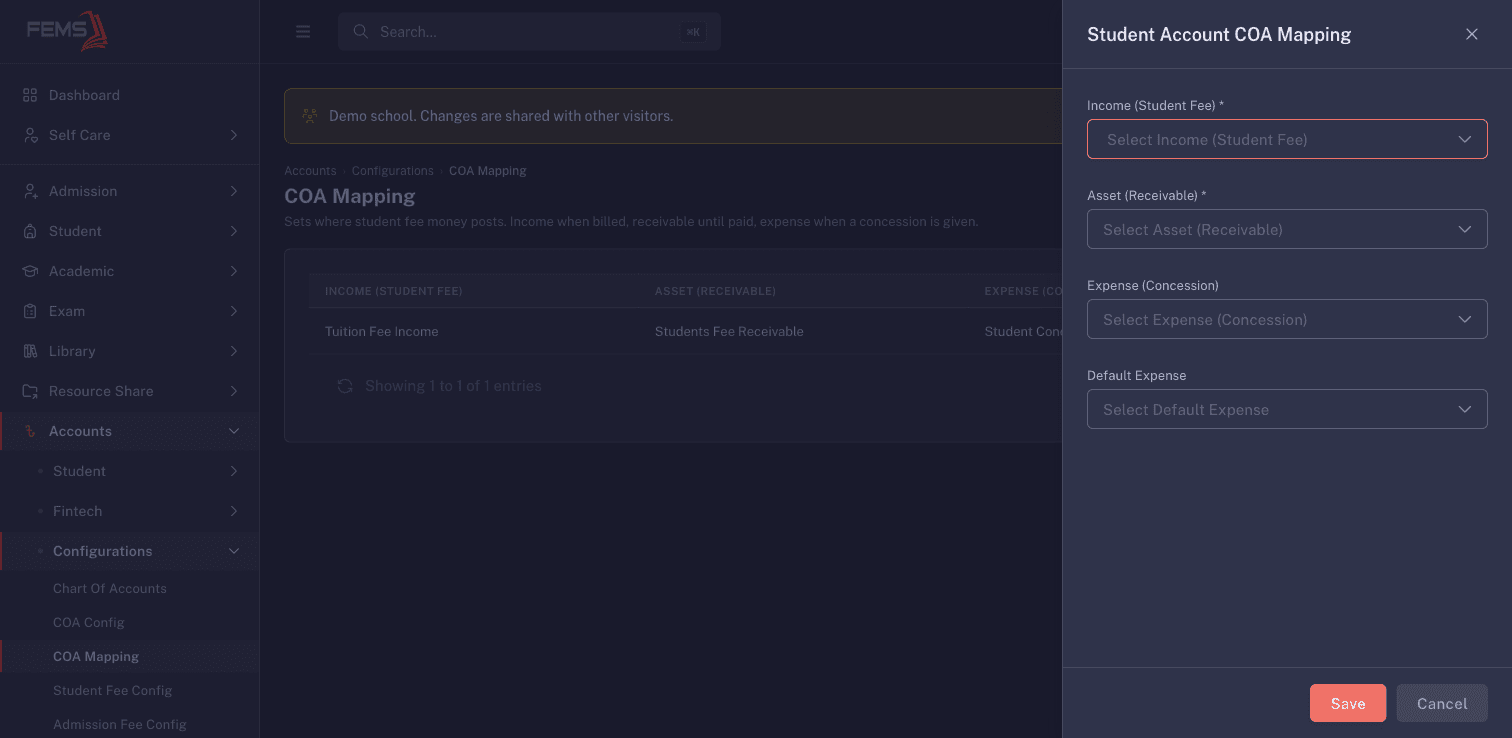
Use one approved mapping for each fee-income head. Do not change a working mapping during a collection period without the accountant's approval.
4. Set the price for each class and session
Go to Accounts > Configurations > Student Fee Config. Select the class and session above the table, then click Add Student Fee.
The Student Fee Configuration form asks for:
- Fee Name
- Amount
- Priority
- Vat Applicable
- Applicable On: All Students, New Students, or Existing Students
- Affect On: Monthly or Specific
The screen explains that Monthly adds the fee to every payment cycle. Specific lets you select campuses and cycles.
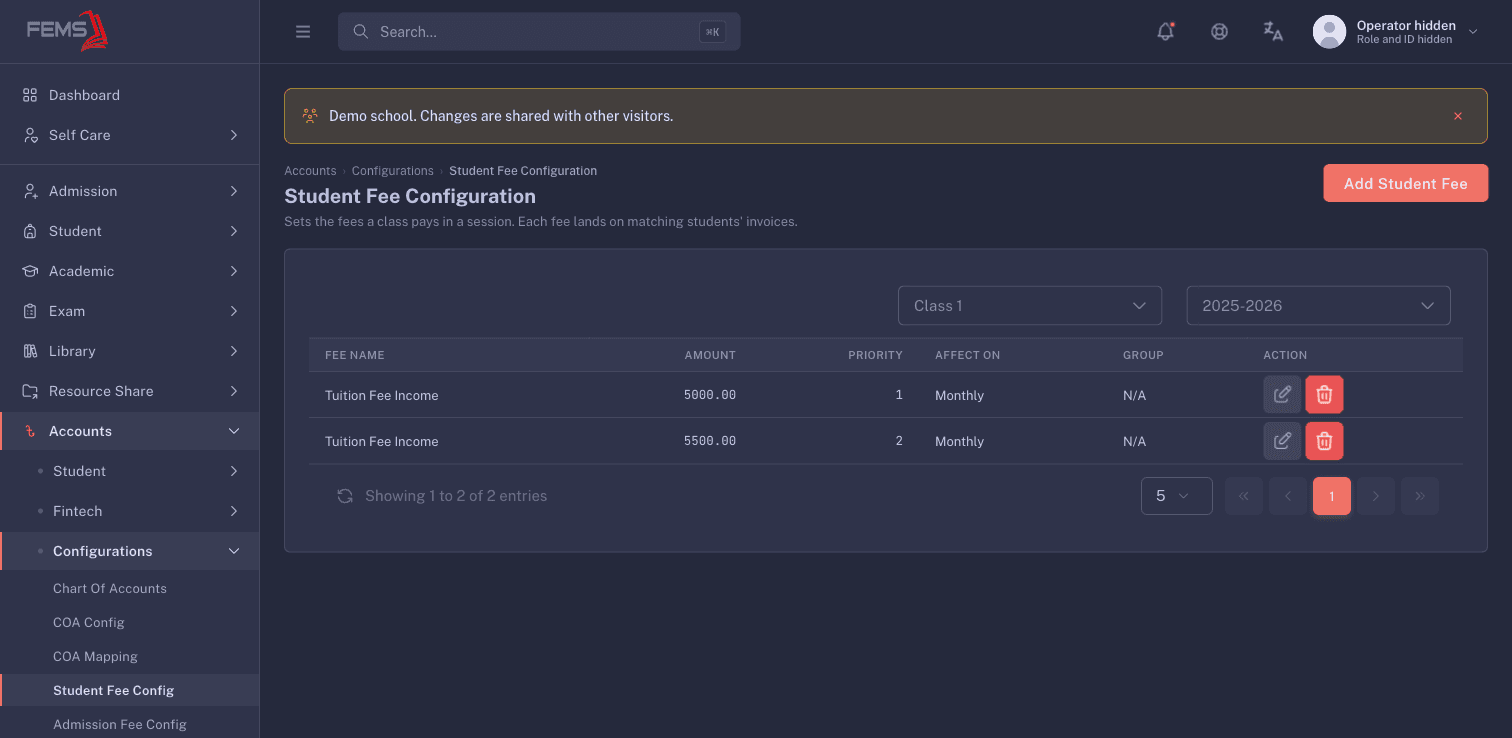
Check the selected class and session again before you submit. The list below the filters shows the fee name, amount, priority, and how it affects billing.
5. Create the payment cycle and billing dates
Go to Accounts > Configurations > Payment Cycle Configuration. Select the session first.
Click Add Payment Cycle. Enter Payment Cycle Name, Sorting, and Select Month. Lower sorting numbers appear first.
The receivable configuration asks for Campus, Class, Receivable Date, and Last Date of Payment. The screen says dues are added to student accounts on the receivable date. Payments after the last payment date count as late.
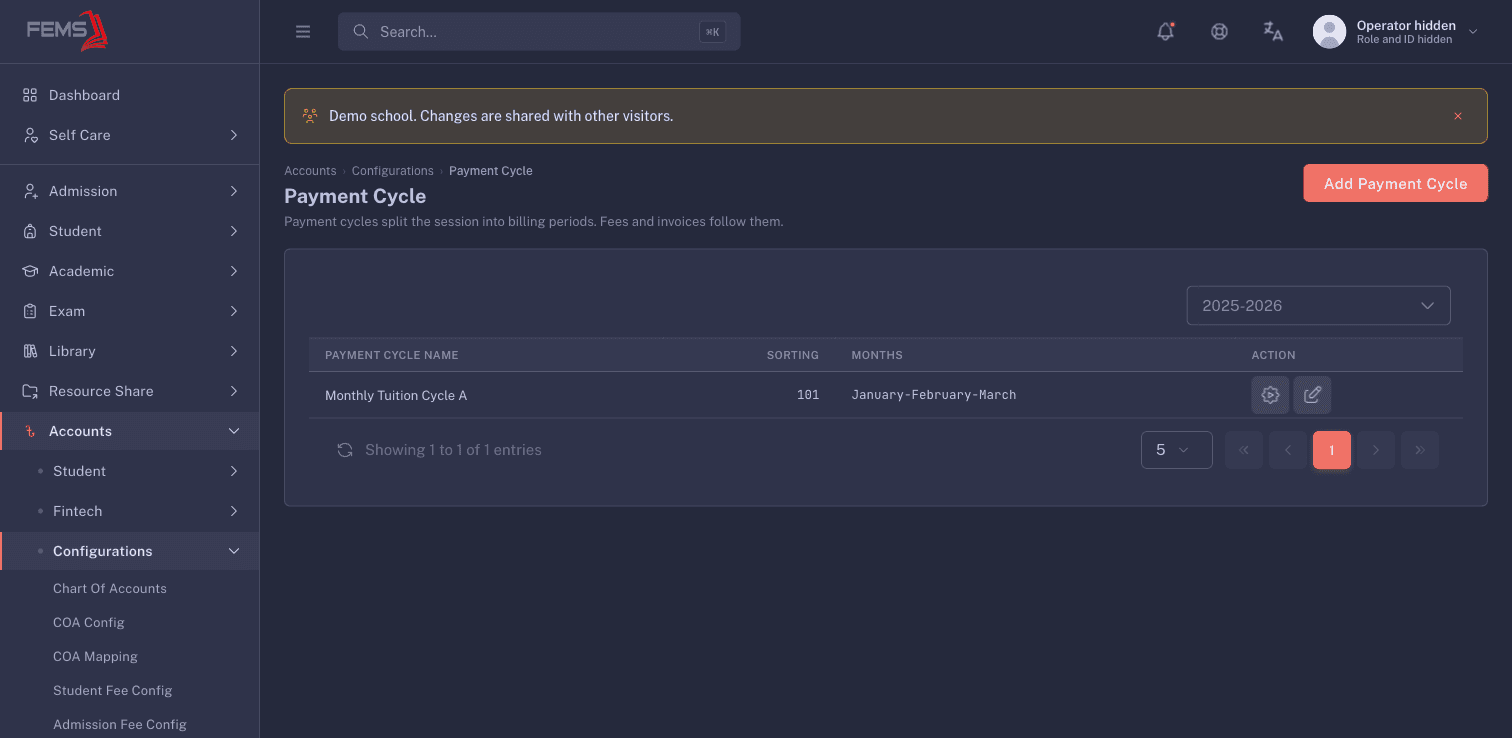
Check that the cycle covers the intended campus and class before adding dates.
Final checks
Before a fee goes live, review the chain from left to right:
- The fee-income head exists in Chart Of Accounts.
- The needed head types exist in COA Config.
- The fee income has a receivable mapping in COA Mapping.
- The correct class and session have the correct price in Student Fee Config.
- The payment cycle has the right campus, class, receivable date, and last payment date.
Do not test this chain by collecting real money. Confirm the generated due on an approved non-production student record before opening collections to the front desk.
FAQ
Why can I select a fee head but students have no due? Check the full setup chain above. A fee price alone is not a billing schedule. Ask the accountant to verify the mapping, class, session, cycle, and receivable date before generating dues again.
What is the difference between Monthly and Specific? Monthly applies the fee across payment cycles. Specific lets you choose campuses and cycles.
Should I add a second chart-of-account head when I cannot find one? No. Search first, then ask the accountant which approved head to use. Duplicate heads make reports harder to reconcile.
Can I change a live fee amount? Treat it as a financial change. Review the affected class, session, billing cycle, and existing dues with the accountant before saving.
Related pages
Troubleshooting exam results
Work out why a mark, grade, merit position, or report card looks wrong, what you can fix yourself, and when to raise it with support.
Collecting fee payments at the counter or online
Find the correct student, review the payment safely, and know what to verify before issuing a receipt.