Running due, paid, ledger, and revenue reports
Use account report filters to review outstanding dues, collections, ledgers, and franchise revenue.
Accounts reports answer different questions. Start with the question, then choose the report and filters that match it.
Prerequisites
You need access to Accounts > Reports. Use the narrowest campus, class, session, payment cycle, and date filters that answer your question. Review the loaded rows before you print.
Who still owes fees?
Open Accounts > Reports > Due Report.
- Select Session first.
- Narrow by Campus, School, Class, Shift, or Section when needed.
- Select a Payment Cycle to focus on one billing period.
- Use Break down by for a grouped view. Leave it empty for a full list.
- Click Search.
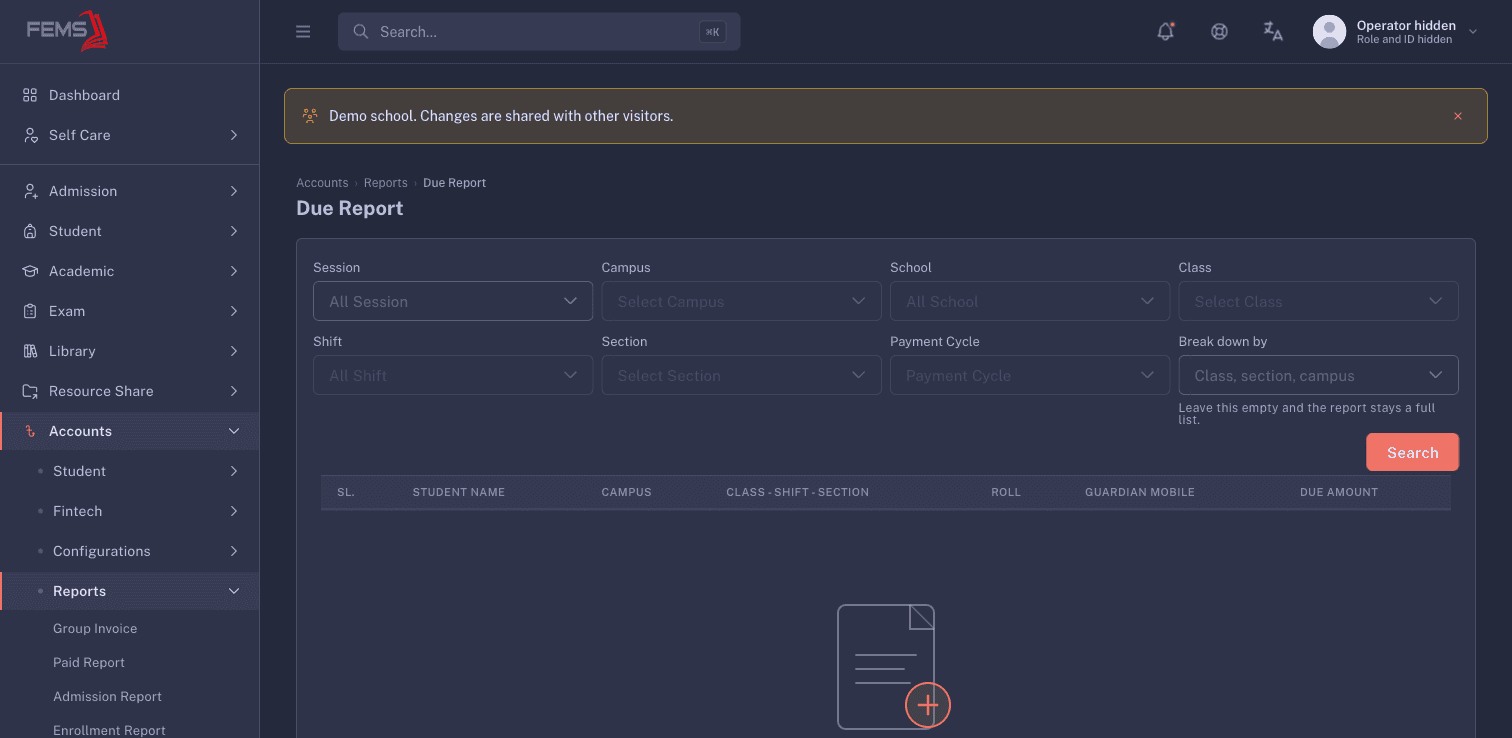
The full-list columns include student name, campus, class/shift/section, roll, guardian mobile, and due amount. Treat guardian contact information as private. Do not share or screenshot a populated report outside the authorised school team.
What was collected?
Open Accounts > Reports > Paid Report.
- Select the session and campus.
- Narrow by school, class, section, shift, or bank when needed.
- Set Date Range. The page opens with today's date.
- Use Break down by for a grouped result, or leave it empty for the full list.
- Click Search. Use Print only after you have checked the rows.
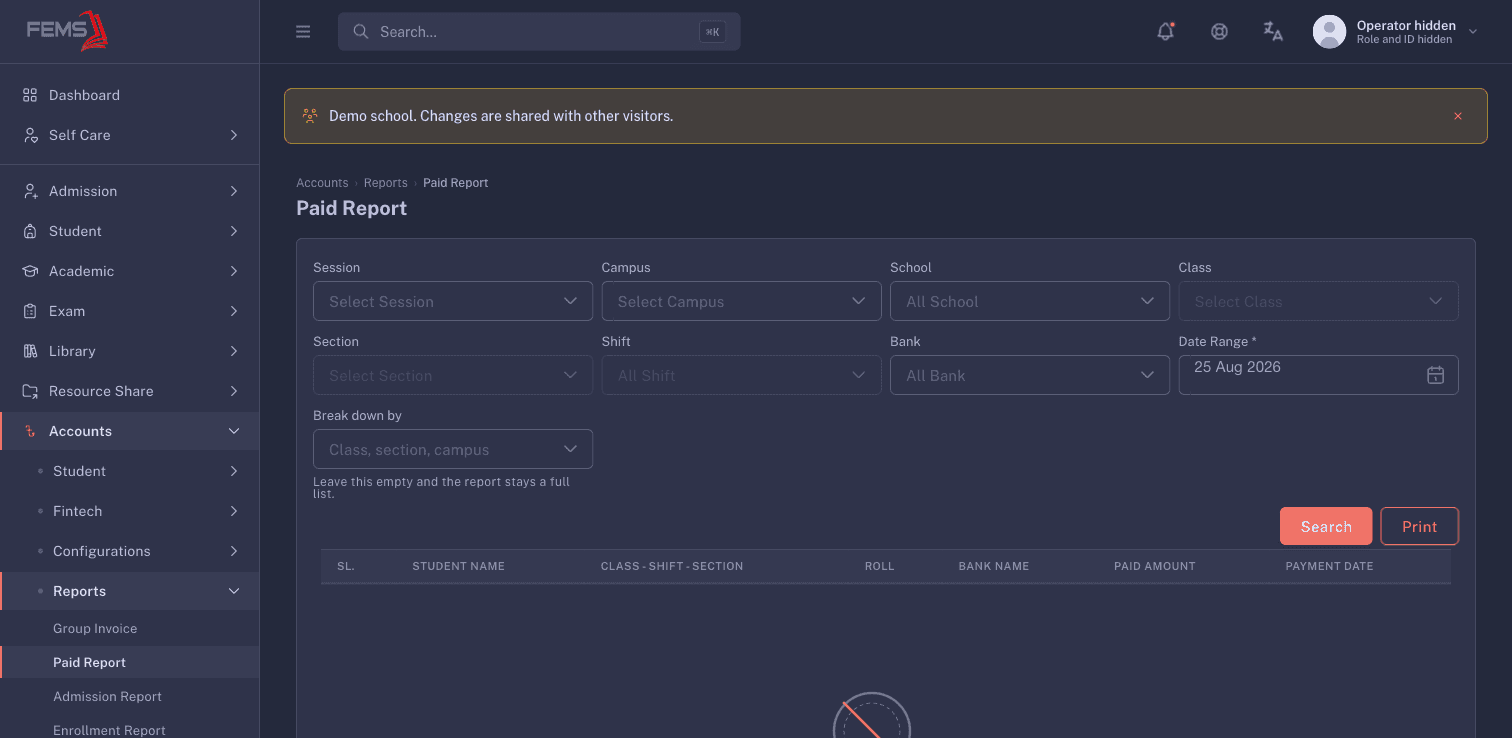
The full list includes student name, class/shift/section, roll, bank name, paid amount, and payment date.
What happened to one student's balance?
Open Accounts > Reports > Student Ledger. Search for the student by name or ID. You can also set Date Range or Receipt No.
The ledger table uses Date, Description, Receipt No., Debit, Credit, and Balance. Click Search, review the sequence, then use Print if you need a copy.
What moved through one account head?
Open Accounts > Reports > Head Wise Ledger. Select a COA Head and Date Range, then click Search.
The result uses Date, Description, Debit, Credit, and Balance. Use Clear to remove the filters. Use Print only after checking the result.
For totals by fee head, open Head Wise Summaries. Select the academic filters, choose Payment Status as due or paid, set a date range, and search. Leave Break down by empty to keep each head on one row.
What revenue belongs to a franchise campus?
Open Accounts > Reports > Franchise Revenue Report. Select Session, Campus, Class, and Date Range, then click Search.
The result includes the invoice total, institution amount, and franchise amount for each row. Use this report only for campuses that use franchise revenue sharing.
FAQ
Why is Paid Report empty? Check the date range first. The page opens on today's date, which can correctly return no matches.
Should I use Due Report or Student Ledger? Use Due Report to find outstanding balances across students. Use Student Ledger to trace one student's debit, credit, and balance sequence.
What does Break down by do? It groups the report by the selected school dimension. Leave it empty when you need the full list.
Can I share a due report with guardian mobile numbers? Only with authorised school employees who need it. Guardian contact details are private.
Is a printed report ready as soon as I open the page? No. Set the filters, search, and review the loaded rows before you print.