Managing shared school calendar events
View school events by month, week, day, or list, and add an event to the shared calendar.
The school calendar keeps important dates in one shared view. Use it for academic events, activities, and holidays in the selected academic session.
Prerequisites
You need calendar access. Creating, changing, or removing an event requires an account allowed to manage calendar events.
View the calendar
Open Calendar in the sidebar.
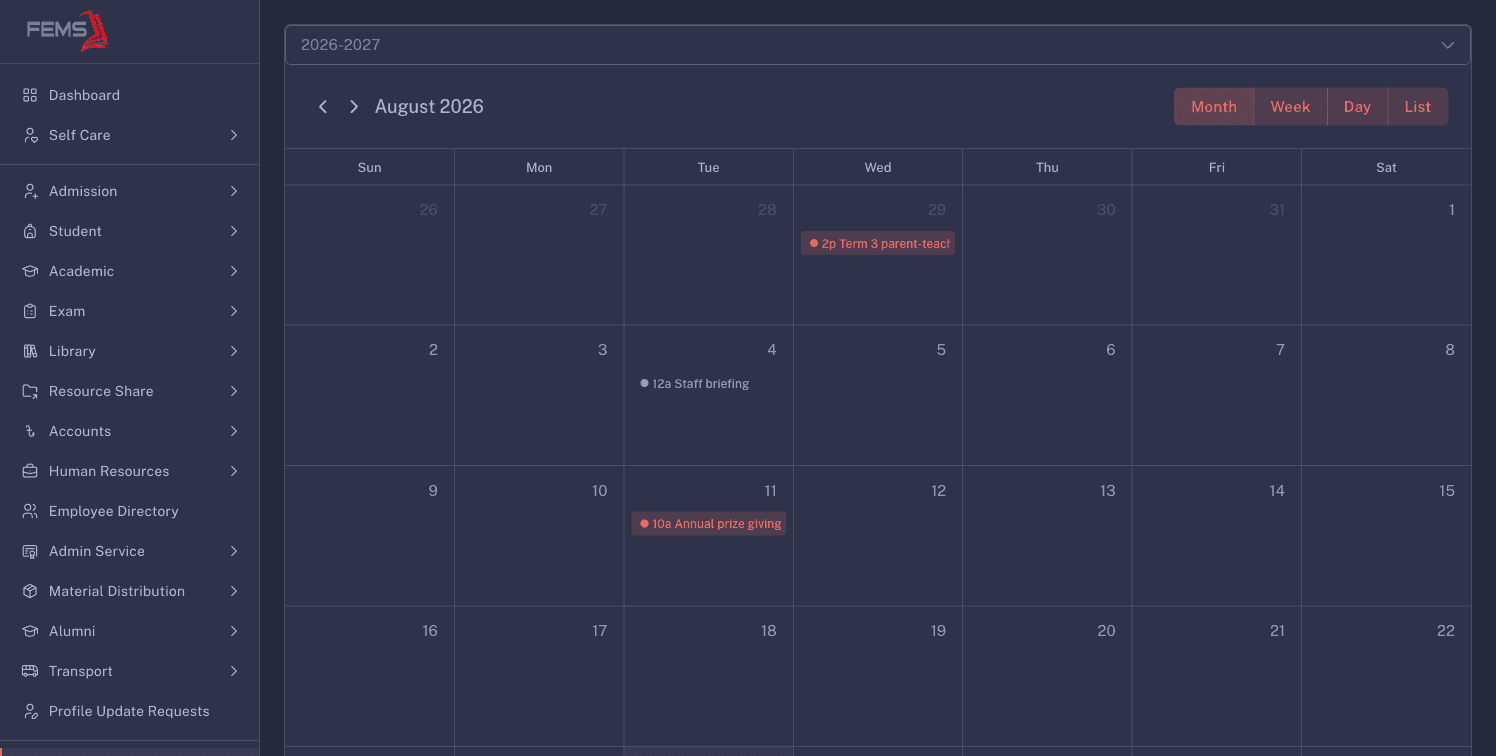
- Choose the academic session at the top.
- Use the left and right arrows to move through dates.
- Choose Month, Week, Day, or List to change the view.
Events appear on their scheduled dates. Academic events, activities, and holidays use different calendar colours.
Add an event
Click an empty date in the calendar. The Add Event drawer opens.
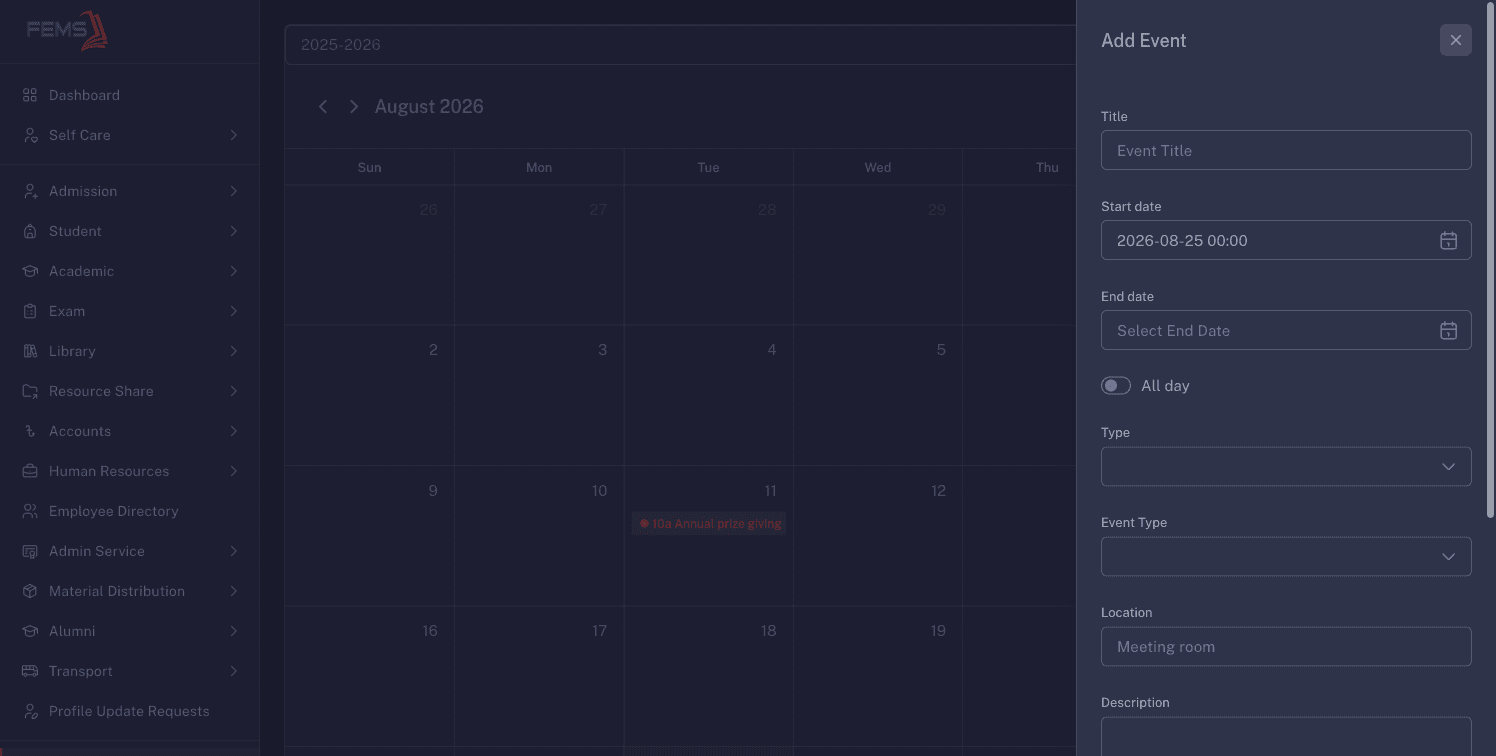
- Enter the Event Title.
- Set the Start date and End date.
- Choose whether the event is internal or external.
- Choose the event type: academic, activity, or holiday.
- Add the Location and description when they help staff understand the event.
- Choose the Reporting Person. Use All only when the event applies to every eligible school group shown in the drawer.
- Click Submit.
Change an event
Click an existing event to open its details. If you can edit it, update the fields in the drawer. The calendar also supports dragging an event to another time and resizing it to change its duration.
Check the new date and audience before you save. Calendar changes affect everyone included in the event.
FAQ
Why do I not see an event from another academic year? The calendar loads events for the selected academic session. Switch the session at the top.
What do the colours mean? They separate academic events, activities, and holidays.
Can I see only one day? Yes. Choose Day. Use List when you prefer a simple date-ordered view.
Can I move an event without opening the form? If you can edit the event, drag it to another date or time. Check the result before leaving the page.
Why can I view an event but not change it? Your calendar access may be view-only, or the event may not allow editing for your account. Ask an institution administrator to check your access.
Related pages
Searching the employee directory and printing a profile
Find an employee by name, role, department, campus, or employee ID, then open their directory details and print a profile.
Customizing your dashboard layout
Reorder and resize dashboard cards, save a personal layout, or return to the role default.