Customizing your dashboard layout
Reorder and resize dashboard cards, save a personal layout, or return to the role default.
Your dashboard shows the cards and quick actions available to your role. You can change how those cards are arranged without changing anyone else's dashboard.
Prerequisites
You need access to the main dashboard. The Customize button is available on your own dashboard, not while previewing another role.
Open customization mode
Open Dashboard, then click Customize.
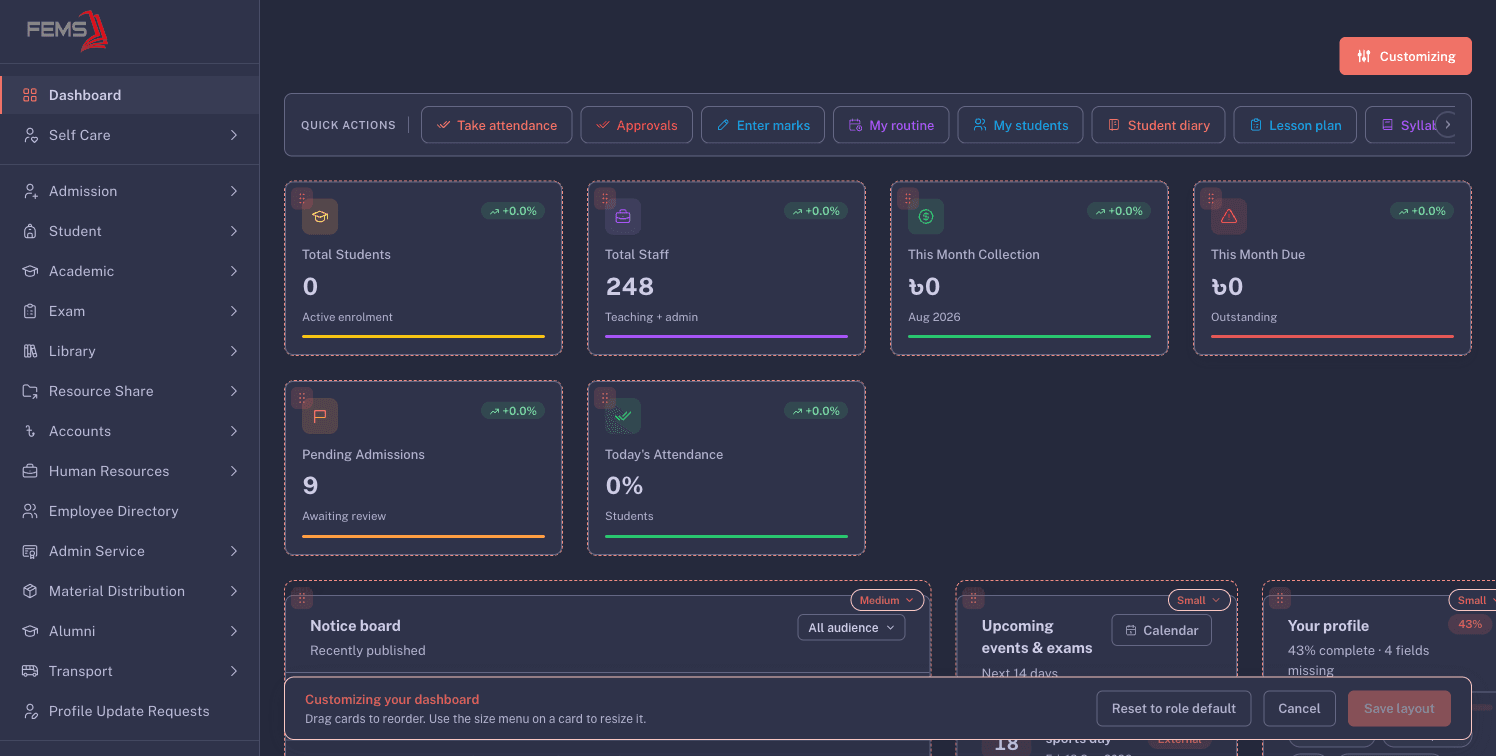
The button changes to Customizing. Each card gets a drag handle, a size control, and a highlighted border. A save bar stays at the bottom of the screen.
Reorder and resize cards
- Drag a card by its handle to move it.
- Open the size control on a card.
- Choose Small, Medium, Large, or Full width.
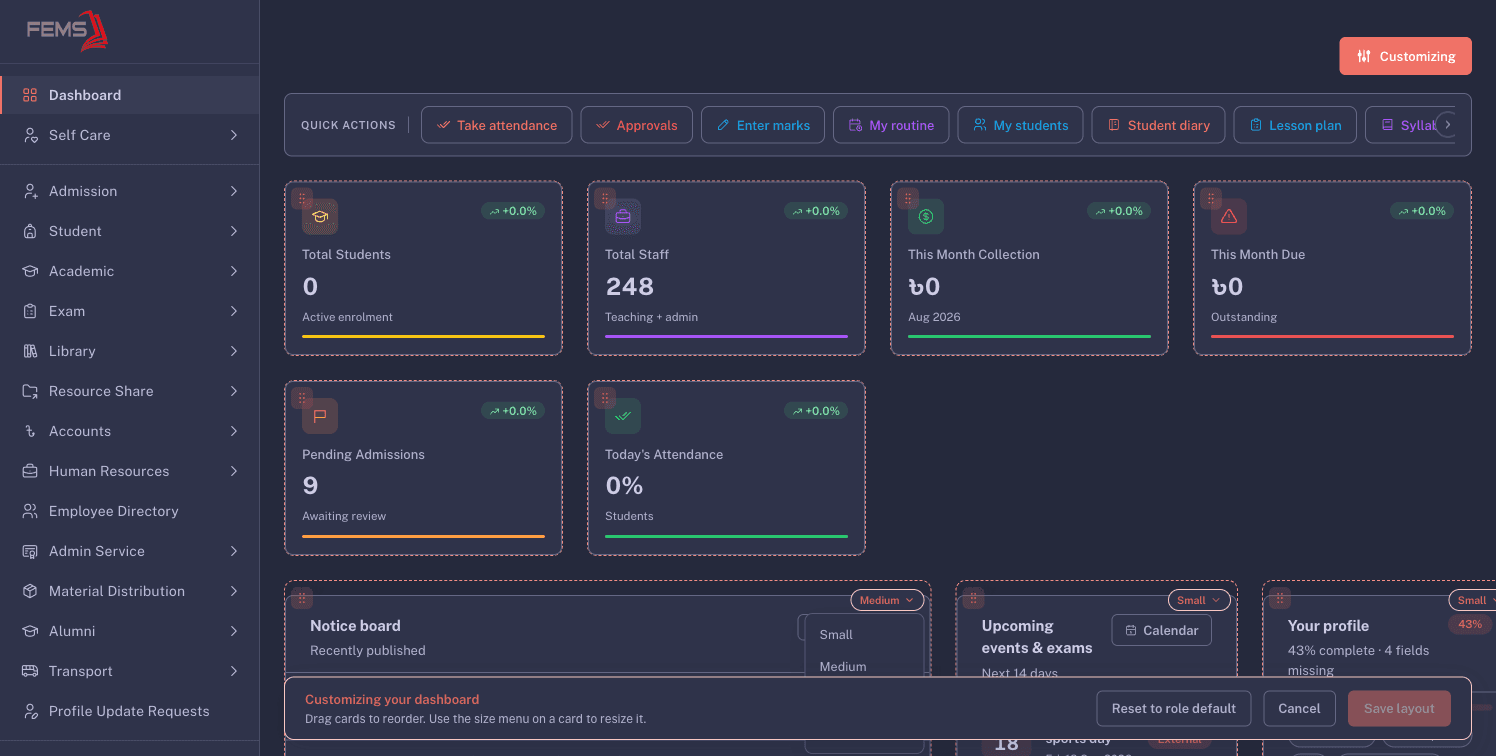
Cards move into the available dashboard space as you reorder or resize them. Review the full page before saving so important cards do not end up too far down.
Save or discard your changes
Use the bar at the bottom:
- Save layout saves the arrangement for your account. Only you see it.
- Cancel leaves customization mode without saving the draft.
- Reset to role default returns your layout to the arrangement set for your role.
The role default controls which cards are available. Personal customization changes their order and size, not the role's widget access.
FAQ
Will my layout change other people's dashboards? No. Save layout saves the arrangement only for your account.
Can I add a card that is not on my dashboard? No. Your role controls which cards are available. Ask an institution administrator if your role needs another dashboard card.
What does Reset to role default do? It removes your personal arrangement and restores the layout set for your role.
Why is Save layout disabled? It stays disabled until you move or resize a card.
Why do I not see Customize? The dashboard may be in role preview mode. Return to your own dashboard and try again.