ModulesFEMS AI
Opening AI smart form-fill on admission forms
Open the FEMS AI drawer beside a blank enquiry or admission form and review its available controls.
The FEMS AI form fill button opens a chat drawer beside a new admission form. This page covers the verified entry point and visible drawer controls.
Before you start
- Open a new Enquiry or Admission form.
- Use only information your institution is allowed to process.
- Do not paste passwords, payment details, or unrelated student records into the chat.
- Do not send real applicant data while testing the feature.
Open FEMS AI
- Open Admission and select Applicant Management.
- Select New Application.
- Choose Enquiry or Admission under Application Type.
- In Applicant Information, select FEMS AI form fill.
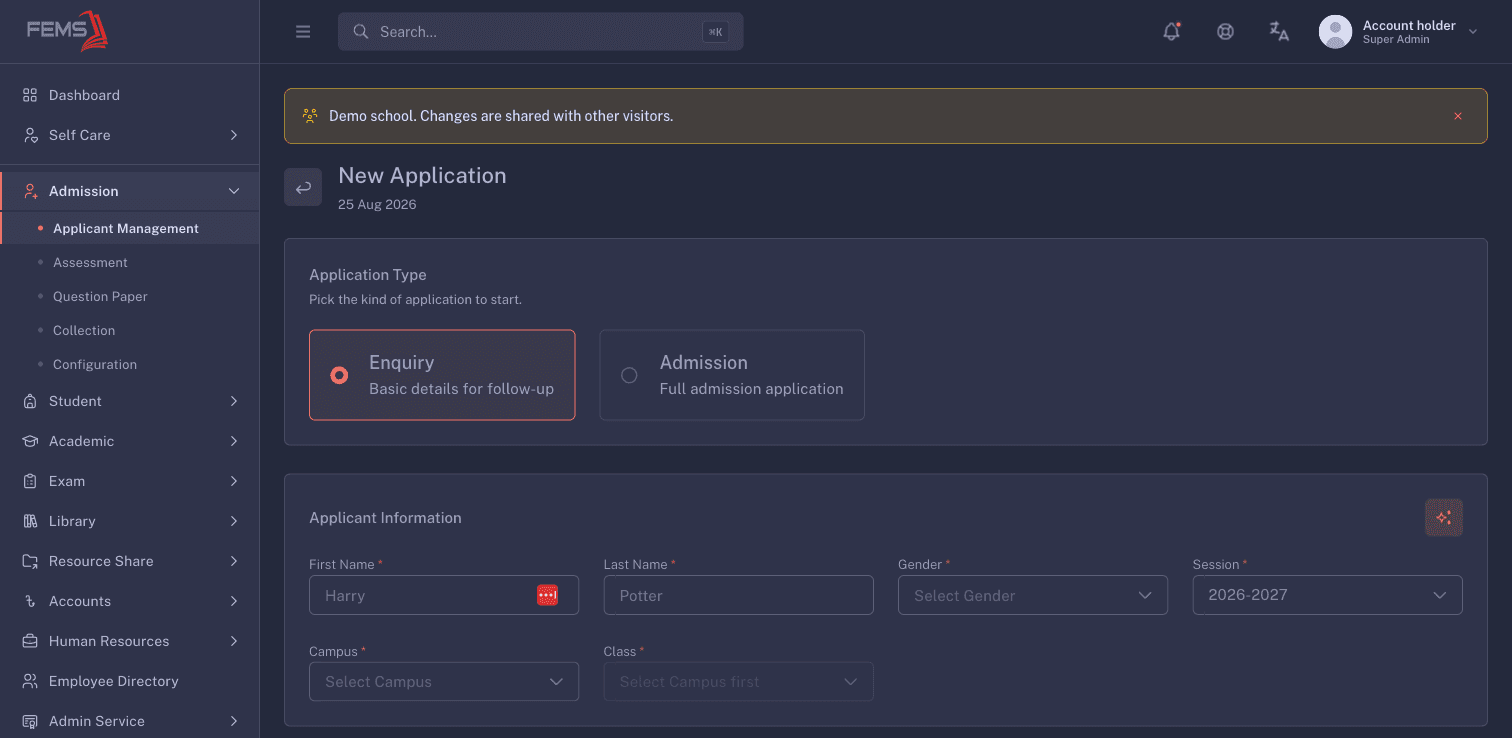
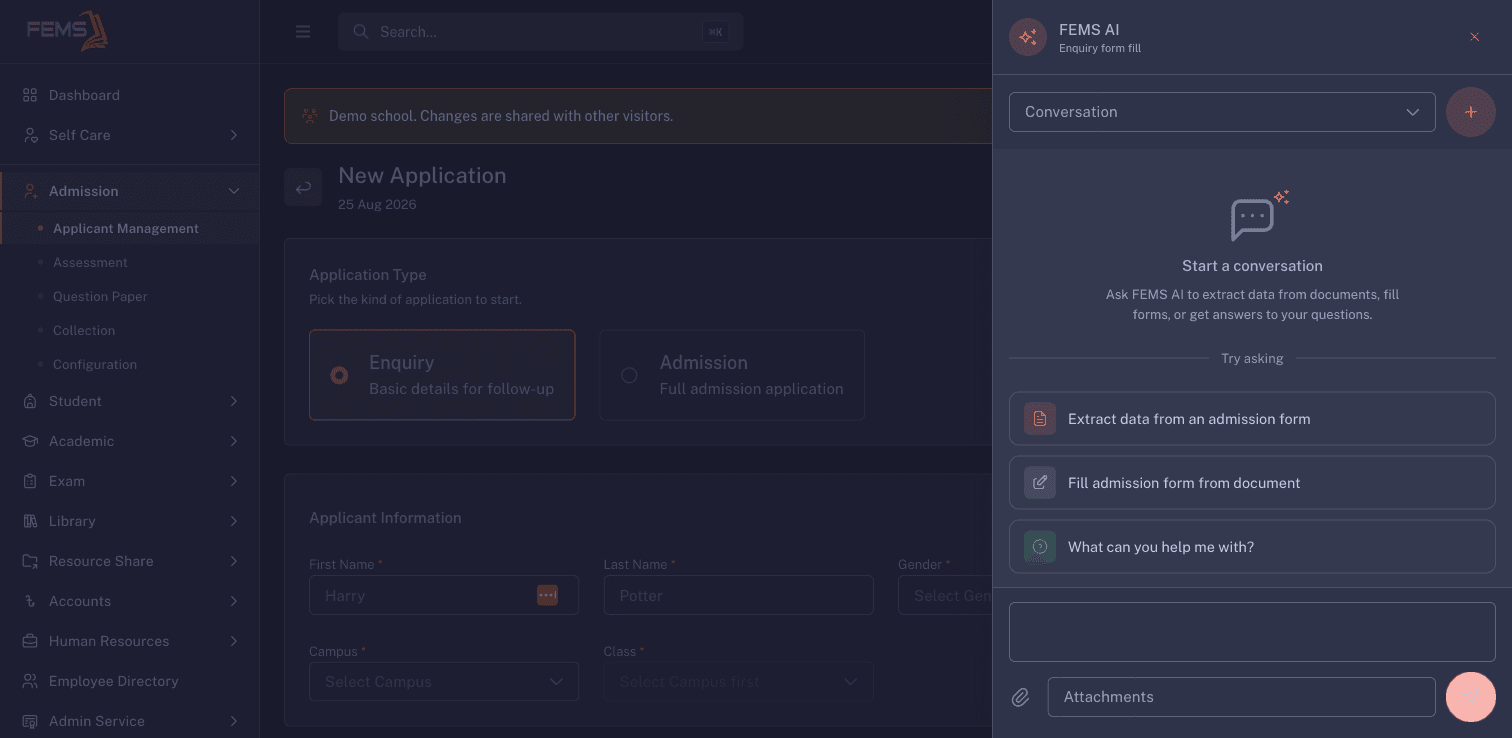
The right-hand drawer opens with FEMS AI and the form context, such as Enquiry form fill.
Review the drawer controls
- New FEMS AI chat starts a separate chat.
- Suggestions, a message composer, attachments, and a send control are visible.
- Do not send or upload applicant data until your institution has approved this workflow.
Review before saving
Opening the drawer does not submit the admission form. Close it and complete the form through the standard admission workflow.
Frequently asked questions
Why can't I see the FEMS AI button?
The feature may not be available for your institution or account. Complete the form manually and ask an administrator whether FEMS AI is enabled.
Does opening the drawer save the application?
No. Opening the drawer does not submit the admission form. Use the form's own save action only after checking every required field.