Searching the employee directory and printing a profile
Find an employee by name, role, department, campus, or employee ID, then open their directory details and print a profile.
The Employee Directory gives you a quick, read-only view of the people who work at your school. Use it to find a colleague's department, designation, campus, or employee ID without opening their full HR record.
Prerequisites
You need access to Employee Directory. If it does not appear in the sidebar, ask your FEMS administrator to add Employee Directory access to your role.
Find an employee
- Open Employee Directory from the sidebar.
- Use Search by name, designation, department, campus, or employee ID.
- Enter any part of the detail you know. The directory updates the cards as you type.
- Clear the search box to return to the full directory.
Each card starts with the employee's name, photo, employee ID, designation, department, and campus. Use Items per page or the page buttons at the bottom when you need to browse more results.
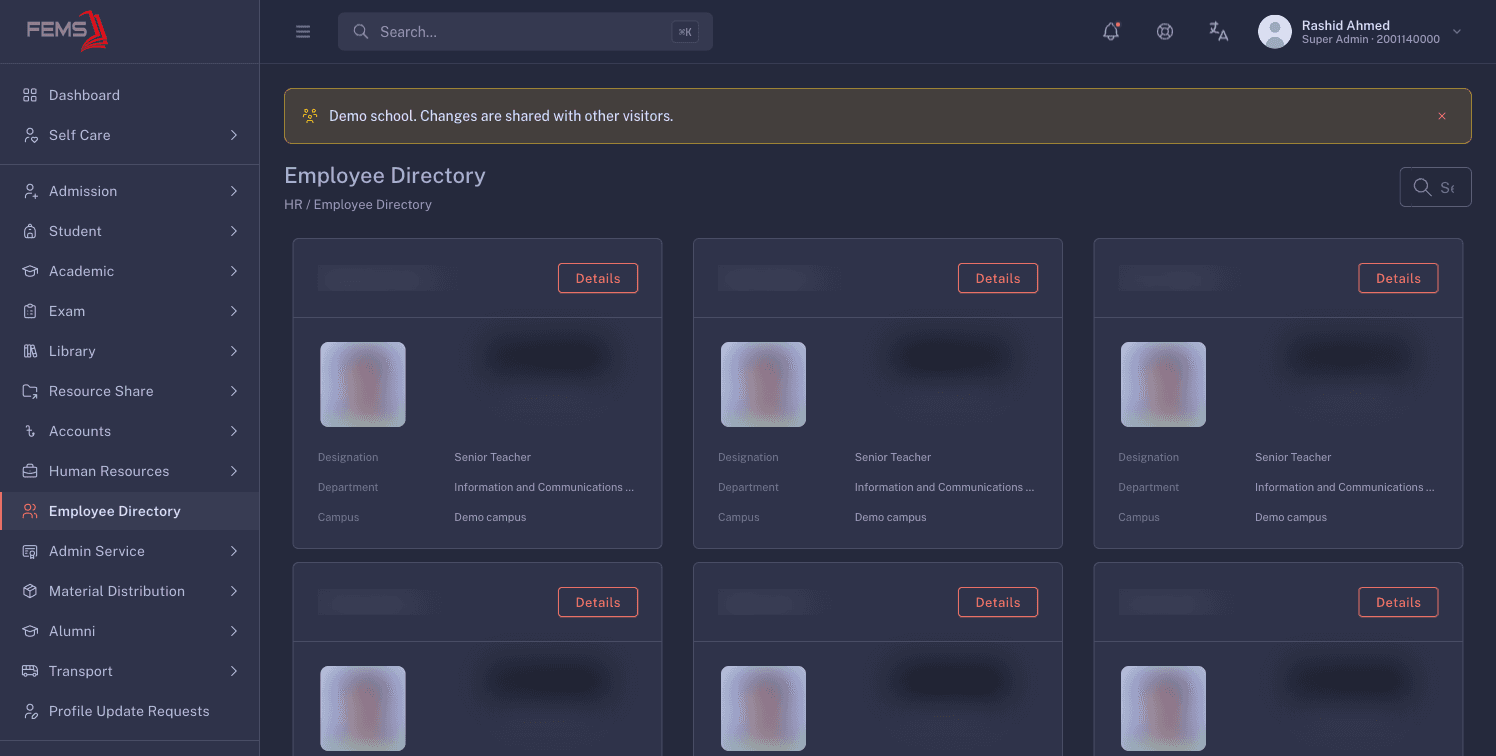
If nothing matches, the page shows No employees found. Try a shorter name, check the employee ID, or search by designation or department.
View directory details
- Select Details on an employee card.
- Read the additional directory fields, including email, mobile number, telephone number, and phone extension when they are available.
- Use Copy ID beside the employee ID when you need to paste it into another FEMS search.
- Select Short to collapse the card.
This directory is read-only. To change an employee's record, use Maintaining employee records instead.
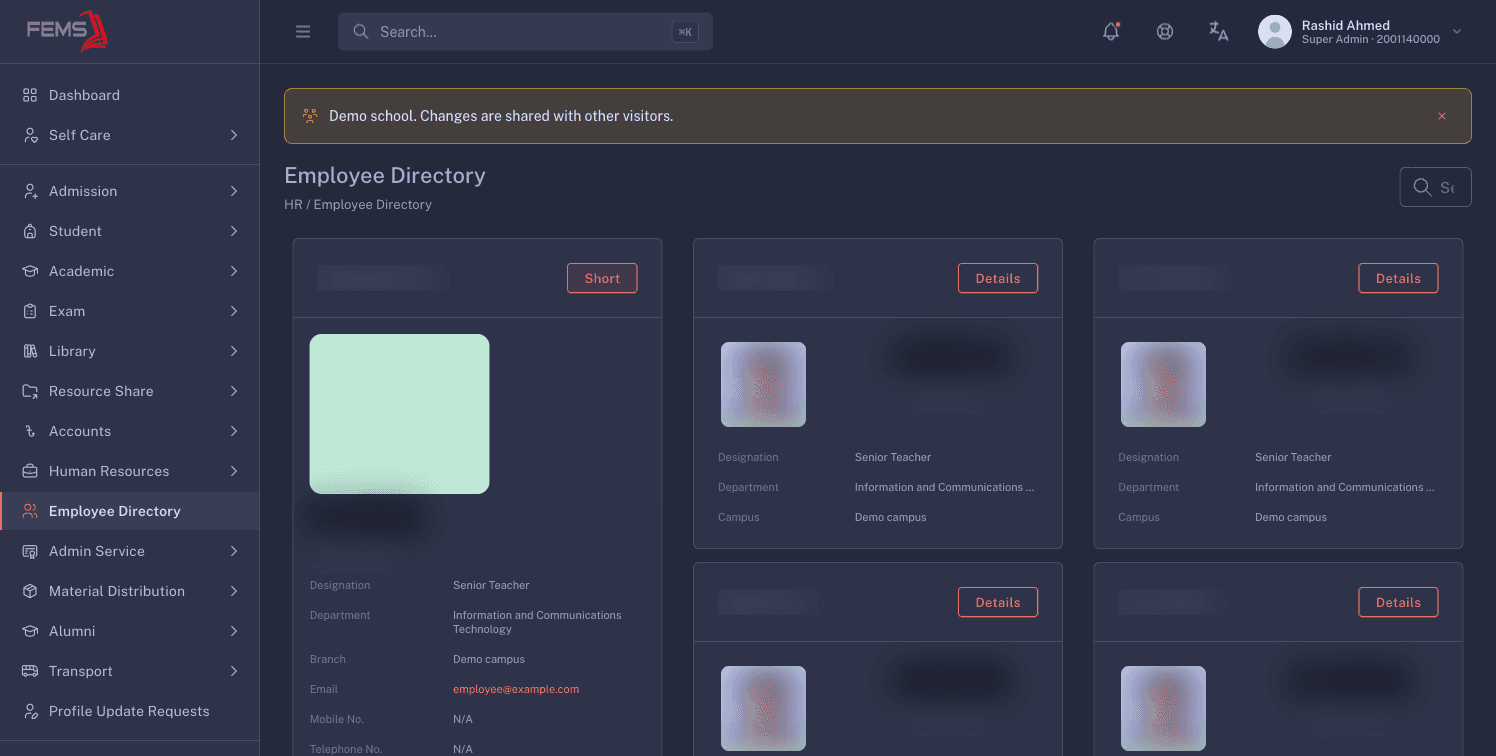
Print a profile
- Open the employee card with Details.
- Select Print.
- If no print tab appears, allow pop-ups for your FEMS site and try again.
- Check the employee details in the print preview before printing or saving a PDF.
The printed profile can contain personal contact details. Share it only with people who are allowed to see the employee's information.
FAQ
Why can't I find an employee?
Clear the search and try the employee's name, designation, department, campus, or employee ID. The directory only shows employees available to your institution and role.
Can I edit an employee from this page?
No. Employee Directory is read-only. Open Human Resources > Employees if your role allows employee record changes.
Why does a card show N/A?
That field is empty on the employee's HR record. Ask an HR administrator to update the record if the missing detail is needed.
Why didn't the print page open?
Your browser may have blocked the new tab. Allow pop-ups for your FEMS site, then select Print again.