Approving profile update requests
Review the profile changes staff submit from Self Care before they reach the employee record.
Employees cannot edit their own personal details directly. They submit a change from Self Care, and it waits here until an HR reviewer approves or rejects it. Human Resources > Profile Update Requests is that queue.
Prerequisites
Go to Human Resources > Profile Update Requests.
Your role needs access to profile update requests. There are three separate levels, and an HR admin has all of them:
- View the queue and open a request.
- Approve a request.
- Reject a request.
If you can open a request but the Approve or Reject choice is missing from the review panel, your role is missing the matching access. Ask your FEMS administrator.
Where the requests come from
An employee opens their own profile in Self Care, picks a field, and submits the change with a reason and, if it helps, a supporting document. See Your profile in Self Care for that side of the flow.
Only personal details can be requested this way. The employee picks from these groups:
| Group | Examples of what staff can request |
|---|---|
| Basic Details | First name, last name, gender, date of birth, father's and mother's name, marital status, religion, blood group |
| Nationality & Identification | Nationality type, national ID, birth certificate, passport number, driving license |
| Personal Contact Info | Mobile number, alternate mobile, telephone, personal email |
| Address | Present address, permanent address |
| Emergency Contact | Contact name, relation, emergency mobile, alternate phone, email, address |
| Photo & Documents | Profile photo |
Salary, department, designation, employment type, and any academic or posting data are not requestable. Those stay with HR and are changed on the employee record itself. See Employee records.
An employee can only have one open request per field. A second request for the same field is refused until you decide the first one.
Working the queue
The list is headed Profile Update Requests (HR).
Each row shows the requester (name and code), the field being changed with its group underneath, the old and new values side by side, the submission date, the status, and the actions column. The list shows 15 rows per page.
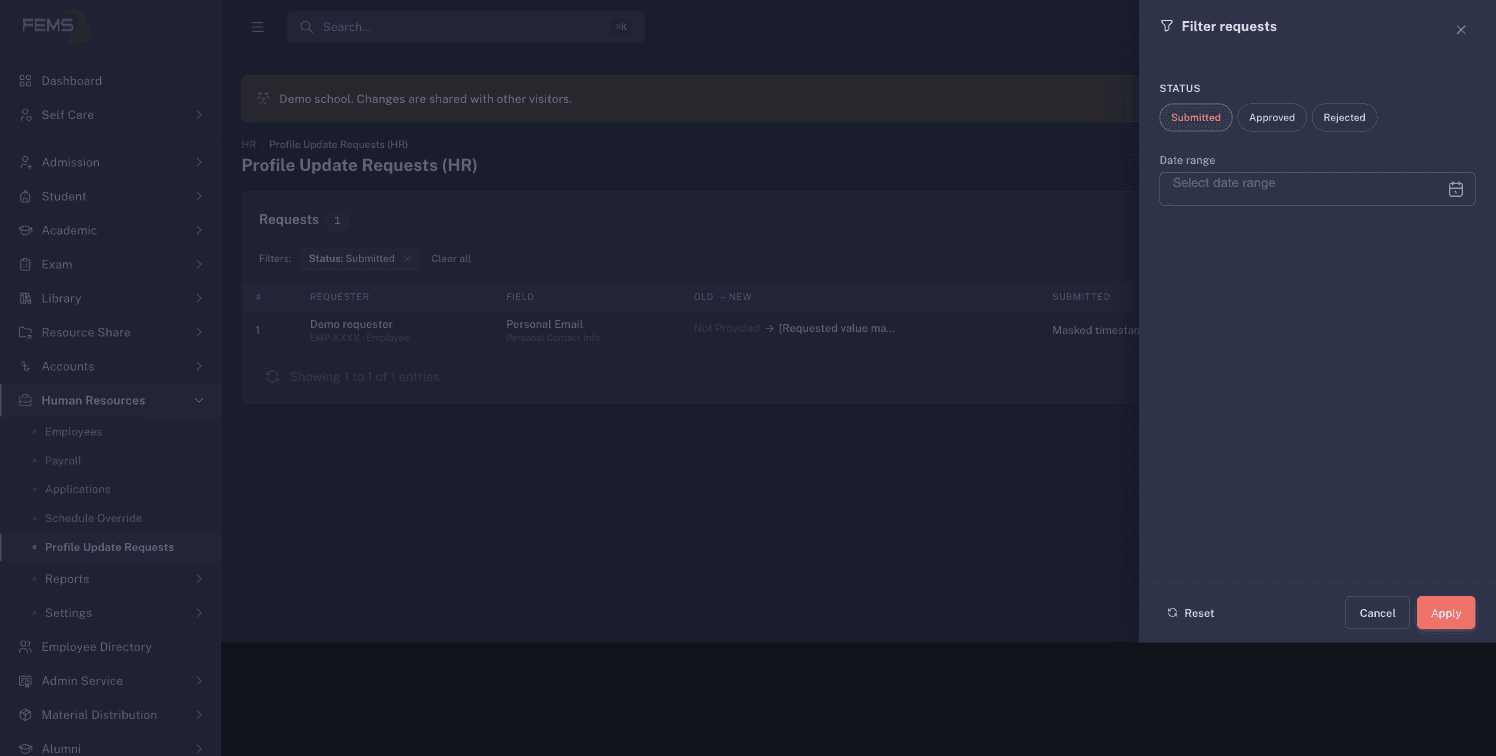
Click Filter to open the filter drawer:
| Filter | How it behaves |
|---|---|
| Status | Choose any of Submitted, Approved, Rejected. |
| Date Range | Limit the list to a submission date range. |
Click Apply to run the filter, Reset to clear it, or Cancel to close the drawer. When nothing matches, the list reads No profile update requests.
This queue shows employee requests. Student and parent requests are routed to a different reviewer and do not appear here.
Reading a request
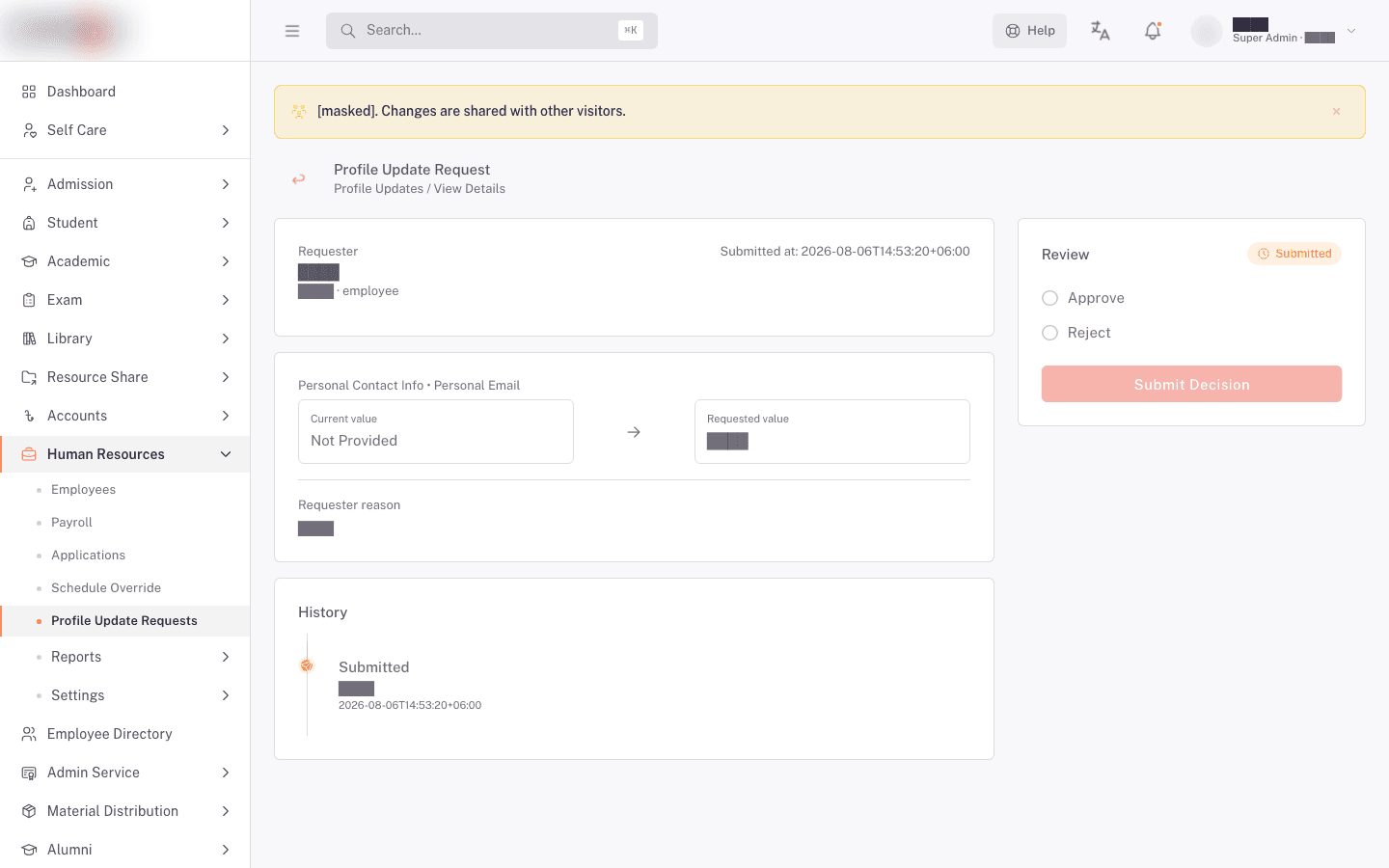
Click a row to open the request. The page is built so you can decide without opening the employee's record in another tab.
- Requester card. Who filed it, their code and requester type, and when it was submitted.
- The comparison. The Current value sits in a card on the left, the Requested value in a highlighted card on the right, with an arrow between them. An empty value reads Not Provided. A yes-or-no field reads Yes or No.
- For a photo or document field, both sides show the file itself rather than text.
- For any other field, an attached file appears in its own Supporting document tile. Click the attachment to open it.
- Requester reason. Why the employee says the change is needed. A reason is required on every field except photo and document fields, where the upload is the proof.
- History. A timeline of what has happened to this request so far.
Check the requested value against the supporting document before you decide. That is the whole point of the side-by-side view.
For fields that are normally a dropdown (gender, religion, marital status, blood group, nationality type), read the requested value carefully. A typo has to be caught here.
Deciding a request
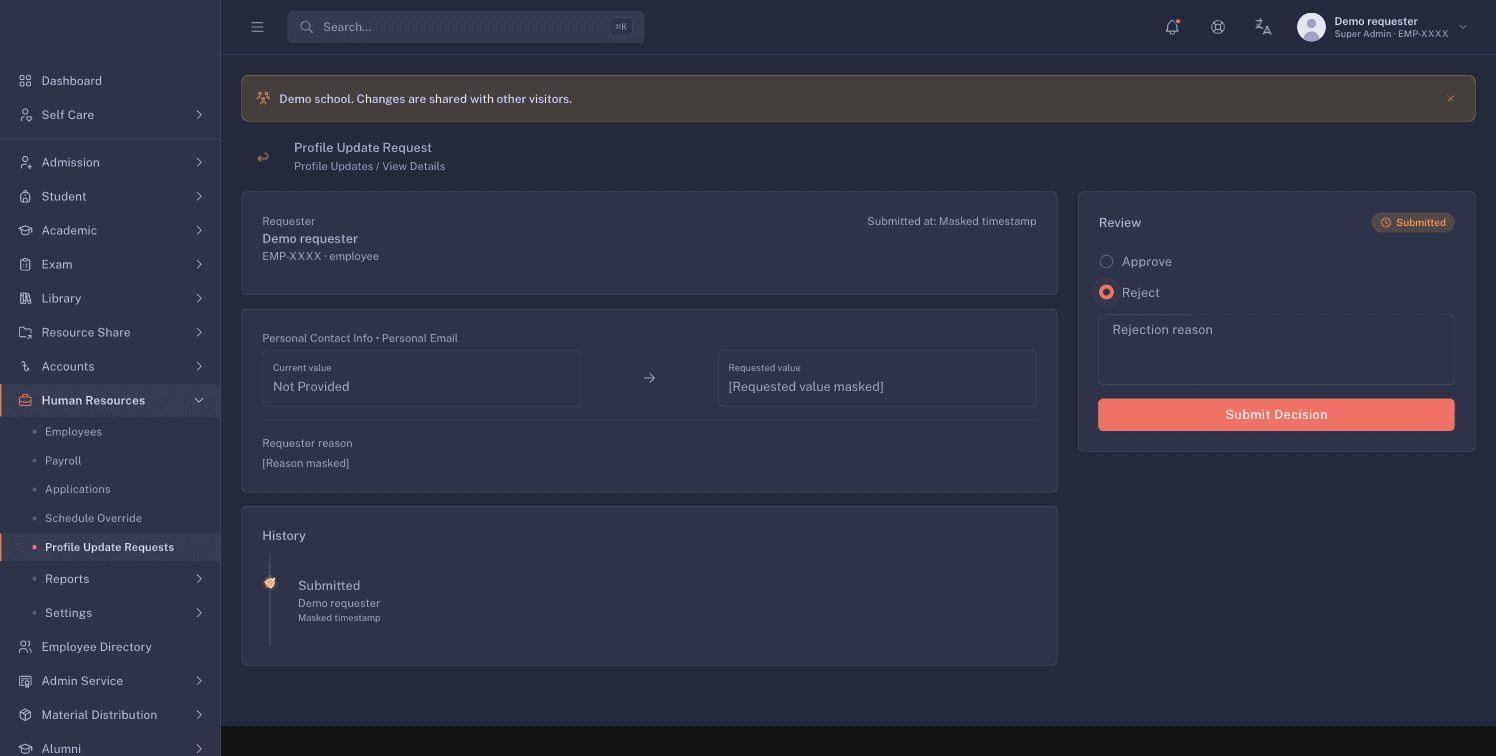
The Review panel on the right holds the decision.
- Choose Approve or Reject.
- If you chose Reject, write the Rejection reason in the box that appears. The placeholder reads "Briefly explain why this request was rejected". A rejection with an empty reason is refused with "A rejection reason is required."
- Click Submit decision. The button stays disabled until you have chosen approve or reject.
You'll see Request approved. or Request rejected., and the status chip on the request changes.
There is no confirmation dialog on this screen. One click on Submit decision commits the decision, and a decided request cannot be reopened. Read the request first, then click.
Once a request is decided, the panel shows who reviewed it and when. If it was rejected, the rejection reason is shown in a red block, so the employee and any later reviewer can see why.
What each decision does
Approving writes the new value straight onto the employee record. There is no second step and nothing else to save. The next time anyone opens that employee's profile, they see the new value.
Approval can fail in one case. If the employee has no record yet for the part of the profile that field belongs to (for example, no personal-details section at all), FEMS refuses the approval. The message says the requester has no existing record and that it has to be created through the standard profile form first.
When that happens, fill in that section of the employee's profile from Human Resources > Employees, then come back and approve the request.
Rejecting changes nothing on the employee record. It closes the request with your reason attached, and the employee is free to submit that field again.
The employee is notified of your decision either way. The notice is in-app only. It appears in their FEMS notifications, and it names the field and the decision, for example that their request to change their phone number was approved. FEMS sends no email and no SMS for a profile update decision, so do not tell staff to watch their inbox.
FAQ
An employee says their new phone number is not showing. What went wrong? Check the queue with the Status filter set to Submitted. If their request is still there, nobody has approved it yet. Nothing reaches the employee record until you approve.
Can I approve part of a request? No. Each request covers one field, so you approve or reject the whole thing. An employee changing three fields files three requests.
Can I change the requested value before approving? No. You can only approve the value as submitted or reject it. If the value is wrong, reject it with a reason and ask the employee to submit the correct one.
Why can't an employee request a change to their designation or salary? Those are not personal details. Only identity, contact, address, emergency contact, and photo fields can be requested. Everything else is changed by HR on the employee record.
I rejected a request by mistake. Can I undo it? No. A decided request stays decided. Ask the employee to submit the change again, then approve it.