Setting holidays and extra working days
Add the date exceptions that tell attendance and payroll which days count as working days.
Most weeks follow the normal timetable. Schedule Override is where an HR admin records the weeks that do not: the day the school closes for a public holiday, and the Friday everyone comes in for an exam. Get these dates in before payroll runs, because they decide how many working days the month had.
Prerequisites
Go to Human Resources > Schedule Override.
Your role needs access to the schedule override screens. Creating and editing are separate rights, so a role can open the list and view an override without seeing Add New Override Date or the edit pencil.
What an override is
An override is a dated exception to the normal staff work calendar, for a chosen set of campuses and departments. There are two kinds.
| Type | What it means | What FEMS does with it |
|---|---|---|
| Working Day | A day that is normally off becomes a working day. | The day counts as a working day. The In Time and Out Time you set replace the normal timetable for that day, so late arrival and early departure are measured against your times. |
| Day Off | A day that is normally worked becomes a day off. | The day stops counting as a working day. Nobody can be marked late or leave early on it. Punches are still recorded if somebody does come in. |
Friday and Saturday are the weekend for the payroll working-day count and for the Attendance Dashboard. Those two are fixed, and no setting changes them. An employee's own Work Schedule, on step 2 of their record, can still mark other days as their weekend, but that governs their daily timetable rather than the payroll working-day count. You never need a Day Off override for an ordinary Friday or Saturday. You do need a Working Day override to make one of them count as work.
Why a missing override costs money
Payroll works out an absent day like this: it counts the working days in the pay period, takes off the days with approved attendance, takes off their approved leave, and treats the rest as absent. Each absent day is deducted at one day's pay, which is the monthly gross divided by 30.
So a public holiday you forgot to enter is still a working day as far as payroll is concerned. Nobody punched in, because the school was shut. Everybody loses a day's pay.
The reverse is just as real. A Friday everyone worked without a Working Day override is still a weekend to payroll, so that day is not counted, not paid as a working day, and any late arrival on it is not measured against the times you expected.
Enter the dates before the month's payroll is generated. Adding a holiday afterwards does not undo a payslip that has already been produced. Running payroll covers the rest of the calculation.
What an override changes, and where
An override does not reach every screen in FEMS. Be precise about this when somebody asks why a report still looks wrong.
| Surface | Does the override apply? |
|---|---|
| Late arrival and early departure marks on new punches | Yes. A Working Day override sets the day's start and end times. A Day Off override suppresses both marks. |
| Payroll working-day count and the absent deduction | Yes. A Working Day override adds a working day even on a Friday or Saturday. A Day Off override removes one. |
| Attendance Dashboard figures (working days, absent, attendance percentage) | No, not for overrides created on this screen. The dashboard still counts a day-off day as a working day and shows staff as absent on it. |
That last row is a known defect, tracked as #2468. Until it is fixed, confirm a holiday landed by checking the payslip figures rather than the dashboard, and tell anyone who queries a dashboard absence on a holiday that their pay is unaffected.
The list page
The list is headed Schedule Override Information and holds every override for your institution, newest first by when it was created. It is not ordered by the dates the override covers, so a holiday you entered this morning for next March sits at the top.
Columns
| Column | What it shows |
|---|---|
| # | Running serial number. |
| EVENT NAME | The name you gave the override, for example Independence Day. |
| EFFECTIVE FROM | First date the override covers. |
| VALID UNTIL | Last date it covers, included. |
| IN TIME | Start time for a Working Day override. |
| OUT TIME | End time for a Working Day override. |
| ASSIGNED TO | Whether the override was saved for all campuses or for a specific selection. |
| OVERRIDE TYPE | A green Working Day chip or a red Day Off chip. |
| ACTION | An eye icon to view, and a pencil icon to edit if your role allows it. |
The footer reads Showing 1 to 10 of 42 entries, with an Items per page: selector offering 5, 10, 15, 25 and 50. The default is 10.
There is no delete. No delete icon, no delete confirmation, no way to remove an override once it is saved. To cancel one, open it and edit it: change the dates so it no longer covers the day, or take every department off the Assigned To list.
Searching and filtering
The list also has a Search box.
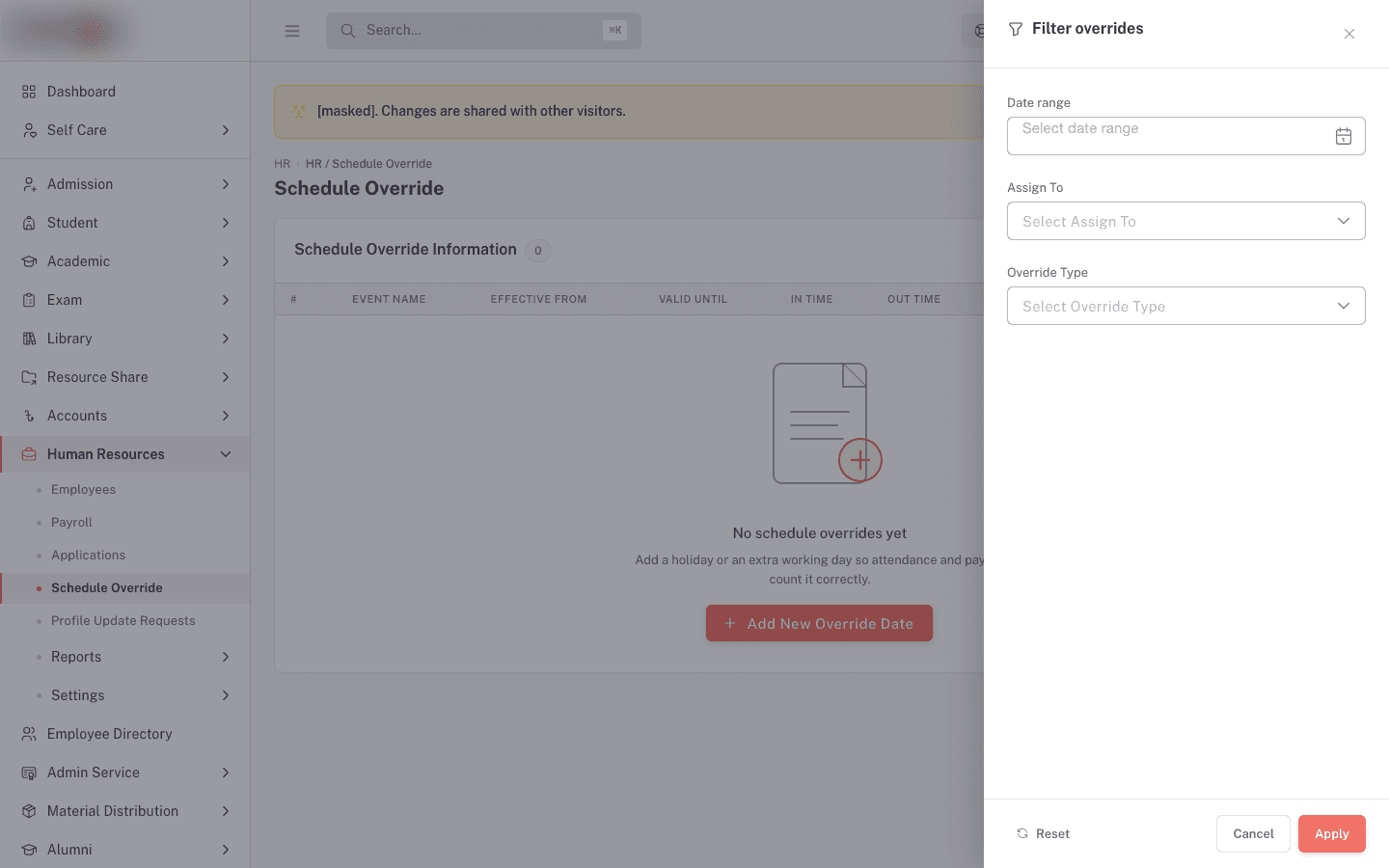
Click Advanced Filter to open the Filter overrides drawer, which offers:
| Filter | Notes |
|---|---|
| Date Range | One date-range control for the period to review. |
| Assign To | All Campus or Specific. |
| Override Type | Working Day or Day Off. |
Click Apply to run the filter, Reset to clear it, or Cancel to close the drawer without applying changes.
Two limits are worth knowing before you trust an empty result:
- The date filter matches overrides whose start date or end date sits inside your window. An override that starts before your window and ends after it, so it covers the whole window, is not returned. Widen the dates if you are hunting for a long-running override.
- Read the chips in the OVERRIDE TYPE column when reviewing a result.
Adding an override
- Click Add New Override Date at the top right of the list.
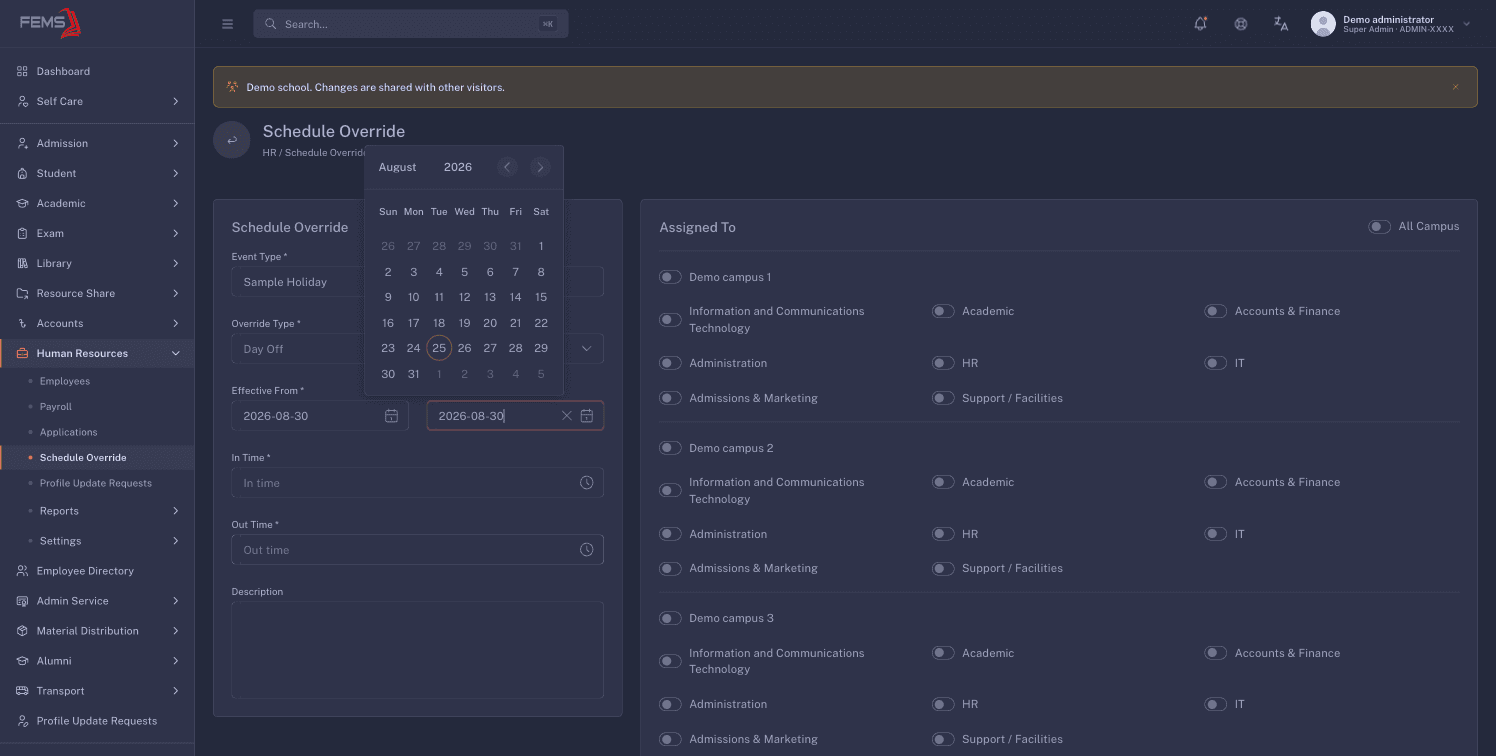
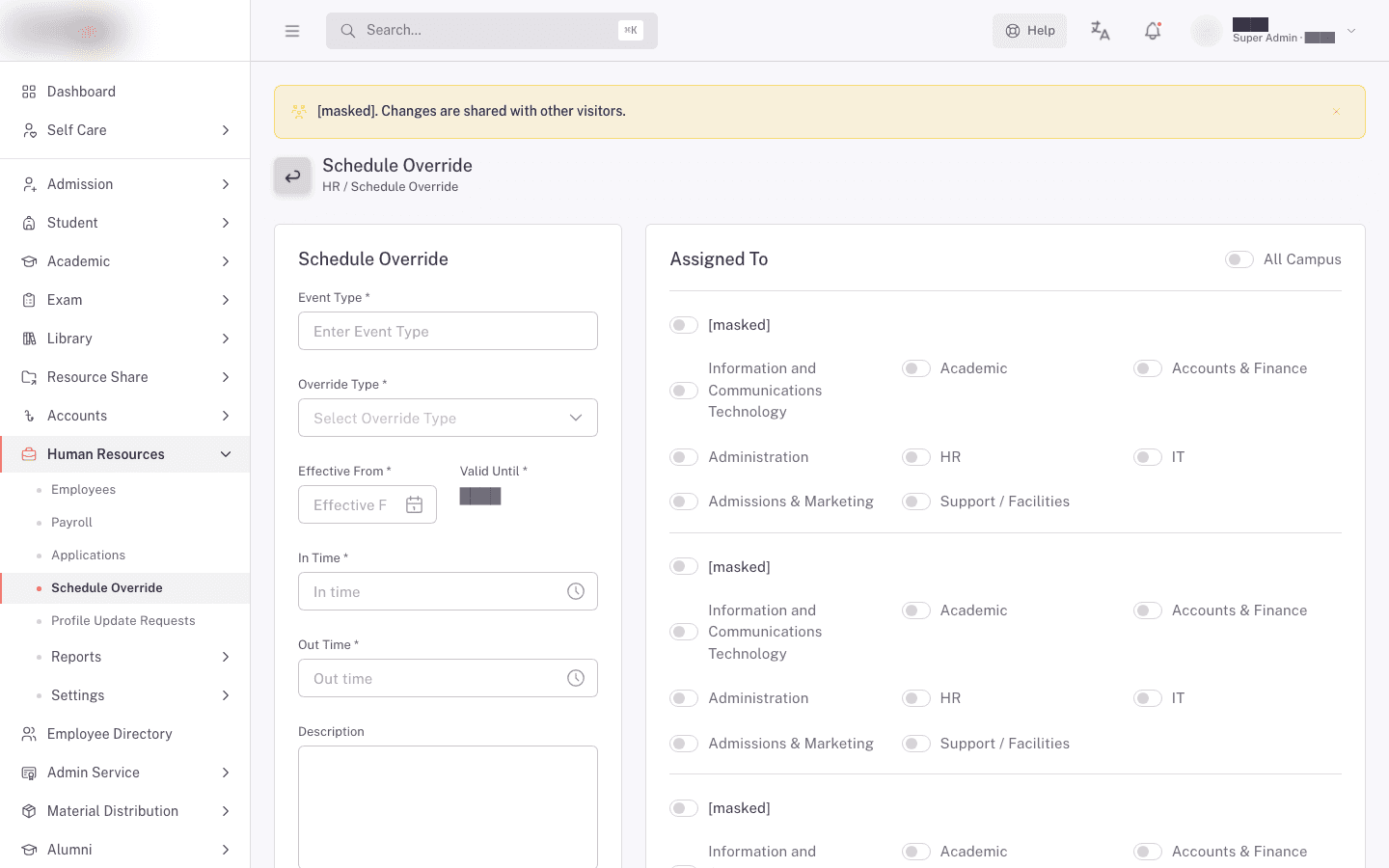
- Fill in the left card, Schedule Override. Every field marked with an asterisk is required.
- Pick the campuses and departments in the right card, Assigned To.
- Click Submit.
You'll see Schedule override created successfully. and land back on the list with the new row on it. Click Cancel at any point to leave without saving.
The fields
| Field | What to enter |
|---|---|
| Event Type | The name of the day, for example Independence Day or Annual Sports Day. Despite the label, this is a free-text name, not a category. It is what shows in the EVENT NAME column and as Event Name: on the view page. |
| Override Type | Working Day or Day Off. |
| Effective From | First date the override covers. |
| Valid Until | Last date it covers. The day itself is included. |
| In Time | Start time for the day. |
| Out Time | End time for the day. |
| Description | Free text. Optional. It shows on the view page under the label Note:. |
Leaving a required field empty shows This field is required under it and the form does not submit.
Rules the form does not enforce for you
For a single day, put the same date in Effective From and Valid Until. There is no separate single-day option.
Nothing checks that Valid Until is after Effective From. A backwards range saves without an error and then matches no days at all, so the override quietly does nothing. Read the two dates back before you submit.
In Time and Out Time are required even for a Day Off, where they mean nothing. The form will not submit without them. Put the school's normal hours in and ignore them. They are only used by a Working Day override.
On a Working Day override, the In Time you set is the exact moment somebody becomes late. There is no grace period allowed on top of it. If you want staff to have a window, set the In Time to the end of that window.
Choosing who the override applies to
The right card, Assigned To, is a tree of switches: a master All Campus switch at the top, then one switch per campus, then a grid of departments inside each campus.
- The All Campus switch turns every campus and every department on or off in one click.
- A campus switch turns all of that campus's departments on or off.
- A campus switch shows as on only when every department under it is on.
What FEMS saves is one entry per campus-and-department pair you switched on. The tree is the whole scope. There is no separate "whole institution" flag and there is no way to scope an override by role, by designation, or by individual employee.
An override with no department switched on applies to nobody
Warning. An override needs a campus and at least one department under that campus switched on. A campus with all its departments off saves without any error message, appears in the list like a normal override, and applies to no one at all.
Nothing warns you. The row looks correct, the dates look correct, the chip looks correct, and the holiday quietly does not happen for anybody. Payroll then charges everyone an absent day for the day the school was shut.
Before you click Submit, check that you can see switched-on departments under every campus you meant to cover. After you save, open the override with the eye icon and read the Assigned To tree back. That read-back is the only check FEMS gives you.
For a school-wide holiday, use the All Campus switch at the top so every campus and every department goes on together, then confirm the departments really did turn on. That switch is a bulk toggle for the switches below it, nothing more.
One consequence to expect: overrides created on this screen show Specific in the ASSIGNED TO column of the list, even after you use the All Campus switch. The switch turns the departments below it on, but it is not stored as an institution-wide setting, so the column reads Specific for everything created here. That column is not a way to tell a school-wide override from a narrow one. Open the override and read the tree.
Editing an override
- Find the override in the list.
- Click the pencil icon in the ACTION column.
- Change what you need. The page is headed Edit Schedule Override and carries the same fields as the create form.
- Click Submit.
You'll see Schedule override updated successfully.
The Assigned To tree replaces what was there. Saving an edit removes every campus and department that is not switched on at that moment. Switching a department off is not a small change: it drops that department from the override entirely. Check the whole tree before you submit an edit, not just the field you came to change.
Because there is no delete, editing is also how you retire an override. Move its dates to a range you do not care about, or switch every department off.
Viewing an override
Click the eye icon to open the read-only page, headed Schedule Override Information. It lists Event Name:, Override Type:, Effective From:, Valid Until:, In Time:, Out Time:, Note: and Date Created:, and repeats the Assigned To tree so you can read the scope back. Anything left empty shows as N/A.
The eye icon is available to anyone who can open the list, so a payroll officer who cannot create overrides can still check one before running a month.
FAQ
Do I need a Day Off override for every Friday and Saturday? No. Friday and Saturday are already the weekend for the payroll working-day count and for the Attendance Dashboard, and no setting changes that. Only use a Day Off override for a day that is normally worked, such as a public holiday falling on a Sunday.
Why does the form make me fill in In Time and Out Time for a holiday? Both fields are required on every override, whichever type you pick. For a Day Off they are ignored. Put the school's usual hours in and move on.
How do I set a half-day? You cannot. An override makes a whole day a working day or a whole day off. For a short day, use a Working Day override with an earlier Out Time so that leaving at that time is not an early departure.
I entered the holiday and my staff still show as absent on the Attendance Dashboard. That is expected today, and it is a known defect (#2468). Overrides created here are honoured by payroll and by the late and early marks, but the dashboard's working-day and absent figures do not pick them up. Check the payslip figures rather than the dashboard when you are confirming a holiday landed. Nobody's pay is affected by the dashboard showing them absent.
I made a mistake. How do I delete an override? You cannot delete one. Open it, click the pencil, and either move the dates out of the way or switch every department off. Both leave the row in the list.
Can I set an override for one person, or one job role? No. The smallest scope is one department at one campus. Everyone in that department is covered.