Setting up payroll
Build earning and deduction heads, payroll groups, deduction rules, and assign each employee a salary structure.
Payroll in FEMS runs on a few building blocks you set up once: the earning and deduction heads that become lines on a payslip, the groups that bundle those heads into a salary template, and one salary structure per employee. This page is for the payroll officer or HR admin doing that first-time setup, before any payslip is generated.
Prerequisites
Your role needs access to Payroll in Human Resources. Assigning a salary structure and editing an existing one are separate accesses, so you may be able to open the screen but not the Assign button. Ask your system administrator if a button described here is missing for you.
Go to Human Resources > Payroll.
Part of the setup on this page is not in the new console yet. Earning heads, deduction heads, payroll groups, and the late-arrival rule are maintained by your FEMS administrator outside these screens. Each section below says so where it applies.
How the pieces fit together
Read this section first. The rest of the page assumes these five words.
| Piece | What it is | Example |
|---|---|---|
| Earning head | One line that adds to pay | Basic, House Rent, Medical, Conveyance |
| Deduction head | One line that takes away from pay | Income Tax, Provident Fund |
| Payroll group | A named salary template holding a set of heads that go together | A group called Monthly |
| Salary structure | One employee, put on one group, with a gross figure typed in | A teacher on Monthly with a gross of 30,000 |
| Payslip | The pay record produced for one employee for one month | That teacher's June payslip |
In order, the model works like this:
- Your administrator creates the earning and deduction heads your school pays and deducts.
- Those heads get bundled into a payroll group.
- You put an employee on a group and type their gross. FEMS splits that gross into the group's earning lines and works out the deduction lines.
- Each month, payroll generates one payslip per employee from that structure plus their attendance and leave.
Two consequences are worth knowing up front.
- The gross is the number you type. The earning lines are derived from it, not added to it. The earning lines must total the gross exactly, or the save is rejected.
- An employee with no salary structure gets no payslip at all. Payroll generation skips that person and shows no error on screen, so an unassigned employee is easy to miss. Check for blanks in the GROUP and GROSS columns before every run.
Earning and deduction heads
A head is one line on a payslip. Basic, House Rent and Medical are earning heads. Income Tax and Provident Fund are deduction heads.
There is no screen for creating heads in this console today. Human Resources > Settings > Payroll Settings opens a page that shows its title and nothing else. No tabs, no fields, no list. Heads are created by your FEMS administrator in the older core application or directly through the API. Ask them for a list of the heads your school already has before you start assigning people.
So that you can brief your administrator, here is what a head carries.
| Setting on the head | What it does |
|---|---|
| Name | The label printed on the payslip line. |
| Code | The handle other heads use to refer to this one. It must be the letters CAT followed by a number, so CAT1, CAT2, CAT12. Any other code calculates as zero wherever a formula names it. |
| Sorting | The order the line prints in, and the order it is calculated in. A head whose formula refers to another head must sort after that head, or it calculates against a zero. |
| Earning or deduction | Which side of the payslip the line lands on. |
| Type | Marks special behaviour. See the table below. |
| Value | Either a fixed number or a formula. See the table below. |
| Taxable, plus an annual exempted amount | Feeds the income tax head. |
Most heads are plain earning or deduction types. The rest of the catalog changes how the line behaves. These are all of them:
| Type | Side | What it means |
|---|---|---|
| Earning | Adds | A normal pay line. |
| Deduction | Takes away | A normal deduction line. |
| Absent | Takes away | A system line. Its amount comes from absent days at generation time, not from the head's own value. |
| Late Arrival | Takes away | A system line, filled from unapproved late marks at generation time. |
| LWOP (leave without pay) | Takes away | A system line, filled from unpaid leave days at generation time. |
| Tax | Takes away | Calculated from the tax slabs instead of a formula. Any deduction head whose name contains the word tax is treated this way. |
| Loan | Takes away | A loan repayment line. |
| Advance Salary | Takes away | A salary advance being recovered. |
| Fine | Takes away | A penalty line. |
| Decrement Adjustment | Takes away | A one-off reduction. |
| Salary Adjustment | Adds | Prints on the earnings side of the payslip. The payslip's net payable does not include it. |
| Increment Adjustment | Adds | The type behind a raise. See Give a raise below. |
Two warnings about that table.
Do not use Salary Adjustment for a bonus you intend to actually pay. The amount prints in the earnings column and is not in the net payable, so staff are shown money they do not receive.
Only three deductions come off the payslip's net payable today: absence, unpaid leave, and late arrival. Loan, Advance Salary, Fine, Decrement Adjustment, Tax, and plain Deduction heads all appear in the payslip's deduction breakdown and none of them reduces the net figure. This is a known defect, tracked as issue #2461.
Fixed amounts and percentages
The value on a head decides whether the line is a percentage of something or a flat number.
| What the head's value says | What the line becomes |
|---|---|
60%GROSS | 60 percent of the gross you typed. |
50%CAT1 | Half of whatever the head coded CAT1 came to on this run. |
GROSS-(CAT1+CAT2) | The gross minus those heads. This is the balancing head that makes the earnings add up. |
GROSS | The whole gross on one line. |
A plain number, for example 1500 | A fixed amount. Everyone on the group gets the same figure regardless of gross. |
| Something FEMS cannot read, or nothing at all | Zero. |
A head that reads 0 every time you calculate usually has an unreadable value, refers to a head that sorts below it, or names a code that is not in the CAT plus number shape. A formula written as 50%BASIC calculates as zero however correct the head called Basic looks, because the reference has to be the coded form, for example 50%CAT1.
Payroll groups
A group is a named template holding the earning and deduction heads that go together. Every employee on payroll belongs to exactly one group, and the group name is what you pick in the Payroll Group dropdown when you assign someone.
Groups are created by your administrator, in the same place as heads. There is no group screen in this console.
Two group problems show up later, on the assign screen, so recognise them:
- Payroll Group has no categories configured means the group exists but no heads are attached to it. Your administrator has to attach them.
- Payroll Group not found, or a group that has vanished from the dropdown, usually means the group is switched off. Editing a group can deactivate it. Ask your administrator to check.
Assign a salary structure to an employee
This is the part you do yourself, and it is one employee at a time.
Find the employee
Open Human Resources > Payroll and go to the Payroll Assign tab.
Click Advance Filter to open the inline panel. It shows Campus, Department, Employee Category, and Designation. The available choices can depend on the earlier selections; leave a field blank when you do not need that filter.
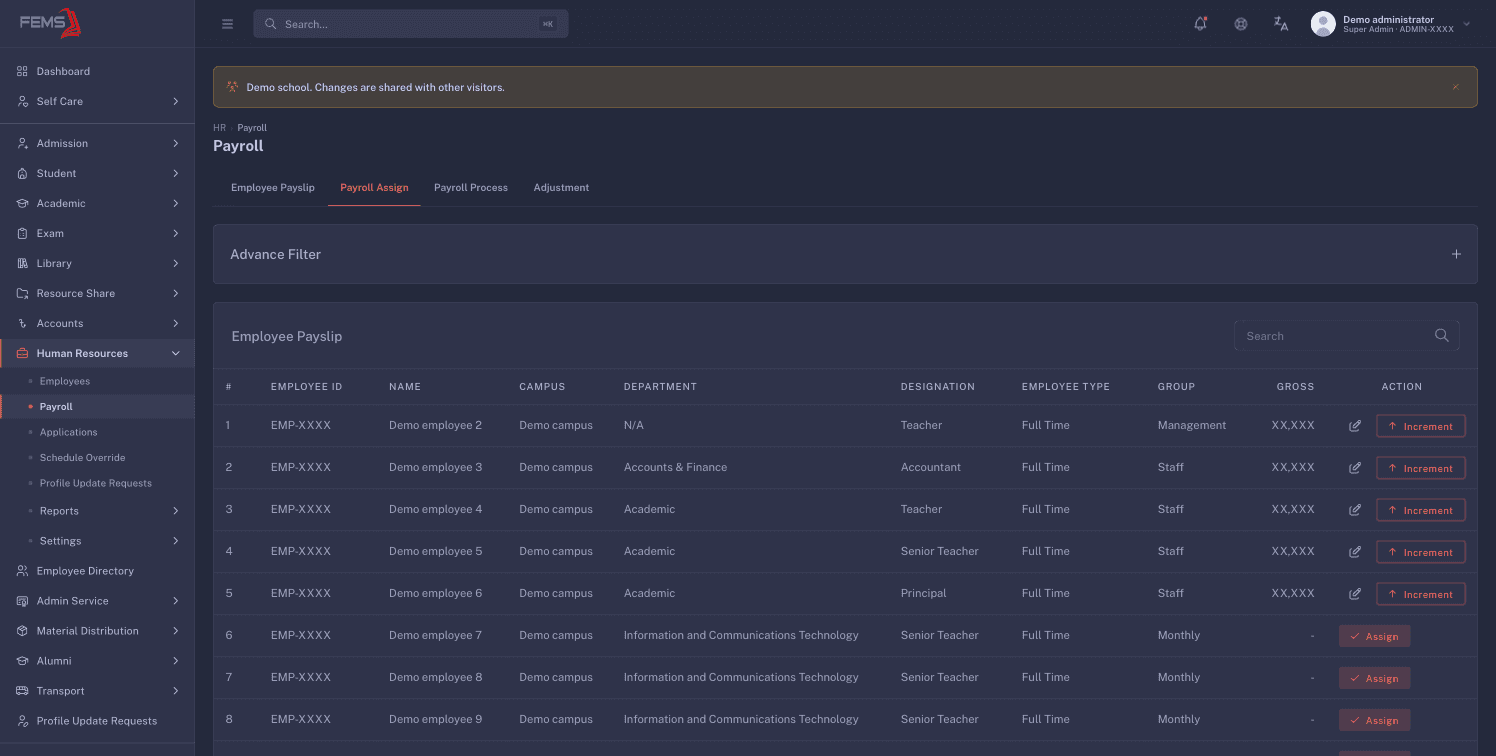
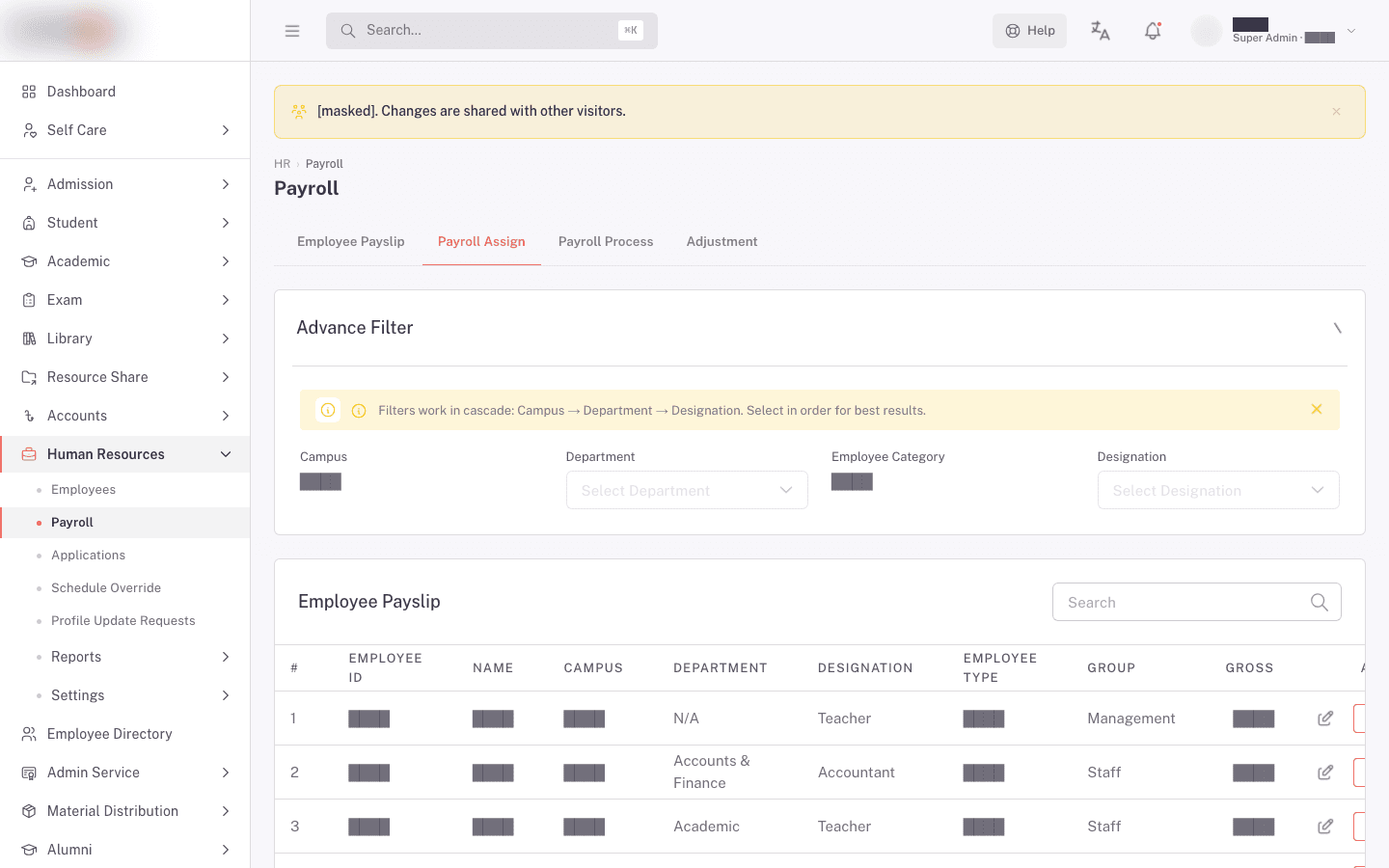
Use the GROSS column to tell assigned people from unassigned ones. The row's actions depend on its GROSS value:
- Gross blank or zero: a single Assign button.
- Gross above zero: a pencil (Edit) and an Increment button.
Fill in the payroll details
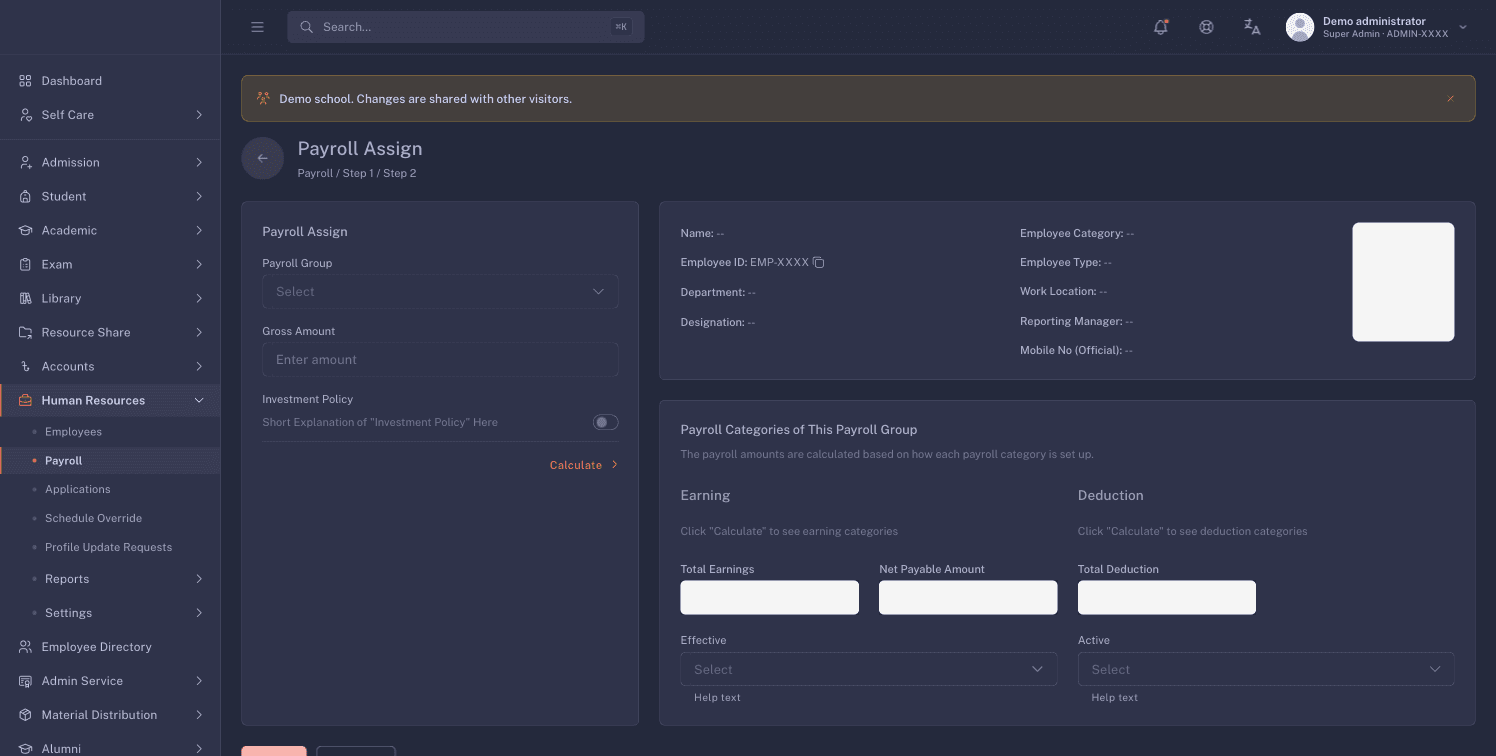
Clicking Assign opens the assign page for that one employee. The left card is Payroll Details:
| Field | What to enter |
|---|---|
| Payroll Group | The salary template this person is paid on. |
| Gross Amount | The full monthly gross. Every earning line is derived from this figure. |
| Investment Policy | A switch that waives income tax for this employee when your school has the investment policy turned on. Leave it off if you are unsure. |
The right column shows the employee's own details (name, employee ID, department, designation, work location, reporting manager) as read-only confirmation that you are on the right person.
Calculate and read the breakdown
Click Calculate. The breakdown card, headed Payroll Categories of This Payroll Group, fills in with one read-only field per head:
- The Earning column lists each earning line, then Total Earnings and Net Payable Amount.
- The Deduction column lists each deduction line, then Total Deduction.
Each line is worked out from the gross using the rule on its head, so a percentage head moves when you change the gross and a fixed head does not. See the value table above.
Total Earnings must equal the gross. If the earning heads on the group do not add up, the save is rejected with an error naming both figures, for example Gross amount (30000) must match total earning amount (28000). That gap is almost always a missing balancing head. Ask your administrator to add one.
The Effective and Active selects below the breakdown are placeholders. They have no options and nothing you do with them is saved. Ignore them.
Save
Click Save. You get a message confirming the payroll was created or updated for that employee, and you land back on the Payroll Assign tab with the row now showing a group and a gross.
Save only works on a fresh calculation. Change the Payroll Group, the Gross Amount, or the Investment Policy switch after calculating and the Save button switches off. Click Calculate again. Forcing it produces Please recalculate payroll before saving.
Saving over an existing assignment replaces it. The employee keeps one active salary structure at a time.
Give a raise
Use Increment on the row rather than editing the gross by hand.
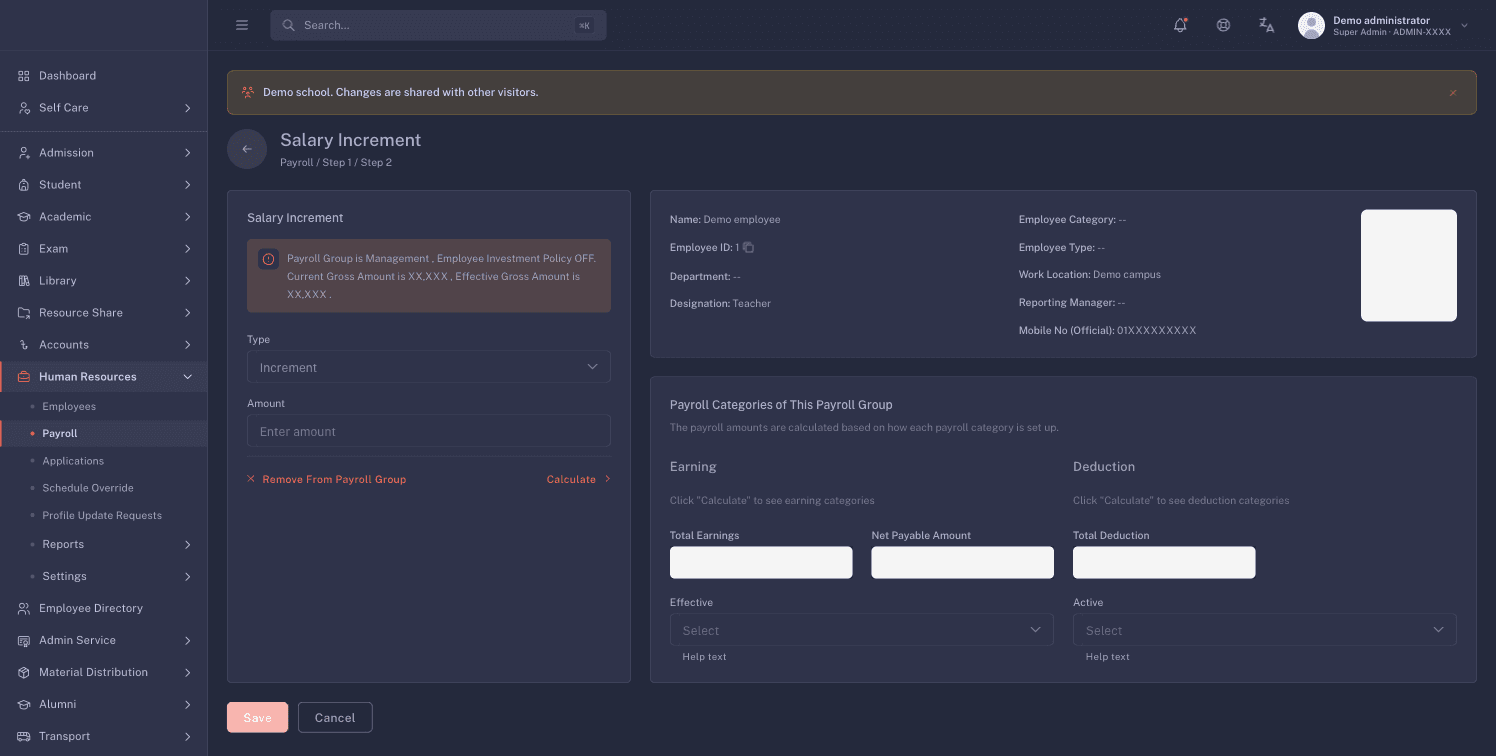
- Click Increment on the employee's row. The page opens with a banner showing the current gross and the effective gross.
- Type is fixed to Increment. In Amount, enter the raise itself, not the new gross. FEMS adds it to the current gross.
- Click Calculate, check the new breakdown, then click Save.
Take someone off payroll
On the assign page in edit or increment mode, click Remove From Payroll Group. Confirm in the dialog titled Remove From Payroll Group by clicking Remove.
The assignment is deactivated, not deleted. The employee stops receiving payslips from the next generation onward, and the row goes back to showing an Assign button.
There is no bulk assign
Every path assigns one person. The table has no selection checkboxes and no bulk action bar, so a group of 60 teachers is 60 passes through the form. Plan the time.
Late arrival and early departure deductions
The late-arrival rule
Late marks are charged in whole days, using a threshold:
Days deducted = unapproved late marks, divided by the threshold, rounded down.
With a threshold of 3, every 3 unapproved late marks cost one day of pay. So 2 late marks cost nothing, 3 cost one day, 6 cost two days, and 7 also cost two days. The leftover mark is not charged and it does not carry into the next month. One day of pay is the gross divided by 30. See Generating monthly payslips for the full calculation.
Two things change the count:
- Only unapproved late marks count. Approving a late mark removes it from the deduction. That is how a payroll officer forgives a late arrival.
- If the threshold is missing or set to zero, no late deduction is applied at all. Nobody is charged for lateness, however many marks they have.
Where the threshold is configured
The threshold is one institution-wide setting. It has no screen in this console. Your FEMS administrator sets it outside these pages. If late deductions are not appearing on payslips, that missing setting is the first thing to check.
The pay period has its own fields that look like this rule and are not. In the Update Info drawer on a pay period you will find Acceptable Delay (Minutes), Salary deduct on late arrival days, Will Attendance be Calculated? and Will Late be Calculated?. Those four are saved with the period, but they do not change what the payslip calculates today. Setting Will Attendance be Calculated? to No does not stop absent, late, or unpaid-leave deductions.
Early departure
Early departures are recorded and counted, and they show on the payslip's attendance grid. They deduct nothing today. There is a setting for an early-departure rule, but the payslip calculation does not use it, so do not promise staff that leaving early costs pay.
Before you run your first payroll
Work down this list. Every item has caused a failed first run.
- Your administrator has created the earning and deduction heads your school actually pays and deducts.
- Those heads are attached to a payroll group, and clicking Calculate on a test employee returns lines rather than Payroll Group has no categories configured.
- The earning heads total the gross. Test one employee end to end and confirm Total Earnings matches the Gross Amount exactly.
- Every employee to be paid has a group and a gross showing on the Payroll Assign tab. Scan for blanks.
- Employees who have left are removed from their payroll group, so they do not generate a payslip.
- Your administrator has set the late-arrival threshold if you want lateness charged. Leave it unset if you do not.
- Staff attendance for the period is recorded and approved. Unapproved attendance counts as absence and eats into pay.
- Leave types that should be unpaid are marked as salary-deductible, and leave for the period is approved.
FAQ
Where do I create an earning head or a payroll group? Not in this console. The Payroll Settings screen under Human Resources > Settings shows a title and nothing else today. Your FEMS administrator creates heads and groups outside these pages.
Do the deduction heads reduce what the employee is actually paid? Not on the payslip. On the assign screen, Net Payable Amount is total earnings minus total deductions, so tax and provident fund do reduce the figure you see there. The monthly payslip works differently: its net payable starts from the gross and subtracts only absence, unpaid leave, and late arrival. Tax, provident fund, loans, advances, and fines are printed in the breakdown and are not taken off. The two screens therefore disagree for anyone carrying a deduction head. This is a known defect, tracked as issue #2461. Read the calculation in Generating monthly payslips before you promise anyone a net figure.
Can I put a whole department on a group in one go? No. There is no bulk assign and no multi-select on the list. Assign one employee at a time.
I changed someone's gross. Do their old payslips change? No. Payslips already generated keep their figures. A period only picks up the new structure if you reprocess that period.
An employee has a group and a gross but got no payslip. Why? Check that the person is active and that their campus is one of the campuses on the pay period. Administrator accounts are a separate case: they never appear on the Payroll Assign tab, so they cannot be given a gross in the first place. See Generating monthly payslips.
Are the payroll screens available in Bangla? The four tab titles switch with the rest of the console. Every label below the tab bar is English only today: column headers, buttons, and the field labels in the drawers.