Handling leave and staff applications
Review and decide leave, attendance-correction, and payroll applications from staff.
Teachers, drivers, librarians and every other employee file their requests from Self Care. Human Resources > Applications is where an HR admin or a reporting manager reads those requests and decides them.
Prerequisites
Go to Human Resources > Applications.
Two groups of people can open this screen:
- HR admins whose role grants access to the Applications screens.
- Anyone set as an employee's reporting manager, or holding
hr.applications_leave_approveorhr.applications_attendance_approve. FEMS shows them the Applications menu even when their role carries no other HR access.
What you see in each list depends on your approval authority and reporting relationships:
- A Super Admin sees every application in the school.
- A leave approver sees every leave application in the school.
- An attendance approver sees every attendance application in the school.
- A loan approver sees every payroll application in the school.
- Everyone else sees their own applications plus their direct reports'.
View permission lets you open the page. It does not let you see unrelated employees' applications, whether the permission comes from your role or is assigned directly.
Filing happens in Self Care, deciding happens here
Staff never file from this screen. They file from their own Self Care pages, and the request lands in the matching tab here.
| What the employee files | Where they file it | Where you review it |
|---|---|---|
| Leave | Self Care > Attendance & Leave | Leave Application tab |
| Attendance correction (manual attendance, late arrival, early departure) | Self Care > Attendance & Leave | Attendance Application tab |
| Loan, advance salary, salary adjustment | Self Care > Salary & Payslips | Payroll Application tab |
The filing side is documented in Attendance and leave in Self Care and Salary and payslips in Self Care. Send staff there when they ask how to apply.
The three queues
The page opens on a set of tabs. The tab you pick is kept in the address bar, so you can bookmark or share a link to a specific queue.
Attendance Application
Card title: Attendance Applications - All Employees.
Columns: a running serial number, employee (with the employee ID and department), date, type, in time, out time, status, submission, and the action column. A time recorded as 00:00:00 shows as a dash.
Open Advance Filter to narrow the list by employee ID, branch or campus, department, designation, type (Manual Attendance, Late Arrival, Early Departure), a start and end date, and status. Click Search to apply. On this tab the filters do not apply as you change them.
Click Reset to clear every filter.
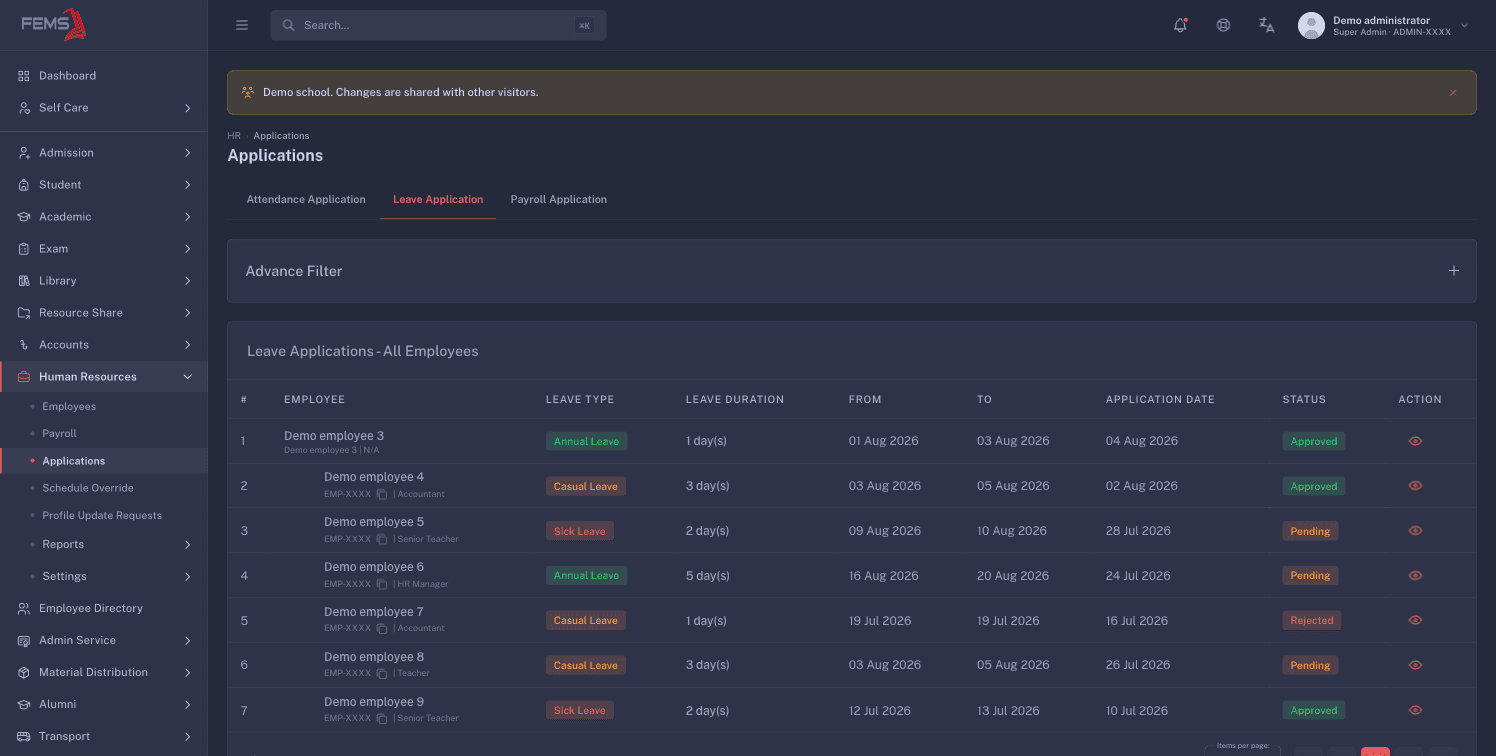
Leave Application
Card title: Leave Applications - All Employees.
Columns: a running serial number, employee, leave type, leave duration in days, from, to, application date, status, and the action column.
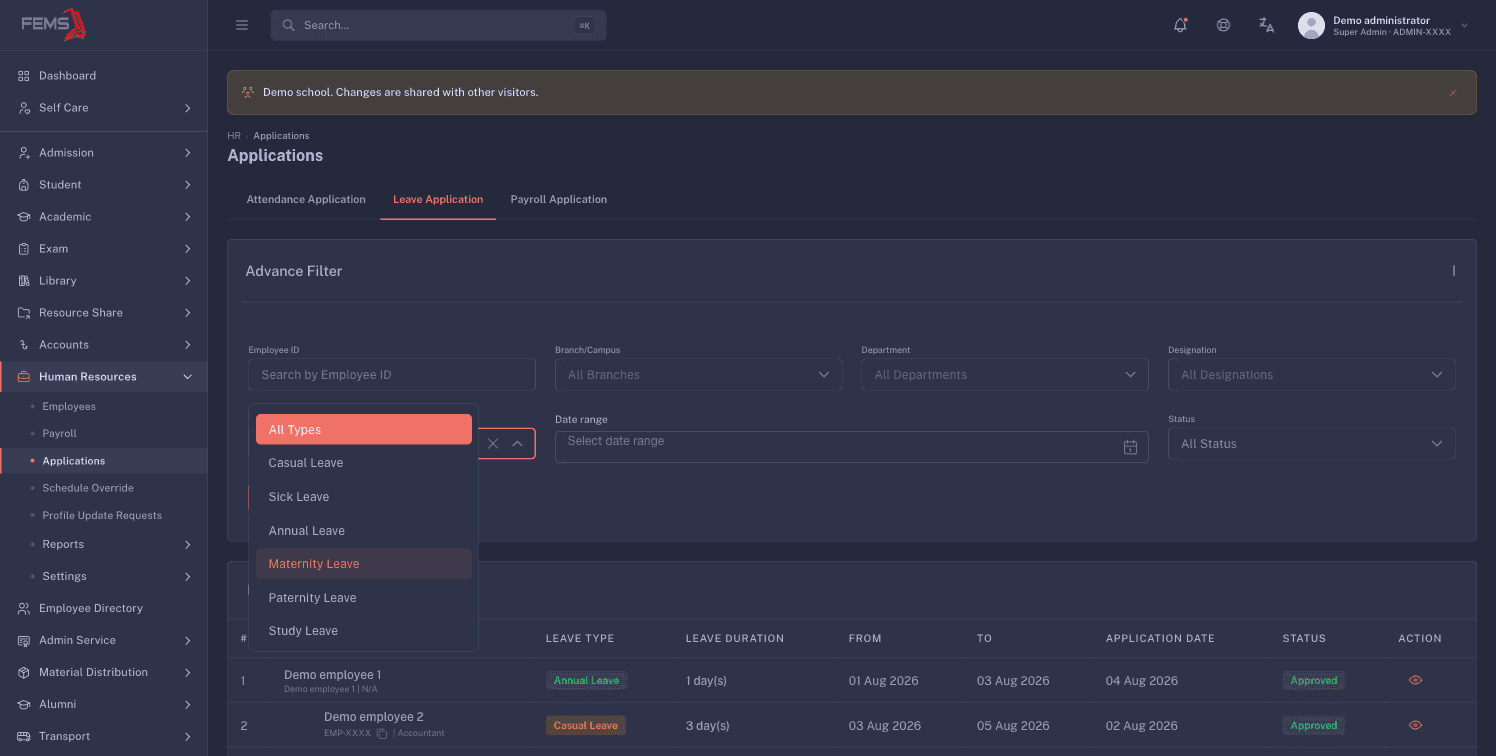
The filters are the same shape as the attendance tab (employee ID, branch or campus, department, designation, type, start and end date, status), but here they apply as soon as you change one. Search and Reset are still there.
The Type list on this tab is a fixed list of seven leave types (Casual Leave, Sick Leave, Annual Leave, Maternity Leave, Paternity Leave, Study Leave, Special Leave). It is not built from the leave types your school has set up, so filtering by type can return nothing on a school that uses different types. Filter by employee or date range instead if a type filter comes back empty.
When nothing matches, the tab shows No leave applications found.
Payroll Application
Card title: Payroll Applications - All Employees.
Columns: a running serial number, employee, category, amount, installments, status, submitted, and the action column. When an amount has been partly repaid, a second line shows Remaining under the amount.
Filter by employee ID, branch or campus, department, designation, category (Loan, Advance Salary, Salary Adjustment), a date range, and status. Designation stays disabled until you pick a Department, and its placeholder reads Select Department First. Changing the department clears the designation you had picked.
When nothing matches, the tab shows No payroll applications found.
Decisions are made on the application, not in the list
To act on a request, open it. Click the eye icon in the action column (tooltip View Details) to open the application's own page.
The attendance queue also draws a tick and a cross icon on pending rows, labelled Approve and Reject. Those two do nothing at all, which is a known defect, tracked as #2472. Ignore them and open the application instead.
The status ladder
Every application moves through the same set of statuses, whatever its type.
| Status | What it means | Final? | Who sets it |
|---|---|---|---|
| Pending | Filed and waiting for a first decision | No | The employee, by submitting |
| Recommended | Endorsed and passed up for final approval | No | A recommender, from Pending only |
| Approved | Approved. Nothing more can be changed | Yes | An approver. Leave and attendance: from Pending or Recommended. Payroll: from Recommended only |
| Rejected | Turned down. Nothing more can be changed | Yes | An approver, from Pending or Recommended |
| Canceled | Withdrawn before a decision. Leave only | No | The employee who filed it, from Pending only |
| Denied | Appears as a label on older records | No | Not set from these screens |
The intended path is Pending, then Recommended, then Approved. Rejection is available at either of the first two steps.
For leave and attendance, the approver does not have to wait for the reporting manager. They can approve straight from Pending. When they do, FEMS adds a comment to the application saying it was approved without a line manager recommendation, so everyone can see the step was skipped. If the approver is also the employee's reporting manager, they can approve or reject the application themselves, and the comment instead says it was approved directly by the line manager, who is also an approver. A Super Admin can also approve straight from Pending, but never their own application. Payroll applications still need the recommendation first, and there a reporting manager can never approve or reject.
Because Approved and Rejected are final, there is no way to undo a decision from this screen. Re-check the application before you confirm.
If you try a move the ladder does not allow, FEMS refuses it and tells you why:
- "Application is already in a final status and cannot be changed."
- "Application is already in the requested status."
- "Application must be recommended before it can be approved." (payroll applications only)
- "Only pending applications can be recommended."
- "Only pending or recommended applications can be rejected."
- "Only pending applications can be canceled."
The Payroll Application tab's status filter also lists Un Approved, Forward, Account Approved, and Deduction Complete. Those come from the older payroll system and cannot be set from the review screen.
Deciding an application
- Open the tab that holds the request.
- Click the eye icon on the row to open the application.
- Read the left card. It shows the employee ID, the application type, the dates, the duration, the current status, and the employee's reason. Once a decision is made, it also shows who recommended, approved or rejected it, and when.
- Read the panel on the right. It carries the employee's details (name, employee ID, department, designation, work location, employee category and type, official mobile and email, reporting manager) and, for leave, the Leave Balance table with total, used, and remaining days per leave type.
- Add a comment if you want the decision on record and if your role can comment on applications. Type in the comment box and click Save Comment, or press Enter. If the comment box is not there, your role is the reason.
- Click Recommend, Approve, or Reject at the bottom of the page.
- Read the confirmation dialog and click Confirm. Click Cancel in the dialog to back out.
You'll see a confirmation message, and the application's status chip changes at once.
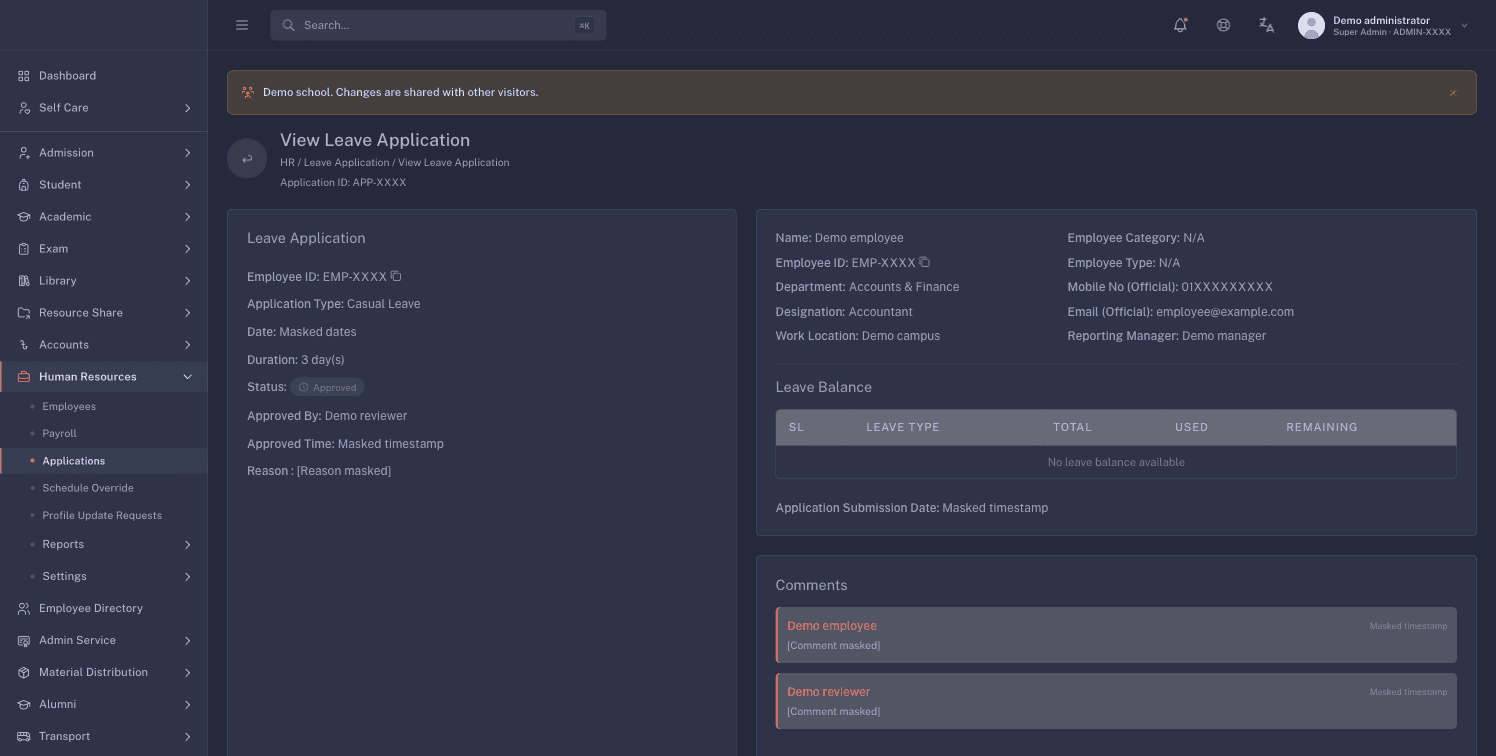
Which buttons you see depends on whether you are the recommender or the approver for that employee:
- Recommend is active only while the application is Pending.
- Approve is active for an approver while a leave or attendance application is Pending or Recommended. For a payroll application it is active only once the application is Recommended.
- Reject is available only to an approver while the application is Pending or Recommended. A reporting manager who is not also the approver cannot reject it.
- Cancel at the bottom of the page takes you back to where you came from. It does not change the application, and it is greyed out on an Approved or Rejected one.
The confirmation dialog
Every decision opens a dialog titled Approve Application, Reject Application, or Recommend Application, with Confirm and Cancel buttons. The wording of the message tells you which type you are deciding.
| Type | Button | Dialog message |
|---|---|---|
| Leave | Approve | "Are you sure you want to approve this leave application? Once approved, the employee will be notified." |
| Leave | Reject | "Are you sure you want to reject this leave application? The employee will be notified of this decision." |
| Leave | Recommend | "Are you sure you want to recommend this leave application? It will be forwarded for final approval." |
| Attendance | Approve | "Are you sure you want to approve this attendance application? Once approved, the employee will be notified." |
| Attendance | Reject | "Are you sure you want to reject this attendance application? The employee will be notified of this decision." |
| Attendance | Recommend | "Are you sure you want to recommend this attendance application? It will be forwarded for final approval." |
| Payroll | Approve | "Are you sure you want to approve this payroll application? The employee will be notified of this decision." |
| Payroll | Reject | "Are you sure you want to reject this payroll application? The employee will be notified of this decision." |
| Payroll | Recommend | "Are you sure you want to recommend this payroll application? It will be forwarded for final approval." |
Comments
Each application has a Comments card. Comments carry the author's name and a timestamp.
On leave and attendance applications, comments lock once the application is no longer Pending. On a leave application, FEMS then answers "Comments can only be edited while the leave application is pending." On an attendance application the wording is shorter, "Comments can only be edited while the application is pending." Payroll applications do not lock their comments.
What a payroll approval does
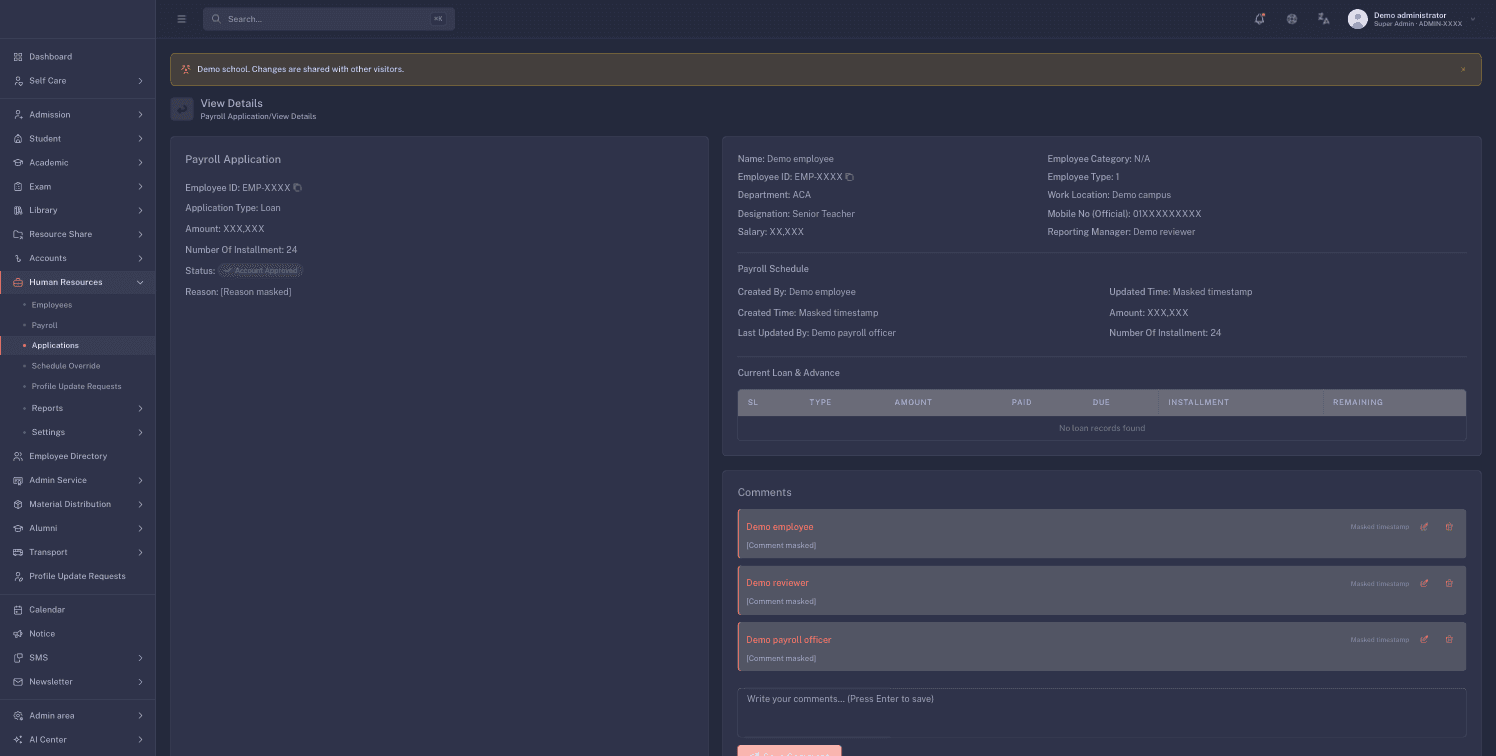
Approving a loan, advance, or salary adjustment records the decision on the application. It does not create a repayment schedule by itself. The Payroll Schedule section on the payroll application page shows who created and last updated the request, the amount, and the number of installments, not a month-by-month repayment plan.
Leave rules that catch people out
These are the rules that generate the most questions. Know them before you approve.
Days are counted inclusively, and no day is skipped
FEMS counts every calendar day from the first date to the last date, including both ends.
Weekends and school holidays are not taken out. A leave from Thursday to Sunday is 4 days, even if the school is closed on Friday and Saturday. If your school does not want closed days charged against a balance, the employee has to file separate date ranges that skip them.
There is no half-day leave
The leave form has no half-day option. The smallest request an employee can file is one full day.
The leave balance check
When an employee files or edits a leave request, FEMS compares the days requested against the balance remaining for that leave type in the current academic session. If it is short, the request is refused with:
You do not have sufficient leave balance for the selected leave type.
Two things to know before you rely on this:
- Used days are counted from approved applications, so a pending request does not eat into the balance yet.
- If the school has not allocated any balance for that leave type, the check lets the request through. Nothing caps it. Read the Leave Balance table on the application page before approving, rather than assuming the system already checked.
One open leave request per leave type
An employee cannot have two open requests for the same leave type at the same time. Pending and Recommended both count as open. Once a request is Approved, Rejected, or Canceled, the employee can file for that type again.
The block reads:
You already have a pending leave application. Please contact HR before submitting another request.
The message does not name the leave type, so an employee who sees it while filing sick leave may have an open casual leave request instead. Check the employee's other open requests before you tell them the message is wrong.
Overlapping dates
A leave request whose dates overlap another request from the same employee is still accepted. FEMS calculates an overlap message but does not show it to the applicant. Check the employee's other requests before approving a familiar date range.
How approved leave reaches payroll
Every leave type is either paid or unpaid.
- Paid leave has no effect on the month's salary.
- Unpaid leave is deducted. Each day taken against an unpaid leave type reduces the salary by one day's pay at that employee's per-day rate.
Only Approved leave is counted. A pending or recommended request has no effect on the payslip, so an unpaid leave request that is still sitting in your queue when payroll runs will not be deducted that month. See Running payroll for the run itself.
The paid or unpaid setting belongs to the leave type, not to the individual request, so you cannot change it while deciding an application.
FAQ
The Approve button is greyed out. What am I missing?
Check that you are an approver for that application type. For leave and attendance that means holding hr.applications_leave_approve or hr.applications_attendance_approve, granted to your role in Role Management. That approver can approve a Pending application, even when they are also the employee's reporting manager. A payroll application must be recommended first, and its reporting manager cannot approve it.
Can I approve a batch of requests from the list? No. Open each application and decide it on its own page.
A teacher says the system will not let them apply for sick leave. They probably have another sick leave request already open (Pending or Recommended). Filter the Leave Application tab by that employee, then approve, reject, or ask them to cancel the open one.
Why does a three-day leave show as five days? The days between the first and last date are all counted, including weekends and holidays. Ask the employee to file separate date ranges if the closed days should not count.
I approved the wrong application. How do I undo it? You cannot from this screen. Approved and Rejected are final. Raise it with your FEMS administrator.
Can I edit an application for an employee? No. Only the employee can edit their own request, and only while it is Pending. As a reviewer you can add a comment or reject it and ask them to file again.