Generating transcripts and result reports
Print an academic transcript, the class tabulation sheet, the merit list, the pass and fail list, and the spread of grades by subject.
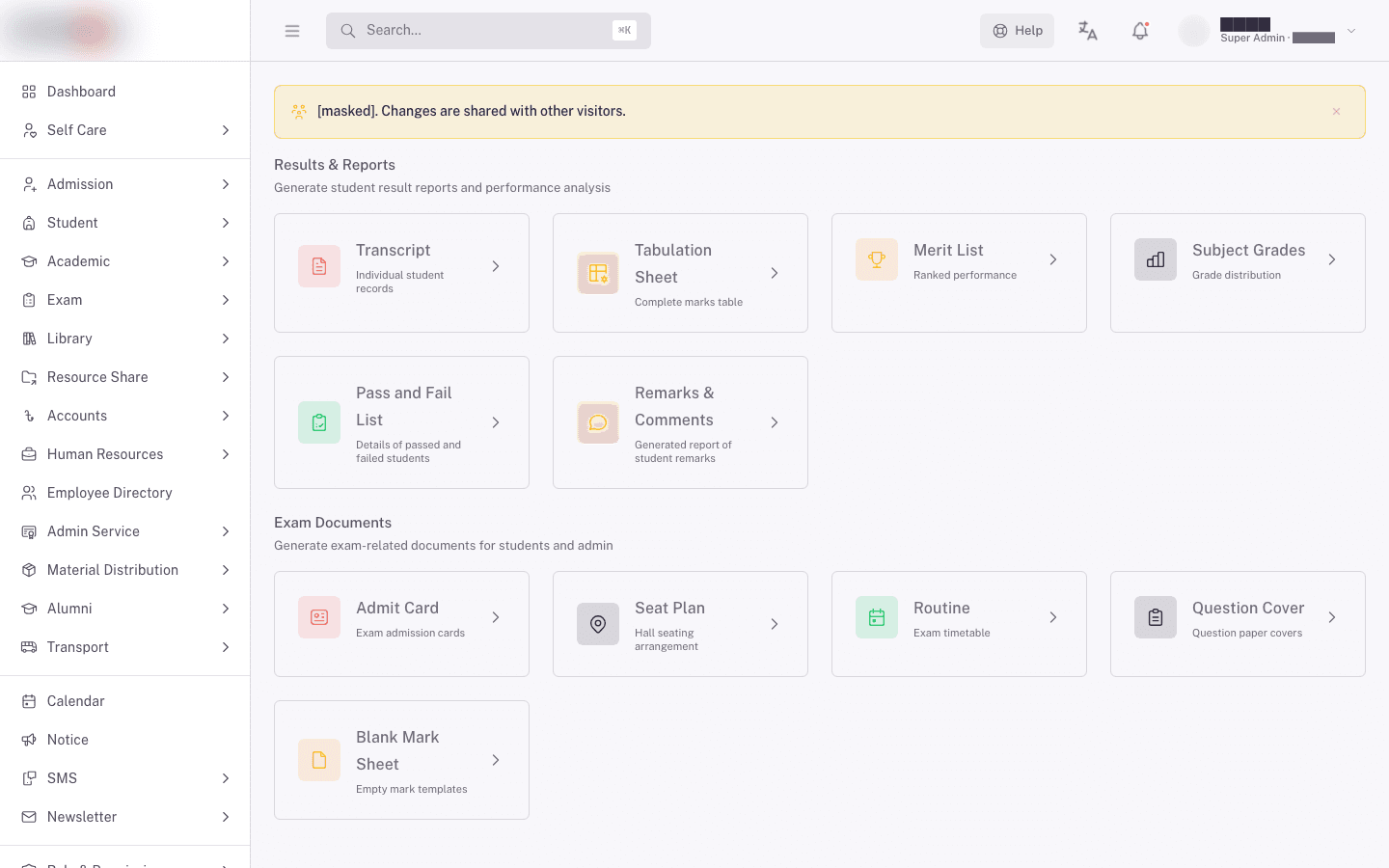
Once marks are in and calculated, the results come out of Exam > Reports & Exam Docs, in the section headed Results & Reports. That section holds six cards. This page covers five of them, and Writing report card remarks covers the sixth.
Prerequisites
You need access to Exam > Reports & Exam Docs.
Every report here reads calculated results, so marks have to be entered and processed first. A report run before the marks are in comes back empty, which is expected, not a fault. See Entering marks as a teacher.
Your school may also set Report card can be printed after on the exam. That setting withholds the report card from any student with outstanding fees on the installment it names, and a class print run skips those students.
Which report do you want?
| Report | What it gives you | Use it when |
|---|---|---|
| Transcript | An individual or group academic transcript. | Printing academic records for one student or a class. |
| Tabulation Sheet | Every student against every subject in one wide table. | Checking a class's marks before you publish anything. |
| Merit List | Students ranked by result. | Announcing positions and prizes. |
| Pass and Fail List | Who passed and who failed, by class or by section. | Counting outcomes and planning retakes. |
| Subject Grades | How many students landed in each grade, per subject. | Seeing which subjects went well and which didn't. |
All five open the finished document in a new browser tab. If nothing opens, your browser blocked the pop-up. Allow pop-ups for the site and search again.
These five reports read calculated results, so they cover classes graded on marks. Junior classes are assessed on performance levels and have no calculated result. Print a junior student's sheet from Recording junior assessment marks instead.
Print academic transcripts
Open the Transcript card. It has two tabs.
For one student, use Individual Transcript:
- Type at least 4 digits of the Student ID and pick the student from the list.
- Pick the Class, the Academic Term, and the Exam.
- Click Search.
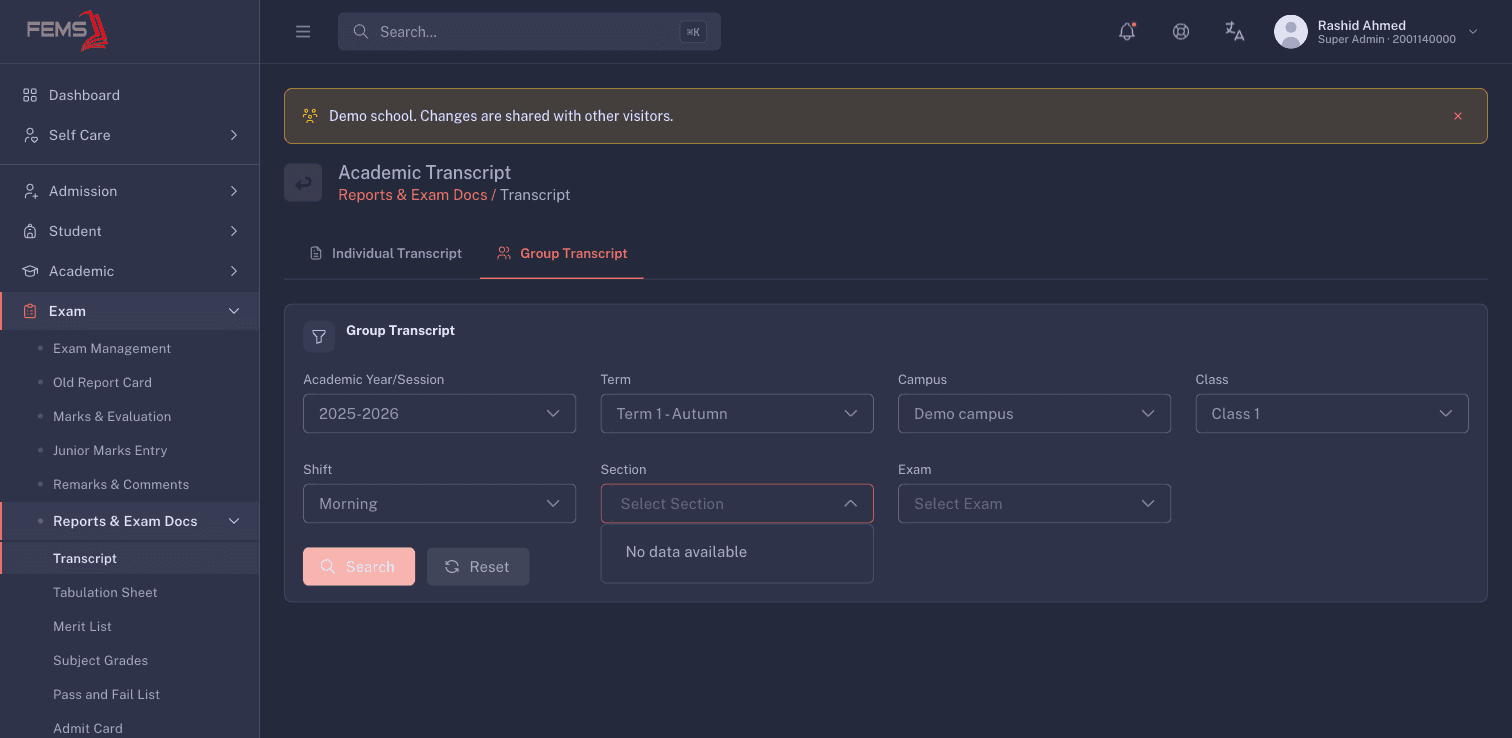
For a whole class, use Group Transcript:
- Pick the Session, Academic Term, Campus, and Class.
- Pick the Shift if the class runs shifts, and a Section if you only want one. Leave the section blank to cover them all.
- Pick the Exam and click Search.
The transcript opens in a new tab, ready to print or save. Print a class's transcripts in one run rather than one at a time, so the whole set carries the same data.
If FEMS has nothing to print it tells you so instead of opening a blank document. The usual reasons are that marks aren't in for that exam yet, or the exam hasn't reached the point where report cards unlock.
Students don't need you to send them their card. From the exam's Results Public Access date, they can open their own when they sign in, by picking their class and exam.
Check the class first with the tabulation sheet
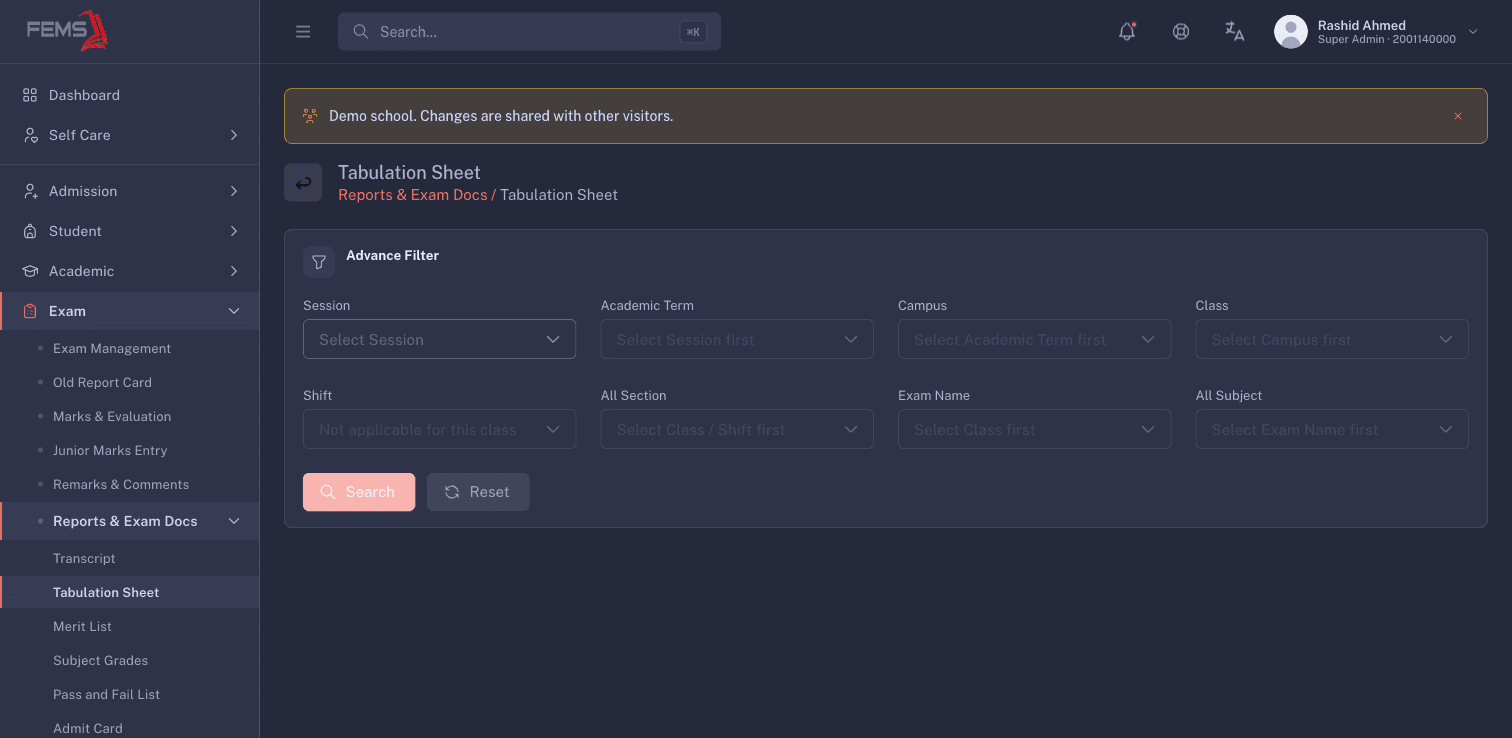
The tabulation sheet is the sheet to read before you publish anything. It puts every student in the class against every subject, with their totals and grades, so a missing or odd mark stands out.
- Open the Tabulation Sheet card.
- Pick the Session, Academic Term, Campus, and Class.
- Pick the Shift if the class runs shifts, and pick under All Section if you want one section only.
- Pick the Exam Name. Leave the subject as all subjects for the full sheet, or pick one Subject to check a single subject across the class. A Shareable Exam checkbox appears here for exams marked shareable, when no single subject is picked.
- Click Search.
The sheet opens in a new tab. A class sheet with many subjects prints landscape so the columns fit.
Read it for three things: blank cells where a mark should be, students who are missing from the list, and totals that don't match what the teacher recorded. Each of those has a different cause, and Troubleshooting exam results walks through them.
Print the merit list
- Open the Merit List card.
- Pick the Session, Academic Term, Campus, and Class.
- Pick the Shift if the class runs shifts, and pick under All Section for a section-level ranking.
- Pick the Exam Name and click Search.
If nobody matches you'll see "No student found for the selected filters." That normally means marks haven't been processed for that class yet.
Ranking goes by overall result first, then by total marks. Students with the same result and the same total share a position, and roll number only decides which of them prints first.
Students who failed are not ranked. Their position prints as a dash. That's deliberate, not a missing value. If a student you expected to pass shows a dash, the thing to check is their result, not the merit list.
Print the pass and fail list
- Open the Pass and Fail List card.
- Pick the Session, Academic Term, Exam Name, and Campus.
- Pick the Report Scope: Class Wise groups the counts by class, Section Wise breaks them down by section. It starts on Class Wise.
- Click Search.
The list opens in a new tab.
See how a subject went
Subject Grades shows the spread of grades across subjects, which tells you where a whole cohort struggled rather than where one student did.
- Open the Subject Grades card. The page is titled Subject Wise Grades Report.
- Pick the Session, Academic Term, Exam Name, Campus, and Grade, which here means the class level rather than the grade letter. All five are needed.
- Click Search.
If there's nothing to show you'll see "No subject-wise grade data found for the selected filters."
A sensible order to work in
- Enter all the marks for the class.
- Read the Tabulation Sheet and fix anything wrong at the source, in marks entry or in the exam setup.
- Write the class teacher's remarks, since they print on the report card.
- Print the Transcript for the class.
- Print the Merit List and the Pass and Fail List for the office.
Doing it in this order means you print once. Fixing a mark after the cards are handed out means reprinting and explaining.
FAQ
The report card is blank or won't open. Three things cause this most of the time: the marks aren't processed yet, the exam hasn't reached the point where report cards unlock, or your browser blocked the new tab. Check them in that order.
A student's merit position shows a dash. They're recorded as failing, and failing students aren't ranked. Check their subject grades on the tabulation sheet to see which subject caused it.
Do report cards include the class teacher's comment? They include the remark if one has been written for that student. Write remarks before you print, not after.
Can I print one section instead of the whole class? Yes. Pick the section on the report's filters. Leaving it blank covers every section in the class.
I fixed a mark. Do I reprint straight away? Give the calculation a few seconds to finish, then reload the report and check the tabulation sheet before reprinting.
Can students see their results before you print them? Only from the exam's Results Public Access date. Before that they get "Transcript is not published yet!". Printing has nothing to do with it, so set that date to what you mean.
Related pages
Writing report card remarks
Write the class teacher's comment that prints on each student's report card, and track which students still need one.
Troubleshooting exam results
Work out why a mark, grade, merit position, or report card looks wrong, what you can fix yourself, and when to raise it with support.