Printing admit cards, seat plans, and other exam papers
Produce the documents you need before exam day: admit cards, seat plans, the routine, question paper covers, and blank mark sheets.
Before exam day, you need paperwork ready: admit cards for students, a seat plan for the hall, the routine, question paper covers, and blank mark sheets for teachers. This page covers all five.
Prerequisites
You need access to Exam > Reports & Exam Docs. If that item isn't in your sidebar, your role doesn't include exam documents.
All five documents live in the Exam Documents section of that screen: Admit Card, Seat Plan, Routine, Question Cover, and Blank Mark Sheet.
None of these five need marks. They all work from the exam setup alone, which is why exam coordinators and office assistants prepare them ahead of results. Report cards, transcripts, and other results documents come later and live on a separate page.
Four of them (Seat Plan, Routine, Question Cover, Blank Mark Sheet) print as soon as the exam setup exists. Admit Card is the exception. It only works inside a window, and FEMS refuses it outside one:
- Before the exam's start date: "The Exam has not started yet! Please try again later."
- Before the Admit Card Release date: "Admit Card distribution date is not open yet! Please try again later."
- After the exam's end date: "Admit Card distribution date is closed."
So plan the admit card print for the days between the exam start and the exam end.
Most of these open the finished document in a new browser tab. If you click Search and nothing happens, your browser most likely blocked the pop-up. Allow pop-ups for the site and search again. FEMS shows this itself: "Couldn't open the print tab. Please allow pop-ups for this site and search again."
Several of these forms share the same filter pattern: the fields unlock one after another, usually Session first, then Academic Term, then Campus, then Class, and so on. Shift only applies to classes that run shifts. Section is optional on most of these forms; leave it blank and the document covers every section.
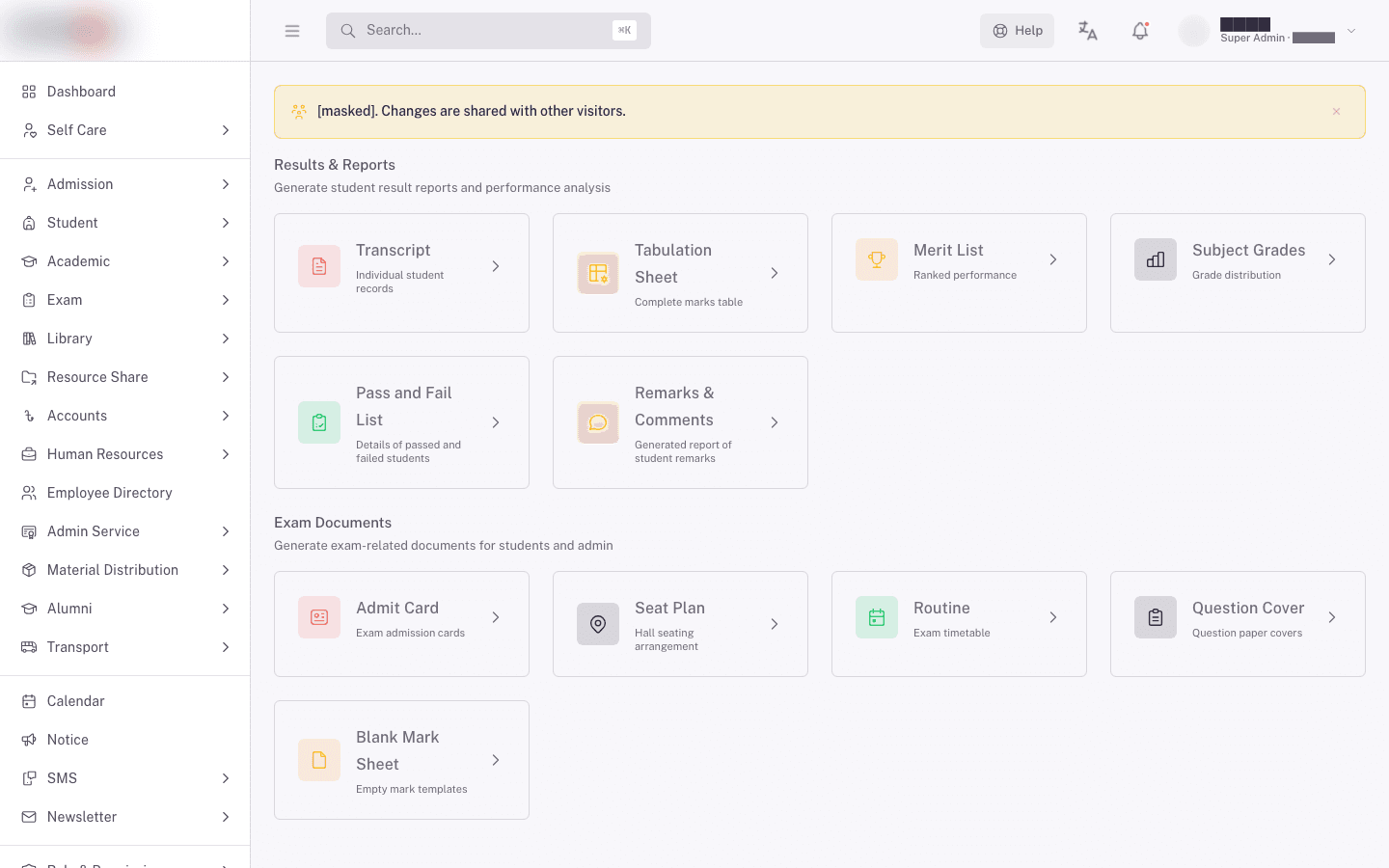
Admit Card
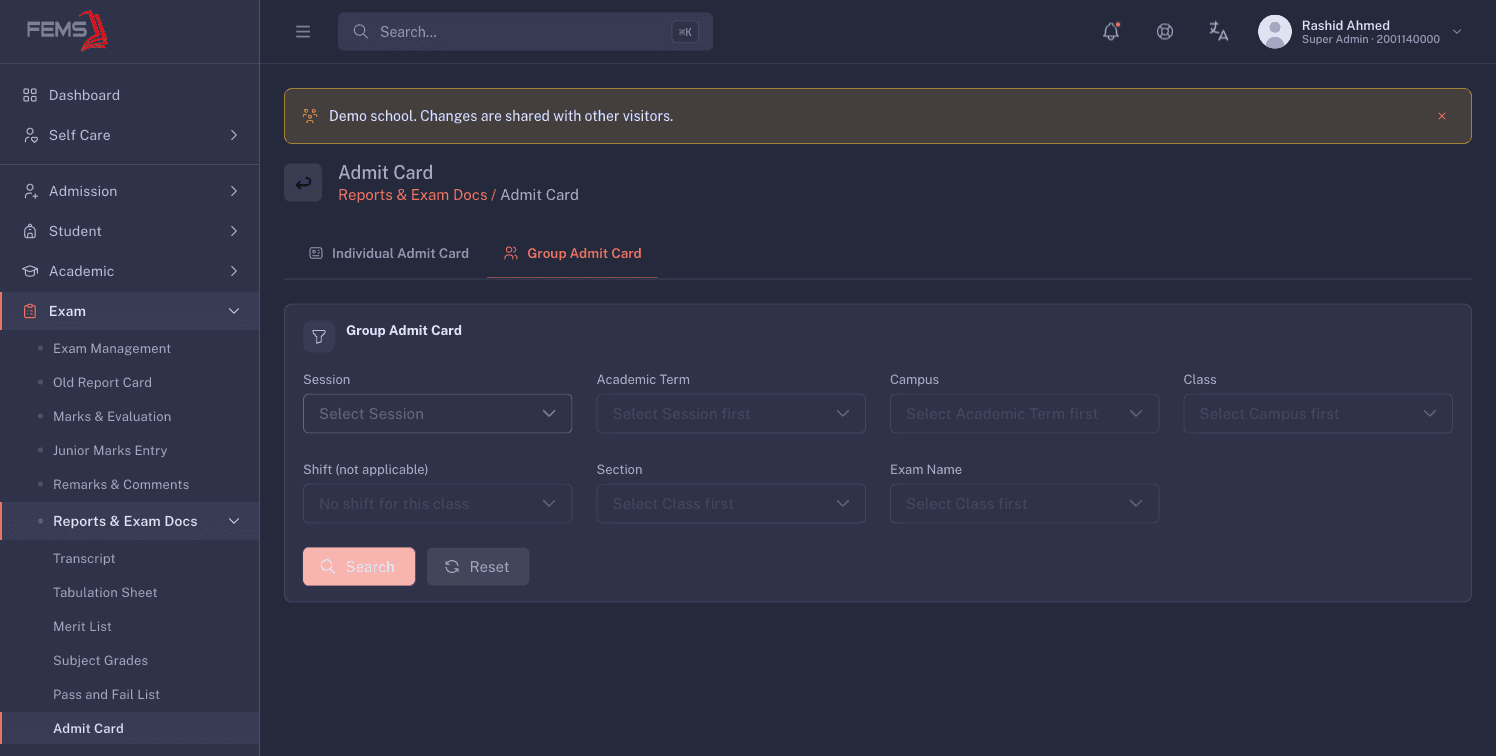
Click the Admit Card card to open two tabs: Individual Admit Card and Group Admit Card.
Individual Admit Card is for printing one student's card. Fill in, in order:
- Student ID. Type at least 4 digits to search for the student.
- Class
- Academic Term
- Exam Name
All four fields are needed.
Group Admit Card is for printing a whole class or section at once. Fill in, in order:
- Session
- Academic Term
- Campus
- Class
- Shift, only shown for classes that run shifts
- Section, optional. Leave it blank to cover all sections.
- Exam Name
On either tab, click Search to pull up the matching cards, or Reset to clear the form.
Unlike the other documents on this page, admit cards render on the page itself instead of opening a new tab. Once they're on screen, use Print to send them straight to a printer, or Download PDF to save a copy. If FEMS can't open a print window, you'll see "Popup blocked. Please allow popups and try again."
If the office can't print admit cards, check the three dates above first, then the Admit card can be printed after fee setting, which withholds a card from a student with outstanding fees.
Seat Plan
Click the Seat Plan card to open an Advance Filter panel. Fill in, in order:
- Session
- Academic Term
- Campus
- Class
- Shift
- All Section
- Exam Name
Click Search to open the seating arrangement in a new tab, ready to print. Click Reset to clear the filters and start over.
Routine
Click the Routine card to open the routine screen. Fill in, in order:
- Session
- Academic Term
- Campus
- Class
- Exam Name
Each field unlocks the next, and all five are needed. Click Search to open the routine in a new tab, or Reset to clear the form.
This screen only prints a routine that already exists. It does not build one for you. The exam dates and times for each subject come from the class exam setup, so if this screen shows "No routine configuration found for the selected filters.", go finish the class exam setup first, then come back here to print.
Question Cover
Click the Question Cover card to open the Question Cover Page screen.
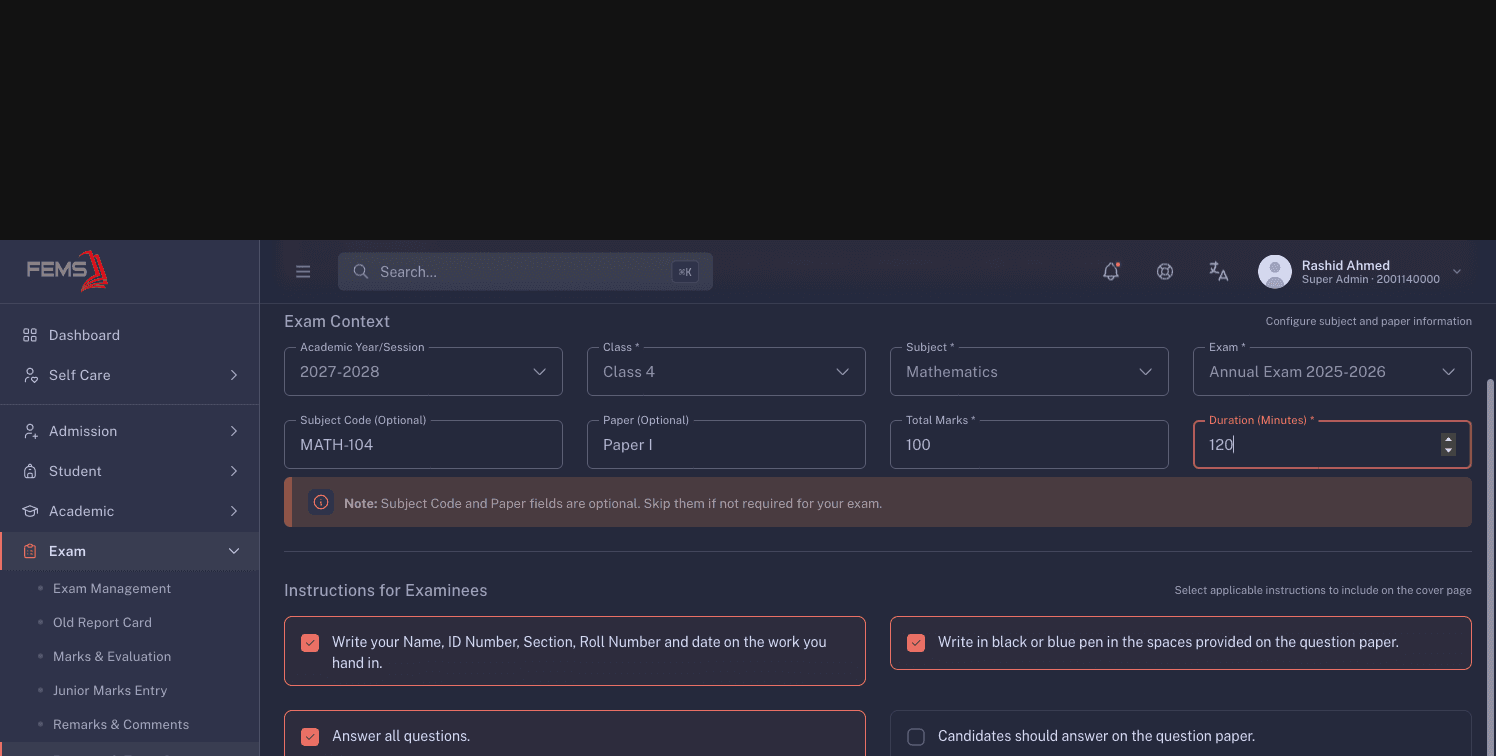
Under Exam Context, fill in, in order:
- Academic Year/Session
- Class
- Subject
- Exam
- Subject Code, optional
- Paper, optional
- Total Marks
- Duration (Minutes)
The page notes: "Note: Subject Code and Paper fields are optional. Skip them if not required for your exam."
Below that, the Instructions for Examinees section shows a set of tick-box cards for the standard exam instructions. Some are ticked by default. A live counter tracks how many you've selected, so a teacher preparing the cover can see at a glance which instructions will print.
Below the instructions, a row reads "The question paper consists of" a number "pages". Set that number to match the actual paper.
Click Generate Cover Page and the cover opens as a PDF in a new tab. If the tab doesn't open, you'll see "Could not open the print window. Please allow pop-ups for this site and try again."
Blank Mark Sheet
Click the Blank Mark Sheet card to open the filter form. Fill in, in order:
- Session
- Academic Term
- Campus
- Class
- Shift
- All Section
- Exam Name
- Subject, optional. Leave it as All Subject to cover every subject.
Click Search to open an empty mark sheet in a new tab, or Reset to clear the form.
A blank mark sheet is for teachers who collect marks on paper first, in the exam hall or the staff room, and type them into FEMS afterwards. If there's nothing to print for your filters, you'll see "No blank mark sheet data found for the selected filters."
FAQ
How early can I print these? Seat plans, routines, question covers, and blank mark sheets print as soon as the exam is set up for the class. Admit cards only print between the exam's start and end dates.
Why isn't the admit card available yet? Read the message. It names which of the three gates stopped you: the exam hasn't started, the Admit Card Release date hasn't arrived, or the exam has already ended.
A student lost their admit card. Can I print another? Yes. Use the Individual Admit Card tab with that student's ID. Printing again doesn't cancel the first copy, so collect the old one if your school needs to.