Recording junior assessment marks
Record performance levels, comments, attendance, height, and weight for younger classes that aren't graded on numbers.
Junior classes aren't graded on numbers. Instead, you record how a child performed against each assessment area, using the Junior Assessment Entry page. (It was called Junior Marks Entry before.)
Prerequisites
You need access to the Exam section of the sidebar, with Junior Exam Management > Junior Assessment Entry in it. Most teachers of junior classes have this. If you don't see it in your sidebar, ask your FEMS administrator.
Before you start, your school's exam coordinator has to have set up the exam and its assessment areas for the class you teach. If the exam you expect isn't there, check with the exam coordinator first.
Finding your students
Junior Assessment Entry is a finder, not a grid you scroll straight into. You narrow down to one class and one exam before you see any students.
- Go to Exam > Junior Exam Management > Junior Assessment Entry.
- Pick a Campus.
- Pick a Session. This stays disabled until you've picked a Campus.
- Pick a Class. This stays disabled until you've picked a Session.
- Pick a Section. This stays disabled until you've picked a Class.
- Pick a Shift. This stays disabled until you've picked a Section.
- Pick an Exam. This stays disabled until you've picked a Shift.
- Click Search. Both Search and Reset stay disabled until all six fields above are picked.
You'll see a table of students in that campus, session, class, section, and shift, with columns for Student ID, Student Name, Roll No, and Action. The Action column has two icon buttons for each student: a pencil for editing and a printer for printing. Neither carries a text label.
Click Reset to clear all six fields and start the search over.
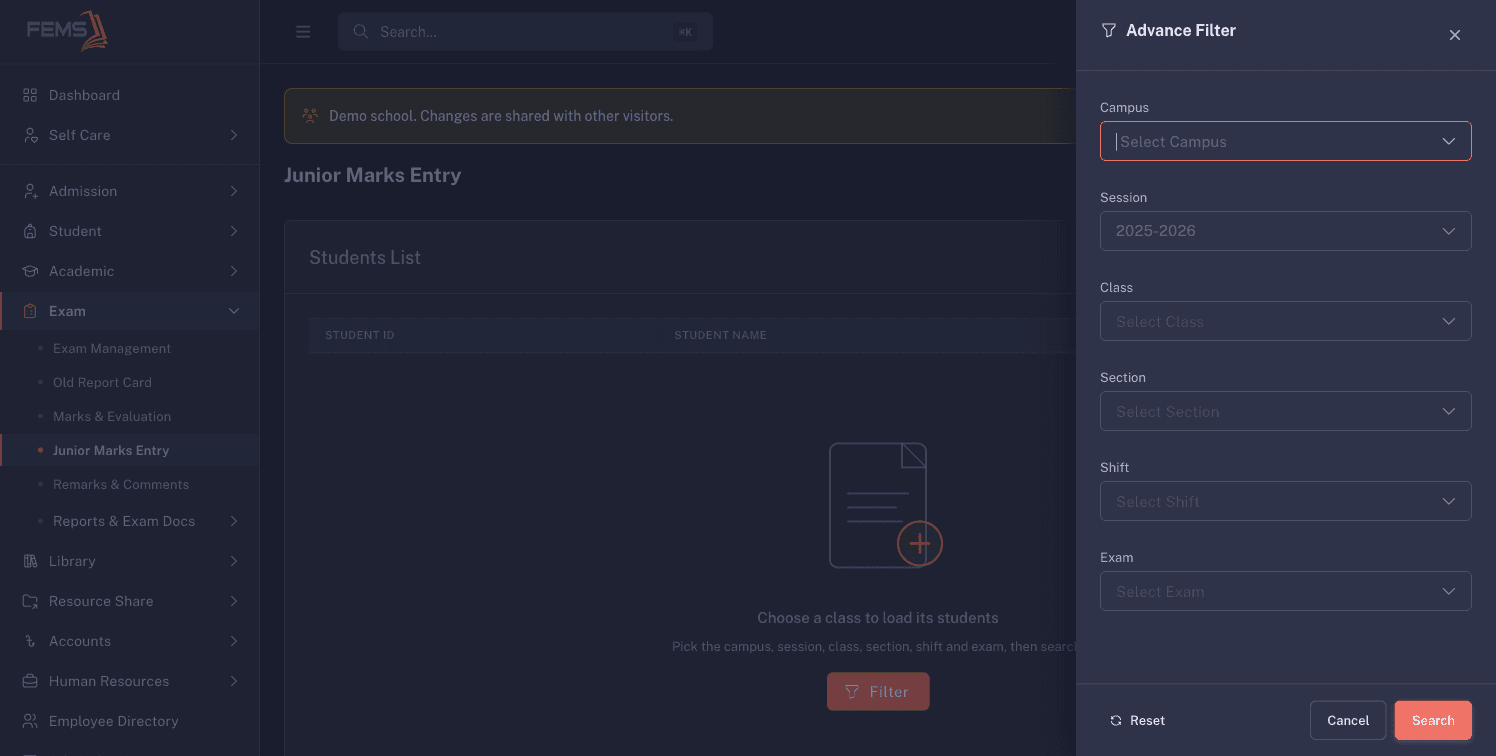
In the shared demo, choosing the available campus with the preselected 2025-2026 session did not enable Class, so no student row or assessment sheet could be opened safely. If the next field stays unavailable after you select the previous one, close the filter and ask the exam coordinator to check that the campus and session are linked to junior classes.
Recording marks for a student
- Find the student's row in the results table.
- Click the pencil edit icon. This opens the student's assessment sheet in a new browser tab. If nothing opens, your browser's pop-up blocker likely stopped it. Allow pop-ups for the site and click the pencil edit icon again.
- The sheet lists one row per assessment area. Your school sets up which areas appear, so what you see here varies by school and by class.
- For a performance-level row, pick one level using the radio buttons in that row.
- For a comment row, type your comment in the free-text box across the row.
- Below the assessment rows, fill in Height (CM), Weight (KG), Total Working Days, Days Present, and Days Absent for the student.
- Add anything else worth noting in Special Notes.
- Click Save.
You'll see the page reload the sheet from the server, so what's on screen afterward is exactly what was stored.
Printing a student's sheet
- Find the student's row in the results table.
- Click the printer print icon. This is disabled for a student who has no exam record yet, so save marks for that student first.
- A read-only view of the sheet opens in a new browser tab, again allow pop-ups if nothing opens. The performance levels are locked and comments show as plain text.
- Click Print in that view to open a printable version in another tab.
What the save messages mean
| Message | What it means |
|---|---|
| "Junior Assessment marks entry successful" | The marks saved. The sheet reloads to show the stored values. |
| "Your marks entry/review date expired" | The exam's marks review date has passed. Junior marks entry then closes for everyone, administrators included. A correction after that date needs the review date moved on the exam itself. |
| "Assessment type is not valid!!" | The sheet tried to save against an assessment setup that no longer matches. Close the tab, search again from Junior Assessment Entry, and reopen the student's sheet. |
| "Something went wrong. please try again" | A general save failure. Try again, and if it keeps happening, tell your exam coordinator. |
FAQ
Why does the Print chip stay disabled for some students? The student has no exam record yet. Save marks for that student with Edit first, then Print becomes available.
I left the page and came back. Where did my filters go? Junior Assessment Entry doesn't remember your filters. Every time you open the page, you pick Campus through Exam again from scratch.
Do all my students see the same assessment areas? No. Your school sets up assessment areas and performance levels per class, so what you see for one class can differ from another.
Does a junior class get a GPA or a merit position? No. Junior classes are graded on performance levels only. There's no GPA, no CGPA, and no merit position for these classes.