Entering marks as a teacher
Load your class, mark who was absent, type each student's marks, and save.
Marks Entry is where a teacher types the marks for one subject and one part of an exam. You pick the class and subject, the students load, and you fill in the marks column.
Prerequisites
You need access to Exam > Marks Entry.
Before marks can be entered, the exam has to be set up for the class, with the subject on it and its full marks and pass marks recorded. If the subject isn't on the class exam, it won't appear here. See Setting up a class exam.
This page is for classes graded on numbers. For younger classes graded on performance levels, use Junior Marks Entry instead.
Load your students
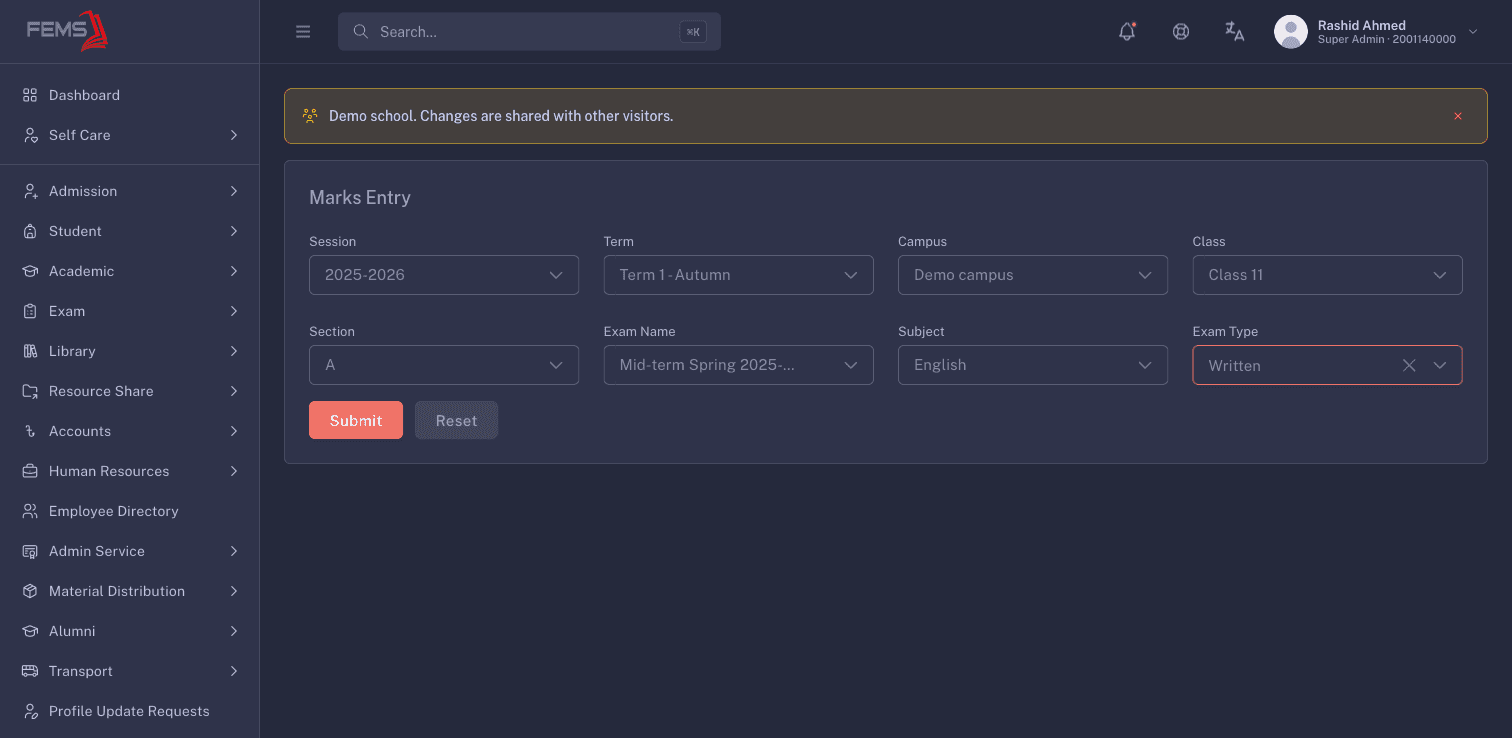
Go to Exam > Marks Entry and work down the filters. Each one unlocks the next, so fill them top to bottom:
- Session
- Term
- Campus
- Class
- Section
- Exam Name
- Subject
- Exam Type, which part of the subject you're marking, such as the written paper or an assessment
- Exam Sub Type, which only appears when the exam type you picked has sub-types
Then click Submit. It stays disabled until every filter it needs is set, so if you can't click it, something above is still empty.
Section works differently depending on who you are and what you're marking. Teachers always pick a section. Exam coordinators and admins can leave it blank for written, ECA, and club marks, which loads the whole class at once. For assessment marks, a section is always required.
The students load into a grid with these columns: Roll, Student ID, Student Name, Section, Attendance, and Marks. If it comes back empty you'll see "No students found for this selection." That usually means nobody is enrolled in that class and section for the session you picked.
Assessment marks ask for a date first
When you pick an assessment exam type that hasn't been set up yet, a window opens called Assessment Date & Mark Entry before the grid appears. Enter the Date the assessment was held and the Max Marks it was out of, then click Save. The grid loads after that.
If a maximum was already set at the exam level, the marks field is locked and you only set the date.
You can remove an assessment setup you created by mistake. FEMS asks "Are you sure you want to delete this assessment configuration?" first, because deleting it also removes the marks recorded against it.
Enter and save the marks
- Set Attendance for each student. Leave it on Present for students who sat the exam, and switch it to Absent for those who didn't. Switching to Absent locks the marks box. A number already typed there stays on screen, but FEMS saves a zero for that student whatever the locked box shows, so don't read it as the stored value. Never type words like "Ab" into the marks box.
- Type each present student's mark in the Marks column. Marks are numbers only, from 0 up to the full marks set for that part of the subject.
- Click Save Changes.
You'll see "Saved successfully", and the grid reloads from the server. What you see after the reload is what was actually stored, so it's a useful check.
Cancel Changes throws away everything you've typed since the last save and puts the grid back. There's no confirmation, so use it only when you mean it.
Only rows you actually changed are sent. If you click Save Changes without changing anything you'll see "No changes to save" and nothing is sent.
What gets rejected
FEMS checks the marks before it saves anything. Nothing is stored if a single value fails:
| Message | What it means |
|---|---|
| "Marks cannot be negative" | A mark is below zero. |
| "Marks should not be larger than the maximum marks", followed by that maximum in brackets | A mark is above the full marks for that part. Check the number, and check the exam setup if you think the maximum is wrong. |
| "Each mark must be a number." | Something other than a number is in a marks box for a present student. Use the Attendance column for absentees instead of typing text. |
| "Save failed" | The save didn't go through. Try again, and if it keeps failing, tell your exam coordinator. |
Entry can close on a date
Your school sets a deadline for each part of the exam. Once it passes, teachers can no longer save marks for it, and you'll see a message that the date is over or expired. Exam coordinators and admins can still enter marks after the deadline.
If you're blocked by a deadline, ask your exam coordinator rather than trying again. The date is a setting on the exam, not a fault.
Two other rules can block a save:
- Assessments run in order. When an exam has several assessment sub-types, at least half the students need marks in the earlier sub-type before the next one opens. The message names the sub-type that isn't finished. This threshold is fixed, not a school setting.
- The date has to match the routine. For teachers, the assessment date entered has to be a day the subject actually runs in the routine.
What happens after you save
Saving marks starts the calculation that turns them into grades, GPA, and ranks. It runs in the background and takes a moment to finish.
So the tabulation sheet, merit list, and report card catch up a few seconds after you save. If a report still looks stale, reload the report page. Don't re-enter the marks.
You can check what was recorded, class by class and subject by subject, on Tracking marks entry progress.
FAQ
A student is missing from the grid. They're most likely not enrolled in that class and section for the session you picked, or the subject isn't one of their subjects. Check the student's record first. Re-picking the filters won't add them.
I picked everything and Submit does nothing. One of the filters below the one you're looking at is still empty. The list only unlocks a filter once the one above it is set, so work down from Session without skipping.
How do I record a student who was absent? Set their Attendance to Absent. The marks box locks by itself and FEMS saves a zero for that part. If the part has a pass mark, that zero fails the subject, which is usually what a school wants for an absence, but it's worth knowing before you look at the results.
I saved the wrong mark. Can I fix it? Yes. Load the same class and subject again, change the value, and click Save Changes. The new value replaces the old one and the results recalculate.
Why did my filters reset when I came back? This page doesn't remember your choices between visits. Pick them again from Session down.
The results haven't changed after saving. Give it a few seconds and reload the report page. The calculation runs after the save, not during it. If it's still stale after that, see Troubleshooting exam results.
Related pages
Printing admit cards, seat plans, and other exam papers
Produce the documents you need before exam day: admit cards, seat plans, the routine, question paper covers, and blank mark sheets.
Recording junior assessment marks
Record performance levels, comments, attendance, height, and weight for younger classes that aren't graded on numbers.