Tracking marks entry progress
See which subjects have marks, which are still pending, and review what a teacher submitted.
Marks & Evaluation is a progress dashboard for marks entry. It shows you which subjects across your school still need marks and which are done, and lets you review what a teacher already submitted. You don't type marks here.
Prerequisites
Exam coordinators and admins use this page most. You need access to the Exam section of the sidebar, and at least one exam already set up under Exam Management with subjects assigned to it. Go to Exam > Marks & Evaluation.
What you'll find on this page
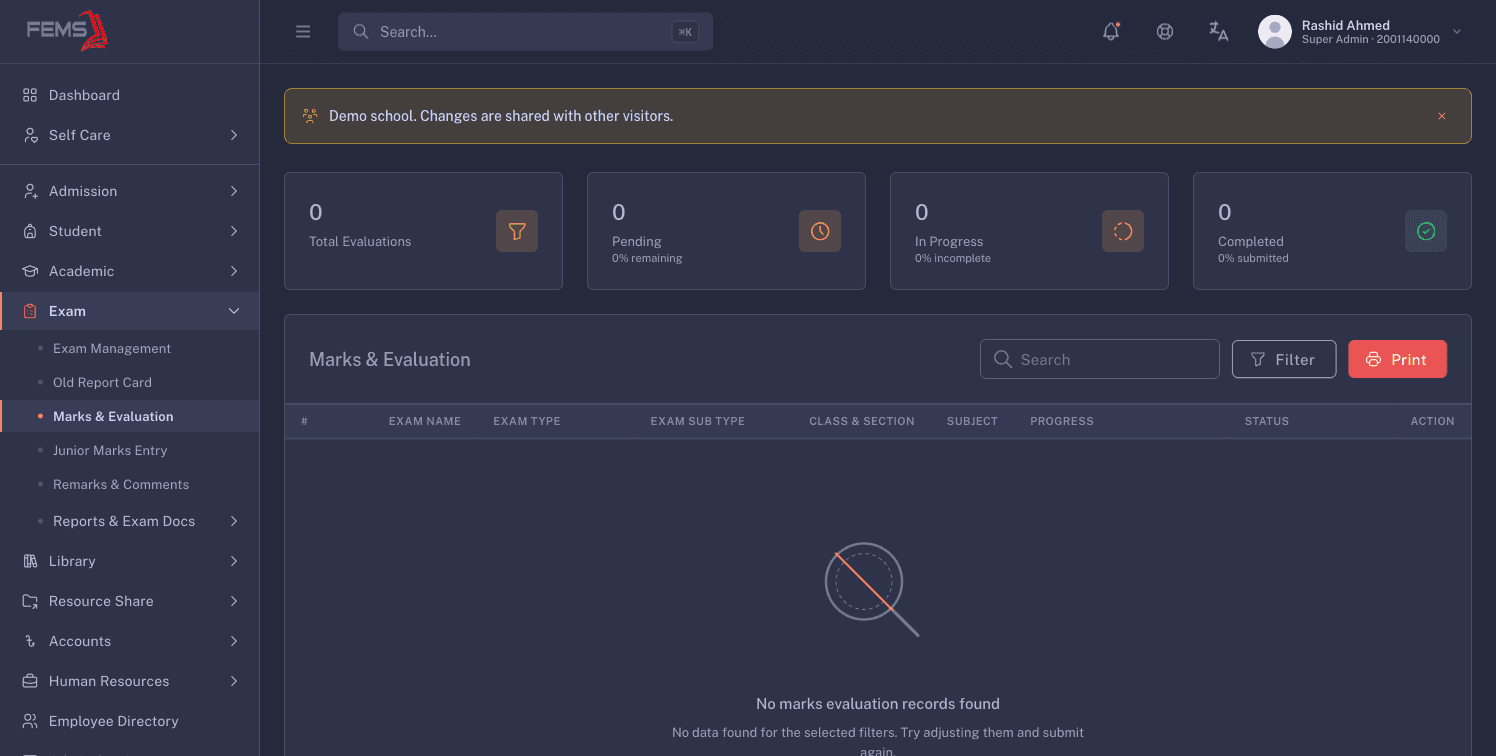
The page opens on the Marks & Evaluation title, four stat cards, an Advance Filter panel, a search box, and a table.
Stat cards
Four cards run across the top:
- Total Evaluations: the count of exam, exam type, class, section, and subject combinations that match your current filters.
- Pending: how many of those have no marks entered yet, with a "% remaining" line underneath.
- In Progress: how many are partly done, with a "% incomplete" line underneath.
- Completed: how many are fully done, with a "% submitted" line underneath.
Filters
Click Advance Filter to open the filter panel. The fields, in order, are Academic Year/Session, Term, Campus, Class, Section, Exam, Subject, Exam Type, Exam Sub Type, and Status. A free-text search box sits above the table for finding a specific row once results are loaded.
Class only lists classes graded on marks. Your school's youngest classes aren't in this list, because those are assessed through junior assessment instead. See Recording junior assessment marks.
The table stays empty until you filter
The table shows no rows until you set at least one filter and click Submit. Before that, you'll see "Apply a filter to load marks & evaluation data." This is deliberate. Loading every mark in the school at once would be slow, so the page waits for you to narrow it down.
Checking marks entry progress
- Go to Exam > Marks & Evaluation.
- Click Advance Filter.
- Set at least one filter, for example Exam and Class. Add Section or Subject to narrow it further.
- Click Submit.
You'll see the stat cards update to match your filters, and the table fill with one row per exam, exam type, class and section, and subject combination. Because a subject can be marked in more than one exam type, the same subject can show up in more than one row.
Click Reset to clear the filter panel and start over.
If nothing matches your filters, you'll see "No marks evaluation records found" with "No data found for the selected filters. Try adjusting them and submit again." and a Reset filters button. If the page can't load data at all, you'll see "Failed to load marks evaluation data."
Reading the table
Each row shows #, EXAM NAME, EXAM TYPE, EXAM SUB TYPE, CLASS & SECTION, SUBJECT, PROGRESS, STATUS, and ACTION.
- EXAM SUB TYPE stays blank unless you filter on a sub type, in which case it echoes what you picked. Sub types are rolled up into their parent exam type, so a row reading Submitted means every student has a mark somewhere under that exam type. To check one assessment sub type on its own, filter by it.
- PROGRESS shows a bar, a completed-over-total count, and a percentage for that row.
- STATUS is a coloured chip with three possible values. Where a name was recorded, the chip shows "by" and that person's name underneath it.
- Pending (amber): no marks entered yet for that combination.
- In Progress (blue): some students have marks and some don't.
- Submitted (green): every student in that combination has a mark recorded.
- ACTION has two icons. The eye icon opens a read-only review of the marks entered for that row. The pencil icon is an edit action. To correct a senior class's marks, use Marks Entry rather than this column.
Reviewing a teacher's submitted marks
- Filter the table down to the row you want, as above.
- Click the eye icon in the ACTION column for that row.
You'll see a review screen open with a header naming the exam, class, section, subject, and exam type, plus a "Saved" time. An info bar below the header shows the Date, Max Marks, Completed count, and Pending count for that combination.
The table on this screen lists #, ROLL NO, STUDENT NAME & ID, SECTION, ATTENDANCE (shown as "P" or "A"), MARKS, RESULT (Pass or Fail), and STATUS (Complete or Pending) for every student. Everything here is read-only.
Click Print to print the screen as shown. To change a mark, go to Marks Entry instead, this screen has no edit action of its own.
If no students are enrolled in that class and section, you'll see "No students found" with "There are no students enrolled for this class and section yet."
The shared demo returned no rows for the available session, so a review screen could not be opened without changing marks data. If a filtered search returns no rows, use Marks Entry to confirm that the class, exam, subject, and exam type have saved marks before trying again here.
FAQ
Why is the table empty when I first open the page? The page waits for a filter. Open Advance Filter, set at least one field, and click Submit to load rows.
Does a Submitted status mean the result is approved? No. A Submitted chip only means every student in that row has a mark recorded. There's no approve or reject action on this page.
Can I enter or fix marks from this page? No. This page is for tracking and review only. Enter or correct marks from Marks Entry.
If I leave this page and come back, do I lose my filters? No. Unlike other Exam screens, this page remembers your filter choices when you navigate away and return.
Why aren't my youngest classes in the Class filter? They aren't graded on marks. Those classes are assessed through junior assessment, so they don't appear on this page.