Writing report card remarks
Write the class teacher's comment that prints on each student's report card, and track which students still need one.
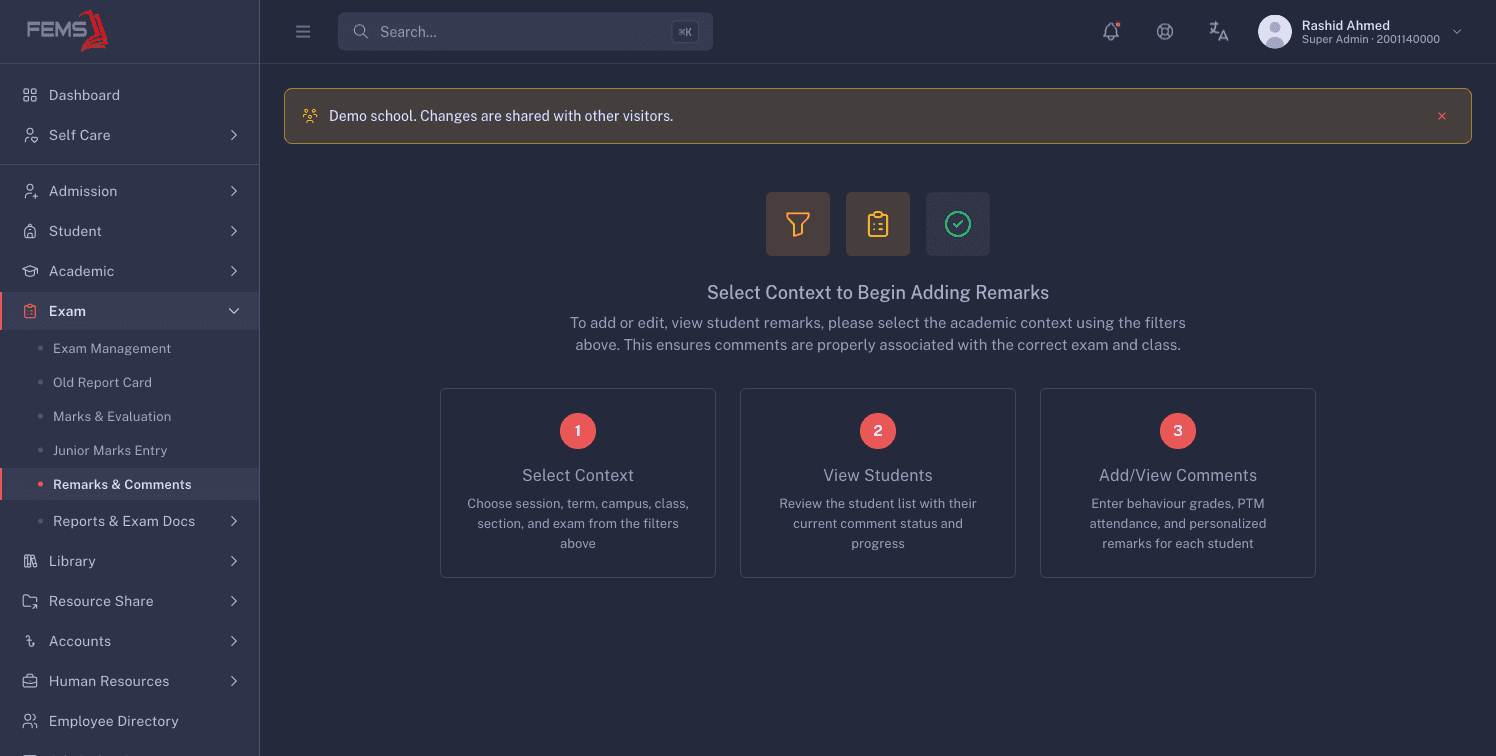
Remarks & Comments is intended for the class teacher's student comments. In the current live screen, only the three-step guidance panel renders; the academic filters and student list described by that panel are not visible.
Prerequisites
This page is for the class teacher. You need access to the Exam section of the sidebar. Go to Exam > Remarks & Comments, or open Reports & Exam Docs and click the Remarks & Comments card, described there as "Generated report of student remarks".
Before you start, your school's exam has to exist with the class already added to it. If you haven't set that up yet, see How exams work in FEMS.
Finding your class's students
The opening panel walks the intended flow in three steps: 1 Select Context, 2 View Students, 3 Add/View Comments. Do not try to enter comments until the filter controls are visible.
- Choose Session, Academic Term, and Campus.
- Choose Class. You can pick more than one class here; each one you pick shows up as a chip.
- If you picked a single class, Shift and Section filters appear. Choose both.
- Choose Exam Name.
- Click Submit.
If you picked one class but left out its shift or section, Submit warns you that the section or shift is required. Pick one and submit again.
Click Reset at any point to clear the filters and start over.
You'll see four stat cards: Total, Pending (with a percent remaining), In Progress (with a percent incomplete), and Completed (with a percent submitted). Below them is a results table listing each class and section you matched, with these columns: #, Exam Name, Class & Section, Progress (a bar plus a count and a percentage), Status, and Action. Status is a chip showing Pending, In Progress, or Submitted.
If nothing matches your filters, you'll see "No remarks found for the selected filters."
Click the eye icon in Action to open the student list for that class and section. Click Print on the results card to print the table as shown on screen.
If you open a class and come back to this page, your filters and results are still there.
Writing a remark for a student
When the filters and results are available, opening a class and section takes you to its student list: #, ROLL NO, Student Name & ID, Status (Submitted or Pending), Last Modified, and Action. Every row has a pencil icon for writing or changing a remark. Students who already have one also get an eye icon, for viewing it without editing.
To write or edit a remark:
- Click the pencil icon next to a student. A panel slides in from the right.
- Under Behaviour & Courtesy, pick one of four cards: A Excellent, B Good, C Satisfactory, or D Needs Improvement.
- Under Quick Descriptors (Optional), toggle any of the eight chips that fit the student: Punctual, Respectful, Cooperative, Well-mannered, Attentive, Disciplined, Helpful, and Responsible. Each chip you pick writes a matching sentence into the comment box using the student's name. Edit that text freely once it's there.
- Under PTM Attendance, tick one box for each parent-teacher meeting the family attended: 1 - First PTM, 2 - Second PTM, 3 - Third PTM. FEMS stores how many they attended, not which ones, so reopening the remark shows the first boxes ticked regardless of which you picked.
- Write or finish the comment in Comment Body. It needs at least 20 characters and no more than 800. A live counter shows how many characters you have left, and turns red under 50.
- Click Submit.
You'll see "Student comment saved successfully", and the student's row updates to Submitted. If the comment is under 20 characters, you'll see "Minimum 20 characters. Be specific and constructive." and the save won't go through. If it's over 800, you'll see "Comments must be 800 characters or less". If a save fails for another reason, you'll see "Failed to save student comment".
Click Cancel to close the panel without saving.
To read a remark without changing it, click the eye icon next to a student who already has one. The same panel opens with every field locked, and only a Close button at the bottom.
Click Print on the student list to print it as shown on screen.
Writing a remark parents will actually find useful
A report card remark is one of the few things a parent reads that describes their own child, so it's worth a bit of care.
- Describe what the student did, not who they are. "Finished every homework assignment on time" tells a parent something. "A good student" doesn't.
- Name one specific strength and one specific thing to work on. A remark that's all praise or all criticism reads as less honest, and gives the parent nothing to act on.
- Skip comparisons with classmates. Judge the student against their own effort and progress, not against other names on the roll.
- Keep it short enough to read in one sitting. The comment box holds at most 800 characters, so there's a hard limit either way.
- Let the Quick Descriptors chips do the first draft when you're short on time, then edit the sentence they add so it still sounds like you and fits this particular student.
FAQ
Do I have to fill in every field before I can submit a remark? Only Comment Body is checked, at 20 to 800 characters. Behaviour & Courtesy and PTM Attendance save empty if you skip them, even though PTM Attendance shows an asterisk. Fill them anyway if your school reports on them.
Can I change a remark after I submit it? Yes. Click the pencil icon on that student's row again, edit the fields, and click Submit.
Why is the comment box refusing to save? Your comment is either under 20 characters or over 800. The counter under the box shows your current length and turns red when you're close to the limit.
What do the Quick Descriptors chips actually do? Each one adds a ready-made sentence about the student, using their name, into the comment box. It's a starting point, not a final answer, so edit it to match what you actually observed.
Why can't I edit a remark I opened from the eye icon? The eye icon is a read-only view for a remark that's already submitted. Use the pencil icon on the same row to make changes.
I picked one class in the filters but don't see a Shift or Section filter. Those two filters only appear once you've narrowed Class down to a single class. Pick just one class and they'll show up.