Assigning students or employees to a route
Put a student or employee on a route and confirm the area, trip type, and fare.
Route assignment records who rides which route and how much the trip costs. You can assign either a student or an employee.
Prerequisites
You need route-assignment access, usually held by a transport administrator. The student or employee, route, and fee chart should already exist.
Open Route assign
In the sidebar, open Transport, then Dashboard. Choose Route Assign.
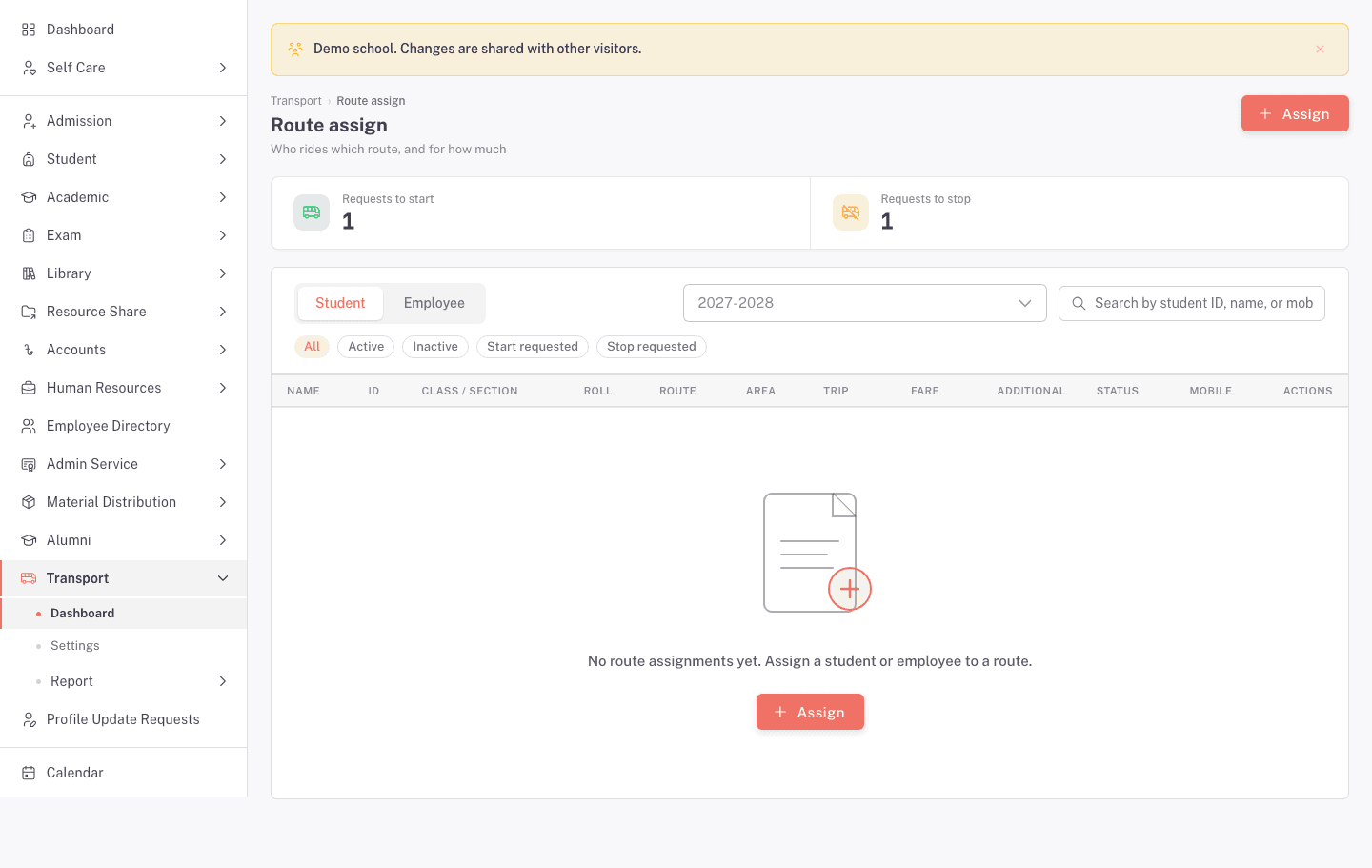
The list separates Student and Employee assignments. Choose the academic session first. You can then search the list and filter it by All, Active, Inactive, Start requested, or Stop requested.
Start an assignment
Click Assign. The Assign transport drawer opens.
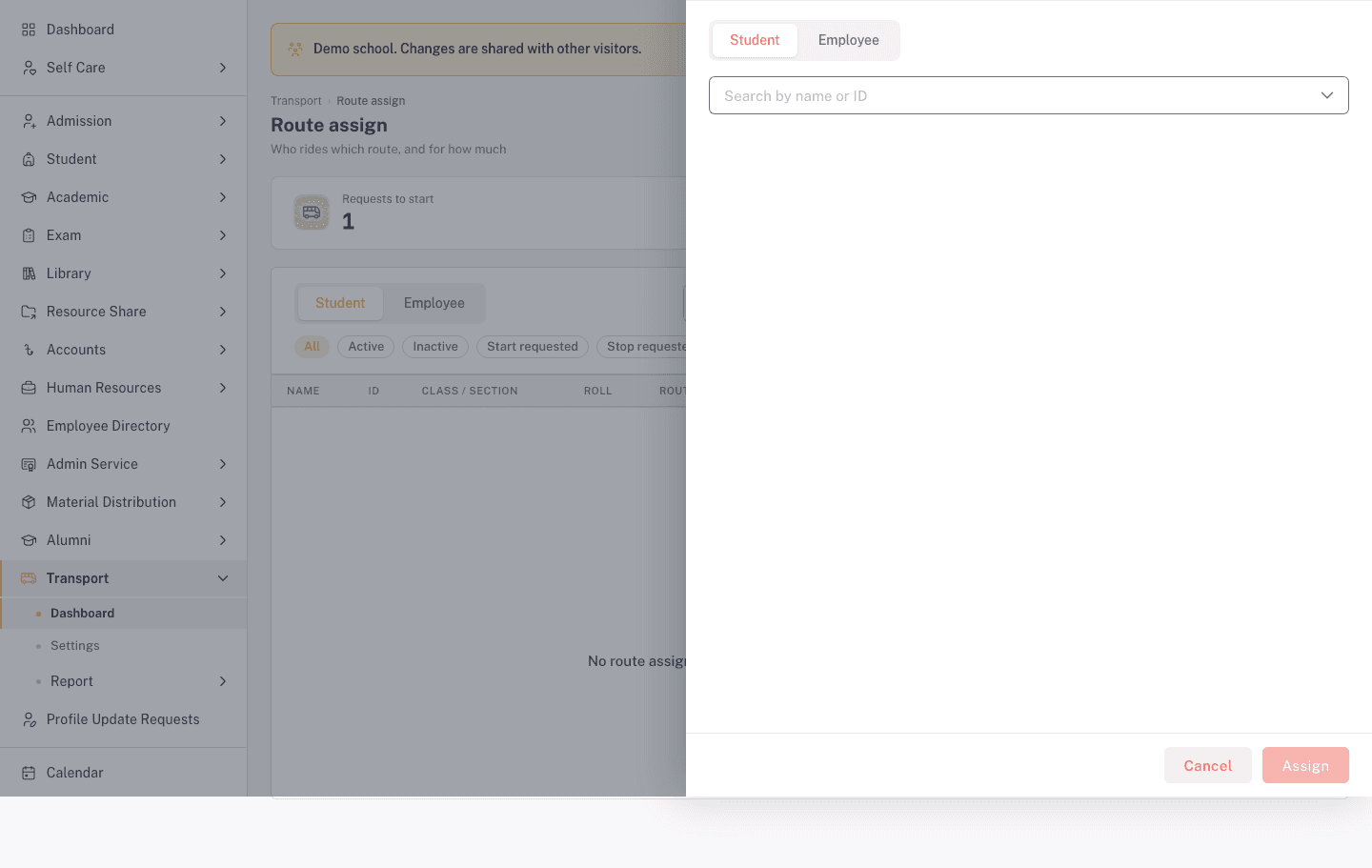
- Choose Student or Employee.
- Search by name or ID.
- Select the matching person from the results.
Check the selected person's details before you continue. This is a billing-related assignment, so stop if the name, ID, campus, or mobile number does not match.
Set the route and fare
After you select a person, the route and fare fields appear. The demo identity is blurred in the screenshot below.
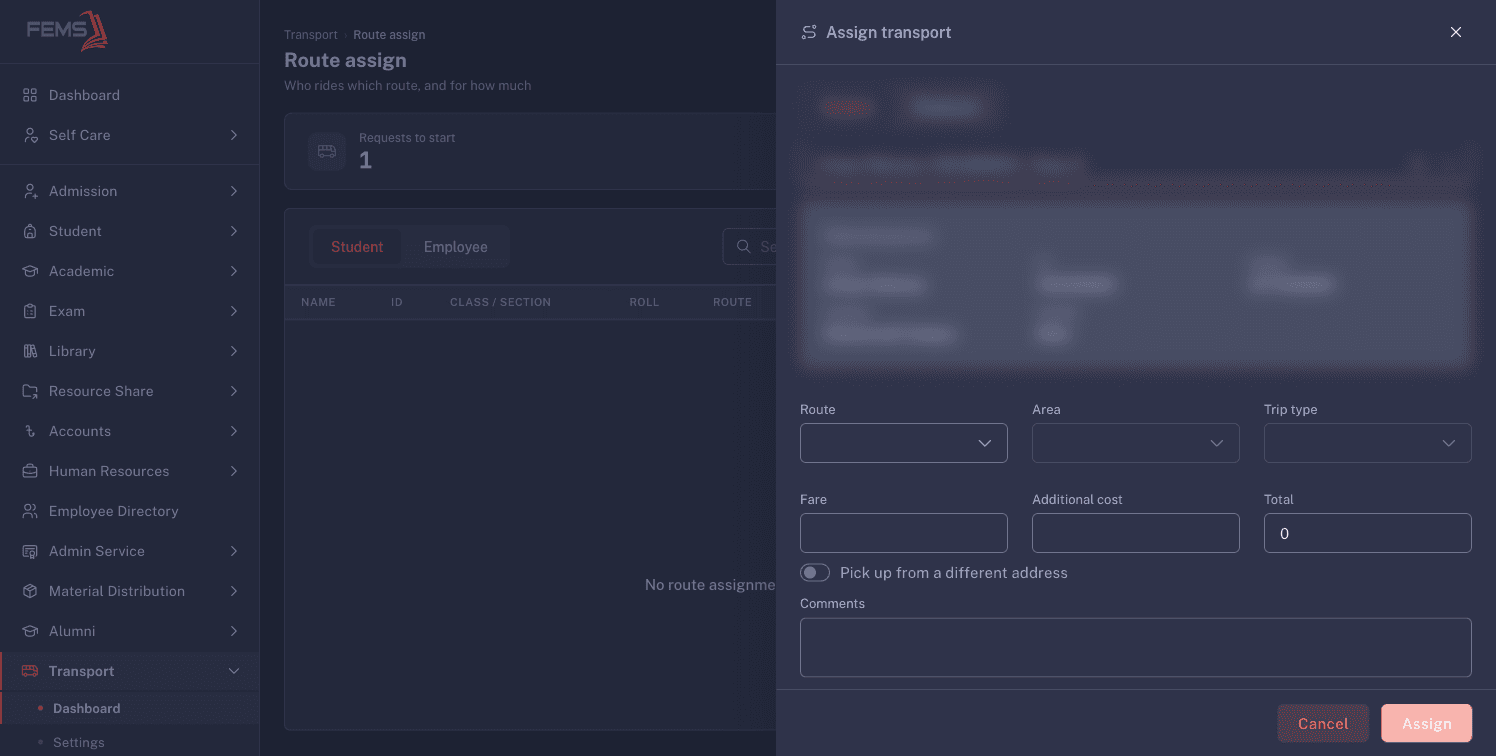
- Choose the Route.
- Choose the Area when the route uses a covered area.
- Choose One way or Two way under Trip type.
- Check the Fare loaded from the route's fee chart.
- Enter an Additional cost only when the school has approved it.
- Check the Total.
- Turn on Pick up from a different address only when the rider uses a different pickup point. Fill in the address fields that appear.
- Add Comments when another transport administrator needs the reason or context.
- Check the route, fare, and total, then click Assign.
FAQ
Why is the fare empty? Choose the route, any applicable area, and the trip type first. If the fare still does not load, check the route's fee chart in Transport settings.
Can I assign an employee instead of a student? Yes. Choose Employee at the top of the assignment drawer.
What does Additional cost change? It adds to the loaded fare. Check the total before you assign transport.
Can a rider use another pickup address? Yes. Turn on Pick up from a different address and complete the address fields.