Managing vehicle requests
Record a school or private trip request and review its approval and assignment status.
Vehicle requests keep trip details, approval, and the assigned vehicle and driver on one record. Transport administrators can review school trips and private bookings from the same list.
Prerequisites
You need access to Transport > Dashboard > Transport Request. Add the vehicles and drivers in Transport settings before assigning them to a request.
Open the request list
Open Transport, then Dashboard. Choose Transport Request.
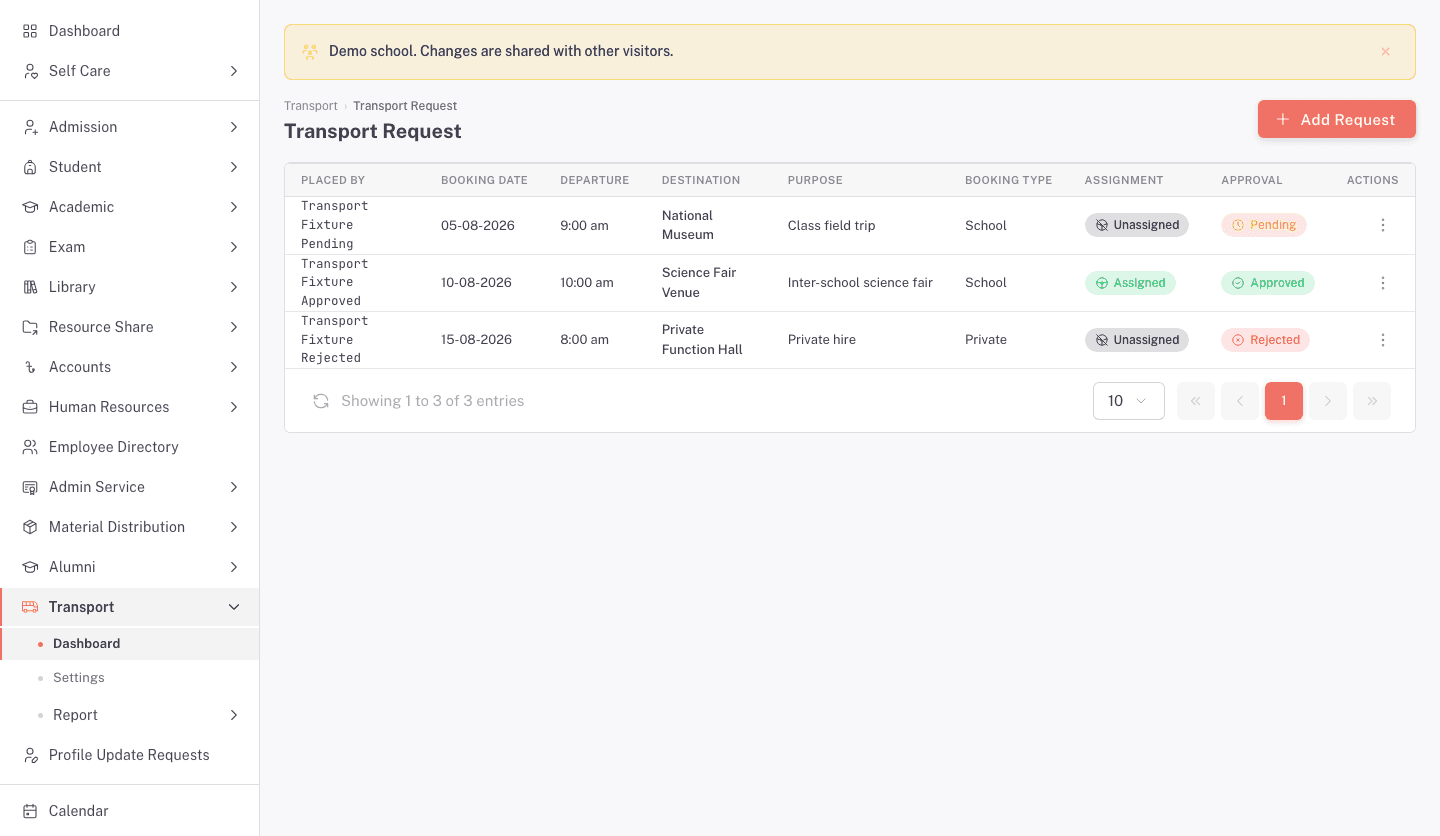
The list shows who placed the request, booking date, departure, destination, purpose, booking type, assignment, and approval. Use the row menu to View or Edit a request.
1. Add the trip details
Click Add request. The New vehicle request page opens.
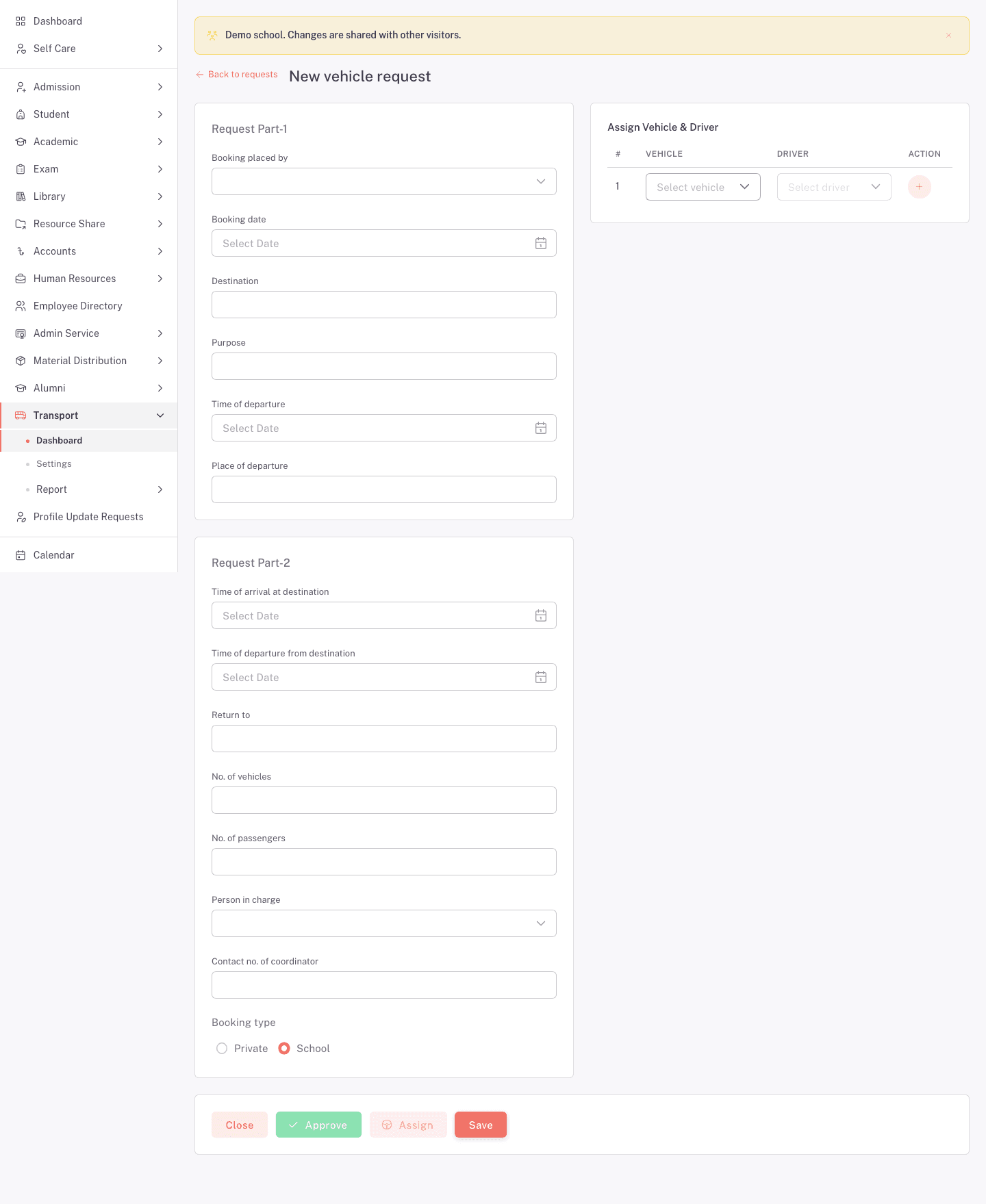
- Choose Booking placed by and Booking date.
- Enter the Destination, Purpose, Time of departure, and Place of departure.
- Enter the arrival time, return departure time, and Return to location.
- Enter No. of vehicles and No. of passengers.
- Choose the Person in charge and enter the coordinator's Contact no.
- Choose Private or School under Booking type.
- Add each Vehicle and Driver needed for the trip.
- Check the request, then click Save.
2. Review approval and assignment
Open View from a request's row menu.
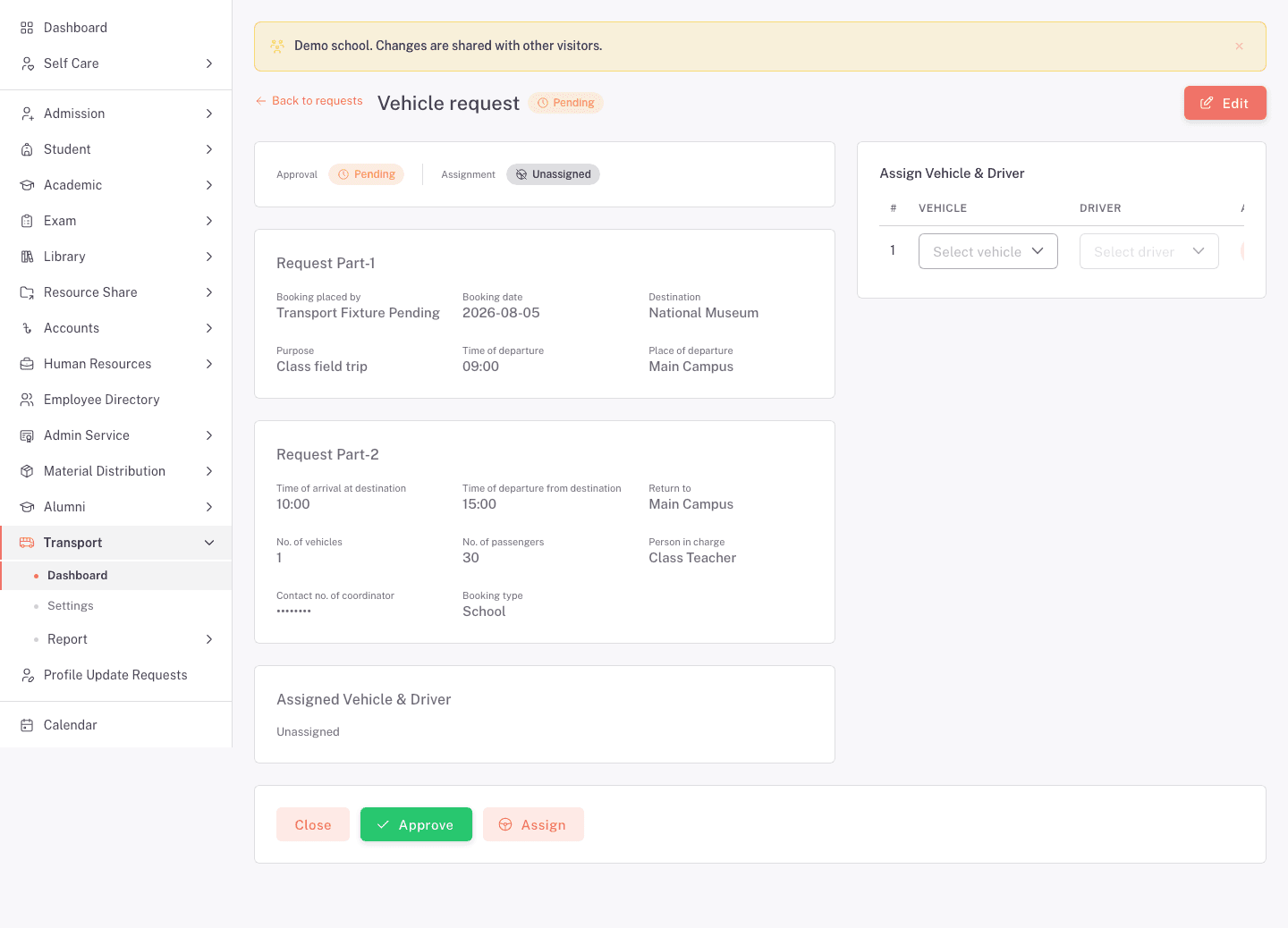
The detail page shows Approval and Assignment as separate states. It also shows the request details and the assigned vehicle and driver. A pending request can show Edit, Approve, and Assign controls.
Read the destination, times, passenger count, coordinator, vehicle, and driver before taking either action. Do not treat a vehicle assignment as approval. The page tracks them separately.
FAQ
What is the difference between School and Private? They are the two booking types shown on the request form. Choose the one that matches the trip.
Can a request use more than one vehicle? The form has No. of vehicles and an add control in Assign Vehicle & Driver. Add one vehicle and driver for each row you need.
Where can I see whether a request is approved? Check the Approval column on the list or the status at the top of the detail page.
Is an assigned request also approved? Not necessarily. Assignment and Approval are separate states.