Tracking your messages
Follow a message's status in My Messages, read its per-recipient delivery report, and act on it: edit, duplicate, or cancel.
Every SMS you draft, submit, or send shows up on My Messages. This page walks through the list, its filters, the message detail page, and what you can still do with a message after you've submitted it.
Prerequisites
You need send access, or an admin role, to have messages of your own to track. See How SMS works in FEMS for what each status chip means, and Sending an SMS for how a message gets here in the first place.
The Messages list
Open SMS > My Messages. Every message you've drafted, submitted, or sent is here, newest first, with its Subject, Audience, recipient count, Status, Scheduled / Sent date, and when it was last Updated.
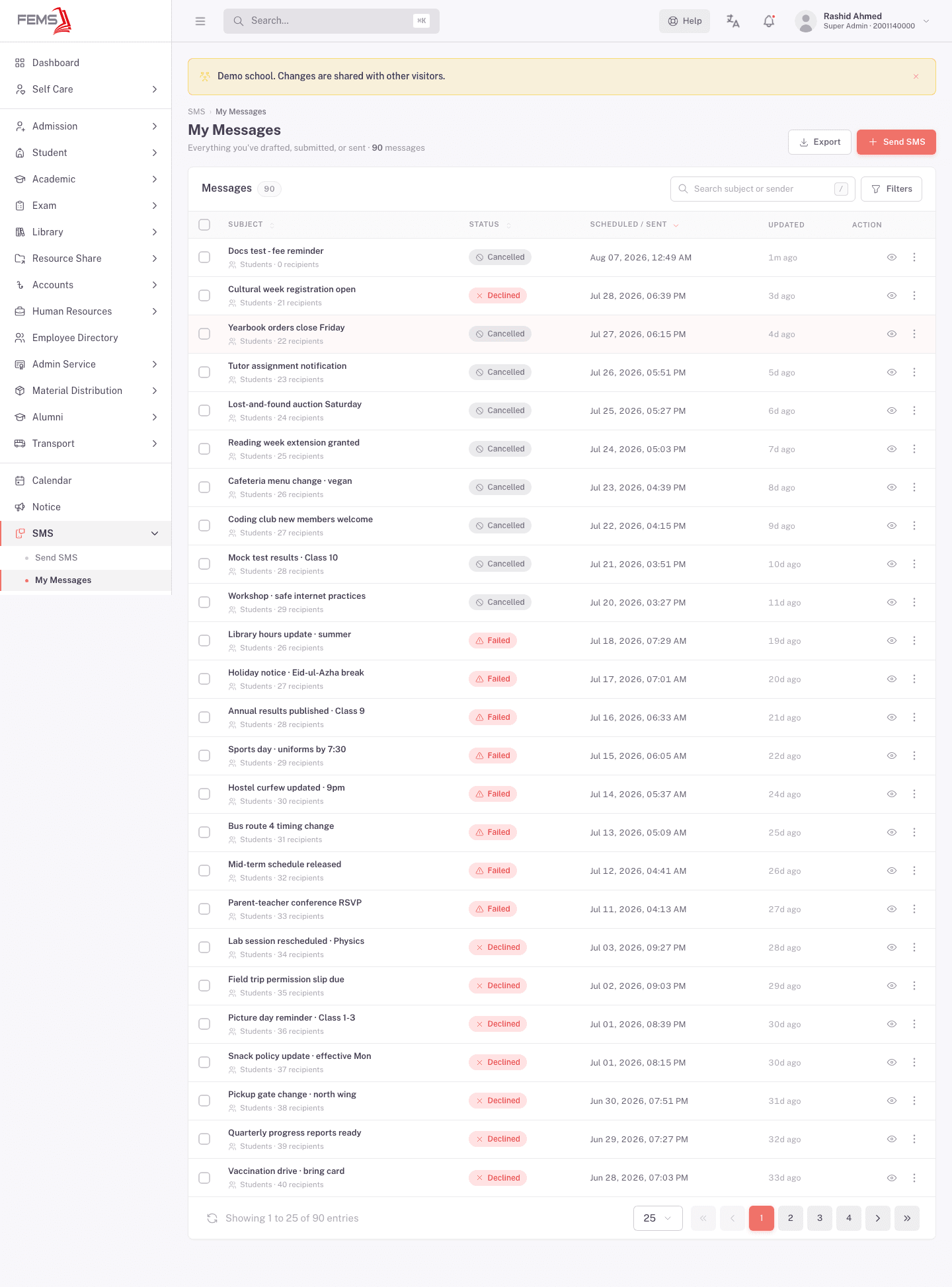
Searching and filtering
Use the search box to find a message by subject. Click Filters to open the filter drawer and narrow the list by:
- Audience: All audiences, Students, or Employees.
- Status: any of the statuses in How SMS works in FEMS, including Draft, Awaiting proof-read, Awaiting approver, Awaiting send, Scheduled, Sent, Partially delivered, Delivered, Failed, Declined, and Cancelled.
- Date range: Last 30 days, Last 90 days, Current academic year, All time, or a custom From/To range.
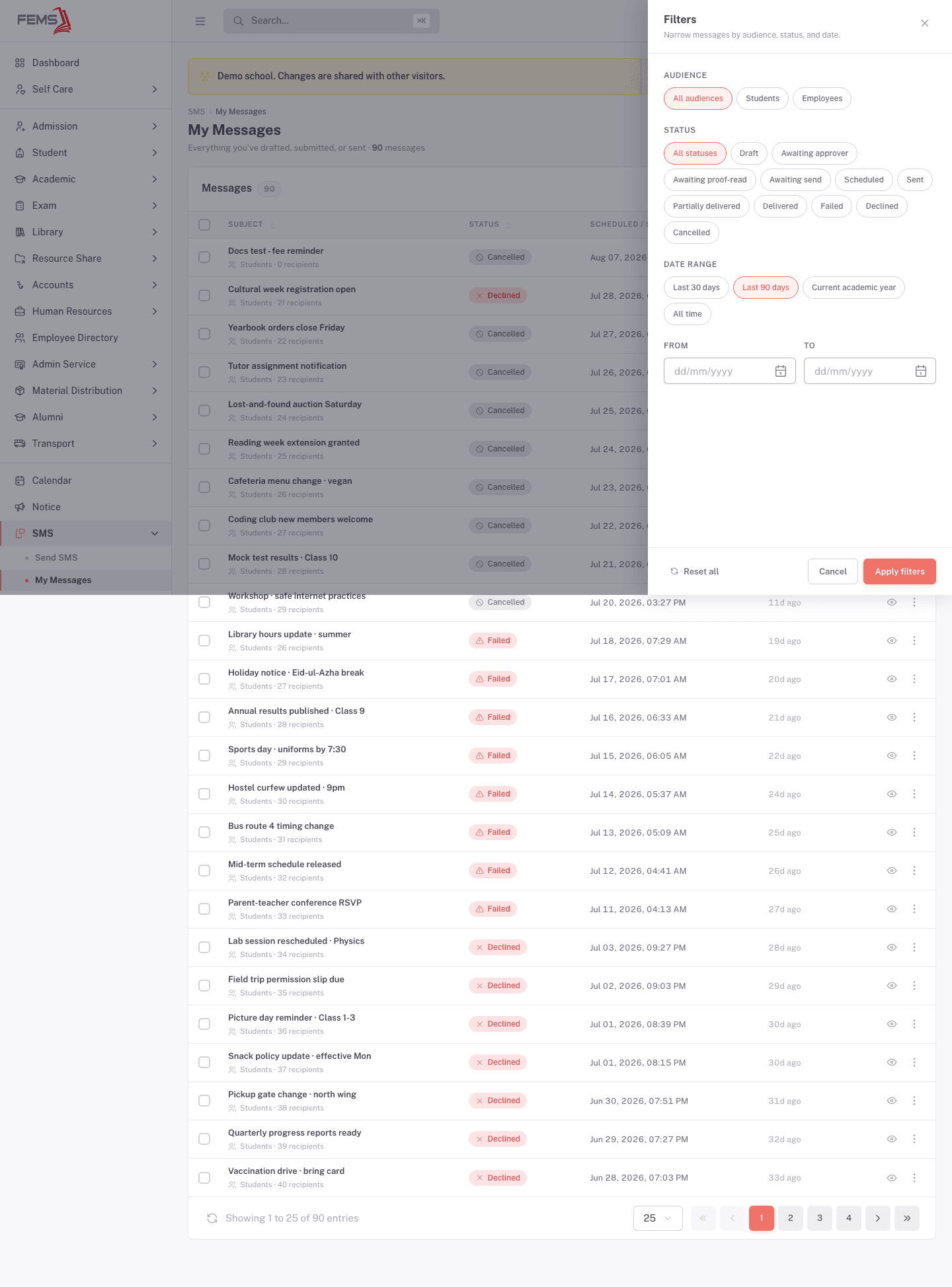
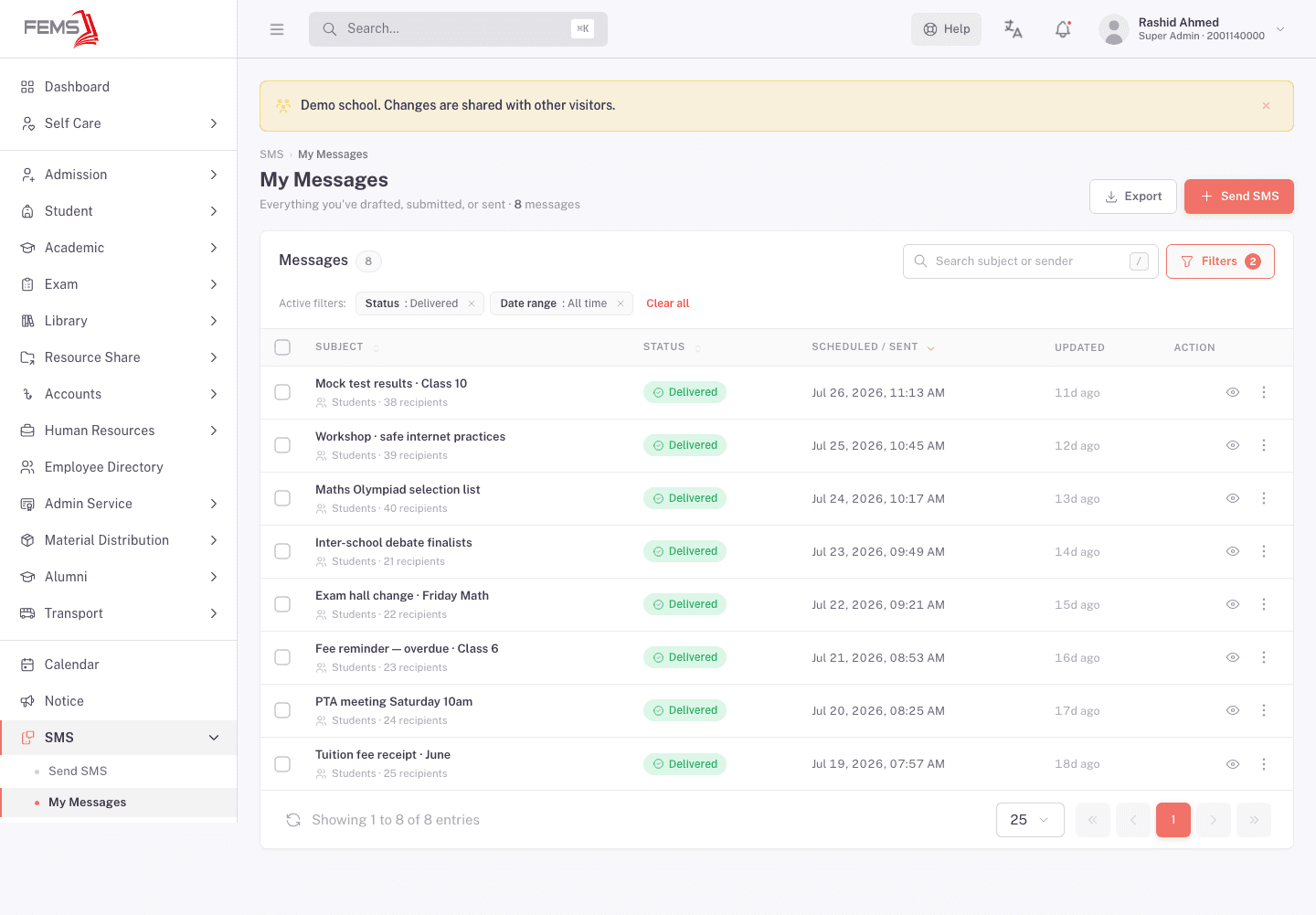
Click Apply filters. Whatever you picked shows as removable chips above the list, next to a Clear all link.
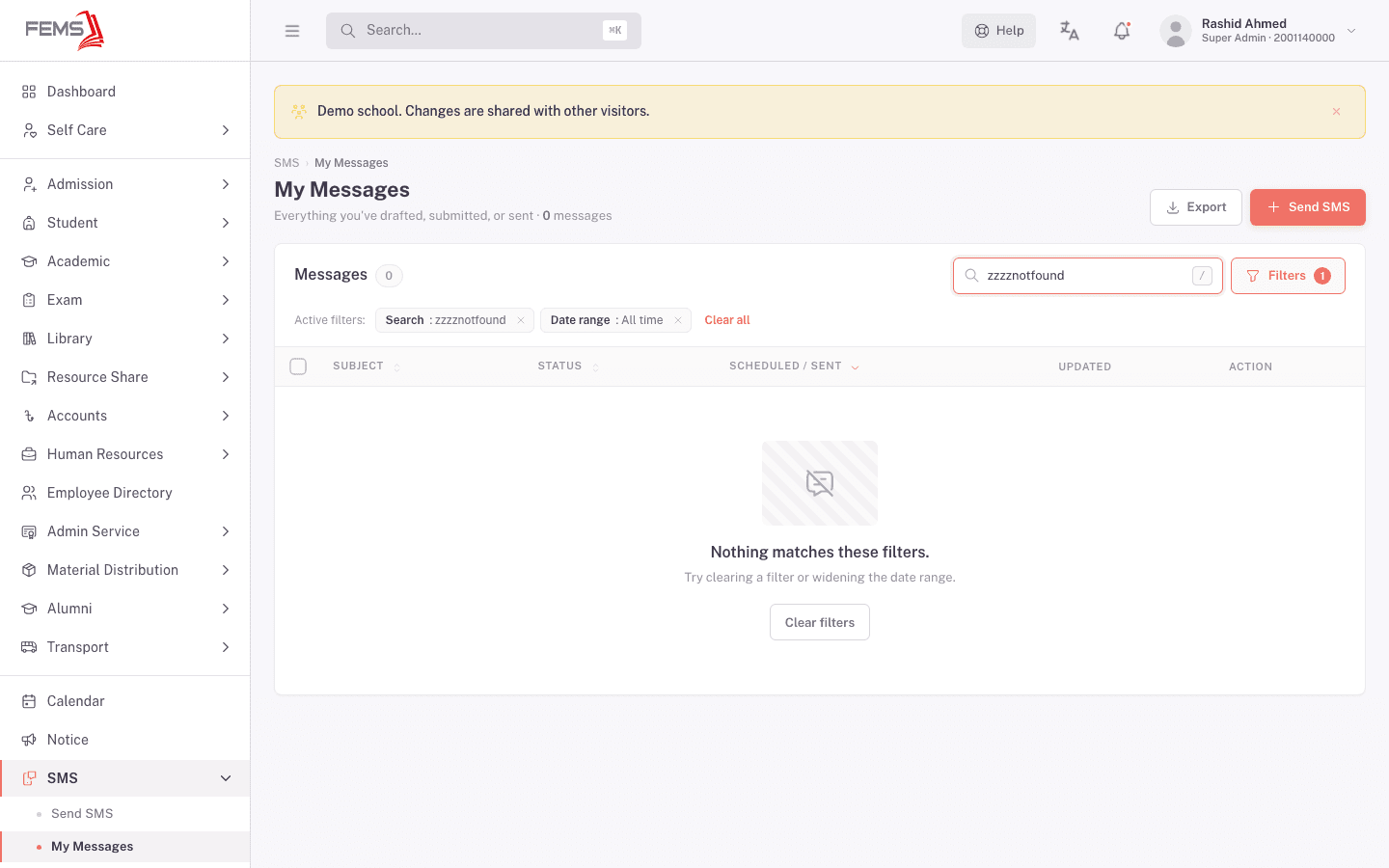
If nothing matches, the list shows Nothing matches these filters with a Clear filters button to reset.
Click Export to download the current list, including any filters you've applied, as a CSV.
Opening a message
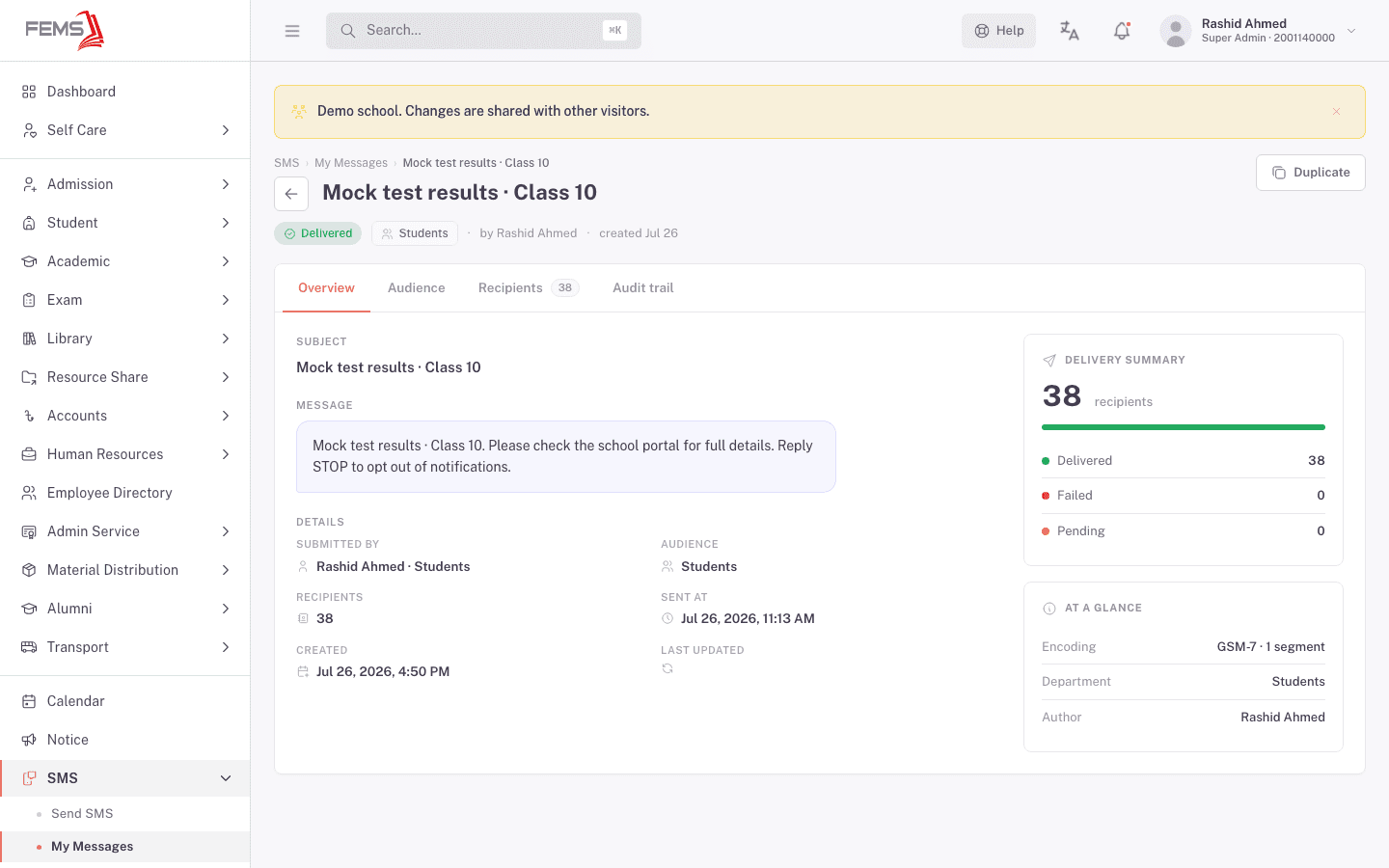
Click a row, or its eye icon, to open the detail page. Four tabs:
- Overview: the subject, the message body exactly as recipients receive it, who submitted it, the audience, recipient count, when it was created, and when it's scheduled for or was sent. A Delivery summary card on the right shows Delivered, Failed, and Pending counts once the message is out, plus the encoding and segment count.
- Audience: the filters or upload that built the recipient list.
- Recipients: the per-recipient delivery report (see below).
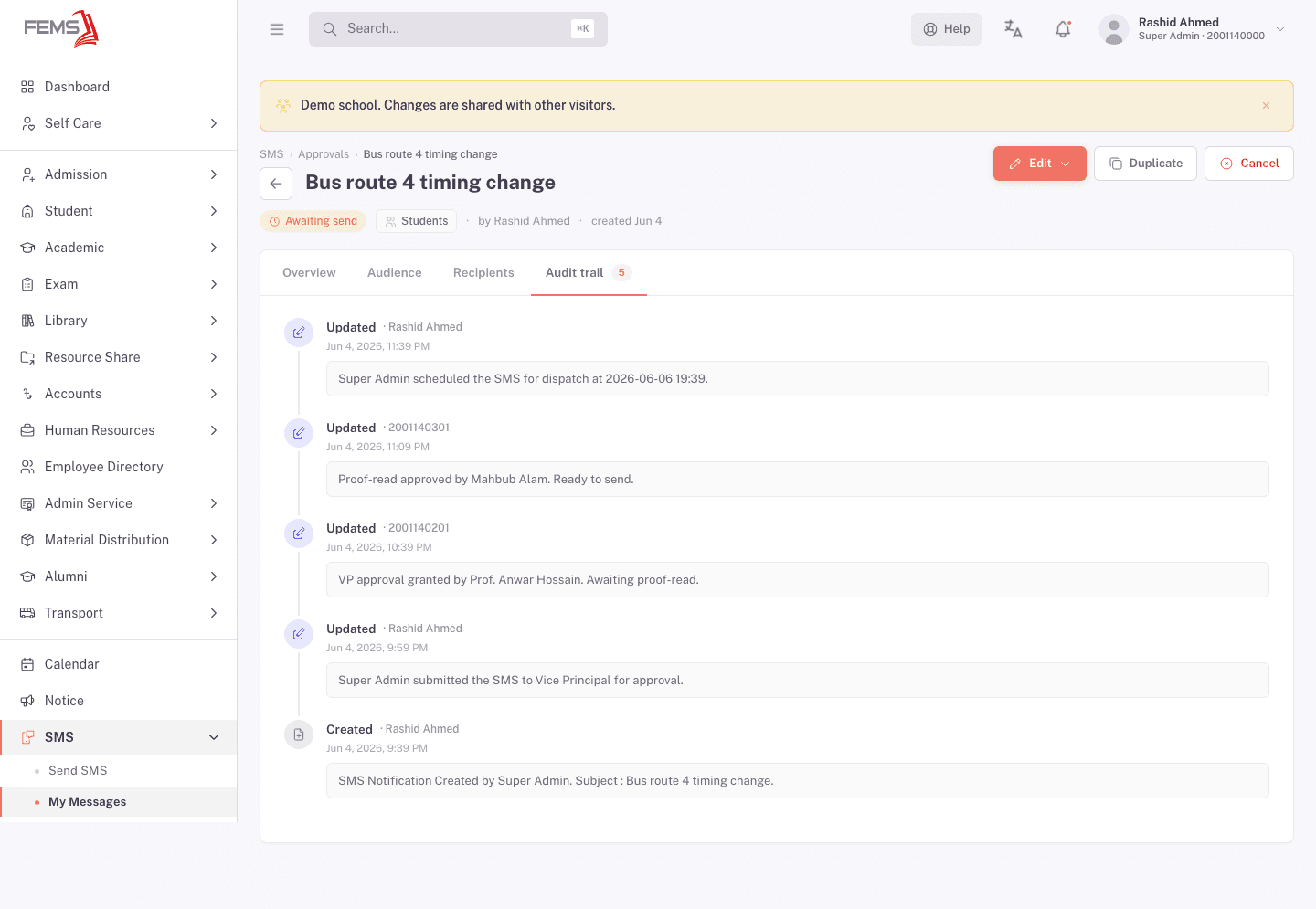
- Audit trail: every stage decision on this message, by whom, and when.
The delivery report
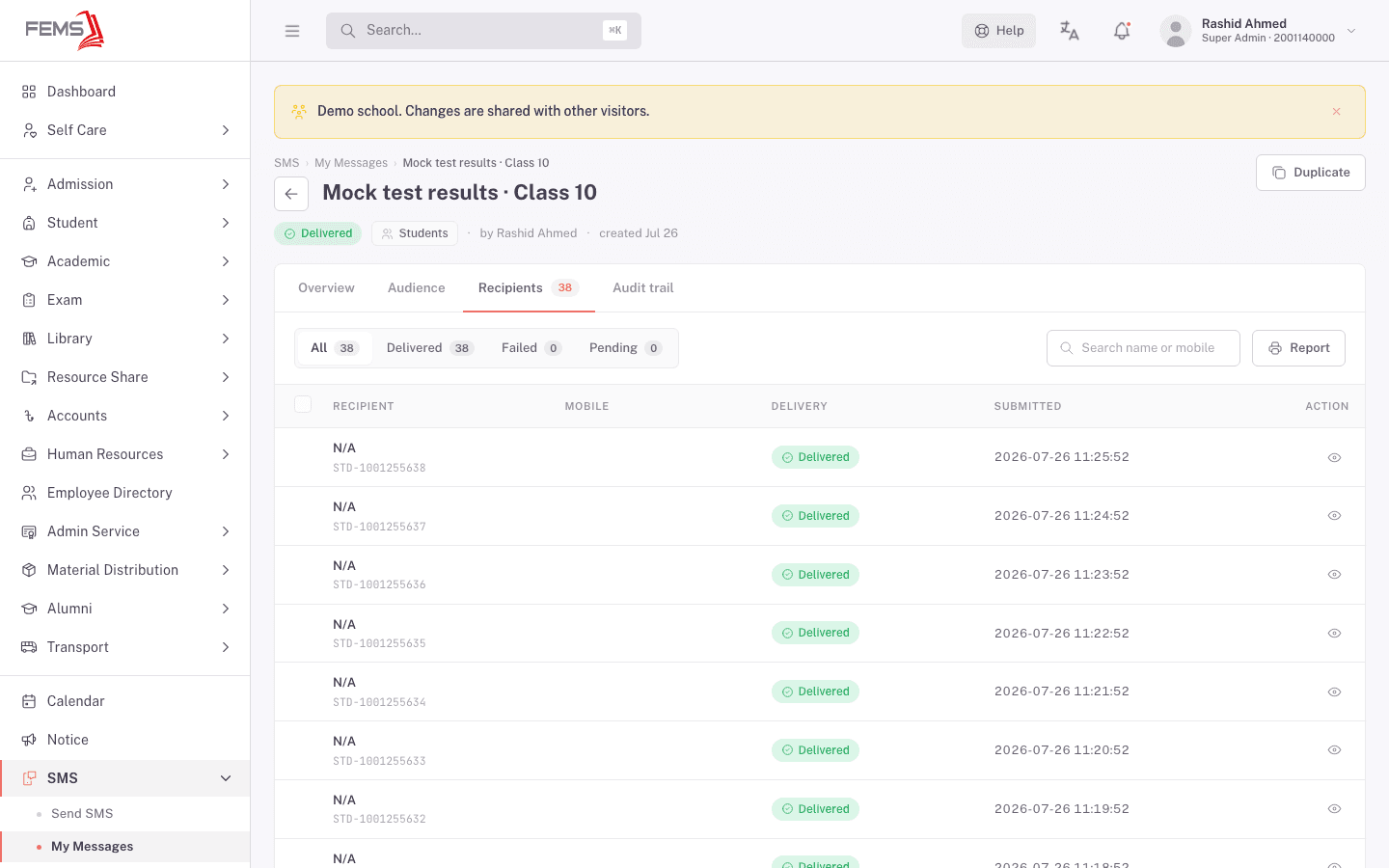
Open the Recipients tab. Sub-tabs split the list into All, Delivered, Failed, and Pending, and you can search by name or mobile number. Each row shows the recipient's student ID, their mobile number, the delivery state, and when it was submitted to the carrier.
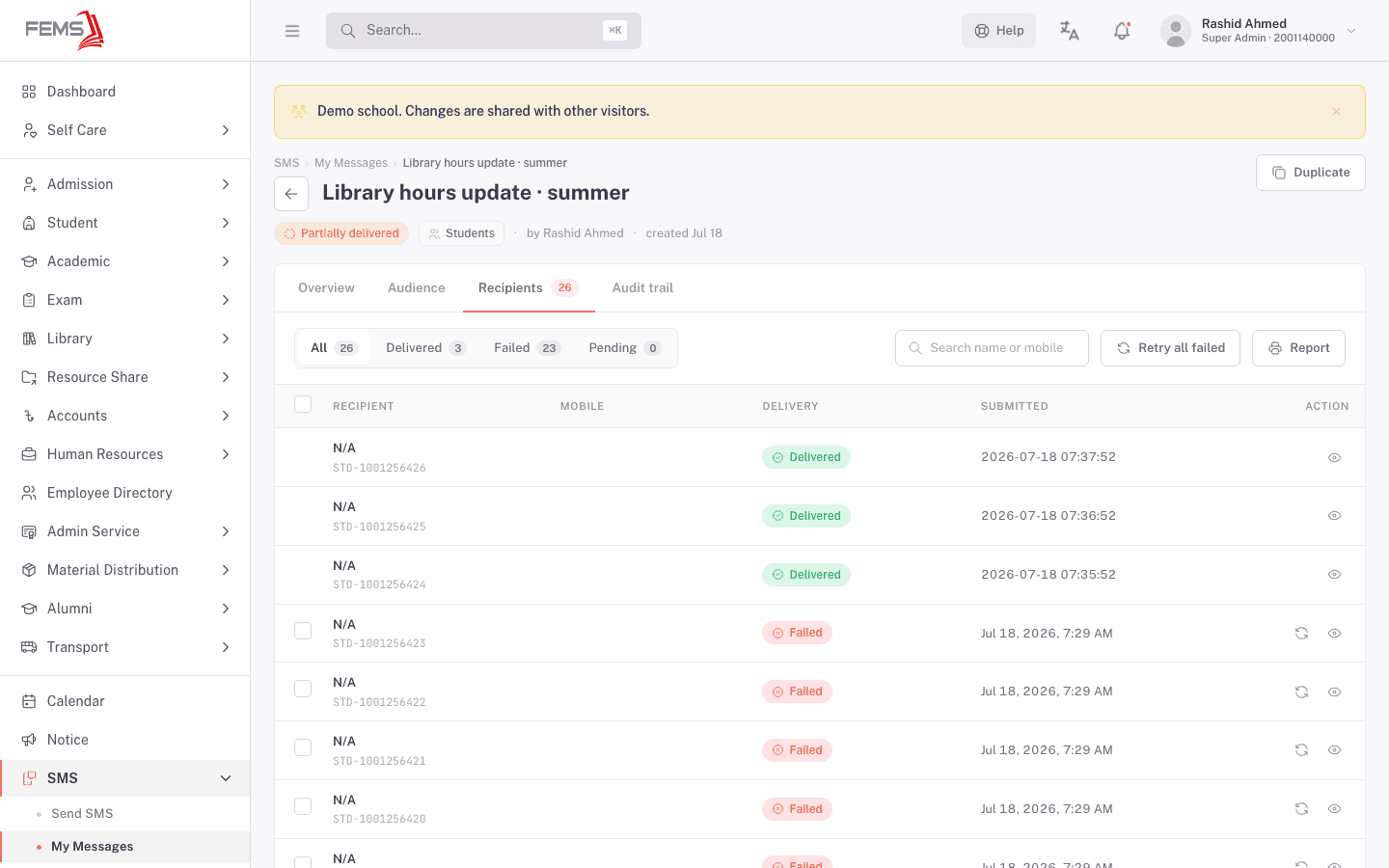
When a message has failed recipients, the tab adds a Retry all failed button, and each failed row gets its own retry icon.
What the delivery statuses mean
- Delivered: the recipient's phone confirmed receipt.
- Failed: the provider couldn't deliver it to that recipient.
- Pending: still in progress; FEMS is waiting to hear back from the provider.
A message's own status rolls these up: Sent once FEMS hands it to the provider, Delivered once every recipient confirms, Partially delivered when some did and some didn't, and Failed when none did. See the full table on How SMS works in FEMS.
Acting on a message
What you can do depends on the message's status:
-
Not yet sent (Draft, Awaiting proof-read, Awaiting approver, Awaiting send, or Scheduled): click Edit to choose Reschedule (send time only, approvals stay) or Edit message (text, audience, or recipients, which sends it back to Proof-read). See Editing a submitted message for the exact confirmation wording. A Cancel button on the detail page withdraws it before it ever reaches a phone.
-
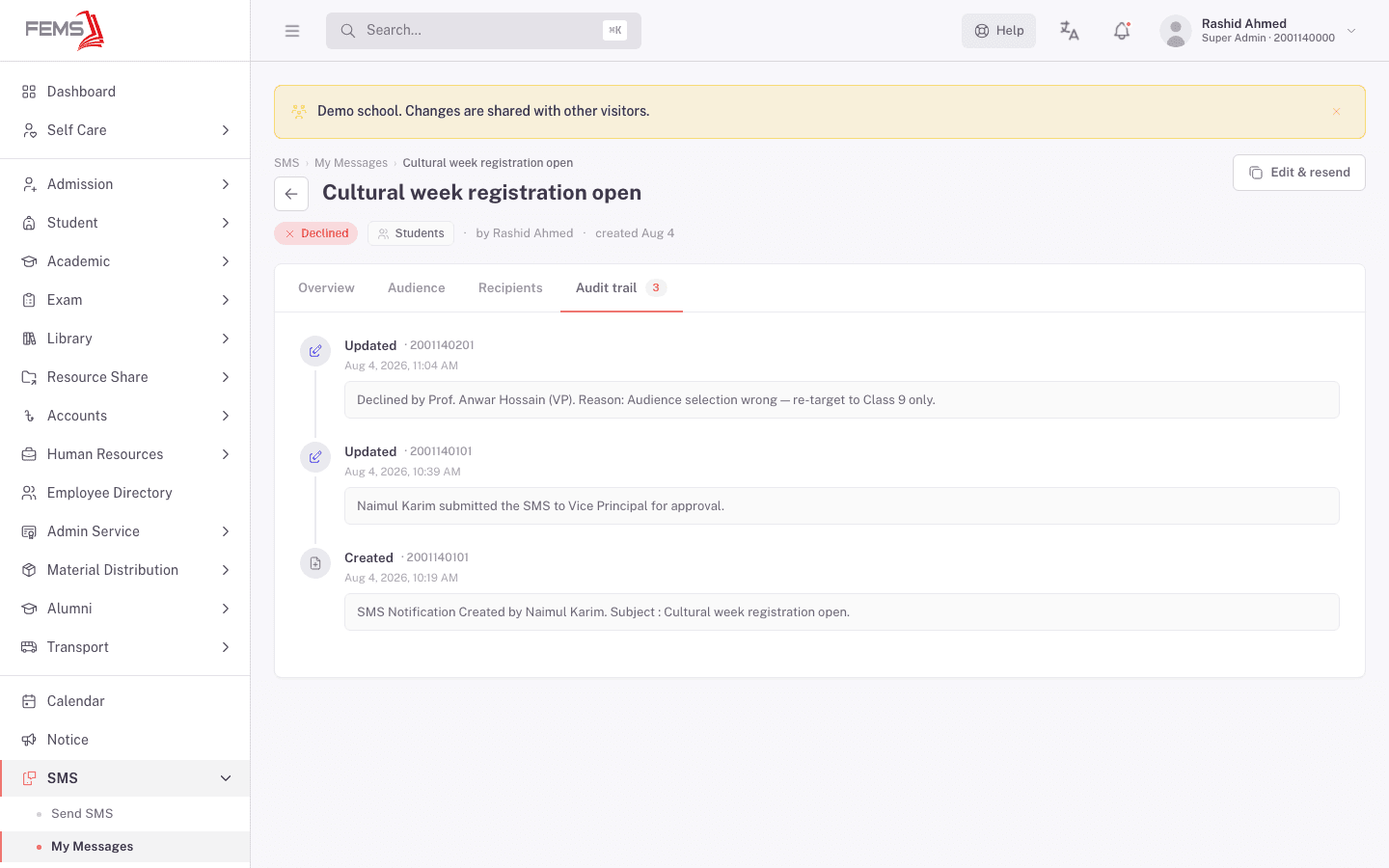
Declined: the button reads Edit & resend instead of Edit. The audit trail records the reviewer's name and their reason.
-
Any message: click Duplicate (from the row's More menu, or the button on the detail page) to open a new Send SMS draft pre-filled with the same subject, message, audience, and priority. It loads in a moment, then drops you at Step 2 so you can review the content before continuing.
The audit trail on any message shows the full chain of custody: created, submitted for approval, each reviewer's decision, and the final send.
Empty states
A brand-new account with no messages yet sees a first-use prompt to send your first SMS.
Filtering to nothing, as shown above, gives you Nothing matches these filters with a Clear filters shortcut instead.
FAQ
My message says Sent. Why hasn't the parent received it? Sent means FEMS handed your message to the SMS provider, not that every phone has confirmed receipt yet. Open the message and check the Recipients tab: it updates to Delivered as phones confirm.
What does Partially delivered mean? Some recipients' phones confirmed receipt and some didn't. Open the Recipients tab and filter to Failed to see who's missing.
Can I resend to only the failed numbers? The delivery report has a Retry all failed button, plus a retry icon on each failed row individually.
How far back can I see old messages? The date range filter defaults to Last 90 days. Switch it to Current academic year or All time to see further back.
Related pages
Sending an SMS
Walk the four-step Send wizard: pick an audience, write the message (templates + variables), choose recipients, then send or schedule.
Reviewing and approving messages
Work the Proof-read, Approval, and Sender queues, read a message before you decide, and approve, decline, or release it.